

Chart your data journey! Transform data into insights with Power BI core visualizations.
Overview of the blog series
This series is designed to explore and better understand the core visuals in Power BI. These visuals act as the bridge between data and decision making. They provide the means to turn our numbers into data stories, making it easier to identify trends, patterns, and outliers.
Each post in the series will focus on a different group of the Power BI core visuals and we will be covering everything from the basics to advanced customizations ensuring we have the skills and knowledge needed to create stunning and informative visuals.
Bar and Column Charts
Bar and column charts are some of the most commonly used visuals in Power BI, and for good reason. They are the perfect tool for comparing categorical data, making it easy to spot trends and differences at a glance. In any analysis these charts can help us present our data clearly and effectively.
The key difference between bar and column charts is the orientation of the bars. When we refer to bar charts in Power BI the data is displayed with horizontal bars, while column charts use vertical bars. Both types allow us to compare different categories side by side.
These charts can be used in a variety of ways and can be customized to fit our specific needs. In this post we will explore the different types of bar and column charts, how to customize them, and some recommendations on using them effectively.
Let’s dive in!
Types of Bar and Column Charts
Stacked Charts
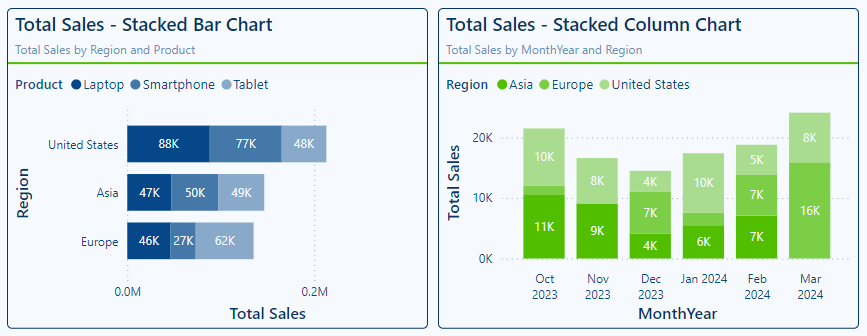
Stacked charts help us show the composition of a whole across different categories. Power BI offers both bar and column stacked charts. Each bar or column is divided into segments that represent different sub-categories, stacked on top of each other.
- Stacked Bar Charts: display horizontal bars where each bar is divided into sub-categories. They are ideal for comparing total values across categories and understanding the breakdown within each category.
- Stacked Column Charts: display vertical bars divided into sub-categories. They can be the perfect tools for showing changes over time such as yearly or monthly sales or comparing the composition of different categories such as sales regions.
Stacked charts excel in highlighting part-to-whole relationships, making it easy to see both the overall totals and individual contributions. However, they can become cluttered if there are too many sub-categories, so it is best to use them with a limited number of segments.
100% Stacked Charts
100% stacked charts show the relative percentages of sub-categories within each category. Each bar or column represents 100%, and the segments show the contribution of each sub-category.
- 100% Stacked Bar Chart: these charts can be useful for comparing the relative distribution of parts to the who across different categories. Each horizontal bar represents the total 100%, with each segment indicating that categories contribution shown as percentage.
- 100% Stacked Column Chart: these charts are similar to the 100% Stacked Bar Charts but display the data with vertical columns.
100% Stacked charts help us focus on the proportions rather than absolute values. They can help visualize how sub-categories contribute to the whole, allowing quick insights into how proportions change over time or between categories. However, it can be challenging to compare the actual value of sub-categories across different bars or columns because the focus in on percentages.

Clustered Charts
Clustered charts display the bar or columns grouped by category, each group contains individual bars or columns for each different subcategory.
- Clustered Bar Chart: display horizontal bars grouped by category and like the previous charts are a good choice when comparing multiple series of data across categories. Each cluster of bars makes it easy to understand and compare the same subcategory across the different categories.
- Clustered Column Chart: these charts are similar to clustered bar charts but display the data using vertical columns with each subcategory displayed side by side.
Clustered charts are effective for highlighting similarities and differences across categories. They help us identify patterns and variations within and across the categories of our data. However, they can quickly become overwhelming if they include too many bars or columns, so it is essential to balance the number of categories and subcategories

Customization and Formatting Options
Colors and Themes
Deliberate choices in the colors used when making our bar and column charts can help elevate our visuals improving the visual appeal and ease of understanding.
A key aspect of color selection is choosing visually distinct colors for each of the categories and subcategories. This helps our users quickly and easily identify and understand the visual. Just as important is to ensure we maintain consistency with our color selections across all visuals on the page and within the report.
For example, in the visuals above the Product category is always represented by a monochromatic blue color scheme, while the Region category uses a monochromatic green color scheme. Consistently applying color schemes to our visuals greatly improve the readability of our reports.
The color of each bar in the visual can be explicitly set in the Visual properties under the Bar or Column section. We can choose the series we want to set the color for and apply formatting options such as color, transparency, or adding a border.

Colors can also be used to highlight specific data points or be applied conditionally based on business logic. See the Advanced Techniques and Customizations section for more details on how we can use and apply colors to improve our data visualizations.
Data Labels
Data labels provide our users precise information on our bar and column charts. Adding data labels to our charts helps display the exact values for each bar or column providing an extra layer of context.
Power BI provides us a variety of ways to format and customize our data labels to ensure they provide the required information without cluttering our visuals. In the advanced techniques section, we will explore how to leverage our data labels to enhance our visuals beyond just static text labels.
Let’s take a look and the data label properties available to us in Power BI.
Apply to settings: select All to apply the data label customizations to all series or select a specific series

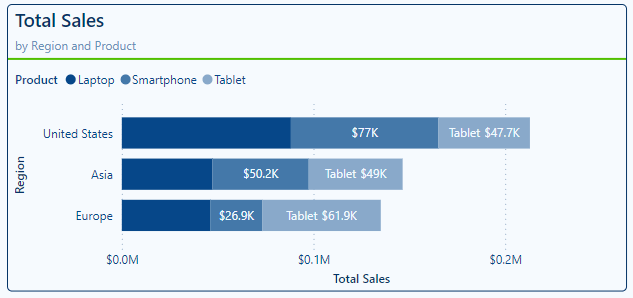
With this we can apply a data label setting for all the data series included in our visual or pinpoint and customize the label for specific series. For example, we can continue to modify the Totals Sales by Region and Product stacked bar chart by turning off the data labels for our Laptop product category, turning on the title property for our Tablet product category, and leaving the Smartphone category with the setting applied to All series.
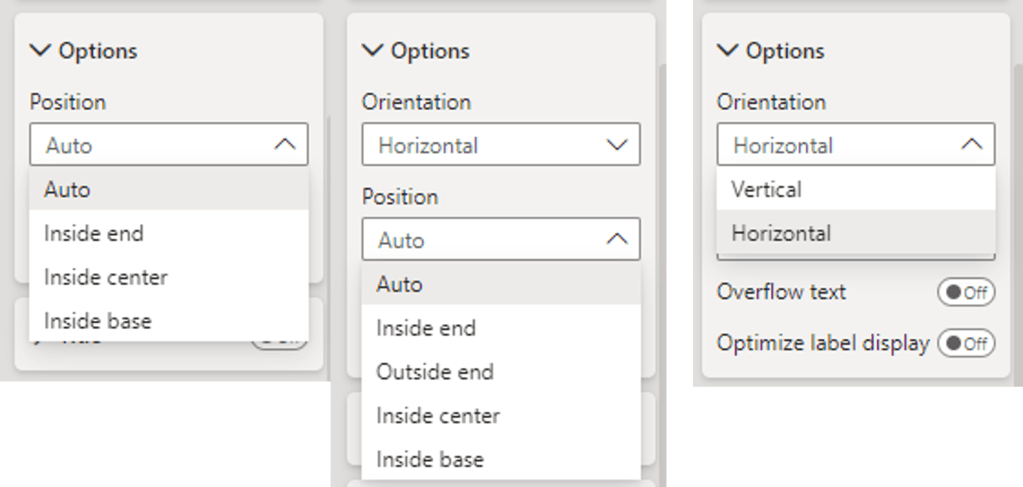
Options: under the options section we will find the ability to set the position of our data labels and for column charts we also have the option to set the orientation of labels.
The available positions depend on the type of visual we are adding our labels to. For example, stacked charts the options include Auto, inside end, inside center, or inside base. When working with clustered bar or column charts, we will see the addition of the outside end positing option.
Let’s explore these options by continuing to work with the Total Sales by Region and Product visual. Here, the Laptop category labels are set to inside end, smartphone labels are set to inside center, and the tablet labels are set to the inside base.

Title: the title setting allows us to toggle on and off the data label titles for all and specific data categories within out bar and column charts. The Title properties include the ability to set the title to the series name or a custom value, as well as general formatting options (e.g. font, font size, font color).
Value: within the value section are the settings available to display (or not display) the data label values and how these values should be formatted. With these options we can format the data label font and colors as well as set the display units and the number of decimal places to show.
For example, we can set the data labels for our Laptop category to display the value to the nearest thousand dollars by setting the value decimal places to 0, and we can set the display units for the Smartphone sales to Millions to adjust how the values are displayed.

Detail: the detail section of our data label properties allows us to provide additional context to our bar and column visuals and can be used by itself or in tandem with the Value property. We can control these details for each individual series or apply the customization to all data series on the visual.
Let’s explore how we can improve a 100% Stacked column chart by leveraging the Value and Details property of our data labels. A noted limitation of the 100% Stacked charts is the focus on percentage rather than the actual value. By default, if we turn on data labels, they will show each categories percentage of the whole.
We can add an additional layer of information for our viewers by using the Detail property to show the percent of total for each sub-category and use the Value property to display the total sales amount for the category. This can help provide our report viewers a more complete picture.

Background: our data labels have a background property we can use to ensure they are easy to read for our viewers. Above we can see we added a slightly transparent and darker background to the visual on the right. This improves the readability on the lighter color segments of the visual.
Layout: the layout property lets us specify if we want our data labels to appear in a single line or multi-line layout and set the horizontal alignment of the data label text. We can see this property used in the visual on the right above. Setting the layout to multi-line ensures the Value and Detail values are displayed on different lines improving the readability of the label.
By effectively using data labels, we can enhance the clarity and the information provided on our visuals.
Axes and Gridlines
Axes and gridlines are another component of our bar and column chart we can customize to improve the readability of our visuals.
X- and Y-axis: the options to customize our visual’s axes will vary depending on the data visualized and the type of visual used. Some common properties between the x- and y-axis across the bar and column charts include formatting of the values and customization of the axis title.
In addition to formatting the appearance of the value, on the categorical axis we will also see options to set the maximum height/width and a toggle to concatenate labels for hierarchies.
On the numeric axis we see the options to set the display units, how many decimal places should be shown, and the ability to set the axis range.
For each type of chart in the y-axis properties we can switch the axis position to display it on the right- or the left-hand side.
Let’s explore some of these additional options.
We can see in the column chart on the left the default displays the hierarchy of the dates (Year > Quarter > Month). Using the concatenate labels x-axis option we can change this behavior.

Below we see the set axis position property in action.

Gridlines: adding gridlines can help our viewers trace data points back to the axis, making it easier to read values accurately. We can customize the appearance of our visual’s gridlines including their color, line style, transparency, and width, to suite our design needs.
The color of the gridlines can be set to one of our report theme colors or using conditional formatting. Line styles available include solid, dashed, dotted, or custom.
Using the axis and gridline options available we can update our Total Sales by Product and Region visual to ensure our viewers can easily read and understand the visual.

Tooltips
Tooltips provide us a great way to provide additional contextual information and detail when required by the user without cluttering the overall visual.
When a user hovers over a data point, a tooltip displays extra details, and these tooltips can be customized to meet our needs. Tooltips can go beyond just displaying text and values, and display additional visuals based on report pages created in our Power BI report.
By default, the tooltip displays the data point’s value and category, we can enhance this information by customizing the tooltip.
For basic customization, we can drag additional fields into the tooltips bucket on the Build pane. We can further customize our tooltip by selecting an aggregation function for a selected field.
Let’s continue to improve our Total Sales by Region and Product visual by customizing the tooltip.
We would like to include the Average Sales Amount to the tool tip to provide additional information to our viewers. We achieve this by adding our Amount field from our Sales table to the tooltip bucket of our visual then we select the arrow next to the field to view the available aggregation functions, and finally select Average. By default, the name will be Average of Amount, we can rename this for the visual as Average Sales.
Now when we hover over a segment of our visual, we can see the newly added Average Sales value.
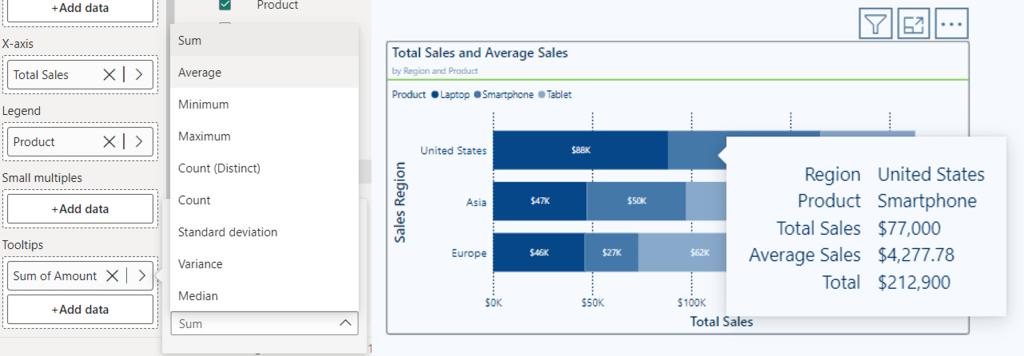
Using tooltips effectively can enhance the interactivity of our reports and provide deeper insights and important contextual details without overwhelming our visuals.
Sorting
On the visual within the more options pane, we can set the sort axis options. Using these options, we define what field to sort by and the sorting ordering.
The sort axis options help use ensure our bar and column charts are easily understandable and that the viewers can easily interpret the trends and comparisons the visual provides.
By default, we can see that our Total Sales by Region and Product visual sorts our Regions by descending Total Sales. Although this sorting makes it clear the order of our sales region by Total Sales it could lead to confusion if this ordering frequently changes. Additionally, it can improve readability to sort our categories in a logical alphabetical order.

Advanced Techniques and Customizations
Highlight Key Performers with Conditional Formatting
Conditional formatting is a powerful tool in Power BI that lets us apply specific formatting to data within our visuals based on their values. The specific formatting helps highlight key insights and makes our bar and column charts more informative and visually engaging.
When examining our total sales across product categories it can be helpful to add a reference line to visualize a benchmark that the sales values can be compared to.

We can use conditional formatting and some advanced techniques to improve this visual to draw our viewer’s attention to the categories that exceed the average total sales values. We will conditionally format each product category bar based on whether its total sales are above the average sales across all product categories (i.e. above or below the reference line).
To do this we will create a new measure to help format our visual.
This measure first creates a _summaryTable variable the generates a table with each product and its total sales. Then the variable _ProductTotalSalesAverage is calculated which is the average total sales across all product categories. The last variable, _comparison, is then calculated and stores a boolean value indicating whether the totals sales of the current product is above the average total sales.
Lastly, in the return statement the measure uses IF to return a color code based on whether the product category’s total sales are above or below the average total sales.
Product Code Above Average Sales Conditional Format =

VAR _summaryTable =
   SUMMARIZE(
      ALL(Sales),
      Products[Product],
      "Product Total",
      [Total Sales]
)
VAR _ProductTotalSalesAverage =
   AVERAGEX(
      _summaryTable,
      [Product Total]
)
VAR _comparison =
   [Total Sales] > _ProductTotalSalesAverage

RETURN
IF(
   _comparison,
   "#064789",
   "#B4C9DD"
)
In the Color and Theme section we discussed using the bar or column section of the visual properties to set the colors of each bar or column. We can also use this property to conditionally format our bars or columns.
In the Bars section, we set the Apply setting to option to All, then next to the Color dropdown we use the fx option to conditionally format our bars. In the Color – Categories dialog box we set the Format style to Field value and then in the What field should we base this on? dropdown we select our newly create measure.

After clicking Ok, we see the conditional formatting applied and our visual gets an instant improvement by highlighting the key performers in our sales data.

Using Clustered Bar/Column to Add Context
We can use a different technique to enhance the Total Sales & Average Sales Comparison visual in a different way. Rather than conditionally formatting the bars, we wish to add additional context to the visual and indicate the percentage of the total sales each category contributes.
To do this we will add an empty series to our x-axis. We will create a new Bar Spacer measure and simply set the value of it to 0. This will add a series to our visual but since the value is 0, it will not display a bar on the visual. We can then leverage its data labels properties to add additional information to our visual.
First, we will create a new measure to calculate and return the percentage of total sales that a product category contributes. The measure calculates the total sales value of the entire Sales table, ignoring any filters that are applied. Then calculates the percent contribution of the current product category in context, and finally returns the label text we will use within out visual.
Product Code Totals Sales Label =
VAR _allSales = CALCULATE([Total Sales], ALL(Sales))
VAR _percentage = Round(([Total Sales]/_allSales)*100, 0)
RETURN
_percentage & "% of total sales"
We now can make the updates to our clustered bar chart. We start by adding in our placeholder series which is a measure set to 0.
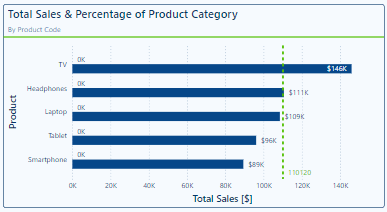
Then we go to the Data label properties of our clustered bar chart and in the Apply settings to drop down we select our Bar Spacer series. Once selected we update the Field to our newly created label measure.
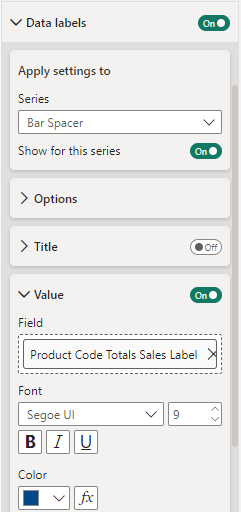
Our visual will now display and provide our viewers additional contextual information. With this our viewer not only gets insights into each product’s total sales amount, but also what percentage of the overall sales each product category contributes.

Year-to-Date Sales & Previous Year Total Sales
Another important piece of information to provide our viewers is how the total sales of each product category vary through time. We have a requirement to incorporate the year-to-date sales, the total sales of the previous year, and how the previous year’s sale compare to the prior year (i.e. current 2024 sales, 2023 total sales, and how does 2023 sales compare to 2022 sales).
Including all the required information may seem like an impossible task. However, using some advanced techniques and customizations we can meet these requirements and create a visual that is both visually appealing and informative.
Here is the final visualization we will be creating.

In order to create a visual with these various components we create 4 sales measures. The first two measures calculate the previous year’s total sales and the second calculates the annual total of the year prior to this.
Total Sales (-1 years) =
VAR _offset = 1
VAR _year = YEAR(TODAY()) - _offset
VAR _periodStart = DATE(_year, 1, 1)
VAR _periodEnd = DATE(_year, 12, 31)
RETURN
CALCULATE([Total Sales], DATESBETWEEN(DateTable[Date], _periodStart, _periodEnd))
Total Sales (-2 years) =
VAR _offset = 2
VAR _year = YEAR(TODAY()) - _offset
VAR _periodStart = DATE(_year, 1, 1)
VAR _periodEnd = DATE(_year, 12, 31)
RETURN
CALCULATE([Total Sales], DATESBETWEEN(DateTable[Date], _periodStart, _periodEnd))
We then create a measure calculating the difference between these two sales amounts.
Total Sales (-1) vs Total Sales (-2) =
[Total Sales (-1 years)] - [Total Sales (-2 years)]
The last sales measure calculates the year-to-date total sales of the current year.
Total Sales CY =
TOTALYTD([Total Sales], DateTable[Date])
We start building this visualization by creating a field parameter to dynamically name our Total Sales (-1) and Total Sales (-2) measures to show the year they represent (currently 2023 Totals Sales and 2022 Total Sales).
Previous Years Sales = {
    (YEAR(TODAY())-1 & " Total Sales", NAMEOF('_Measures'[Total Sales (-1 years)]), 0),
    (YEAR(TODAY())-2 & " Total Sales", NAMEOF('_Measures'[Total Sales (-2 years)]), 1)
}
Then we can add this parameter to a clustered column chart to start building the dumbbell comparison of these two sales values.

Under the Columns grouping of properties we expand the Layout properties, with All selected in the series drop down we turn on Overlap and set the Space between series to 100%. Then under the Color properties we set the transparency applied to the 2023 Total Sales to 80% and applied to the 2022 Total Sales series to 100%.
The next step is to create the end point markers of the dumbbell comparison. To do this we use the error bar functionality of the column chart.
Select the 2023 Total Sales series in the drop down, then under Options we enable the error bars and set the Upper and Lower bound to our Total Sales (-1 years) measure. Under the Bar properties we then format the error bar, setting the color to a medium to dark blue, the marker shape to a circle, the marker size to 8, the border color to a dark blue, and the border size to 1.
We repeat this process for the 2022 Total Sales error bar using the Total Sales (-2 years) measure and formatting the bar with a lighter color blue and a marker size of 6.

We now need to connect the two endpoints of our dumbbell which represent our 2022 and 2023 totals sales. To do this we create a new Total Sales Dumbbell Connector measure and set it equal to the Total Sales (-2 years) measure.
We add this to the Y-axis of our column chart and position it above the Parameter data. We rename the measure for this visual and clear the name and set the color of the column to the background of our visual, so it does not appear in the legend.
Then similar to the 2023 and 2022 series we enable error bars. We set the Upper bound to the Total Sales (-1) vs Total Sales (-2) we previously created and then in the Relationship to measure drop down select Relative.
Under the Bar properties we format this error bar with a medium to dark gray color, width of 2, marker shape set to none and a border size of 0.

Now, we want to label these endpoints with the total sales values. The labeling of these endpoints has 4 different scenarios we must account for. For each annual sales data point we need to be able to dynamically position the label above or below the point depending on if 2022 sales are higher or lower than 2023 sales.
To do this we add another series to the plot to help us with addressing this labeling challenge. For this series we create a new measure similar to the Total Sales Dumbbell Connector measure. The Total Sales Dumbbell Label Help measure is set equal to the Total Sales (-1 year) measure and formatted the same way as the Total Sales Dumbbell Connector series. We do not need to enable error bars for this new helper series since we will just be leveraging its data label properties.
Next, we create 4 new measures to assist with displaying and formatting our data labels.
Dumbbell Above Label (-1) =
IF(
    [Total Sales (-1 years)] > [Total Sales (-2 years)],
    [Total Sales (-1 years)]
)

Dumbbell Below Label (-1) =
IF(
    [Total Sales (-1 years)] < [Total Sales (-2 years)],
    [Total Sales (-1 years)]
)

Dumbbell Above Label (-2) =
IF(
    [Total Sales (-1 years)] < [Total Sales (-2 years)],
    [Total Sales (-2 years)]
)
Dumbbell Below Label (-2) =
IF(
    [Total Sales (-1 years)]  > [Total Sales (-2 years)],
    [Total Sales (-2 years)]
)
After creating the formatting measures, we turn on Data labels for our clustered column chart and start formatting the labels, so they display as we need them. For example, if 2023 Sales are higher than 2022 Sales, we want the label for the 2023 Sales value to be above the data point.
To start, in the Data labels apply settings to we select our 2023 Total Sales, then we set the position to Outside End. This will show our 2023 Total Sales value above each of the 2023 Sales points.
To show the label only when 2023 sales are greater than 2022 sales in the Value property, we set the Field value to the Dumbbell Above Label (-1) measure and format the label by setting the font size to 14 and the color to green indicating from 2022 to 2023 sales of the product category increased.
Next, in the apply settings to dropdown we select the helper series, which is equal to our 2023 Sales value. For this label we set the position to Inside end and the field to the Dumbbell Below Label (-1). Then format the label by setting the font size to 14 and the color to red indicating from 2022 to 2023 sales of the product category decreased.
We then repeat this process for the 2022 Total Sales and the Total Sales Dumbbell Connector series. Using the “(-2)” formatting measures for the field values and formatting the data labels with a font size of 12 and their color set to a dark gray.

Now for that last couple of finishing touches. We also want to display the current year-to-date sales and we do this by adding our Total Sales CY to the clustered column chart. We format this column by setting the column color to a dark blue and position the data labels to the Inside end of the column with a font size of 12. Then sort the Product Category axis alphabetically by the product category name.
By implementing some advanced techniques to format and customize our cluster column chart we now present our viewers with a clean and simple visualization that is easy to read and packs in all the information required. This visual now provides key insights into how each category is performing in the current year alongside historical context of the category’s performance.
Wrapping Up
Bar and column charts are a common and powerful tool in Power BI. These charts offer us a versatile visualization option with seemingly endless opportunities to format, customize, and tailor them to our specific needs.
We have explored how basic and advanced customizations in Power BI can help us create bar and column charts that are visually appealing and highly informative. By using features such as conditional formatting, dynamic labels, and interactive elements we can significantly enhance the user experience and insights our reports provide.
Subscribe below to stay tuned in as we continue to explore the other core visuals in Power BI as part of this series, helping to grow our skills and expand our data visualization capabilities.
Thank you for reading! Stay curious, and until next time, happy learning.

And, remember, as Albert Einstein once said, “Anyone who has never made a mistake has never tried anything new.” So, don’t be afraid of making mistakes, practice makes perfect. Continuously experiment, explore, and challenge yourself with real-world scenarios.
If this sparked your curiosity, keep that spark alive and check back frequently. Better yet, be sure not to miss a post by subscribing! With each new post comes an opportunity to learn something new.
 Ethan Guyant