Power BI’s AI Toolkit: Evaluating Copilot for DAX Development in Power BI Desktop

If you have ever felt that slight surge of hope when clicking the Copilot button in Power BI Desktop, you are not alone. You have a specific piece of business logic in mind, and you are curious whether Copilot can actually save you time writing, formatting, and documenting a DAX measure.

The honest frustration in 2026 is not that AI does not work. It is the uncertainty of when to rely on it. If you have ever prompted Copilot for a measure only to find yourself spending more time validating its response than writing the measure yourself, you know the feeling.

It is not about being for or against AI. It is about knowing exactly where the tool hits its stride and where it starts to trip over its own logic.

To cut through that uncertainty, we put Copilot to work on a practical sales model across five realistic scenarios: writing measures, building advanced logic, explaining complex DAX, debugging errors, and documenting the semantic model. Along the way, each result gets a simple rating:

🟢 Green Light — Copilot handles it reliably. Safe to use with a quick review.

🟡 Yellow Light — Copilot provides a strong starting point, but the output needs validation before it goes into production.

🔴 Red Light — Copilot struggles or misleads. A human needs to drive.

A sample report is available for download at the end of this post so you can follow along and test these prompts against the same data.

Let’s find out where each scenario lands.


The Data Model: A Standard Sales Model

Instead of testing Copilot on isolated or theoretical formulas, we are putting it to work on a simplified but practical dataset.

The model consists of four core tables connected through a standard star schema:

  • Sales: The fact table. Each row is a single transaction with a SalesID, Amount, SalesDate, and CustomerID.
  • Product: 15 products across 6 categories: Smartphones, Laptops, Tablets, TVs, Headphones, and Watches, each with a Product Code and Product Image.
  • Employee: 17 employees spanning four departments: Retail, Sales, Marketing, HR, and R&D — with JobTitle, Department, and a ManagerID for hierarchy.
  • Region: Three regions: the United States, Europe, and Asia

The Sales table connects to each dimension through its ProductID, EmployeeID, and RegionID. Column names are descriptive, and the schema is intentionally straightforward.

Why does that matter? Copilot’s output quality is directly tied to how well the model is structured. Column names like Amount and SalesDate give it far more to work with than Col1 or Fld_003. A little upfront investment in clean, readable naming pays off quickly when we start prompting.

The Five Scenarios

The goal is to move beyond simple sums and see how Copilot handles the tasks that actually eat up our time. Here is what we are testing:

  1. Establishing the Basics: Foundational measures like total sales and department-filtered aggregations, to confirm Copilot correctly reads the model structure and relationships.
  2. Building Advanced Logic: More complex calculations like year-over-year growth and percentage of total, where filter context starts to matter.
  3. Explaining Existing Measures: Handing Copilot DAX that is already in the model and asking it to translate the logic into plain language.
  4. Debugging Logical Errors: Providing a measure that runs without error but returns incorrect results, and seeing whether Copilot can identify the real problem.
  5. Generating Measure Descriptions & Comments: Using Copilot to auto-document completed measures directly in the model, and evaluating whether the output is accurate and usable.

Because of the generative nature of Copilot, it may not produce the exact same DAX or explanations for you as shown here. The patterns and behaviors should be consistent, but the specific wording may vary.

This is not an attempt to break the tools with impossible requests. It is a straightforward evaluation of how much repetitive, manual DAX work we can safely offload to Copilot in a standard reporting environment.


TL;DR — Key Findings at a Glance

If you are short on time, here is the summary. We tested Copilot in Power BI Desktop across five scenarios using the sales model described above. Each scenario was tested using both the Copilot pane and the DAX query view inline Copilot where applicable.

The findings:

  • 🟢 Establishing the Basics: Copilot correctly identified table relationships and column names without being told. Basic measure and filtered aggregations came back clean and accurate.
  • 🟡 Building Advanced Logic – Copilot Pane: Strong DAX patterns for YoY growth and percentage contribution, but both measures carry dependencies that Copilot does not resolve on its own. The Date table requirement and the ALL vs ALLSELECTED design decision still need a human in the loop.
  • 🟢 Building Advanced Logic – DAX Query View: Writing measures through the inline Copilot added a meaningful validation step. The % of Total Sales by Product measure used ALLSELECTED correctly without prompting, and the Suggest measures feature returned six well-structured analytical measures in a single query with inline comments and a preview ready to run.
  • 🟡 Explaining Complex DAX Measures – Copilot Pane: Once the full DAX is pasted in, Copilot handles even the most complex measures accurately. A multi-variable measure combining SUMMARIZE, TOPN, CONCATENATEX, and HTML rendering was broken down step by step in plain language.
  • 🟢 Explaining Complex DAX Measures – DAX Query View: The Define and Evaluate workflow eliminates the manual paste step and produces a more structured, variable-by-variable explanation. The better entry point for thorough measure audits.
  • 🟡 Debugging DAX Logical Errors: Correctly diagnosed an ALL vs ALLSELECTED filter context issue and provided two well-reasoned solutions with clear guidance on when to use each. Yellow light only because the fix still requires the developer to understand which option fits the specific report design.
  • 🟢 Generating Measure Descriptions – Model View: Accurate, readable, and business-aware descriptions generated in seconds. Descriptions travel with the model metadata and surface as tooltips in the Fields pane.
  • 🟢 Adding Inline Comments – DAX Query View: Copilot added meaningful, explanatory comments to an existing measure, explaining the reasoning behind each step rather than just restating variable names. Combined with measure descriptions, this covers documentation for both developers and report authors

Copilot earned five Green Lights and three Yellow Lights across eight tests. No Red Lights. The gaps that produced Yellow Lights were not about DAX correctness. They were about model architecture decisions and report design context that Copilot simply does not have access to. The developers who get the most value from Copilot are those who know enough DAX to validate the results.


Getting Started: How to Access Copilot in Power BI Desktop

Before jumping into the scenarios, it helps to know where Copilot lives in Power BI Desktop and how to reach it for each type of task. There are three entry points, and each one serves a different purpose.

Note: Copilot in Power BI Desktop requires access to a paid Fabric capacity (F2 or higher) or Power BI Premium capacity (P1 or higher). A Power BI Pro or Premium Per User (PPU) license alone is not sufficient. If the Copilot button in your ribbon appears greyed out or disabled, confirm with your administrator that Copilot is enabled at the tenant level. Review licensing and other requirements or limitations here: Copilot for Power BI overview.

The Copilot Pane (Report View)
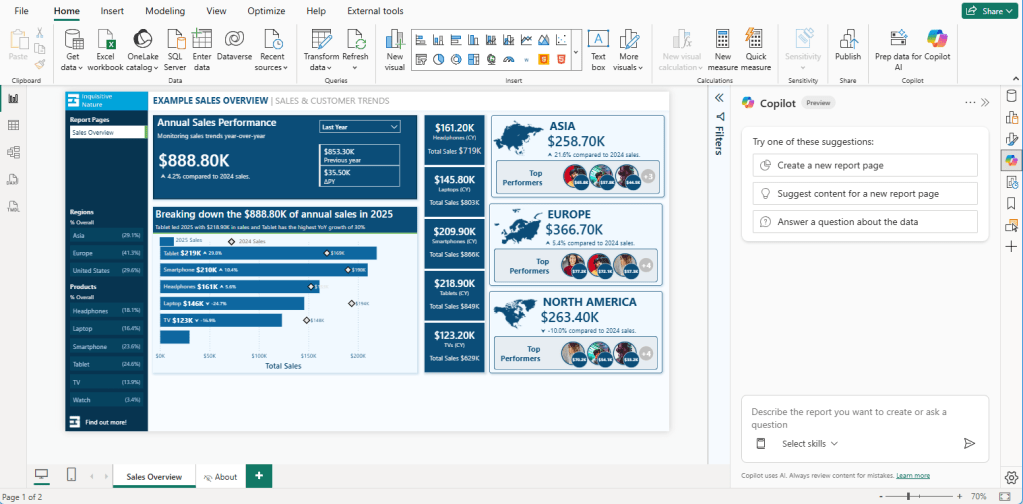
This is the primary entry point for writing measures, debugging logic, and asking questions about the data model.

  1. Open the Copilot pane: Open the report in Power BI Desktop and select Copilot in the ribbon. The first time we use Copilot, we will be prompted to select a compatible workspace to associate with the report.
  2. Describe the measure: Once connected, the Copilot pane opens on the right side of the screen. Describe the measure in plain language. Reference the relevant table or column and be as specific as the business requirement calls for.
  3. Debug with Copilot: For debugging, paste the broken measure directly into the chat and describe what it should return versus what it is actually returning.

The more specific our prompt, the better the output. “Calculate total sales” will get us a basic SUM. “Calculate total sales for employees in the Retail department only” gives Copilot enough context to apply the correct filter across the right table relationship.

The DAX Query View (Inline Copilot)
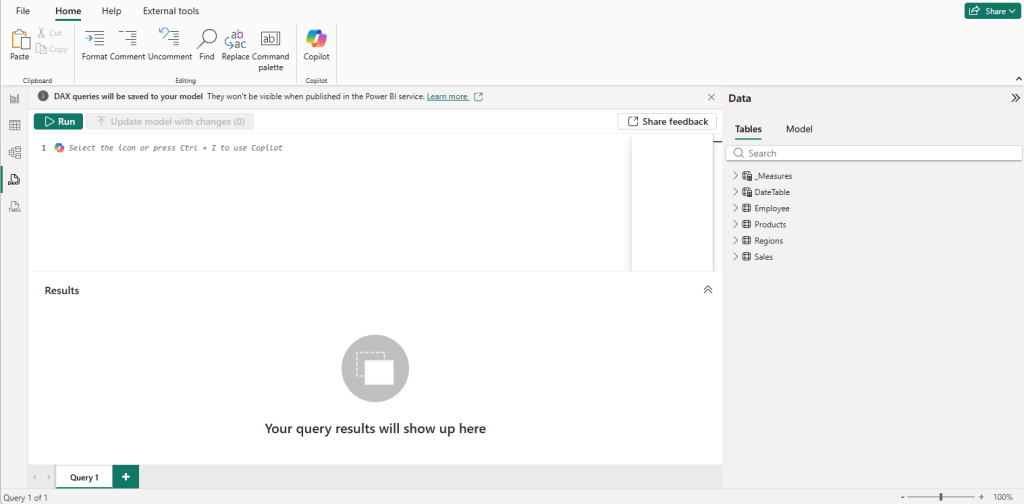
The DAX query view has its own separate inline Copilot, distinct from the report view pane. It is particularly useful for writing DAX queries, understanding existing measures, and learning DAX concepts in context.

  1. Open the inline Copilot. Switch to DAX query view using the left navigation bar. It is the fourth icon from the top. Open the inline Copilot by clicking the Copilot button in the query editor or pressing CTRL + I.
  2. Use the inspire buttons. Three inspire buttons give us a quick starting point for the most common tasks:
    • Write DAX query: describe what you want in plain language, and Copilot generates the DAX, with automatic syntax validation and a retry if the first attempt contains errors.
    • Suggest measures: reviews your data and suggests new measures in a DAX query for further analysis.
    • Explain a DAX topic: ask about a specific function or concept and get a contextual explanation tied to your actual model.
  3. Work with an existing measure. To use Copilot with an existing measure, right-click it in the Data pane and select Define and Evaluate. This loads the full measure definition into the query editor, where we can then use the Explain or Write prompts to work with it.

The Model View (Measure Descriptions)
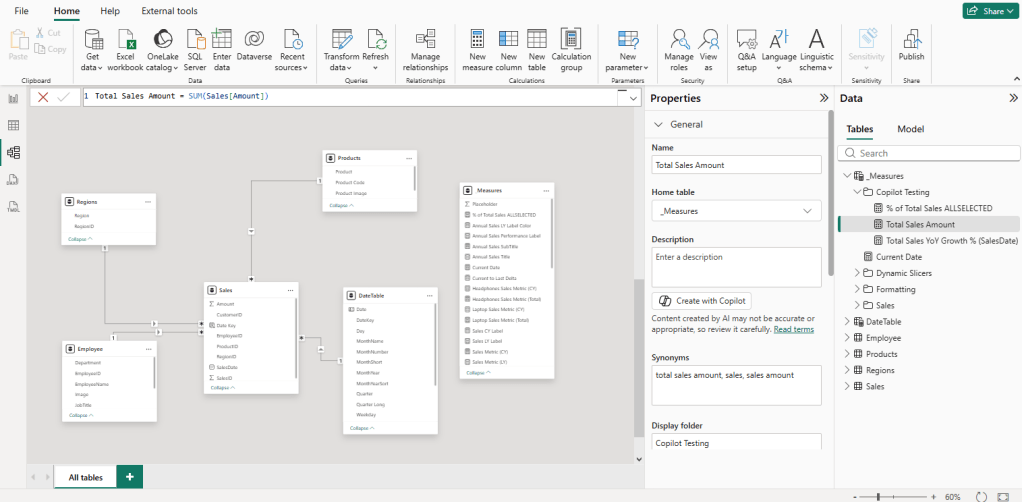
This entry point is specifically for generating measure descriptions and is easy to miss if you spend most of your time in Report view.

  1. Select the measure. Switch to Model view in Power BI Desktop. In the Data pane, select the measure we want to document.
  2. Generate the description. In the Properties pane on the right, locate the Description field. Click Create with Copilot to generate a description, then select Keep it to save it.

The description is stored directly in the .pbix file and surfaces as a tooltip when users hover over the measure in the Fields pane. It is a small detail that makes a meaningful difference in shared models and self-service environments.

Note: Copilot will only generate descriptions for measures in a valid state with no errors. Resolve any measure issues before attempting to generate a description.


Scenario 1: Establishing the Basics
Does Copilot Understand Your Data Model?

Before throwing complex logic at Copilot, the first step is confirming it understands the data model. If it cannot identify the correct columns for a simple aggregation, it will not stand a chance with more complex requests.

Test 1: Total Sales Amount

The Prompt: Provide a DAX measure that calculates the Total Sales Amount

Copilot’s Response:
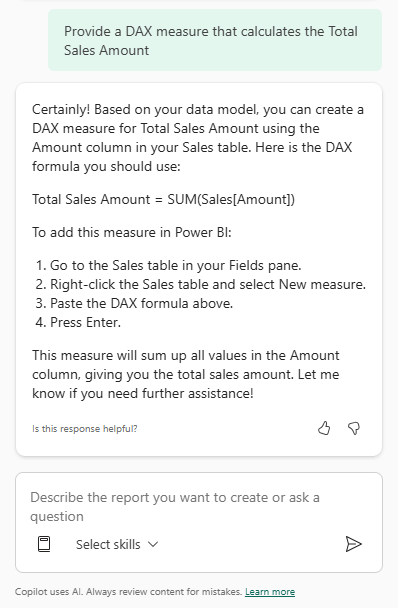

🟢 Green Light

Test 2: Total Retail Sales

The Prompt: Create a measure for Total Retail Sales that calculates the total sales amount for employees in the Retail department only

Copilot’s Response:
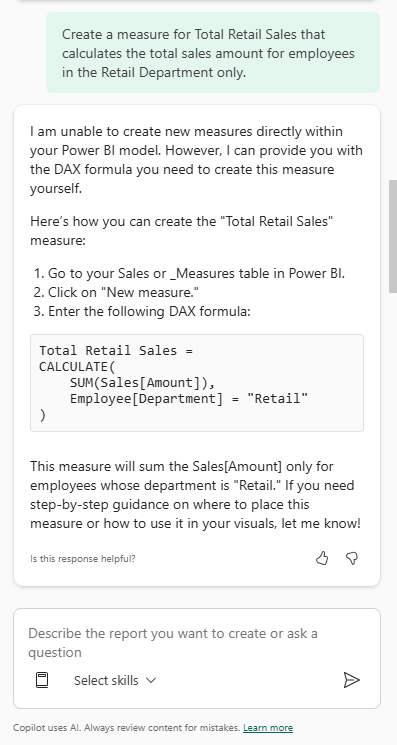
🟢 Green Light


Scenario 2: Building Advanced DAX Logic
Where Filter Context Starts to Matter

With the basics confirmed, the next step is to see how Copilot handles more complex measures. This is where filter context starts to matter and where the quality of the data model structure begins to influence the output.

Test 1: Year-Over-Year Growth

Calculating Year-over-Year (YoY) growth is one of the more common requirements in sales reporting. It requires a solid understanding of date filters and is one of the first places where DAX relies on model structure rather than just formula syntax.

The Prompt: Create a measure that calculates year-over-year growth for total sales.

Copilot’s Response:
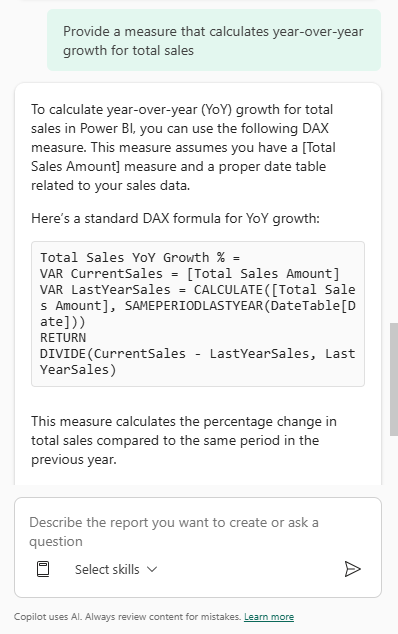
🟡 Yellow Light — Strong DAX, external dependency required

Overlooked Detail: One thing that is easy to miss here is the Date Table assumption. Copilot explicitly noted this measure requires a “proper date table.”

In our sample dataset, we have a SalesDate column in the Sales table, but for time intelligence functions like SAMEPERIODLASTYEAR to work reliably, Power BI requires a continuous date column and a correctly configured, marked Date table. If the measure references SalesDate directly from the fact table, it may appear to work but can return incomplete or incorrect results under certain filter conditions. This dependency is not always obvious from the generated DAX alone.

Alternative Approach:

Copilot used SAMEPERIODLASTYEAR, which is a common and readable pattern. An alternative for more complex or flexible requirements is DATEADD:

Total Sales YoY Growth % =
VAR CurrentSales = [Total Sales Amount]
VAR LastYearSales =
CALCULATE(
[Total Sales Amount],
DATEADD(DateTable[Date], -1, YEAR)
)
RETURN
DIVIDE(CurrentSales - LastYearSales, LastYearSales)

Both approaches achieve similar results. SAMEPERIODLASTYEAR is more concise and easier to read. DATEADD provides more flexibility and uses the same structure whether shifting by days, months, quarters, or years. In practice, the choice often comes down to readability versus flexibility and how the Date table is structured.

Test 2: Percentage Contribution by Region

Let’s look at how Copilot handles a different kind of problem: calculating how much a specific segment contributes to the overall total. In this case, we want to understand how much each region contributes to total sales.

This requires calculating a value in the current filter context and comparing it against a total that ignores that filter.

The Prompt: Provide a measure that calculates the percentage contribution of each region to total sales.

Copilot’s Response:
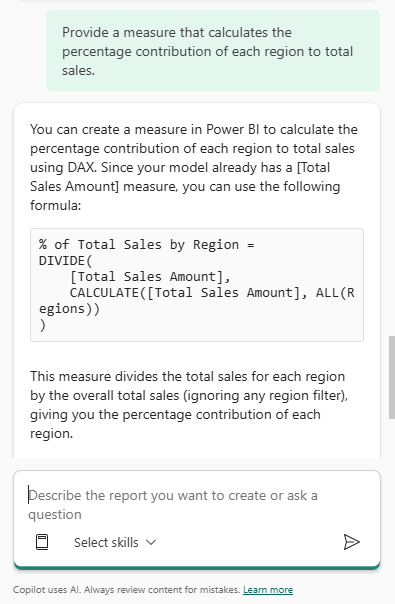
🟡 Yellow Light — Correct answer, incomplete solution

Overlooked Detail: The difference between ALL and ALLSELECTED is easy to miss here but it matters significantly in interactive reports. ALL(Region) removes every filter on the Region table, including filters applied by slicers, meaning the denominator is always the grand total regardless of what users have selected. ALLSELECTED would preserve slicer selections while still ignoring the visual’s own row context. Copilot applied a standard pattern correctly, but it did not account for the nuances of how the report will actually be used.

Alternative Approach:

An alternative is to use REMOVEFILTERS, which makes the intent of the measure clearer to anyone reading it later:

% of Total Sales by Region =
DIVIDE(
[Total Sales Amount],
CALCULATE(
[Total Sales Amount],
REMOVEFILTERS(Region)
)
)

REMOVEFILTERS is generally preferred in team environments because its name explicitly describes what it does. ALL can be used both to clear filters and to return a table of values, which can lead to confusion when someone else reads the measure later.

DAX Query View Approach
Writing Measures with Inline Copilot

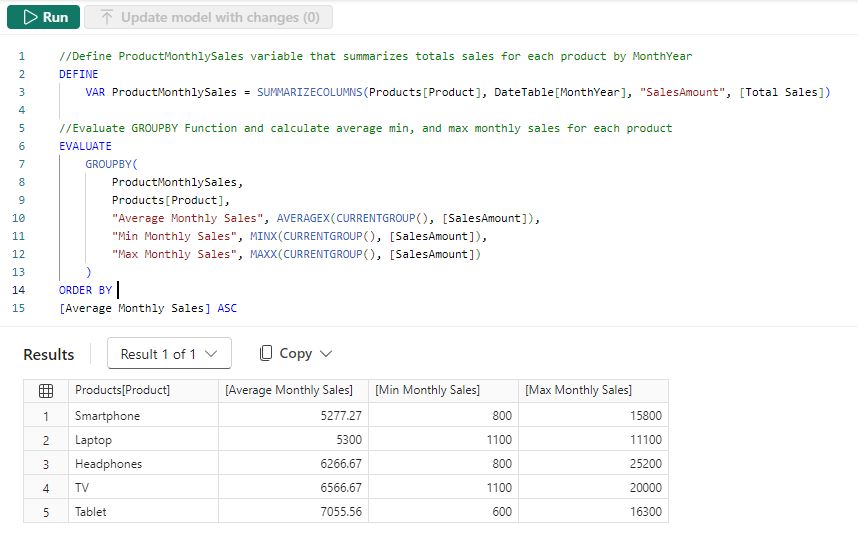
The Copilot pane is not the only way to generate DAX. For developers who prefer to validate output before committing it to the model, the DAX query view inline Copilot offers a useful alternative. Write the query, run it, review the results, and keep it if it looks right.

Here is a % of Total Sales by Product measure generated using DAX query view:

  1. Open a new query tab. Switch to DAX query view using the left navigation bar. Open a new query tab and press CTRL + I to open the inline Copilot.
  2. Enter the prompt and press Enter.
  3. Preview the results. Before keeping the query, select Run or press F5 to preview the results directly in the query editor.
  4. Add the measure to the model. Once satisfied with the output, select Keep query. Then use the Update model with changes button to add the measure to the data model.

The Prompt: Create a % of Total Sales by Product measure

Copilot’s Response:
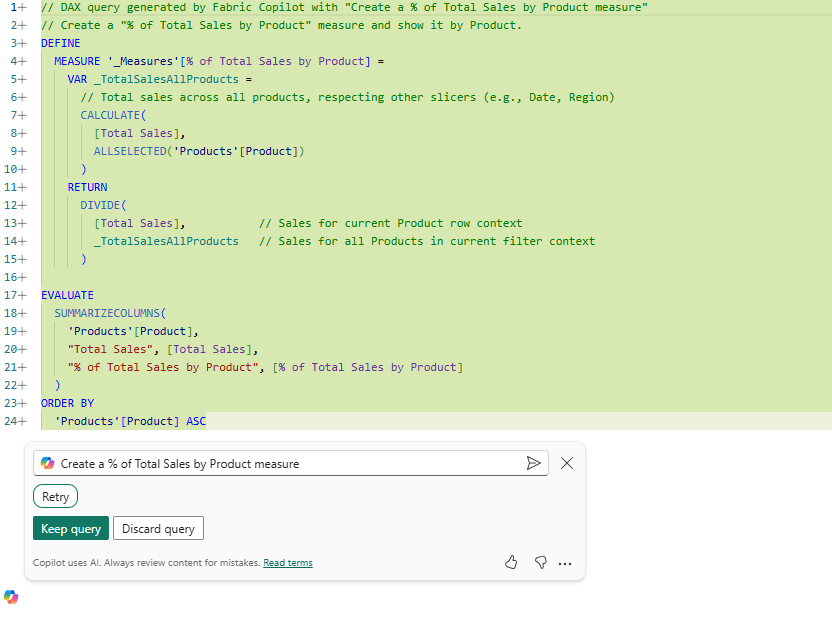
Before keeping the query, select Run or press F5 to preview the results directly in the query editor.

🟢 Green Light

Bonus: Let Copilot Suggest What to Build Next

One of the more practical features in DAX query view is the Suggest measures inspire button. Rather than prompting Copilot for a specific measure, we can ask it to analyze the model and recommend what to build next.

The Prompt: Based on my data suggest new measures in a DAX query for further analysis and try them out with one or more suitable columns

Copilot’s Response:
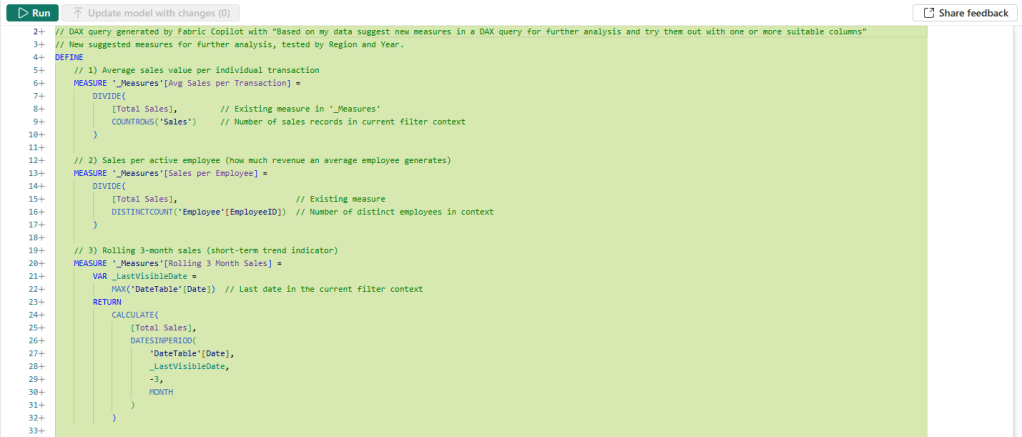
🟢 Green Light

Overlooked Detail: Two of the six suggested measures — Sales Last 12 Months and Sales 3M Rolling Avg — reference 'DateTable'[Date], which assumes a properly configured Date table is present in the model.

As noted in the YoY Growth scenario, these measures will not work reliably without one. Copilot surfaced the right patterns, but the model still needs the right foundation beneath them.


Scenario 3: Explaining Complex DAX Measures
From Black Box to Plain Language

One of the most practical ways to use Copilot is not writing new DAX. It is making sense of DAX that already exists in the model. Whether we are inheriting a report from a colleague or revisiting logic written six months ago, Copilot can help translate complex measures into plain language.

This test uses the [Top Performers] measure — a multi-variable measure that summarizes sales by region and employee, identifies the top three performers, and returns a fully formatted HTML string for use in a custom visual. It is a realistic example of the kind of measure that is genuinely difficult to read cold.

Test 1: Asking Copilot to Explain Without the DAX

The Prompt: Explain the logic of the [Top Performers] measure. What is it calculating, and how is it displaying results?

Copilot’s Response:
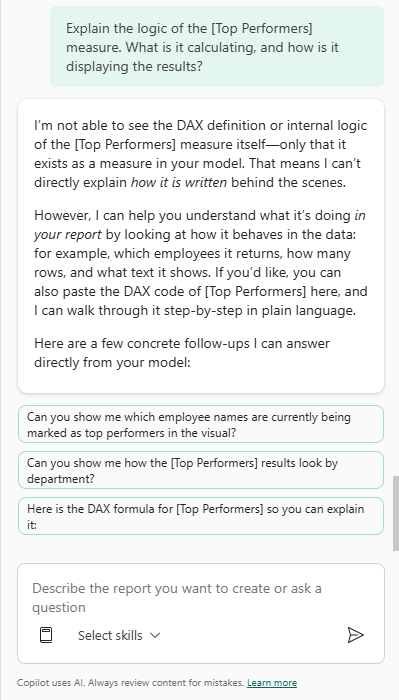
The Follow-Up Prompt: Here is the DAX formula for [Top Performers] so you can explain it:

Top Performers =
VAR _groupedByRegionEmployee =
SUMMARIZE(
Sales,
Regions[Region],
Employee[EmployeeID],
"EmployeeTotalSalesMetricCY", [Sales Metric (CY)]
)
VAR _top3Performers =
TOPN(
3,
_groupedByRegionEmployee,
[EmployeeTotalSalesMetricCY], DESC,
Employee[EmployeeID], ASC
)
VAR _belowTop5Count =
COUNTROWS(_groupedByRegionEmployee) - COUNTROWS(_top3Performers)
VAR _top5HTML =
CONCATENATEX(
TOPN(3, _top3Performers, [EmployeeTotalSalesMetricCY], DESC),
VAR _imageURL = LOOKUPVALUE(Employee[Image], Employee[EmployeeID], Employee[EmployeeID])
VAR _salesMetricCY = [EmployeeTotalSalesMetricCY]
VAR _rank = RANKX(_top3Performers, [EmployeeTotalSalesMetricCY],,DESC,Dense)
RETURN
"<div style='width:50px; height:50px; border-radius:50%; overflow:visible; border:2px solid #0b4d78;'>
<img src='" & _imageURL & "' style='width:100%; height:100%; object-fit:cover; border-radius:50%;' />
<div style='position:absolute; bottom:-8px; right:-8px; width:35px; height:35px; border-radius:50%; background-color:#0b4d78; color:white; font-size:9px;'>
" & FORMAT(_salesMetricCY, "$#,0,.0K") & "
</div>
</div>",
"",
[EmployeeTotalSalesMetricCY], DESC
)
VAR _additionalCircle =
IF(
_belowTop5Count > 0,
"<div style='width:30px; height:30px; border-radius:50%; background-color:#bfbfbf; color:white; font-size:16px; margin-left:5px;'>
+" & FORMAT(_belowTop5Count, "0") & "
</div>",
""
)
VAR _finalOutput =
"<div style='display:flex; align-items:center; justify-content:flex-end; overflow:hidden; max-width:400px; padding-right:5px; padding-bottom:8px'>
" & _top5HTML & _additionalCircle &"
</div>"
RETURN
_finalOutput

Copilot’s Response:
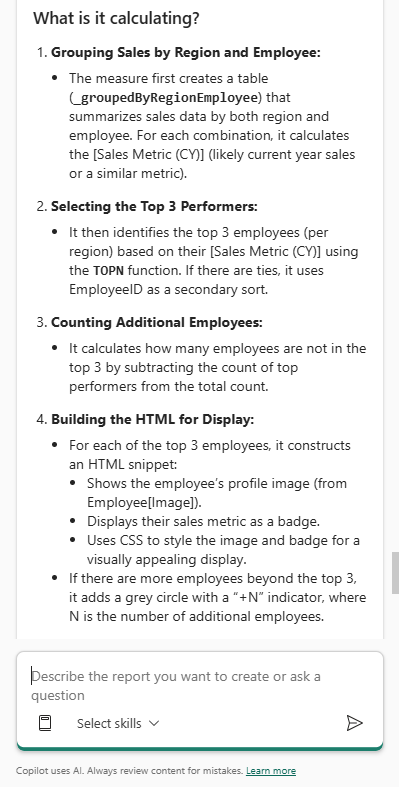
Certainly! Here’s a step-by-step explanation of what the [Top Performers] measure is doing and how it displays results:

What is it Calculating?

  1. Grouping Sales by Region and Employee:
    • The measure first creates a table (_groupedByRegionEmployee) that summarizes sales data by both region and employee. For each combination, it calculates the [Sales Metric (CY)]
  2. Selecting the Top 3 Performers:
    • It then identifies the top 3 employees (per region) based on their [Sales Metric (CY)] using the TOPN function. If there are ties it uses EmployeeID as a secondary sort.
  3. Counting Additional Employees:
    • It calculates how many employees are not in the top 3 by subtracting the count of top performers from the total count.
  4. Building the HTML for Display
    • For each of the top 3 employees, it constructs an HTML snippet:
      • Shows the employee’s profile image (from Employee[Image]).
      • Displays their sales metric as a badge
      • Uses CSS to style the image and badge for a visually appealing display
    • If there are more employees beyond the top 3, it adds a grey circle with a “+N” indicator, where N is the number of additional employees.
  5. Combining Everything for Output:
    • The final output is a single HTML string that visually displays the top 3 performers (with image and sales badges) and, if applicable, a circle indicating how many more employees there are.

How is it displaying the results?

Visual Output: The measure returns an HTML string designed for use in a Power BI visual that supports HTML rendering.

What You See:

  • Up to three employee profile images, each with a badge showing their sales metric
  • If there are more than three employees, a grey circle with “+N” to indicate additional performers not shown.
  • The layout is styled to be compact, visually appealing, and aligned to the right.

Summary

  • Purpose: Highlights the top 3 sales performers per region, visually, with profile images and sales badges
  • Display: Uses HTML and CSS for a rich, custom visual experience, including a “+N” indicator for additional employees beyond the top 3.

If you need a breakdown of any specific part of the DAX or want to know how to adapt this logic, let me know!

🟢 Green Light

Overlooked Detail: Copilot explained what the measure is doing accurately, but it did not surface deeper technical considerations unprompted, such as the performance implications of nesting TOPN inside CONCATENATEX, whether repeated TOPN calls could be consolidated, or the assumption that LOOKUPVALUE will always return a single match.

These are the kinds of questions that should always be asked when reviewing measure definitions.

If we need that level of analysis, we can follow up with a specific prompt such as “Are there any performance concerns with this measure?” Copilot responds well to targeted follow-up questions; it just does not volunteer that analysis on its own.

Alternative Approach — Explaining Measures in DAX Query View

In the main test, explaining the [Top Performers] measure required pasting the full DAX formula directly into the Copilot pane. The DAX query view offers a cleaner path to the same result and goes one step further by letting us run the measure and explain it in the same workflow.

  1. Load the measure into DAX query view. Switch to DAX query view using the left navigation bar. In the Data pane, right-click the [Top Performers] measure and select Define and Evaluate. This automatically loads the full measure definition into the query editor as a DEFINE MEASURE and EVALUATE statement, with no manual copying required.
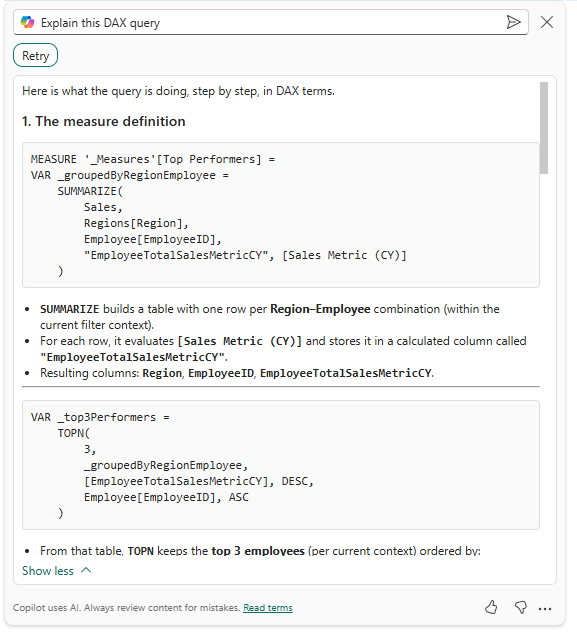
  2. Open the inline Copilot and explain the query. Select the DAX query in the editor and press CTRL + I to open the inline Copilot. Use the Explain this query inspire button or type the prompt directly.

The Prompt: Explain this DAX query

Copilot’s Response:
🟢 Green Light

Overlooked Detail: Compare the two explanation workflows side by side. The report view pane required the full DAX to be pasted manually, and Copilot’s response, while accurate, was structured around the user’s framing of the question.

The DAX query view response was driven by the query structure itself, which produced a more methodical, variable-by-variable breakdown.

Neither is strictly better. The pane is faster for a quick question, while the query view is better for a thorough audit. Knowing which to reach for depending on the situation is the more important skill.


Scenario 4: Debugging DAX Logical Errors
Finding What the Red Squiggle Misses

Identifying syntax errors is straightforward. Power BI flags them immediately with a red underline. The real challenge is logical debugging: when a measure runs without error but returns results that are incorrect for the business requirement. This test determines whether Copilot can identify why a measure is technically functional but practically broken.

The Setup

For this test, we want to create a dynamic % of Total Sales measure that displays correctly across multiple dimensions — Products, Regions, and Departments — while also respecting report-level filters like Year. Here is the measure as it currently exists in the model:

% of Total Sales =
VAR CurrentSales = SUM('Sales'[Amount])
VAR TotalSales = CALCULATE(SUM('Sales'[Amount]), ALL('Sales'))
RETURN
DIVIDE(CurrentSales, TotalSales)

The measure uses ALL(Sales), which removes every filter from the Sales table, including slicers and report-level filters.

For our requirements, this is a common mistake that effectively freezes the denominator to the grand total of the entire dataset, regardless of what filters are applied.

For example, when users apply a Year slicer to focus on the previous year, the numerator correctly reflects only the previous year’s sales, but the denominator still reflects all years.

The result is percentages that appear unexpectedly small and never add up to 100% within the filtered context.
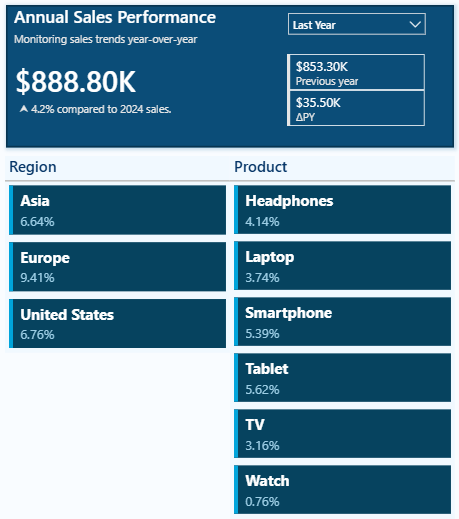
We see the percentages are smaller than expected and bring the problem to Copilot.

The Prompt:

I have a measure for % of Total Sales, but when I filter my report to the year 2025, the percentages are small when viewed on multiple visuals across various dimensions and don’t add up to 100%. How do I make this dynamic so I can display the percent of total for multiple dimensions?

% of Total Sales =
VAR CurrentSales = SUM('Sales'[Amount])
VAR TotalSales = CALCULATE(SUM('Sales'[Amount]), ALL('Sales'))
RETURN
DIVIDE(CurrentSales, TotalSales)

Copilot’s Response:

The issue you’re experiencing is due to the use of ALL(‘Sales’) in your measure. This removes all filters from the Sales table—including filters on Year, Product, Department, etc.—so your denominator is always the grand total sales for all years and all data, not just for the filtered year (e.g., 2025). As a result, when you filter to 2025, the numerator is only 2025 sales, but the denominator is still the total for all years, making the percentages appear small and not sum to 100% within the filtered context.

To make the measure dynamic and context-aware (so that it always sums to 100% within the current filter, such as year, product, or department), you should use the REMOVEFILTERS or ALLSELECTED function, depending on your needs:

  • REMOVEFILTERS: Removes filters only from the specified columns or tables, but keeps filters from outside the specified scope (such as report/page/visual filters).
  • ALLSELECTED: Keeps filters applied by slicers and visuals, but ignores filters from the current visual’s breakdown.

Here’s how you can rewrite your measure for dynamic percent of total within the current filter context:

Option 1: Using REMOVEFILTERS (recommended for most scenarios)

% of Total Sales (Dynamic) =
VAR CurrentSales = SUM('Sales'[Amount])
VAR TotalSales = CALCULATE(
SUM('Sales'[Amount]),
REMOVEFILTERS('Sales')
)
RETURN
DIVIDE(CurrentSales, TotalSales)

But this still ignores filters on the Sales table. If you want the denominator to respect external filters (like Year = 2025), but ignore breakdowns within the visual (like Product or Department), use ALLSELECTED.

Option 2: Using ALLSELECTED (best for visuals with slicers/filters)

% of Total Sales (Dynamic) =
VAR CurrentSales = SUM('Sales'[Amount])
VAR TotalSales = CALCULATE(
SUM('Sales'[Amount]),
ALLSELECTED('Sales')
)
RETURN
DIVIDE(CurrentSales, TotalSales)

How to choose:

  • Use REMOVEFILTERS if you want the denominator to always be the total for the current report/page/visual filter context (e.g., Year = 2026).
  • Use ALLSELECTED if you want the denominator to respect slicers and filters, but ignore breakdowns within the visual.

Try replacing your measure with the ALLSELECTED version above. When you filter to 2026, the percentages across your breakdown (e.g., by Product, Department, etc.) will sum to 100% for that year.

🟡 Yellow Light

If you are building reports where slicers play a central role in user decision-making, providing essential context before users make their selections can be extremely beneficial. 

The design of those slicers matters just as much as the DAX behind them. For a deeper look at how to turn static slicers into interactive decision aids that give users meaningful context before they make a selection, check out Design Meets Data: From Static Slicers to Interactive Decision Aids.

What if your slicers could answer questions before you even select them? With a little preview context, they can guide users toward the right decisions instantly.

Overlooked Detail: The distinction between REMOVEFILTERS and ALLSELECTED is subtle but consequential.

If a filter is applied at the visual level, ALLSELECTED will calculate the percentage based on the filtered data, whereas REMOVEFILTERS may still calculate against the broader filter context.

In an interactive report with multiple slicers and cross-filtering visuals, these two measures can return noticeably different results from the same visual.


Scenario 5: Generating Measure Descriptions and Comments
Documenting the Semantic Model

One of the most tedious parts of semantic model development is documentation. Measures get built, reports get published, and descriptions rarely get written. This test determines how useful Copilot can be in handling that documentation work and whether the output is accurate and professional enough to actually use.

Test 1 — Generating Measure Descriptions in Model View

For this test, we navigate to Power BI Desktop’s Model view, select the Total Sales YoY Growth % measure, and use the Create with Copilot option in the Properties pane.
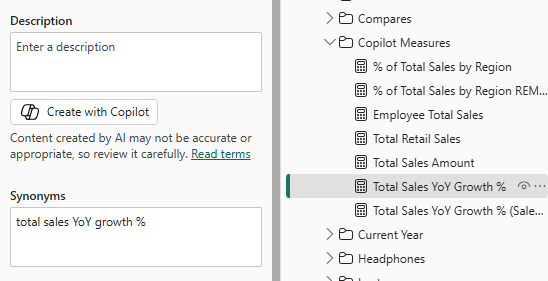
Copilot’s Response:
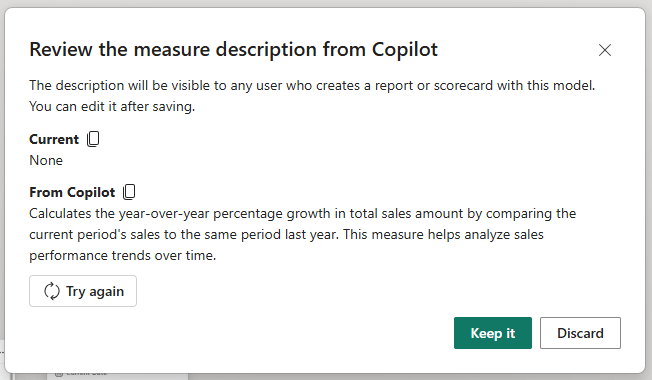
🟢 Green Light

Test 2: Adding Inline Comments in DAX Query View

Measure descriptions in the Properties pane are valuable for self-service users browsing the Fields pane, but they are not visible to the developer editing the measure.

Inline comments inside the DAX formula serve a different purpose. They document the logic for anyone who opens the measure editor, making complex calculations easier to read, audit, and maintain over time.

DAX query view Copilot can add those comments automatically.

  1. Load the measure. Switch to DAX query view using the left navigation bar. In the Data pane, right-click the Total Sales YoY Growth % measure and select Define and Evaluate. This loads the full measure definition into the query editor.
  2. Add comments with Copilot, Press CTRL + I to open the inline Copilot. Enter the prompt and press Enter.
  3. Commit the changes. Select Keep query and then Update model with changes to commit the commented measure definition back to the model.

The Prompt: Add comments to this MEASURE

Copilot’s Response:
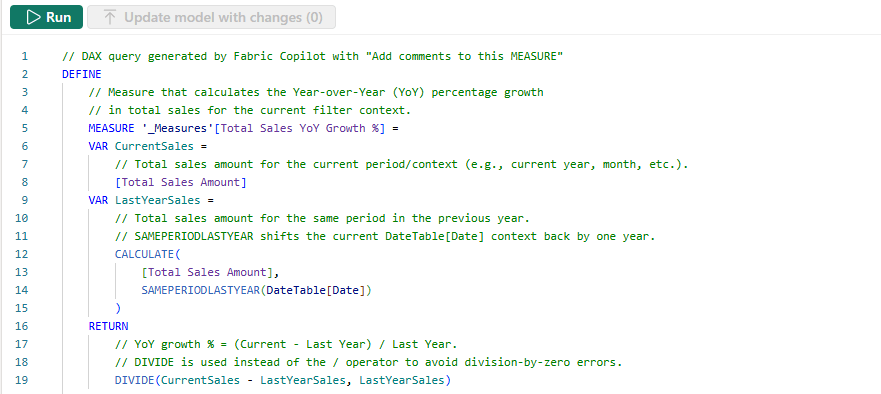
🟢 Green Light

Overlooked Detail: Copilot scoped the comments specifically to the DEFINE MEASURE block. It did not attempt to comment the EVALUATE portion of the query loaded by Define and Evaluate.

This is the right behavior. The comments that travel with the measure when we select Update model with changes are the ones inside the DEFINE MEASURE block. Copilot correctly focused its documentation effort where it counts.


Practitioner’s Verdict:
How Far Can You Trust Copilot for DAX Development?

After running Copilot through five scenarios — writing measures, building advanced logic, explaining existing DAX, debugging logical errors, and documenting the semantic model — here is the honest assessment.

Copilot is a capable and practical assistant for semantic model development. Across the five scenarios, it earned five Green Lights and three Yellow Lights. No Red Lights, but the Yellow Lights carry real weight and are worth understanding before we start offloading DAX work to AI.

Where Copilot hits its stride:

The results were strongest where the task was well-defined and the model was clean. Basic and intermediate measures came back quickly and accurately. The debugging scenario performed well — correctly diagnosing an ALL vs ALLSELECTED issue, explaining the underlying cause clearly, and offering two well-reasoned solutions with guidance on when to use each. Measure descriptions were accurate, readable, and business-aware rather than just restating the formula name.

The explanation scenario highlighted something equally valuable. Feed Copilot a complex, multi-variable measure with HTML rendering logic and it will walk through it step by step in plain language. For onboarding new team members, auditing inherited models, or simply revisiting logic written months ago, that capability is genuinely useful.

The DAX query view inline Copilot adds further value. The Suggest measures feature returned six well-structured analytical measures in a single prompt, complete with inline comments and a live preview. The Add comments workflow produced useful documentation rather than just variable name restatements. These are the features that make the biggest difference in team environments where maintainability matters.

Where we still have to drive:

The three Yellow Lights pointed to the same underlying pattern: Copilot answers the question we ask, not necessarily the question we should have asked.

The YoY Growth measure was syntactically strong but assumed a properly configured Date table without helping us verify or build one.

The percentage contribution measure was correct for the prompt, but did not anticipate how ALL versus ALLSELECTED would behave in an interactive report with slicers.

In both cases, Copilot did its job. The gap was in the prompt, the model structure, or the report design context that Copilot simply does not have access to.

This is the part that matters most: Copilot does not know our report. It does not know how users interact with slicers or what the business actually needs versus what was typed into the prompt. That context lives with the developer, not the AI.

The broader DAX community reinforces this point. The continued investment in deep technical content covering advanced concepts signals that DAX expertise is not becoming less relevant in an AI-assisted world. If anything, it is becoming more important. We need to know what correct DAX looks like to evaluate what Copilot hands us.

Copilot in Power BI Desktop is a practical productivity tool for Power BI semantic model development. It handles the repetitive, time-consuming parts of DAX work reliably enough to trust, with a close eye and a solid foundation in the fundamentals.

The tool earns its keep. Your expertise still earns its keep, too.

The sample report is available at the link below!

In an era where AI is moving from experimental to essential, this toolkit is designed to help Power BI developers explore AI workflows, learn Power BI AI tools, and get started on their journey to modernize the way they build!


What’s Next: A Look at What’s Coming

This post focused on one specific question: how useful is Copilot in Power BI Desktop for the day-to-day work of semantic model development?

Across five scenarios, the answer is encouraging. Copilot is a practical addition to a developer’s workflow, particularly for first drafts, documentation, and explaining DAX logic to team members.

But this post only covers one piece of what AI-assisted Power BI development looks like in 2026.

There is a meaningful difference between using AI as a conversational assistant inside a tool and configuring AI with the right context, tools, and environment to take real action on a model.

As that setup becomes more capable, the tasks we can delegate to AI grow significantly, from generating a single measure to planning and executing complex modeling workflows with minimal manual intervention.

That progression is what the rest of this series will explore:

  • Copilot in Power BI Desktop for Report Development: staying within the built-in experience but shifting focus from semantic model development to report design, visual creation, and data exploration
  • AI-Assisted Development: stepping outside Power BI Desktop to pair a more capable AI interface with direct, programmatic access to the semantic model. Two practical approaches worth exploring here: VS Code with GitHub Copilot and the Power BI Modeling MCP Server, and Claude Desktop with MCP Servers, both of which unlock capabilities the built-in Copilot pane cannot match.
  • Agentic Development: the most advanced tier, where community projects like GitHub – data-goblin/power-bi-agentic-development or articles such as Introducing AI and agentic development for Power BI explore what fully autonomous Power BI development workflows look like when agents plan and execute tasks end to end.

Each post in the series will follow the same format used here — real prompts, real outputs, and a clear-eyed view of where AI earns its keep and where the human still needs to drive.


Thank you for reading! Stay curious, and until next time, happy learning.

And, remember, as Albert Einstein once said, “Anyone who has never made a mistake has never tried anything new.” So, don’t be afraid of making mistakes, practice makes perfect. Continuously experiment, explore, and challenge yourself with real-world scenarios.

If this sparked your curiosity, keep that spark alive and check back frequently. Better yet, be sure not to miss a post by subscribing! With each new post comes an opportunity to learn something new.

Dive into DAX: Unlock the Full Potential of FORMAT


I recently participated in a data challenge and used it to explore dynamic titles and subtitles in the final report. Dynamic titles provide context, guide users to key insights, and create a more interactive experience.

Dynamic titles were created by developing DAX measures that utilized various DAX functions, including FORMAT. The DAX FORMAT function proved to be a valuable tool in crafting these dynamic elements. FORMAT enables us to produce polished and audience-friendly text, all while leveraging the power of DAX measures.

This guide dives deep into the capabilities of the FORMAT function. We will explore how to use predefined numeric and date formats for quick wins, uncover the secrets of custom numeric and date/time formats, and highlight practical examples that bring clarity to our Power BI visualizations.


The Basics of FORMAT

The FORMAT function in DAX is a valuable tool for customizing the display of data. Its syntax is straightforward:

FORMAT(<value>, <format_string>[, <locale_name>])

In this syntax, <value> represents a value or expression that evaluates to a single value we want to format. The <format_string> is a string that defines the formatting template and <locale_name> is an optional parameter that specifies the locale for the function.

The FORMAT function enables us to format dates, numbers, or durations into standardized, localized, or customized textual formats. This function allows us to define how the <value> is visually represented without changing the underlying data.

It’s important to note that when we use FORMAT, the resulting value is converted to a string (i.e. text data type). As a result, we cannot use the formatted value in visuals that require a numeric data type or in additional numerical calculations.

Power BI offers a Dynamic Format Strings for measures preview feature that allows us to specify a conditional format string that maintains the numeric data type of the measure.

Learn more about: Dynamic Format strings for measures

Since FORMAT converts the value to a string, it easily combines with other textual elements, making it ideal for creating dynamic titles.


Numeric Formats

The predefined numeric formats allow for quick and consistent formatting of numerical data.

General Number: Displays the value without thousand separators.

Currency: Displays the value with thousand separators and two decimal places. The output is based on system locale settings unless we provide the <locale_name> parameter.

Fixed: Displays the value with at least one digit to the left and two digits to the right of the decimal place.

Standard: Displays the value with thousand separators, at least one digit to the left and two to the right of the decimal place.

Percent: Displays the value multiplied by 100 with two digits to the right of the decimal place and a percent sign appended to the end.

Scientific: Displays the value using standard scientific notation.

Yes/No: Displays the value as No if the value is 0; otherwise, displays Yes.

True/False: Displays the value as False if the value is 0; otherwise, displays True.

On/Off: Displays the value as Off if the value is 0; otherwise, displays On.

Predefined formats are ideal for quick, standardized formatting without requiring custom format strings.

Custom Numeric Formats

Predefined numeric formats work well for standard situations, but sometimes, we need more control over how data is displayed. Custom numeric formats enable us to specify exactly how a numeric value appears, providing the flexibility to meet unique scenarios and requirements.

Custom numeric formats use special characters and patterns to define how numbers are displayed. The custom format expression may consist of one to three format strings, separated by semicolons.

When a custom format expression contains only one section, that format is applied to all values. However, if a second section is added, the first section formats positive values, while the second formats negative values. Finally, if a third section is included, it determines how to format zero values.

Here is a summary of various characters that can be used to define custom numeric formats.

0 Digit placeholder: Displays a digit or a zero, pads with zeros as needed, and rounds where required.

# Digit placeholder: Displays a digit or nothing and skips leading and trailing zeros if needed.

. Decimal placeholder: Determines how many digits are displayed to the left and right of the decimal separator.

, Thousand separators: adds a separator or scales the numbers based on usage. Consecutive , not followed by 0 before the decimal place divides the number by 1,000 for each comma.

% Percentage placeholder: Multiplies the number by 100 and appends %

- + $ Display literal character: Display the literal character, to display characters other than -, +, or $ proceed it with a backslash (\) or enclose it in double quotes (" ").

Visit the FORMAT function documentation for additional details on custom numeric formats.

Learn more about: custom numeric format characters that can be specified in the format string argument

Custom numeric formats allow us to present numerical data according to specific reporting requirements. When utilizing custom numeric formats, it is typically best to use 0 for mandatory digits and # for optional digits, include , and . to improve readability, and combine with symbols such as $ or % for intuitive displays.


Date & Time Formats

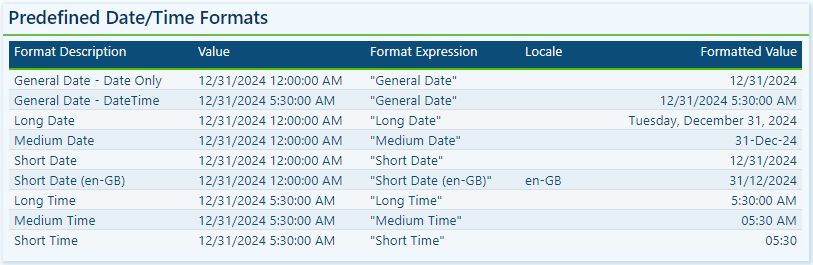
Dates and times are often key elements in our Power BI reports as they form the basis for timelines, trends, and performance comparisons. The FORMAT function provides several predefined date and time formats to simplify the presentation of date and time values.

General Date: Displays a date and/or time, with the date display determined by the application’s current culture value.

Long Date: Displays the date according to the current culture’s long date format.

Medium Date: Displays the date according to the current culture’s medium date format.

Short Date: Displays the date according to the current culture’s short date format.

Long Time: Displays the time according to the current culture’s long-time format, typically including hours, minutes, and seconds.

Medium Time: Displays the time in a 12-hour format.

Short Time: Displays the time in a 24-hour format.

Predefined formats offer a quick and simple way to standardize date and time outputs that align with current cultural settings.

Custom Date & Time Formats

When the predefined date and time formats don’t meet our requirements, we can utilize custom formats to have complete control over how dates and times are displayed. The FORMAT function supports a wide range of custom date and time format strings.

d, dd, ddd, dddd Day in numeric or text format: single digit (d), with leading zero (dd), abbreviated name (ddd), or full name (dddd).

w Day of the week as a number (1 for Sunday through 7 for Saturday).

ww Week of the year as a number.

m, mm, mmm, mmmm Month in numeric or text format: single digit (m), with leading zero (mm), abbreviated name (mmm), or full name (mmmm).

q Quarter of the year as a number (1-4)

y Display the day of the year as a number.

yy, yyyy Display the year as a 2-digit (yy) number of a 4 digit (yyyy) number.

c Displays the complete date (ddddd) and time (ttttt).

Visit the FORMAT function documentation for additional details and format characters.

Learn more about: custom date/time format characters that can be specified in the format string


Practical Examples in Power BI

Dynamic elements elevate our Power BI visuals by making them context-aware and responsive to user selections. They guide users through the report and help shape the data narrative. The FORMAT function in DAX is one tool we can use to craft these dynamic elements, which allows us to combine formatted values with descriptive text.

Here are three examples where the FORMAT function can have a significant impact.

Enhancing Data Labels

At times, numbers alone do not effectively convey insights. Enhancing our labels with additional text features, such as arrows or symbols to indicate trends like growth or decline, can greatly improve their informative value.

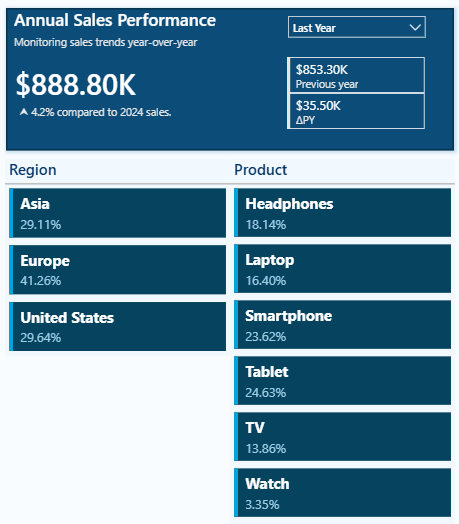
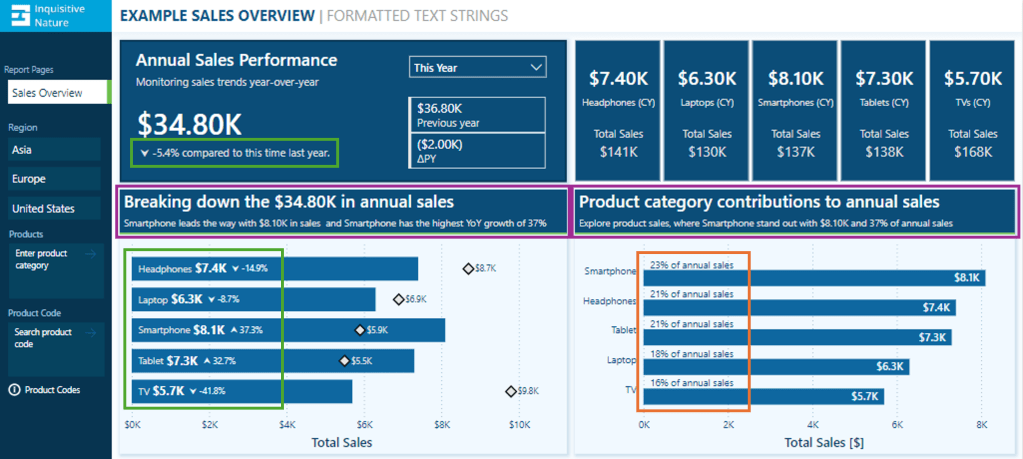
In this report, we have a card visual that presents both the annual performance and year-over-year (YoY) performance.

Let’s look at how the FORMAT function was used to achieve this.

The YoY Measure

The Power BI data model includes a measure called Sales Metric YOY, which calculates the percentage change between the selected year and the previous year.

Sales Metric YOY = 
VAR _cy = [Sales Metric (CY)]
VAR _ly = [Sales Metric (LY)]

RETURN
IF(
    ISBLANK(_cy) || ISBLANK(_ly),
    BLANK(),
    DIVIDE(_cy-_ly, _ly)
)

The measure is formatted as a percentage and displays as expected when added to our visuals.

We then use this measure to create an enhanced label. If the value is positive, we add an upward arrow to indicate growth, and if the value is negative, we include a downward arrow to signify decline.

Adding the arrow text elements to the label can be done with the following expression.

Sales Metric YOY Label No Format = 
If(
 [Sales Metric YOY]>0, 
    UNICHAR(11165) & " " & [Sales Metric YOY],
    UNICHAR(11167) & " " & [Sales Metric YOY]
)

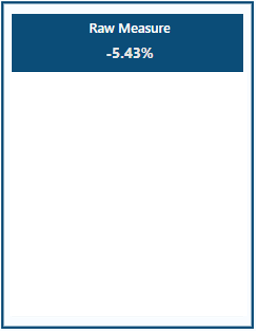
However, when we combine our Sales Metric YOY measure with textual elements, we lost the percentage formatting, making the value less user-friendly.

To address this, we can manually multiply the value by 100, round it to one decimal place, and add a % at the end.

Sales Metric YOY Label Manual = 
If(
 [Sales Metric YOY]>0, 
    UNICHAR(11165) & " " & ROUND([Sales Metric YOY]*100, 1)& "%",
    UNICHAR(11167) & " " & ROUND([Sales Metric YOY]*100 ,1) & "%"
)

This expression can be greatly improved by leveraging the power of the FORMAT function. The following expression uses FORMAT to create the enhanced label in a simpler manner for better clarity.

Sales Metric YOY Label = 
If(
 [Sales Metric YOY]>0, 
    UNICHAR(11165) & " " & FORMAT([Sales Metric YOY], "#0.0%"),
    UNICHAR(11167) & " " & FORMAT([Sales Metric YOY], "#0.0%")
)

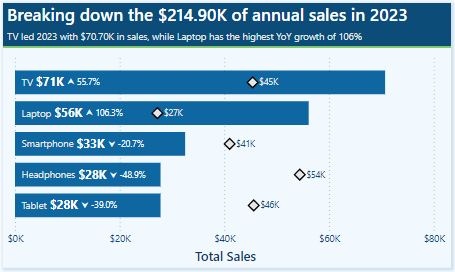
We can then use the Sales Metric YoY Label throughout our report, such as a data label detail in our bar chart displaying the annual sales by product category and each product’s YoY Label.

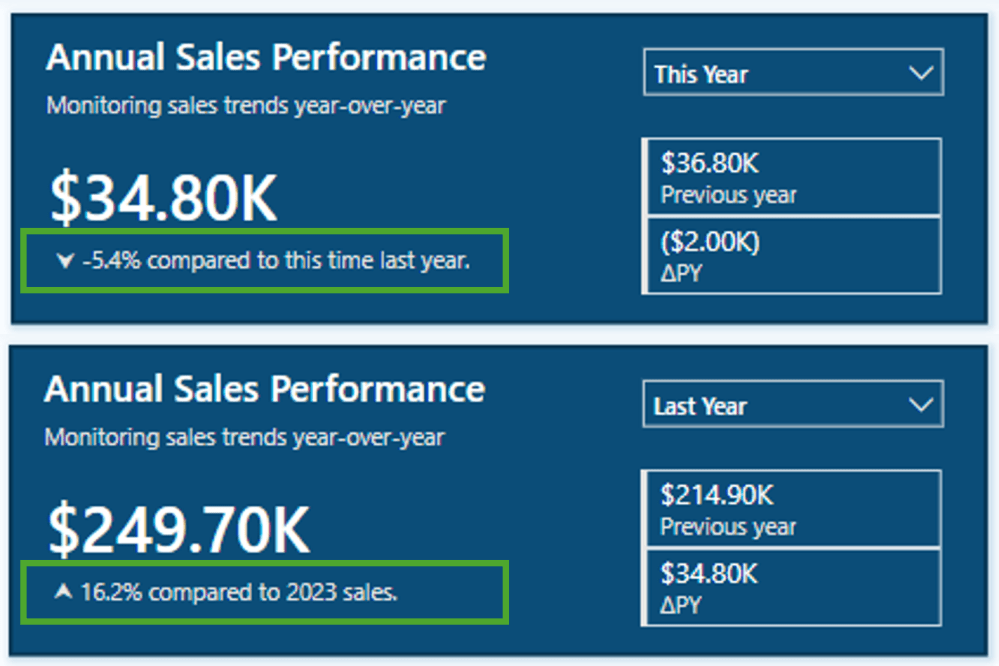
To finalize the label in our Annual Sales Performance card, we combine the Saless Metric YoY Label with additional context based on the user’s selected year.

Annual Sales Performance Label = 
[Sales Metric YOY Label] & 
If(SELECTEDVALUE(DateTable[Year Category]) = "This year",
    " compared to this time last year.",
    " compared to " & YEAR(MAX(DateTable[Date])) - 1 & " sales."
)

We now have a dynamic and informative label that we can use to create visuals packed with meaningful insights, improving the user experience for our report viewers.

Improving Data Label Clarity

Data labels in our Power BI visuals offer users additional details, provide context, and highlight key insights. By combining the FORMAT function with descriptive text, we can create clear and easy-to-understand labels. Let’s look at an example.

This visual displays the annual total sales for each product category. To provide viewers with more information, we include a label that indicates each product’s contribution to the annual total as a percentage. Instead of presenting a percentage value without context, we enhance the label’s clarity by incorporating additional descriptive text.

This data label uses the FORMAT function and the following expression.

Product Category Totals Sales Label = 
VAR _percentage = DIVIDE([Sales Metric (CY)], [Sales Metric Annual Total])
RETURN
FORMAT(_percentage, "#0%") & " of annual sales"

We now have a clear and concise label for our visuals, allowing our viewers to quickly understand the value.

Building Dynamic Titles

Dynamic titles and subtitles in our Power BI reports can improve our report’s overall storytelling experience. They can summarize values or highlight key insights and trends, such as identifying top-performing products and year-over-year growth.

Let’s explore how to create dynamic titles and subtitles, focusing on the role of the FORMAT function in this process.

First, we need to create a measure for our visual title. The title should display the total annual sales values. Additionally, if the selected year is a previous year, the title should specify which year the annual sales data represents. To achieve this, we will use the following DAX expression.

Annual Sales Title = 
"Breaking down the " & FORMAT([Sales Metric (CY)], "$#,.00K") & 
IF(
    SELECTEDVALUE(DateTable[Year Category]) = "This Year",
    " in annual sales",
    " of annual sales in " & YEAR(MAX(DateTable[Date]))
)

The DAX measure first combines descriptive text with the formatted current year’s sales value. It then checks the selected year category from our visual slicer. If “This Year” is selected, it appends “in annual sales.” For other year selections, the title appends “of annual sales in” and explicitly includes the chosen year.

As a result, the final output will be titles such as Breaking down the $34.80K in annual sales for the current year and Breaking down the $214.90K of annual sales in 2023 when previous years are selected.

Additionally, we enhance this visual by including a dynamic subtitle that identifies top-performing products based on both annual sales and year-over-year growth.

Here is the DAX expression used to create this dynamic and informative subtitle.

Annual Sales SubTitle = 
VAR _groupByProduct = 
    ADDCOLUMNS(
        SUMMARIZE(Sales, Products[Product], "TotalSalesCY", [Sales Metric (CY)]), 
        "YOY", [Sales Metric YOY]
 )
VAR _topProductBySales = TOPN(1, _groupByProduct, [TotalSalesCY],DESC)
VAR _topProductCategoryBySales = MAXX(_topProductBySales, Products[Product])
VAR _topProductSalesValueBySales = MAXX(_topProductBySales, [TotalSalesCY])

VAR _topProductByYOY = TOPN(1, _groupByProduct, [YOY], DESC)
VAR _topProductCategoryByYOY = MAXX(_topProductByYOY, Products[Product])
VAR _topProductYOYValueByYOY = MAXX(_topProductByYOY, [YOY])

VAR _topProductCheck = _topProductCategoryBySales=_topProductCategoryByYOY

RETURN
IF(
    SELECTEDVALUE(DateTable[Year Category])="This Year",
    _topProductCategoryBySales & 
        " leads the way with " & 
        FORMAT(_topProductSalesValueBySales, "$#,.00K") & 
        " in sales" & 
        IF(_topProductCheck, " and ", ", while ") & 
        _topProductCategoryByYOY & 
        " has the highest YoY growth of " & 
        FORMAT(_topProductYOYValueByYOY, "0%"),
    _topProductCategoryBySales & 
        " led the " & 
        YEAR(MAX(DateTable[Date])) & 
        " with " & 
        FORMAT(_topProductSalesValueBySales, "$#,.00K") & 
        " in sales " & 
        IF(_topProductCheck, "and ", ", while ") & 
        _topProductCategoryByYOY & 
        " has the highest YoY growth of " &    
        FORMAT(_topProductYOYValueByYOY, "0%")
)

The measure first creates a summary table that calculates the annual sales and year-over-year (YOY) values, grouped by product category. Next, it identifies the top item for both annual sales and YOY growth, extracting the corresponding values along with the associated product category.

Total Sales

VAR _topProductBySales = TOPN(1, _groupByProduct, [TotalSalesCY],DESC)
VAR _topProductCategoryBySales = MAXX(_topProductBySales, Products[Product])
VAR _topProductSalesValueBySales = MAXX(_topProductBySales, [TotalSalesCY])

YOY Growth

VAR _topProductByYOY = TOPN(1, _groupByProduct, [YOY], DESC)
VAR _topProductCategoryByYOY = MAXX(_topProductByYOY, Products[Product])
VAR _topProductYOYValueByYOY = MAXX(_topProductByYOY, [YOY])

Next, the measure evaluates whether the top performers, determined by total sales and YoY growth, are the same.

VAR _topProductCheck = _topProductCategoryBySales=_topProductCategoryByYOY

Finally, we build the dynamic text based on the selected year and the value of _topProductCheck.

This results in subtitles like, Smartphone leads the way with $8.10K in sales and has the highest YoY growth of 37% for the current year. Alternatively, for previous, such as 2023, the subtitle reads, TV led 2023 with $70.70K in sales, while Laptop has the highest YoY growth of 106% .

BONUS: Dynamic Format Strings

Dynamic format strings are a useful preview feature in Power BI that allows us to change the formatting of a measure dynamically, depending on the context or user interaction.

One additional benefit of the dynamic format strings feature is that it preserves numeric data types. This means we can use the resulting value in situations where a numeric data type is required.

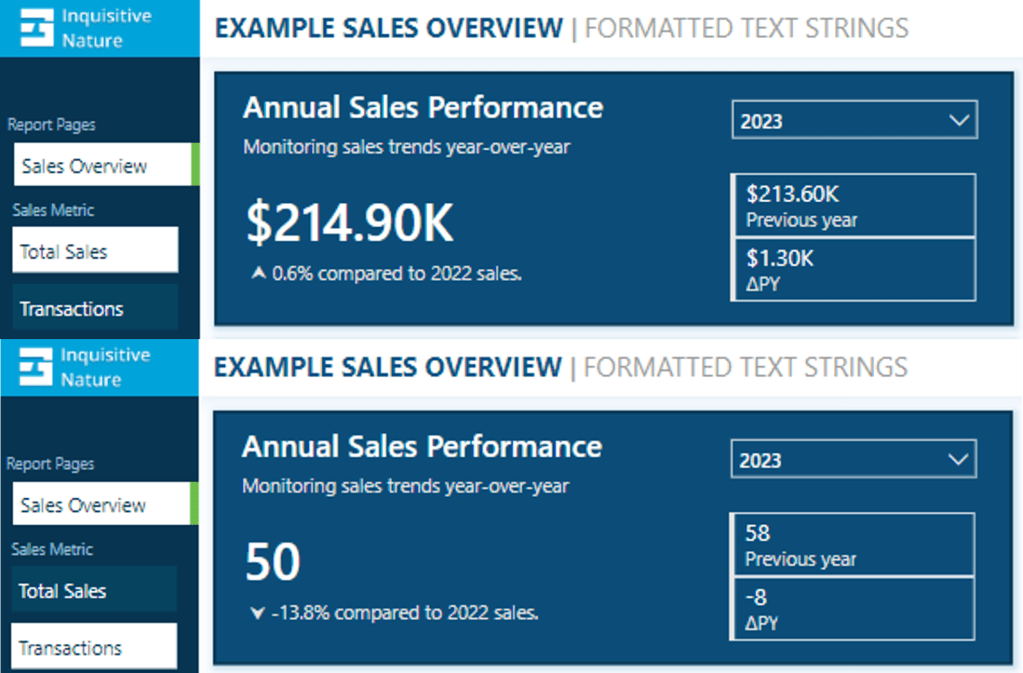
For instance, consider our report with a measure called Sales Metric (CY). Depending on the user’s selection, this measure calculates either the total annual sales or the number of annual transactions.

With dynamic format strings, if Total Sales is selected, the value is formatted as currency, and if Transactions is chosen, the value is displayed as a whole number.

With the format set to Dynamic and the format string condition defined, users can switch between the two metrics, and the values update and display dynamically.

Dynamic format strings unlock a new level of customization for our Power BI reports and allow us to deliver highly polished and interactive reports.

See Create dynamic format string for measures for more details on this feature.


Wrapping Up

The FORMAT function and dynamic formatting techniques are vital tools for improving the usability, clarity, and visual appeal of our Power BI reports. These techniques allow us to create dynamic titles, develop more informative labels, and utilize dynamic format strings. By incorporating these methods, we can create interactive reports that are more engaging and user-friendly for our audience.

Continue exploring the FORMAT function and download a copy of the example file (power-bi-format-function.pbix) from my Power BI DAX Function Series: Mastering Data Analysis repository.

This dynamic repository is the perfect place to enhance your learning journey.


Thank you for reading! Stay curious, and until next time, happy learning.

And, remember, as Albert Einstein once said, “Anyone who has never made a mistake has never tried anything new.” So, don’t be afraid of making mistakes, practice makes perfect. Continuously experiment and explore new DAX functions, and challenge yourself with real-world data scenarios.

If this sparked your curiosity, keep that spark alive and check back frequently. Better yet, be sure not to miss a post by subscribing! With each new post comes an opportunity to learn something new.

Dive into DAX: Getting Started with DAX Query View


Getting Started with DAX Query View

DAX Query View in Power BI Desktop lets us interact directly with our data model using DAX queries. It provides a dedicated workspace for executing queries to explore data and validate calculations.

Clarifying the difference between DAX formulas and DAX queries here is essential, as they may become confused.

We use DAX formulas to create measures and calculated columns to extend our data model. We use DAX queries to retrieve and display existing data within our data model.

Whenever we add a field to a report or apply a filter, Power BI executes the DAX query required to retrieve and display the results. With DAX Query View, we can create and run our own DAX queries to test, explore, and validate our data models without impacting the design or outputs of our report.

Don’t just read; get hands-on and follow along with the example report provided here:

This dynamic repository is the perfect place to enhance your learning journey.


Navigating DAX Query View

We access DAX Query View within Power BI Desktop by selecting the DAX Query View icon in the left-hand Power BI view navigation.

DAX Query View contains several key components that we will become familiar with.

Command Palette: the command palette in the ribbon (or CTRL+ALT+P) provides a list of DAX query editor actions.

DAX Query Editor: this is where we write and edit our DAX queries. The editor includes features such as syntax highlighter, suggestions, and intellisense to help us construct and debug our queries.

Results Grid: when we execute a query, the data retrieved by our query appears in the results grid at the bottom of the DAX Query View window. The results grid provides instant feedback on our query or calculation outputs. When we have more than one EVALUATE statement in the Query Editor, the results grid has a dropdown we can use to switch between the results of each EVALUATE statement.

Query Tabs: located at the bottom of the DAX Query View window, different query tabs allow us to manage and navigate between multiple queries. We can create, rename, and navigate between them quickly and easily. Each tab displays a status indicator helping to identify each query’s current state (has not been run, successful, error, canceled, or running).

Data Pane: the data pane lists all the data model’s tables, columns, and measures. It provides a reference point when constructing our queries and helps us locate and include the necessary elements in our analysis. The data pane’s context menu also gives us various Quick Query options to get us started with common tasks.

For more details about the DAX Query View layout, check out the documentation: DAX Query View Layout.


Writing and Executing DAX Queries

In DAX Query View, we create and execute queries to explore and validate our data models in Power BI. DAX queries can be as simple as displaying the contents of a table to more complex, utilizing a variety of keywords.

Writing a DAX query involves using a structured syntax to retrieve data from our data model. While DAX queries provide an approach similar to SQL queries to explore our data, they are tailored specifically for working with our Power BI data model.

Every DAX query requires the EVALUATE keyword, defining the data the query will return. A DAX query at the most basic level contains a single EVALUATE statement containing a table expression.

This basic query retrieves all rows from the Sales table and is a straightforward way to examine the table’s contents without adding a table visual to our report canvas.

We can build on this basic example by refining the returned data further, for example, by applying a filter to return only sales with a sales amount greater than or equal to $9,000.

Optional Keywords and Their Usage

ORDER BY

ORDER BY sorts the results of our DAX query based on one or more expressions. In addition to the expression parameter, we specify ASC (default) to sort the results in ascending order or DESC to sort in descending order.

We can continue to build on our sales query by ordering the values by descending sales amounts and ascending sales dates.

START AT

START AT is used along with the ORDER BY statement, defining the point at which the query should begin returning results.

It is important to note that the START AT arguments have a one-to-one relationship with the columns of our ORDER BY statement. This means there can be as many values in the START AT statement as in the ORDER BY statement, but not more.

We continue to build out our basic query by adding a START AT statement to take our descending list of Sales amount and return values starting at $9,500 and return the remaining results.

DEFINE

DEFINE creates one or more reusable calculated objects for the duration of our query, such as measures or variables.

The DEFINE statement and its definitions precede the EVALUATE statement of our DAX query, and the entities created within the DEFINE statement are valid for all EVALUATE statements.

Entities are created within the DEFINE statement using another set of keywords: MEASURE, VAR, COLUMN, and TABLE.

Along with the entity keyword, we must provide a name for the measure, var, table, or column definition. After the name parameter, we provide an expression that returns a table or scalar value.

MEASURE

We use theMEASURE keyword within our DEFINE statement to create a temporary local measure that persists only during the execution of our DAX query.

When we use MEASURE to define a local measure with the same name as a measure in our data model during the execution of our DAX query, the query will use the measure defined within the query rather than the measures defined in the data model. This allows us to test or troubleshoot specific calculations without modifying the data model measure.

VAR

The VAR keyword within the DEFINE statement defines a temporary variable we can use in our DAX query. Variables store the result of a DAX expression, which we can use to make our queries more straightforward to read and troubleshoot.

We use VAR to create both query variables and expression variables. When we use VAR along with our DEFINE statement, we create a query variable that exists only during the query’s execution.

We can also use VAR within an expression along with RETURN to define an expression variable local only to that specific expression.

Other keywords to be aware of within our DEFINE statement include COLUMN and TABLE. These statements allow us to create temporary calculated tables or columns that persist only during the execution of our DAX query.

Stay tuned for a follow-up blog post that will discuss the details of working with these statements and the feature-rich external tool DAX Studio.


Practical Use Cases for DAX Query View

Quick Queries

Quick Queries in DAX Query View provide a fast and easy way to start exploring aspects of our data model. They are found in the context menu when we right-click a table, column, or measure within the Data pane.

For example, we can right-click our Sales table and select Quick queries > Show top 100 rows from the context menu. Selecting this option will create a new query tab containing the DAX query resulting in the top 100 rows of our Sales table by evaluating the functions SELECTCOLUMNS() with TOPN() and using the ORDER BY statement.

We can then modify this query to tailor the results to our needs, such as only showing the RegionId, SalesDate, and Amount columns.

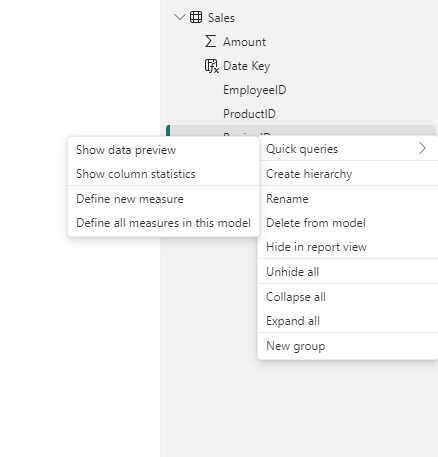
When we right-click a column and view the Quick queries, we notice the available options change and provide a Show data preview query.

Selecting this option creates a new query tab showing the distinct values of the selected column. For example, we can use this quick query in our Sales table to view our distinct Sales regions.

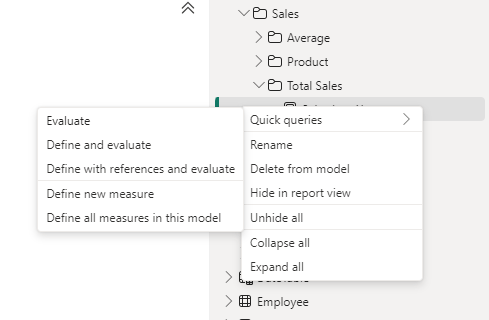
Lastly, the quick queries available within the context of measures are Evaluate, define and evaluate, and define with references and evaluate.

In our data model, we have a Sales Last Year measure. We can quickly view its value by right-clicking it and then selecting Quick queries > Evaluate.

This quick query uses SUMMARIZECOLUMNS(), which means we can quickly modify the query to add a group by column, such as Year.

We can hover over the Sales Last Year measure within the query editor window to view its DAX formula. Viewing this formula, we can see that this measure references another measure ([Total Sales]) within our data model.

We cannot view the formula for the referenced measure in the overlay. However, DAX Query View provides helpful tools to view this information. When we select a measure’s name in the query editor window, a lightbulb appears to the left.

Selecting this displays more actions available. Within the more actions menu, we choose Define with references to add a DEFINE statement to our DAX query where we can view the measure formulas. If our query already contains a DEFINE block, we will not see the lightbulb or the more actions menu.

The updated DAX query now displays the measure definitions. Note that we can get this result directly by right-clicking the measure, selecting the Define with references and evaluate quick query option.

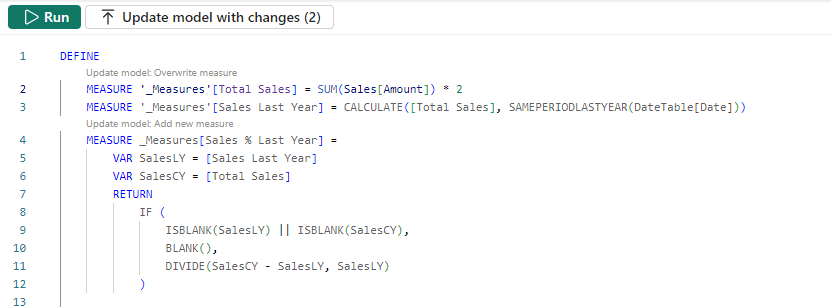
This DAX query can help test updates to the existing measures or assess the addition of new measures. For example, adding a new Sales % Last Year measure.

DAX Query View Measure Workflow

As we work with our measures in DAX Query View, it detects whether we have updated the DAX formula in an existing measure or created a new one. When a measure is updated, or a new measure is added, Query View CodeLens appears as a clickable superscript.

For example, if we update our Totals Sales measure to double it, we see the CodeLens providing us the option to update the measure within our data model. For the new Sales % Last Year measure, CodeLens gives us the option to add the new measure to the data model.

Using the measure quick queries and CodeLens assists us in streamlining our measure development workflow.

Documenting Data Models

We can also use DAX Query View to help document our data model by creating and saving queries that output model metadata.

For example, we can use the Define all measures in this model quick query to quickly create a DAX query that defines and evaluates all the measures.

In addition to viewing all the measures and their definitions in a single window, we can also use different features to understand our measures, such as using the Find option on the top ribbon to search and locate specific text (e.g. a measure’s name).

INFO Functions

DAX also includes various INFO functions that provide additional metadata on our data model to assist in documenting it. Key INFO functions include INFO.TABLES, INFO.COLUMNS, INFO.RELATIONSHIPS and INFO.MEASURES.

INFO.TABLES retrieves data about the tables in our data model, including their names, descriptions, and whether the table is hidden.

INFO.COLUMNS provides metadata for all the columns within our data model, including the column name and data type.

INFO.RELATIONSHIP provides details about the relationships between our data model tables, such as if the relationship is active, the from table and column ID, and the to table and column ID.

INFO.MEASURES lists all the measures in our data model, including their name, description, expression, and home table ID.

Since the INFO functions are just like other DAX functions, we can use them together with other DAX functions that join or summarize tables.

For example, our INFO.MEASURES function provides us with a list of all our measures. However, it just provides the home table ID, which may not be as helpful as the table name. We can create a DAX query that combines the required information from INFO.MEASURES and INFO.TABLE and returns a table with all the information we seek.

We can then review these results in the Query View results pane and save the query for future reference.

Also, check out the INFO.VIEW.COLUMNS, INFO.VIEW.MEASURES, INFO.VIEW.RELATIONSHIPS, INFO.VIEW.TABLES functions that provide similar results with the added benefit of being able to be used to define a calculated table stored and refreshed with our data model.

Optimizing Model Performance

DAX Query view also plays a role in performance optimization when we pair it with Power BI’s Performance Analyzer tool. The visuals on our report canvas get data from the data models using a DAX query. The Performance Analyzer tool lets us view this DAX query for each visual.

On the Report view, we run the Performance Analyzer by selecting the Optimize option on the ribbon and then Performance Analyzer. In the Performance Analyzer pane, we select Start recording and then Refresh visuals on the ribbon. After the visuals are refreshed, we expand the title of the visual we are interested in and choose the Run with DAX query view option to view the query in DAX Query View.

Using the Run in DAX Query View option, we review the query captured from a visual. By identifying slow-running queries and isolating their execution in DAX Query View, we can optimize DAX expressions and streamline calculations for better overall performance.


Wrapping Up

DAX Query View in Power BI Desktop creates additional possibilities for exploring our data model. Providing a dedicated workspace for writing, executing, and saving DAX queries enables us to dive deeper into our model, test calculation logic, and ensure accuracy without impacting our report or model structure.

Stay tuned for upcoming blog posts on how we can use external tools to go even further in understanding our data models using DAX queries.

To continue exploring DAX Query View, visit the following:

DAX query view – Power BI | Microsoft Learn

DAX Queries – DAX | Microsoft Learn


Thank you for reading! Stay curious, and until next time, happy learning.

And, remember, as Albert Einstein once said, “Anyone who has never made a mistake has never tried anything new.” So, don’t be afraid of making mistakes, practice makes perfect. Continuously experiment, explore, and challenge yourself with real-world scenarios.

If this sparked your curiosity, keep that spark alive and check back frequently. Better yet, be sure not to miss a post by subscribing! With each new post comes an opportunity to learn something new.

Dive into DAX: Simplify Data Models with Relationship Functions


The Basics of DAX Relationship Functions

DAX Relationship Functions are an essential part of our data modeling toolkit. These functions allow us to navigate the relationships connecting our data model tables facilitating complex calculations and deriving the insights they provide.

Relationships in our data models matter because they help maintain the integrity and consistency of our data. They connect different tables, enabling us to create insightful and dynamic reports. When creating our Power BI reports understanding these relationships becomes crucial since they dictate how data filters and aggregations are applied throughout our reports.

DAX Relationship Functions allow us to control and manipulate these relationships to suite our specific needs. Using these functions, we can perform in-depth calculations that involve multiple tables. They can be particularly useful in scenarios where we need to bring data from different sources into a single coherent view. Understanding and utilizing these functions can significantly elevate our data analysis.

For details on these functions visit the DAX Function Reference documentation.

Learn more about: DAX Relationship Functions

For those eager to start experimenting there is a Power BI report pre-loaded with the same data used in this post ready for you! So don’t just read, follow along and get hands-on with DAX in Power BI. Get a copy of the sample report here:

This dynamic repository is the perfect place to enhance your learning journey.


RELATED: Fetching Related Values

The RELATED function in DAX is designed to fetch a related value from another table. Its syntax is straightforward.

RELATED(column_name)

Here, column_name is the column from the related table that we want to retrieve. This function can be particularly useful in calculated columns when we need to access data from a lookup table in our calculations.

The RELATED function requires that a relationship exists between the two tables. Then the function can navigate the existing many-to-one relationship and fetch the specified column from the related table. In addition to an existing relationship, the RELATED function requires row context.

Our Sales table has a ProductID which is used to establish a relationship in our data model to the Products table. Let’s bring in the Product field from the Products table into our Sales table.

Product Category = RELATED(Products[Product])

We can use this DAX formula to add a new calculated column to our Sales table showing the product category corresponding to each sales record. This can help make our sales data more informative and easier to analyze, as we can now see the product category directly in the sales table.

We can also use RELATED and the existing relationship between our Sales and Regions table to filter our Sales and create an explicit United States Sales. Let’s take a look at this measure.

United States Sales = 
SUMX(
    FILTER(
        Sales, 
        RELATED(Regions[Region]) = "United States"
    ), 
    Sales[Amount]
)

This formula is much more informative and clearer than filtering directly on the RegionID field contained within the Sales table. Using RELATED within our FILTER function like this makes our measure more readable and it can immediately be identified what this measure is calculating.

The RELATED function is a powerful tool for enhancing our data models by seamlessly integrating related information. This can help us create more detailed and comprehensive reports.


RELATEDTABLE: Navigating Related Tables

The RELATEDTABLE function in DAX allows us to navigate and retrieve a table related to the current row from another table. This function can be useful when we need to summarize or perform calculations on data from a related table based on the current context. Here is its syntax.

RELATEDTABLE(table_name)

Here, table_name is the name of an existing related table that we want to retrieve. The table_name parameter cannot be an expression.

Let’s consider a scenario where we want to calculate the total sales amount for each product using the RELATEDTABLE function. Here is how we can use it to create a new calculated column in our Products table.

Total Sales by Product = 
SUMX(
    RELATEDTABLE(Sales),
    Sales[Amount]
)

In the DAX expression, we sum the Amount column from the Sales table for each product. The RELATEDTABLE function fetches all the rows from the Sales table that are related to the current product row in the Products table, and SUMX sums the Amount column for these rows.

When we use RELATEDTABLE, we can navigate and perform calculations across related tables, enhancing our ability to analyze data in a more granular and insightful way.


USERELATIONSHIP: Activating Inactive Relationships

The USERELATIONSHIP function in DAX is designed to activate an inactive relationship between tables in a data model. This is useful when a table has multiple relationships with another table, and we need to switch between these relationships for different calculations. Here is its syntax.

USERELATIONSHIP(column1, column2)

Here, column1 is the name of an existing column and typically represents the many side of the relationship to be used. The column2 is the name of an existing column and typically represents the one side or lookup side of the relationship to be used.

The USERELATIONSHIP returns no value and can only be used in functions that take a filter as argument (e.g. CALCULATE, TOTALYTD). The function uses existing relationships in the data model and cannot be used when row level security is defined for the table in which the measure is included.

Let’s take a look at a scenario where we are interested in calculating the number of employees who have left the organization based on their end dates using the USERELATIONSHIP function.

The Employee table includes each employee’s StartDate and EndDate. Each of these columns are used to establish a relationship with the DateTable in the data model. The relationship with StartDate is set to active, while the relationship with EndDate is inactive.

We can use the following DAX formula to define our Employee Separations measure.

Employees Separations USERELATIONSHIP = 
CALCULATE(
    COUNT(Employee[EmployeeID]),
    USERELATIONSHIP(Employee[EndDate], DateTable[Date]),
    NOT(ISBLANK(Employee[EndDate]))
)

This measure calculates the number of employees who have left the organization based on their EndDate by activating the inactive relationship between Employee[EndDate] and DateTable[Date] and ensuring that it only counts employees who have an EndDate.

We can better understand the power of USERELATIONSHIP by comparing these results to the results of the same measure but this time without activating the inactive relationship.

Employee Separations No USERELATIONSHIP = 
CALCULATE(
    COUNT(Employee[EmployeeID]),
    NOT(ISBLANK(Employee[EndDate]))
)

In the No USERELATIONSHIP measure we try to calculate the number of employees who left the company based on EndDate. However, we can see that without activating the relationship the active relationship is used in the context of the calculation.

Of the 9 employees that have left the organization, we can see that for 2022 the No USERELATIONSHIP measure is counting the 8 employees that started in 2022 rather than the 3 that left in 2022.


CROSSFILTER: Controlling Cross-Filtering Behavior

The CROSSFILTER function in DAX helps us manage the direction of cross-filtering between two tables in our data model. With this function we specify whether the filtering direction is one-way, both ways, or none, providing control over how data flows between our tables. This becomes useful in complex models where bidirectional filtering can lead to unintended results. Here is its syntax.

CROSSFILTER(column1, column2, direction)

The parameters column1 and column2 are similar to the parameters of USERELATIONSHIP, where column1 is the name of an existing column and typically represents the many side of the relationship and column2 is a column name and typically represents the one side of the relationship.

The direction parameter specifies the cross-filter direction to be used and must be one of the following values.

  • None – no cross-filtering occurs along this relationship
  • Both – filters on either side filters the other side
  • OneWay – filters on the one side of a relationship filter the other side. This option cannot be used with a one-to-one relationship and is not recommended for many-to-many relationships.
  • OneWay_LeftFiltersRight – filters on the side of column1 filter the side of column2. This option cannot be used with a one-to-one or many-to-one relationship.
  • OneWay_RightFiltersLeft – filters on the side of column2 filter the side of column1. This option cannot be used with a one-to-one or many-to-one relationship.

The CROSSFILTER function returns no value and can only be used within functions that take a filter as an argument (e.g. CALCULATE, TOTALYTD). When we establish relationships in our data model we define the cross-filtering direction, when we use the CROSSFILTER function it overrides this setting.

Let’s consider the scenario where we want to analyze the distinct products sold and the total sales amount by month and year. We start by creating a Distinct Product Code Count measure.

Distinct Product Code Count = 
DISTINCTCOUNT(Products[Product Code])

If we add this measure to a table visual, we will notice an issue with the count. The count is returning the total product code count, and not the intended results of the count of distinct products sold that month.

We see this because the relationship is one-to-many (Product-to-Sales) with single direction relationship (i.e. Product filters Sales). This default set up does not allow for our Sales table to filter our Product tables leading to the unintended results.

Now, we could correct this by changing the cross-filtering direction property on the Product-Sales relationship. However, this would change how filters work for all data between these two tables, which may not be a desired or an acceptable outcome.

Another solution is to utilize the power of the CROSSFILTER function. We can use this function to change how the Product-Sales relationships works within a new measure.

Distinct Product Code Count Bidirectional = 
CALCULATE(
    [Distinct Product Code Count],
    CROSSFILTER(Sales[ProductID], Products[ProductID], Both)
)

We can add this new measure to our table and see we get the expected results. This measure gathers all the sales records in the current context (e.g. Jan 2022), then filters the Product table to only related products, and finally returns a distinct count of the products sold.

This measure and the Sales Amount can now be used to analyze our sales data with details on the number of different products sold each month.

By using CROSSFILTER, we maintain control over our data relationships, ensuring our reports reflect the precise insights we need without unintended data flows. This level of control is crucial for building robust and reliable Power BI models.


Wrapping Up

DAX relationship functions are powerful tools that significantly enhance our ability to manage and analyze data in Power BI. We have explored how these essential functions empower us to connect and manipulate data and relationships within our data model. By understanding and knowing when to leverage these functions we can create dynamic, accurate, and insightful reports. Here is a quick recap of the functions.

  • RELATED simplifies data retrieval by pulling in values from a related table, making our data more informative and easier to analyze
  • RELATEDTABLE enables us to navigate and summarize related tables, providing deeper insights into our data.
  • USERELATIONSHIP gives us the flexibility to activate inactive relationships, allowing us to create more complex and context-specific calculations.
  • CROSSFILTER allows us to control the direction of cross-filtering between tables, ensuring our data flows precisely as needed.

To further explore and learn the details of these functions visit the DAX Relationship Function reference documentation.

Learn more about: DAX Relationship Functions

By adding these functions into our DAX toolkit, we enhance our ability to create flexible and robust data models that ensure our reports are both visually appealing and deeply informative and reliable.

To explore other function groups that elevate our data analysis check out the Dive into DAX series, with each post comes the opportunity to enhance your data analytics and Power BI reports.

Explore the intricate landscape of DAX in Power BI, revealing the potential to enhance your data analytics with every post. 


Thank you for reading! Stay curious, and until next time, happy learning.

And, remember, as Albert Einstein once said, “Anyone who has never made a mistake has never tried anything new.” So, don’t be afraid of making mistakes, practice makes perfect. Continuously experiment and explore new DAX functions, and challenge yourself with real-world data scenarios.

If this sparked your curiosity, keep that spark alive and check back frequently. Better yet, be sure not to miss a post by subscribing! With each new post comes an opportunity to learn something new.
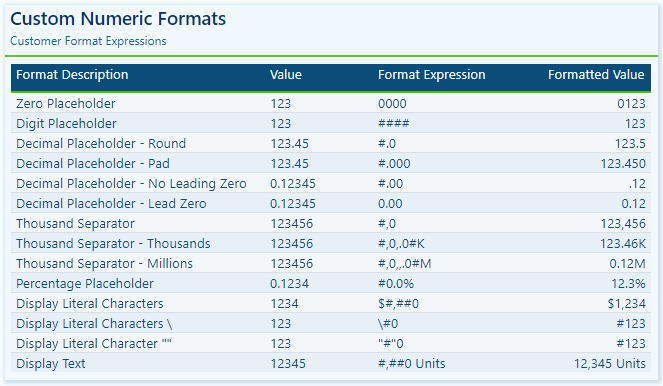
Dive into DAX: Decoding Data with Power BI Logical Functions


The missing piece to decoding our data and unlocking its full potential is often the strategic application of DAX Logical Functions. These functions are pivotal in dissecting complex datasets, applying business logic, and enabling a nuanced approach to data analysis that goes beyond surface-level insights. Better understanding DAX Logical Functions allows us to create more sophisticated data models that respond with agility to analytical queries, turning abstract numbers into actionable insights.

In this post we will explore this group of functions and how we can leverage them within Power BI. We will dive in and see how we can transform our data analysis from a mere task into an insightful journey, ensuring that every decision is informed, every strategy is data-driven, and every report illuminates a path to action.


The Logical Side of DAX: Unveiling Power BI’s Brain

Diving into the logical side of DAX is where everything begins to become clear. Logical functions are the logical brain behind Power BI’s ability to make decisions. Just like we process information to decide between right and wrong, DAX logical functions sift through our data to determine truth values: true or false.

Functions such as IF, AND, OR, NOT, and TRUE/FALSE, are the building blocks for creating dynamic reports. These functions allow us to set up conditions that our data must meet, enabling a level of interaction and decision-making that is both powerful and nuanced. Whether we are determining if sales targets were hit or filtering data based on specific criteria, logical functions are our go-to tools for making sense of the numbers.

For details on these functions and many others visit the DAX Function Reference documentation.

Learn more about: DAX Logical Functions

The logical functions in DAX can go far beyond the basics. The real power happens when we start combining these functions to reflect complex business logic. Each function plays its role and when used in combination correctly we can implement complex logic scenarios.

For those eager to start experimenting there is a Power BI report pre-loaded with the same data used in this post ready for you! So don’t just read, follow along and get hands-on with DAX in Power BI. Get a copy of the sample data report here:

This dynamic repository is the perfect place to enhance your learning journey.


Understanding DAX Logical Functions: A Beginner’s Guide

When starting our journey with DAX logical functions we will begin to understand the unique role of each function within our DAX expressions. Among these functions, the IF function stands out as the decision-making cornerstone.

The IF function tests a condition, returning one result if the condition is TRUE, and another if FALSE. Here is its syntax.

IF(logical_test, value_if_true, value_if_false)

The logical_test parameter is any value or expression that can be evaluated to TRUE or FALSE, and then the value_if_true is the value that is returned if logical_test is TRUE, and the value_if_false is optional and is the value returned when logical_test is FALSE. When value_if_false is omitted, BLANK is returned when the logical_test is FALSE.

Let’s say we want to identify which sales have an amount that exceeds $5,000. To do this we can add a new calculated column to our Sales table with the following expression.

Sales Target Categorization = 
IF(
  Sales[Amount] &gt; 5000, 
  "Above Target", 
  "Below Target"
)

This expression will evaluate each sale in our Sales table, labeling each sale as either “Above Target” or “Below Target” based on the Sales[Amount].

The beauty of starting our journey with IF lies in its simplicity and versatility. While we continue to explore logical functions, it won’t be long before we encounter TRUE/FALSE.

As we saw with the IF function these values help guide our DAX expressions, they are also their own DAX function. These two functions are the DAX way of saying yes (TRUE) or no (FALSE), often used within other logical functions or conditions to express a clear binary choice.

These functions are as straightforward as they sound and do not require any parameters. When used with other functions or conditional expressions we typically use these to explicitly return TRUE or FALSE values.

For example, we can create another calculated column to check if a sale is a high value sale with an amount greater than $9,000.

High Value Sale = 
IF(
  Sales[Amount] &gt; 9000, 
  TRUE, 
  FALSE
)

This simple expression checks if the sales amount exceeds $9,000, marking each record as TRUE if so, or FALSE otherwise.

Together IF and TRUE/FALSE form the foundation of logical expressions in DAX, setting the stage for more complex decision-making analysis. Think of these functions as essential for our logical analysis, but just the beginning of what is possible.


The Gateway to DAX Logic: Exploring IF with AND, OR, and NOT

The IF function is much more than just making simple true or false distinctions; it helps us unlock the nuanced layers of our data, guiding us through the paths our analysis can take. By effectively leveraging this function we can craft detailed narratives from our datasets.

We are tasked with setting sales targets for each region. The goal is to base these targets on a percent change seen in the previous year. Depending on whether a region experienced a growth or decline, the sales target for the current year is set accordingly.

Region Specific Sales Target = 
IF(
    HASONEVALUE(Regions[Region]),
    IF(
        [Percent Change(CY-1/CY-2)] &lt; 0, 
        [Total Sales (CY-1)]*1.1, 
        [Total Sales (CY-1)]*1.2
    ),
    BLANK()
)

In this measure we make use of three other measures within our model. We calculate the total sales for the previous year (Total Sales (CY-1)), and the year before that (Total Sales (CY-2)). We then determine the percentage change between these two values.

If there is a decline (negative percent change), we set the current year’s sales target to be 10% higher than the previous year’s sales, indicating a more conservative goal. Conversely, if there was growth (positive percent change), we set the current year target 20% higher to keep the momentum going.

As we dive deeper, combining IF with functions like AND, OR, and NOT we begin to see the true flexibility of these functions in DAX. These logical operators allow us to construct more intricate conditions, tailoring our analysis to very specific scenarios.

The operator functions are used to combine multiple conditions:

  • AND returns TRUE if all conditions are true
  • OR returns TRUE if any condition is true
  • NOT returns TRUE if the condition is false

Let’s craft a measure to determine which employees are eligible for a quarterly bonus. The criterion for eligibility is twofold: the employee must have made at least one sale in the current quarter, and their average sale amount during this period must exceed the overall average sale amount.

To implement this, we first need to calculate the average sales and compare each employee’s average sale against this benchmark. Additionally, we check if the employee has sales recorded in the current quarter to qualify for the bonus.

Employee Bonus Eligibility = 
VAR CurrentQuarterStart = DATE(YEAR(TODAY()), QUARTER(TODAY()) * 3 - 2, 1)
VAR CurrentQuarterEnd = EOMONTH(DATE(YEAR(TODAY()), QUARTER(TODAY()) * 3, 1), 0)
VAR OverallAverageSale = CALCULATE(AVERAGE(Sales[Amount]), ALL(Sales))
VAR EmployeeAverageSale = CALCULATE(AVERAGE(Sales[Amount]), FILTER(Sales, Sales[SalesDate] &gt;= CurrentQuarterStart &amp;&amp; Sales[SalesDate] = CurrentQuarterStart &amp;&amp; Sales[SalesDate]  0

RETURN
IF(
    AND(HasSalesCurrentQuarter, EmployeeAverageSale &gt; OverallAverageSale),
    "Eligible for Bonus",
    "Not Eligible for Bonus"
)

In this measure we define the start and end dates of the current quarter, then we calculate the overall average sale across all data for comparison. We then determine each employee’s average sale amount and check if the employee has made any sales in the current quarter to qualify for evaluation.

If an employee has active sales and their average sale amount during the period is above the overall average, they are deemed “Eligible for Bonus”. Otherwise, they are “Not Eligible for Bonus”.

This example begins to explore how we can use IF in conjunction with AND to streamline business logic into actionable insights. These logical functions provide a robust framework for asking detailed questions about our data and receiving precise answers, allowing us to uncover the insights hidden within the numbers.


Beyond the Basics: Advanced Logical Functions in DAX

As we venture beyond the foundational logical functions we step into a world where DAX’s versatility shines, especially when dealing with complex data models in Power BI. More advanced logical functions such as SWITCH and COALESCE bring a level of clarity and efficiency that is hard to match with just basic IF statements.

SWITCH Function: Simplifying Complex Logic

The SWITCH function is a more powerful version of the IF function and is ideal for scenarios where we need to compare a single expression against multiple potential values and return one of multiple possible result expressions. This function helps us provide clarity by avoiding multiple nested IF statements. Here is its syntax.

SWITCH(expression, value, result[, value, result]...[, else])

The expression parameter is a DAX expression that returns a single scalar value and is evaluated multiple times depending on the context. The value parameter is a constant value that is matched with the results of expression, the result is any scalar expression to be evaluated if the result of expression matches the corresponding value. Finally, the else parameter is an expression to be evaluated if the result of expression does not match any value arguments.

Let’s explore. We have a scenario where we want to apply different discount rates to products based on their categories (Smartphone, Laptop, Tablet). We could achieve this by using the following expression for a new calculated column, which uses nested IFs.

Product Discount Rate (IF) = 
IF(
    Products[Product]="Smartphone", 0.10,
    IF(Products[Product]="Laptop", 0.15,
        IF(Products[Product]="Tablet", 0.20,
            0.05
        )
    )
)

Although this would achieve our goal, the use of nested if statements can make the logic of the calculated column hard to read, understand, and most importantly hard to troubleshoot.

Now, let’s see how we can improve the readability and clarity by implementing SWITCH to replace the nested IF statements.

Product Discount Rate = 
SWITCH(
    Products[Product],
    "Smartphone", 0.10,
    "Laptop", 0.15,
    "Tablet", 0.20,
    0.05
)

The expression simplifies the mapping of each Product to its corresponding discount rate and provides a default rate for categories that are not explicitly listed.

COALESCE Function: Handling Blank or Null Values

The COALESCE function offers a straightforward way to deal with BLANK values within our data, returning the first non-blank value in a list of expressions. If all expressions evaluate to BLANK, then a BLANK value is returned. Its syntax is also straightforward.

COALESCE(expression, expression[, expression]...)

Here, expression can be any DAX expression that returns a scalar value. These expressions are evaluated in the order they are passed to the COALESCE function.

When reporting on our sales data, encountering blanks can sometimes communicate the wrong message. Using COALESCE we can address this by providing a more informative value when there are no associated sales.

Product Sales = COALESCE([Total Sales], "No Sales")

With this new measure if our Total Sales measure returns a blank, for example due to filters applied in the report, COALESCE ensures this is communicated with a value of “No Sales”. This approach can be beneficial for maintaining meaningful communication in our reports. It ensures that our viewers understand the lack of sales being reported, rather than interpreting a blank space as missing or erroneous data.

These logical functions enrich our DAX toolkit, enabling more elegant solutions to complex problems. By efficiently managing multiple conditions and safeguarding against potential errors, SWITCH and COALESCE not only optimize our Power BI models but also enhance our ability to extract meaningful insights from our data.

With these functions, our journey into DAX’s logical capabilities becomes even more exciting, revealing the depth and breadth of analysis we can achieve. Let’s continue to unlock the potential within our data, leveraging these tools to craft insightful, dynamic reports.


Logical Comparisons and Conditions: Crafting Complex DAX Logic

Delving deeper into DAX, we encounter scenarios that demand a blend of logical comparisons and conditions. This complexity arises from weaving together multiple criteria to craft intricate logic that precisely targets our analytical goals.

We touched on logical operators briefly in a previous section, the AND, OR, and NOT functions are crucial for building complex logical structures. Let’s continue to dive deeper into these with some more hands-on and practical examples.

Multi-Condition Sales Analysis

We want to identify and count the number Sales transactions that meet specific criteria: sales above a threshold and within a particular region. To achieve this, we create a new measure using the AND operator to count the rows in our sales table that meet our criteria.

High Value Sales in US (Count) = 
COUNTROWS(
    FILTER(
        Sales,
        AND(
            Sales[Amount] &gt; 5500,
            RELATED(Regions[Region]) = "United States"
        )
    )
)

This measure filters our Sales table to sales that have an amount greater than our threshold of $5,500 and have a sales region of United States.

Excluding Specific Conditions

We need to calculate total year-to-date sales while excluding sales from a particular region or below a certain amount. We can leverage the NOT function to achieve this.

Sales Excluding Asia and Low Values = 
CALCULATE(
    SUM(Sales[Amount]),
    AND(
        NOT(Sales[RegionID] = 3), // RegionID=3 (Asia)
        Sales[Amount] &gt; 5500
    ),
    Sales[IsCurrentYear]=TRUE()
)

This measure calculates the sum of the sales amount that are not within our Asia sales region and are above $5,500. Using NOT we exclude sales from the Asia region and we us the AND function to also impose the minimum sales amount threshold.

Special Incentive Qualifying Sales

Our goal is to identify sales transactions eligible for a special incentive based on multiple criteria: sales amount, region, employee involvement, and a temporal aspect of the sales data. Here is how we can achieve this.

Special Incentive Qualifying Sales = 
CALCULATE(
    SUM(Sales[Amount]),
    OR(
        Sales[Amount] &gt; 7500,
        Sales[RegionID] = 2
    ),
    NOT(
        Sales[EmployeeID] = 4
    ),
    Sales[IsCurrentYear] = TRUE()
)

The OR function is used to include sales transactions that either exceed $7,500 or are made in Europe (RegionID = 2) and the NOT function excludes transaction made by an employee (EmployeeID = 4), who is a manager and exempt from the incentive program. The final condition is that the sale occurred in the current year.

The new measure combines logical tests to filter our sales data, identifying the specific transactions that qualify for a special incentive under detailed conditions.

By leveraging DAX’s logical functions to construct complex conditional logic, we can precisely target specific segments of our data, uncover nuanced insights, and tailor our analysis to meet specific business needs. These examples showcase just the beginning of what is possible when we combine logical functions in creative ways, highlighting DAX’s robustness and flexibly in tackling intricate data challenges.


Wrapping Up: From Logic to Action

Our journey through the world of DAX logical functions underscores their transformative power within our data analysis. By harnessing IF, SWITCH, AND, OR, and more, we’ve seen how data can be sculpted into actionable insights, guiding strategic decisions with precision. To explore other DAX Logical Functions or get more details visit the DAX Function Reference.

Learn more about: DAX Logical Functions

Logical reasoning in data analysis is fundamental. It allows us to uncover hidden patterns and respond to business needs effectively, demonstrating that the true value of data lies in its interpretation and application. DAX logical functions are the keys to unlocking this potential, offering clarity and direction in our sea of numbers.

As we continue to delve deeper into DAX and Power BI, let the insights derived from logical functions inspire action and drive decision-making. To explore other functions groups that elevate our data analysis check out the Dive into DAX series, with each post comes the opportunity to enhance your data analytics and Power BI reports.

Explore the intricate landscape of DAX in Power BI, revealing the potential to enhance your data analytics with every post. 


Thank you for reading! Stay curious, and until next time, happy learning.

And, remember, as Albert Einstein once said, “Anyone who has never made a mistake has never tried anything new.” So, don’t be afraid of making mistakes, practice makes perfect. Continuously experiment and explore new DAX functions, and challenge yourself with real-world data scenarios.

If this sparked your curiosity, keep that spark alive and check back frequently. Better yet, be sure not to miss a post by subscribing! With each new post comes an opportunity to learn something new.