
Learn how to trigger Power BI dataset refreshes automatically using Power Automate when new files are added to SharePoint.
We have created a Power BI report that connects to a SharePoint folder where our team uploads new files every month. The process is simple: upload the file, refresh the report to incorporate the latest data, and then view the updated report.
But our users view the report, and then the messages begin
“Is the report updated yet?”
“Do I need to refresh it?
Manual refreshes could work, but it can also be challenging to manage and they are often overlooked. Scheduled refreshes present another option. However, they may not always be suitable. These refreshes occur on a fixed schedule, regardless of whether the data has changed. As a result, we may refresh too early and miss the new file, or we may refresh too late, leading users to view outdated information.
This post will explore an event-driven approach that aligns our report updates with the addition of new files.
With Power Automate, we can automatically trigger a dataset refresh when (and only when) a new file is added to our SharePoint source. This event-based refresh ensures our reports remain in sync with our data.
The Workflow
The Scenario
Let’s say we maintain a Power BI report that tracks product reviews. Each month, a CSV file is delivered, which the product team uploads to SharePoint. Once the file is uploaded, it is appended to our Power BI dataset, incorporating the reviews from the previous month.
The delivery and upload of files are manual processes that occur on the first weekday of each month. We could schedule the report refresh, but we need to determine the best frequency. Should we refresh it daily? If we do, we might refresh the report 30 times in a month without any new data. Alternatively, if we choose a weekly refresh, users may have to wait longer to access the latest information.
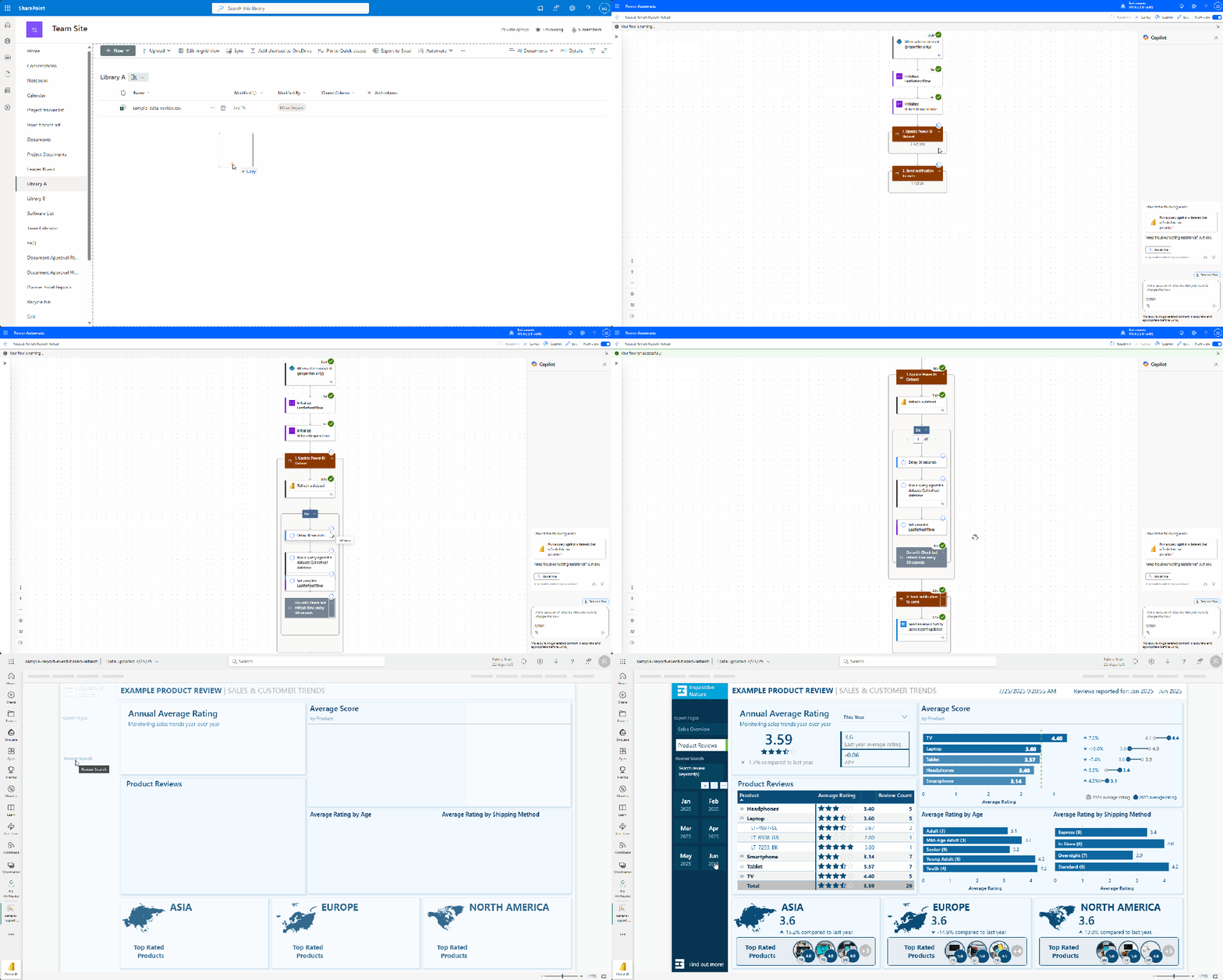
We will use Power Automate to monitor the SharePoint document library. By utilizing the When a new file is created trigger, the workflow starts automatically whenever a new file is added. This process refreshes the dataset and can even send a notification with a link to the updated report once it’s complete.
Build the Flow
The workflow is divided into three main sections: the trigger, refresh, and notification.

Trigger & Setup

We start with the When a file is created (properties only) SharePoint trigger, configured to the site and library where our file is uploaded. If necessary, we can utilize trigger conditions to prevent unnecessary refreshes.
The workflow uses two variables to verify that the refresh has completed before notifying users.
LastRefreshTime: tracks the current timestamp of the last dataset refresh.RefreshRequestTime: stores the timestamp at which the flow starts the refresh.
Refresh the Dataset

We then use the Refresh a dataset Power BI action to trigger the report update. This action targets the specified workspace and dataset.
Note: the Power BI dataset includes a reference table called Last Refresh DateTime , which stores the timestamp (DateTimeZone.utcNow()) for when the dataset was last refreshed.
After initiating the refresh, we add a Do until loop that waits for the refresh to complete. The loop actions include:
- Delay 30 seconds between checking the
LastRefreshTime - Execute a query against the dataset to retrieve the Last Refresh DateTime value (DAX Query:
EVALUATE Last Refresh DateTime) - Update the
LastRefreshTimvariable.
The loop repeats until the LastRefreshTime value is greater than the RefreshRequestTime.
Notify Users

After the refresh is complete, the workflow sends a confirmation email using the Send an email action. This email can be directed to the report owners or a shared inbox to confirm that the data is up to date. It can even include a link for users to view the report.
Tips for a More Reliable Setup
Here are some tips to enhance the reliability of our refresh automation.
Structure files consistently
Maintaining a consistent naming convention for files used in our automation reduces confusion and provides options for additional filtering within the workflow. It also simplifies our Power Query transformations.
Add retry logic and error handling
Delays and errors are inevitable, so it’s important to plan for them in advance. Incorporate branching or error-handling logic to notify the appropriate individuals when issues arise. For guidance on creating a dynamic failure notification system, see Elevate Power Automate Error Handling with Centralized Failure Notifications.
Keep the refresh lightweight
Avoid complex refresh dependencies. Preprocess large files or utilize staging tables to maintain the responsiveness and efficiency of our Power BI model.
Test with testing files first
Before automating production reports, upload sample files and verify the entire process to ensure accuracy. Confirm that the refresh timestamp updates correctly and that notifications are received as expected.
Try This Next
After automating our refresh process, the next step is to clean and shape the incoming data in a consistent and repeatable manner. Power Query parameters and functions simplify this task, enabling us to reuse common logic across different files. For instance, we can easily set data types, remove duplicates, and format text fields.
Explore Power Query Functions: Building Flexible and Reusable Data Cleaning Routines. This resource provides a step-by-step approach to enhance the clarity and maintainability of our data pipeline.
Automate once. Refresh forever.
Manually refreshing datasets is only effective for a small number of reports serving a limited team. As our data expands and more users depend on timely insights, automation becomes crucial.
Scheduled refreshes are beneficial when new data arrives consistently or continuously. However, if our report data does not fit this scenario, scheduled refreshes will still run even if there are no updates to the data.
Our event-driven approach effectively addresses this scenario. Instead of estimating when to schedule updates, we implement a strategy that responds in real-time. By integrating SharePoint Online, Power BI, and Power Automate, we can create reliable and straightforward workflows that ensure our reports remain up-to-date and accurate.
Thank you for reading! Stay curious, and until next time, happy learning.

And, remember, as Albert Einstein once said, “Anyone who has never made a mistake has never tried anything new.” So, don’t be afraid of making mistakes, practice makes perfect. Continuously experiment, explore, and challenge yourself with real-world scenarios.
If this sparked your curiosity, keep that spark alive and check back frequently. Better yet, be sure not to miss a post by subscribing! With each new post comes an opportunity to learn something new.
 Ethan Guyant