

Learn how to hide entire tables and columns in Power BI—so sensitive data stays protected and users see only what they need.
This is the third part of a series on security and design approaches in Power BI.
In the article Power BI Row-Level Security Explained: Protect Data by User Role, we examined Row-Level Security (RLS) and how to restrict access to specific rows of data based on the user’s identity.

Power BI Row-Level Security Explained: Protect Data by User Role
Discover how to personalize your reports and show each user only the data they require in just a few clicks.
In the article Partial RLS Explained: Let Users See the Bigger Picture, we explored Partial RLS, a design pattern that allows users to view high-level context, such as company-wide totals, while still enforcing Row-Level Security (RLS) on detailed sales data.

Power BI Partial RLS Explained: Let Users See the Bigger Picture
Explore how to deliver personalized insights without losing the bigger picture.
We will now focus on another important aspect of data model security: Object-Level Security (OLS).
While RLS controls which rows within a table a user can access, OLS restricts visibility and interaction with specific tables and columns within the data model.
In this post, we will cover the following topics:
- An overview of Object-Level Security (OLS)
- A use case demonstrating how different user roles can view different data model objects
- A step-by-step guide to implementing OLS
- Key considerations and limitations
What is Object-Level Security
In Power BI, Object-Level Security (OLS) enables data modelers to restrict access to specific tables or columns based on the roles assigned to report viewers.
The key difference between RLS and OLS lies in what they restrict:
- RLS controls which rows of data a user can access within a table.
- OLS determines whether a user can see the table or specific columns.
OLS cannot be used to secure or hide measures directly. However, measures are impacted by OLS. If a measure references a column or table that is hidden for a specific role, the measure will also be automatically hidden for that role. It is important to consider this when designing experiences tailored to specific roles.
Power BI manages these data dependencies for us, ensuring that calculations based on secured data remain safe from exposure. However, there is a potential risk that some visuals in our report may not display correctly for viewers who do not have access to specific measures.
Use Case: Hide Reviews Tables and Sensitive Customer Columns
To examine and understand the value of OLS, let’s go through a scenario using a sample report.
Interested in following along? The Power BI sample report is available here: EMGuyant GitHub – Power BI Security Patterns.
We are developing a Power BI report for a sales organization. The data model includes two restricted areas:
- The
Reviewstable contains product reviews from customers and their demographic information. - The
Customerstable includes several columns with customer details that should only be accessible to specific roles.
Access Requirements
Access to the report is structured around four user roles.
The Regional Sales Basic role serves as the foundational level, providing minimal access. Users assigned this role can view sales data related to their sales region and basic customer information. They are restricted from viewing the Reviews table and the detailed customer information columns.
Next is the Regional Sales Advanced role. Users in this role have all the same access as Regional Sales Basic users but this role is able view the detailed customer information columns.
The Product Analyst role has access to the Reviews table but cannot view the detailed customer information columns. They can also view the sales and review data for any region they are assigned to.
Finally, there is the Leadership role. These users can see all the data for any region they are assigned.
Step-by-Step: Configure OLS in Power BI
After creating our data model and defining the tables and columns to which we plan to restrict access, we can begin configuring OLS.
To configure OLS, we will use the Tabular Editor Power BI external tool. There are many external tools for Power BI Desktop; visit Featured open-source tools to view a list of common and popular external tools.
Tabular Editor is a lightweight tool that allows us to build, maintain, and manage tabular models efficiently.
1) Create Roles in Power BI Desktop
In Power BI Desktop, we navigate to the Modeling tab and select “Manage Roles.” We then create the four roles using the following DAX expression for RLS filtering on the User Access table. This table contains the user’s User Principal Name (UPN), region ID, and role for that region.
'User Access'[UPN] = USERPRINCIPALNAME()
2) Open Tabular Editor and Configure OLS
We navigate to External tools in Power BI Desktop and then open Tabular Editor. Under Model, select Roles. The roles we created in Step 1 will appear.

We expand the Table Permissions to set the permissions for each role we want to configure OLS for.
- None: OLS is enforced, and the table or column is hidden from that role.
- Read: The table or column is visible to the role.
3) Secure Specific Tables
To configure OLS for the Reviews table, we need to ensure that only users with the Product Analyst or Leadership roles have access to this table.
First, select the Reviews table and navigate to Object Level Security options under Translations, Perspectives, and Security. Set the permissions to “None” for the Regional Sales Basic and Regional Sales Advanced roles.

4) Secure Specific Columns
Next, we secure the Address, PreferredContactMethod, and ContactInformation columns within the Customers table. To do this, we locate the Customers table and expand it to view its columns.
Then, we select each column we want to secure and set each role’s permissions under Object Level Security. For each column above, we set the permissions for the Regional Sales Basic and Product Analyst roles to None.

Once we finish configuring our OLS rules, we save the changes in Tabular Editor and then publish the semantic model to the Power BI service. Depending on our combination of RLS and OLS, testing within Power BI Desktop using the View as > Other user will not function as expected. We will test and validate our OLS rules in the Power BI Service.
Note: If using the sample report, before testing in the Power BI Service the UPN column within the User Access table will have to contain valid user UPNs.
5) Assign Users to Roles in the Power BI Service
To add users to a role in the Power BI Service, we need to navigate to the workspace where the semantic model has been published. First, locate the semantic model, click on the “More options” ellipsis (…), and then select “Security.”
In the Row-Level Security screen, we can add users or security groups to each role we’ve created.
We have four users to test the OLS (with RLS) implementation:
- Talia Norridge: Leadership role for all regions
- Lena Marwood: Product Analyst for Europe and Asia regions
- Jasper Kellin: Regional Sales Advanced for North America
- Elara Voss: Regional Sales Basic for Asia
6) Test OLS Implementation
On the Security screen, we select the More options ellipsis (…) next to a role and then Test as role.
Then, at the top, we select Now viewing as and then Select a person to validate that the OLS rules function as expected.
Leadership Role
When we view the report as Talia Norridge in the Leadership role, we can see that all the regional sales information is displayed in the data cards at the bottom.
We confirm that Talia also has access to the Reviews table by hovering over the sales by product bar chart. The tooltip for this visual contains measures based on the product review data (e.g. average review rating).
Next, we verify that Talia has access to detailed customer information by hovering over a customer in the sales by customer bar chart. The tooltip for this visual shows the customer’s name and contact information (ContactInformation is a secured column).

Product Analyst Role
Reviewing the report as Lena Marwood in the Product Analyst role, we see that her assignment is limited to the Asia and Europe sales regions. As a result, the total sales value reflects only these regions, and the top performers on the North America data card are hidden.
We confirm that Lena can access the Reviews table by checking the sales by product tooltip, and we see that, like the Leadership role, the data appears as expected.
We confirm that Lena should not have access to detailed customer information. When we hover over the sales by customer visual, the tooltip shows an error when displaying the customer’s contact information.
The customer’s name is displayed without issue because this is not a secured column. However, Lena’s role does not have permission to access the ContactInformation column, which prevents the report from retrieving this data.

Regional Sales Advanced
When we view the report as Jasper Kellin, who holds the Regional Sales Advanced role, we confirm that the sales data only reflects his assigned region.
Next, we check the tooltips that display the review data and detailed customer information.
We verify that the review data produces the expected error because Jasper cannot access the Reviews table. As a result, he is unable to access the entire table and any measures that depend on it, such as the Average Score.
The Average Score measure is defined using the following DAX expression.
Average Score = AVERAGE(Reviews[SatisfactionScore])After reviewing the customer sales data, we confirm that the contact information is presented in the tooltip to Jasper without any errors.

Regional Sales Basic
When we view the report as Elara Voss, who holds the Regional Sales Basic role, we confirm that the sales data only reflects their assigned region.
Next, we check the tooltips that display the review data and detailed customer information.
Both tooltips display the expected error since Elara does not have permissions to the Reviews table or the detailed customer information columns.

Considerations and Limitations
OLS in Power BI offers a robust layer of protection, but there are important limitations to consider before deploying it.
1) OLS applies only to users with the Viewer workspace role. Workspace members with Admin, Member, or Contributor roles have edit permissions on the semantic model, and OLS does not apply to them.
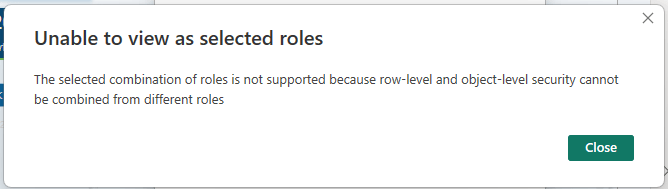
2) Combining OLS and RLS from different roles is not allowed; doing so may cause unintended access and generate an error.
3) Power BI automatically hides measures referencing a column or table restricted by OLS. Although Power BI does not offer a direct way to secure a measure, measures can be implicitly secured if they reference a secure table or column.
4) When users attempt to view visualizations dependent on a secured object with OLS configured, they encounter an error message. As a result, the report seems broken to these users. However, for specific roles this is expected. For example, the Regional Sales Basic role does not have permissions to the Reviews table, so it should not be available in the data set for these viewers.

BONUS: Mask Visual Errors and Control Page Navigation
When OLS hides a table or column, any visual that relies on that data will become unusable for users without access (refer to error message #4 above). While this error is anticipated, it may confuse users who might think the report is broken.
One possible workaround is to use a DAX measure and conditionally formatted shapes to cover the visual for users who cannot access the data.
In our sample report, we can create the following DAX measures to manage the visibility of the data on our tooltips.
Customer Detail Visible =
If([UserRole] <> "Regional Sales Basic", "#FFFFFF00","#f1f9ff")

Rating Detail Visible =
If([UserRole] = "Product Analyst" || [UserRole] = "Leadership", "#FFFFFF00","#f1f9ff")
We place a rectangle shape over the visuals that certain users cannot access, and then we conditionally format the fill color based on the measures.
It’s important to note that this is not an additional security layer or a replacement for OLS. This method only hides the error message to create a cleaner user experience.
However, this approach has a significant limitation. Our example works because the visuals underneath the shapes are not intended for user interaction. If the visuals are interactive for users with access to the data, the transparent shape overlay will prevent them from selecting or interacting with the visual. This means this workaround has a limited use case.
Certain design approaches can help manage which pages users can navigate to within a report. DAX-driven navigation buttons can create a user-friendly navigation experience, allowing users to navigate to the pages with data they have permission to view.
It’s important to note again that this approach does not provide security. However, it can help reduce the chances of users encountering error messages related to their access level based on typical report usage. Here is a brief walkthrough on this approach: RLS and OLS—Page Navigation.
While various design methods can enhance the user experience, OLS and RLS remain the only secure methods for controlling data access.
Wrapping Up
OLS in Power BI gives us a model-driven way to control access to specific tables and columns. Unlike Row-Level Security (RLS), which filters rows for authorized users, OLS prevents users from seeing certain objects of the model, removing entire tables and columns from the data experience.
When creating reports for broad audiences with different access needs, OLS can become essential to meet the requirements.
Thank you for reading! Stay curious, and until next time, happy learning.

And, remember, as Albert Einstein once said, “Anyone who has never made a mistake has never tried anything new.” So, don’t be afraid of making mistakes, practice makes perfect. Continuously experiment, explore, and challenge yourself with real-world scenarios.
If this sparked your curiosity, keep that spark alive and check back frequently. Better yet, be sure not to miss a post by subscribing! With each new post comes an opportunity to learn something new.
 Ethan Guyant