Dive into DAX: Decoding Data with Power BI Logical Functions


The missing piece to decoding our data and unlocking its full potential is often the strategic application of DAX Logical Functions. These functions are pivotal in dissecting complex datasets, applying business logic, and enabling a nuanced approach to data analysis that goes beyond surface-level insights. Better understanding DAX Logical Functions allows us to create more sophisticated data models that respond with agility to analytical queries, turning abstract numbers into actionable insights.

In this post we will explore this group of functions and how we can leverage them within Power BI. We will dive in and see how we can transform our data analysis from a mere task into an insightful journey, ensuring that every decision is informed, every strategy is data-driven, and every report illuminates a path to action.


The Logical Side of DAX: Unveiling Power BI’s Brain

Diving into the logical side of DAX is where everything begins to become clear. Logical functions are the logical brain behind Power BI’s ability to make decisions. Just like we process information to decide between right and wrong, DAX logical functions sift through our data to determine truth values: true or false.

Functions such as IF, AND, OR, NOT, and TRUE/FALSE, are the building blocks for creating dynamic reports. These functions allow us to set up conditions that our data must meet, enabling a level of interaction and decision-making that is both powerful and nuanced. Whether we are determining if sales targets were hit or filtering data based on specific criteria, logical functions are our go-to tools for making sense of the numbers.

For details on these functions and many others visit the DAX Function Reference documentation.

Learn more about: DAX Logical Functions

The logical functions in DAX can go far beyond the basics. The real power happens when we start combining these functions to reflect complex business logic. Each function plays its role and when used in combination correctly we can implement complex logic scenarios.

For those eager to start experimenting there is a Power BI report pre-loaded with the same data used in this post ready for you! So don’t just read, follow along and get hands-on with DAX in Power BI. Get a copy of the sample data report here:

This dynamic repository is the perfect place to enhance your learning journey.


Understanding DAX Logical Functions: A Beginner’s Guide

When starting our journey with DAX logical functions we will begin to understand the unique role of each function within our DAX expressions. Among these functions, the IF function stands out as the decision-making cornerstone.

The IF function tests a condition, returning one result if the condition is TRUE, and another if FALSE. Here is its syntax.

IF(logical_test, value_if_true, value_if_false)

The logical_test parameter is any value or expression that can be evaluated to TRUE or FALSE, and then the value_if_true is the value that is returned if logical_test is TRUE, and the value_if_false is optional and is the value returned when logical_test is FALSE. When value_if_false is omitted, BLANK is returned when the logical_test is FALSE.

Let’s say we want to identify which sales have an amount that exceeds $5,000. To do this we can add a new calculated column to our Sales table with the following expression.

Sales Target Categorization = 
IF(
  Sales[Amount] > 5000, 
  "Above Target", 
  "Below Target"
)

This expression will evaluate each sale in our Sales table, labeling each sale as either “Above Target” or “Below Target” based on the Sales[Amount].

The beauty of starting our journey with IF lies in its simplicity and versatility. While we continue to explore logical functions, it won’t be long before we encounter TRUE/FALSE.

As we saw with the IF function these values help guide our DAX expressions, they are also their own DAX function. These two functions are the DAX way of saying yes (TRUE) or no (FALSE), often used within other logical functions or conditions to express a clear binary choice.

These functions are as straightforward as they sound and do not require any parameters. When used with other functions or conditional expressions we typically use these to explicitly return TRUE or FALSE values.

For example, we can create another calculated column to check if a sale is a high value sale with an amount greater than $9,000.

High Value Sale = 
IF(
  Sales[Amount] > 9000, 
  TRUE, 
  FALSE
)

This simple expression checks if the sales amount exceeds $9,000, marking each record as TRUE if so, or FALSE otherwise.

Together IF and TRUE/FALSE form the foundation of logical expressions in DAX, setting the stage for more complex decision-making analysis. Think of these functions as essential for our logical analysis, but just the beginning of what is possible.


The Gateway to DAX Logic: Exploring IF with AND, OR, and NOT

The IF function is much more than just making simple true or false distinctions; it helps us unlock the nuanced layers of our data, guiding us through the paths our analysis can take. By effectively leveraging this function we can craft detailed narratives from our datasets.

We are tasked with setting sales targets for each region. The goal is to base these targets on a percent change seen in the previous year. Depending on whether a region experienced a growth or decline, the sales target for the current year is set accordingly.

Region Specific Sales Target = 
IF(
    HASONEVALUE(Regions[Region]),
    IF(
        [Percent Change(CY-1/CY-2)] < 0, 
        [Total Sales (CY-1)]*1.1, 
        [Total Sales (CY-1)]*1.2
    ),
    BLANK()
)

In this measure we make use of three other measures within our model. We calculate the total sales for the previous year (Total Sales (CY-1)), and the year before that (Total Sales (CY-2)). We then determine the percentage change between these two values.

If there is a decline (negative percent change), we set the current year’s sales target to be 10% higher than the previous year’s sales, indicating a more conservative goal. Conversely, if there was growth (positive percent change), we set the current year target 20% higher to keep the momentum going.

As we dive deeper, combining IF with functions like AND, OR, and NOT we begin to see the true flexibility of these functions in DAX. These logical operators allow us to construct more intricate conditions, tailoring our analysis to very specific scenarios.

The operator functions are used to combine multiple conditions:

  • AND returns TRUE if all conditions are true
  • OR returns TRUE if any condition is true
  • NOT returns TRUE if the condition is false

Let’s craft a measure to determine which employees are eligible for a quarterly bonus. The criterion for eligibility is twofold: the employee must have made at least one sale in the current quarter, and their average sale amount during this period must exceed the overall average sale amount.

To implement this, we first need to calculate the average sales and compare each employee’s average sale against this benchmark. Additionally, we check if the employee has sales recorded in the current quarter to qualify for the bonus.

Employee Bonus Eligibility = 
VAR CurrentQuarterStart = DATE(YEAR(TODAY()), QUARTER(TODAY()) * 3 - 2, 1)
VAR CurrentQuarterEnd = EOMONTH(DATE(YEAR(TODAY()), QUARTER(TODAY()) * 3, 1), 0)
VAR OverallAverageSale = CALCULATE(AVERAGE(Sales[Amount]), ALL(Sales))
VAR EmployeeAverageSale = CALCULATE(AVERAGE(Sales[Amount]), FILTER(Sales, Sales[SalesDate] >= CurrentQuarterStart && Sales[SalesDate] = CurrentQuarterStart && Sales[SalesDate]  0

RETURN
IF(
    AND(HasSalesCurrentQuarter, EmployeeAverageSale > OverallAverageSale),
    "Eligible for Bonus",
    "Not Eligible for Bonus"
)

In this measure we define the start and end dates of the current quarter, then we calculate the overall average sale across all data for comparison. We then determine each employee’s average sale amount and check if the employee has made any sales in the current quarter to qualify for evaluation.

If an employee has active sales and their average sale amount during the period is above the overall average, they are deemed “Eligible for Bonus”. Otherwise, they are “Not Eligible for Bonus”.

This example begins to explore how we can use IF in conjunction with AND to streamline business logic into actionable insights. These logical functions provide a robust framework for asking detailed questions about our data and receiving precise answers, allowing us to uncover the insights hidden within the numbers.


Beyond the Basics: Advanced Logical Functions in DAX

As we venture beyond the foundational logical functions we step into a world where DAX’s versatility shines, especially when dealing with complex data models in Power BI. More advanced logical functions such as SWITCH and COALESCE bring a level of clarity and efficiency that is hard to match with just basic IF statements.

SWITCH Function: Simplifying Complex Logic

The SWITCH function is a more powerful version of the IF function and is ideal for scenarios where we need to compare a single expression against multiple potential values and return one of multiple possible result expressions. This function helps us provide clarity by avoiding multiple nested IF statements. Here is its syntax.

SWITCH(expression, value, result[, value, result]...[, else])

The expression parameter is a DAX expression that returns a single scalar value and is evaluated multiple times depending on the context. The value parameter is a constant value that is matched with the results of expression, the result is any scalar expression to be evaluated if the result of expression matches the corresponding value. Finally, the else parameter is an expression to be evaluated if the result of expression does not match any value arguments.

Let’s explore. We have a scenario where we want to apply different discount rates to products based on their categories (Smartphone, Laptop, Tablet). We could achieve this by using the following expression for a new calculated column, which uses nested IFs.

Product Discount Rate (IF) = 
IF(
    Products[Product]="Smartphone", 0.10,
    IF(Products[Product]="Laptop", 0.15,
        IF(Products[Product]="Tablet", 0.20,
            0.05
        )
    )
)

Although this would achieve our goal, the use of nested if statements can make the logic of the calculated column hard to read, understand, and most importantly hard to troubleshoot.

Now, let’s see how we can improve the readability and clarity by implementing SWITCH to replace the nested IF statements.

Product Discount Rate = 
SWITCH(
    Products[Product],
    "Smartphone", 0.10,
    "Laptop", 0.15,
    "Tablet", 0.20,
    0.05
)

The expression simplifies the mapping of each Product to its corresponding discount rate and provides a default rate for categories that are not explicitly listed.

COALESCE Function: Handling Blank or Null Values

The COALESCE function offers a straightforward way to deal with BLANK values within our data, returning the first non-blank value in a list of expressions. If all expressions evaluate to BLANK, then a BLANK value is returned. Its syntax is also straightforward.

COALESCE(expression, expression[, expression]...)

Here, expression can be any DAX expression that returns a scalar value. These expressions are evaluated in the order they are passed to the COALESCE function.

When reporting on our sales data, encountering blanks can sometimes communicate the wrong message. Using COALESCE we can address this by providing a more informative value when there are no associated sales.

Product Sales = COALESCE([Total Sales], "No Sales")

With this new measure if our Total Sales measure returns a blank, for example due to filters applied in the report, COALESCE ensures this is communicated with a value of “No Sales”. This approach can be beneficial for maintaining meaningful communication in our reports. It ensures that our viewers understand the lack of sales being reported, rather than interpreting a blank space as missing or erroneous data.

These logical functions enrich our DAX toolkit, enabling more elegant solutions to complex problems. By efficiently managing multiple conditions and safeguarding against potential errors, SWITCH and COALESCE not only optimize our Power BI models but also enhance our ability to extract meaningful insights from our data.

With these functions, our journey into DAX’s logical capabilities becomes even more exciting, revealing the depth and breadth of analysis we can achieve. Let’s continue to unlock the potential within our data, leveraging these tools to craft insightful, dynamic reports.


Logical Comparisons and Conditions: Crafting Complex DAX Logic

Delving deeper into DAX, we encounter scenarios that demand a blend of logical comparisons and conditions. This complexity arises from weaving together multiple criteria to craft intricate logic that precisely targets our analytical goals.

We touched on logical operators briefly in a previous section, the AND, OR, and NOT functions are crucial for building complex logical structures. Let’s continue to dive deeper into these with some more hands-on and practical examples.

Multi-Condition Sales Analysis

We want to identify and count the number Sales transactions that meet specific criteria: sales above a threshold and within a particular region. To achieve this, we create a new measure using the AND operator to count the rows in our sales table that meet our criteria.

High Value Sales in US (Count) = 
COUNTROWS(
    FILTER(
        Sales,
        AND(
            Sales[Amount] > 5500,
            RELATED(Regions[Region]) = "United States"
        )
    )
)

This measure filters our Sales table to sales that have an amount greater than our threshold of $5,500 and have a sales region of United States.

Excluding Specific Conditions

We need to calculate total year-to-date sales while excluding sales from a particular region or below a certain amount. We can leverage the NOT function to achieve this.

Sales Excluding Asia and Low Values = 
CALCULATE(
    SUM(Sales[Amount]),
    AND(
        NOT(Sales[RegionID] = 3), // RegionID=3 (Asia)
        Sales[Amount] > 5500
    ),
    Sales[IsCurrentYear]=TRUE()
)

This measure calculates the sum of the sales amount that are not within our Asia sales region and are above $5,500. Using NOT we exclude sales from the Asia region and we us the AND function to also impose the minimum sales amount threshold.

Special Incentive Qualifying Sales

Our goal is to identify sales transactions eligible for a special incentive based on multiple criteria: sales amount, region, employee involvement, and a temporal aspect of the sales data. Here is how we can achieve this.

Special Incentive Qualifying Sales = 
CALCULATE(
    SUM(Sales[Amount]),
    OR(
        Sales[Amount] > 7500,
        Sales[RegionID] = 2
    ),
    NOT(
        Sales[EmployeeID] = 4
    ),
    Sales[IsCurrentYear] = TRUE()
)

The OR function is used to include sales transactions that either exceed $7,500 or are made in Europe (RegionID = 2) and the NOT function excludes transaction made by an employee (EmployeeID = 4), who is a manager and exempt from the incentive program. The final condition is that the sale occurred in the current year.

The new measure combines logical tests to filter our sales data, identifying the specific transactions that qualify for a special incentive under detailed conditions.

By leveraging DAX’s logical functions to construct complex conditional logic, we can precisely target specific segments of our data, uncover nuanced insights, and tailor our analysis to meet specific business needs. These examples showcase just the beginning of what is possible when we combine logical functions in creative ways, highlighting DAX’s robustness and flexibly in tackling intricate data challenges.


Wrapping Up: From Logic to Action

Our journey through the world of DAX logical functions underscores their transformative power within our data analysis. By harnessing IF, SWITCH, AND, OR, and more, we’ve seen how data can be sculpted into actionable insights, guiding strategic decisions with precision. To explore other DAX Logical Functions or get more details visit the DAX Function Reference.

Learn more about: DAX Logical Functions

Logical reasoning in data analysis is fundamental. It allows us to uncover hidden patterns and respond to business needs effectively, demonstrating that the true value of data lies in its interpretation and application. DAX logical functions are the keys to unlocking this potential, offering clarity and direction in our sea of numbers.

As we continue to delve deeper into DAX and Power BI, let the insights derived from logical functions inspire action and drive decision-making. To explore other functions groups that elevate our data analysis check out the Dive into DAX series, with each post comes the opportunity to enhance your data analytics and Power BI reports.

Explore the intricate landscape of DAX in Power BI, revealing the potential to enhance your data analytics with every post. 


Thank you for reading! Stay curious, and until next time, happy learning.

And, remember, as Albert Einstein once said, “Anyone who has never made a mistake has never tried anything new.” So, don’t be afraid of making mistakes, practice makes perfect. Continuously experiment and explore new DAX functions, and challenge yourself with real-world data scenarios.

If this sparked your curiosity, keep that spark alive and check back frequently. Better yet, be sure not to miss a post by subscribing! With each new post comes an opportunity to learn something new.

Elevate Your Productivity with Planner and Power Automate


Introduction to Power Automate and Microsoft Planner

In today’s fast-paced business environment, mastering the art of productivity is not just an option, but a necessity. The dynamic duo of Microsoft Planner and Power Automate are our allies in the realm of project and task management. Imagine a world where our projects flow seamlessly, where every task aligns perfectly with your goals, and efficiency is not just a buzzword but a daily reality. This is all achievable with the integrations of Microsoft Planner and Power Automate in your corner.

Microsoft Planner, is our go-to task management tool, that allows us and our teams to effortlessly create, assign, and monitor tasks. It provides a central hub where tasks aren’t just written down but are actively managed and collaborated on. Its strength lies in its visual organization of tasks, with dashboard and progress indicators providing an bird’s-eye view of our project, making organization and prioritization a breeze. It is about managing the chaos of to-dos into an organized methodology of productivity, with each task moving smoothly from To Do to Done.

On the other side of this partnership we have Power Automate, the powerhouse of process automation. It bridges the gap between our various applications and services, automating the mundane so we can focus on what is important. Power Automate is our behind the scenes tool for productivity, connecting our favorite apps and automating workflows whether that’s collecting data, managing notifications, sending approvals, and so much more all without us lifting a finger, after the initial setup of course.

Together, these tools don’t just manage tasks; they redefine the way we approach project management. They promise a future where deadlines are met with ease, collaboration is effortless, and productivity peaks are the norm.

Ready to transform your workday and elevate your productivity? Let Microsoft Planner and Power Automate streamline your task management.

Here’s an overview of what is explored within this post. Start with an overview of Power Automate triggers and actions specific to Microsoft Planner or jump right to some example workflows.

  1. Introduction to Power Automate and Microsoft Planner
  2. Unveiling the Power of Planner Triggers in Power Automate
    1. When a new task is created
    2. When a task is assigned to me
    3. When a task is completed
  3. Navigating Planner Actions in Power Automate
    1. Adding and Removing assignees
    2. Creating and Deleting tasks
    3. Getting and Updating tasks
    4. Getting and Updating task details
    5. List buckets
    6. List Tasks
  4. Basic Workflows: Simplifying Task Management with Planner and Power Automate
    1. Weekly Summary of Completed Tasks
    2. Post a Teams message for Completed High Priority Tasks
  5. Advanced Workflows: Leveraging Planner with Excel and GitHub Integrations
    1. Excel Integration for Reporting Planner Tasks
    2. GitHub Integration for Automated Task Creation
  6. Unleashing New Dimensions in Project Management with Planner and Power Automate

Unveiling the Power of Planner Triggers in Power Automate

Exploring Planner triggers in Power Automate reveals a world of automation that streamlines task management and enhances productivity. Let’s dive into three key triggers and their functionalities.

When a new task is created

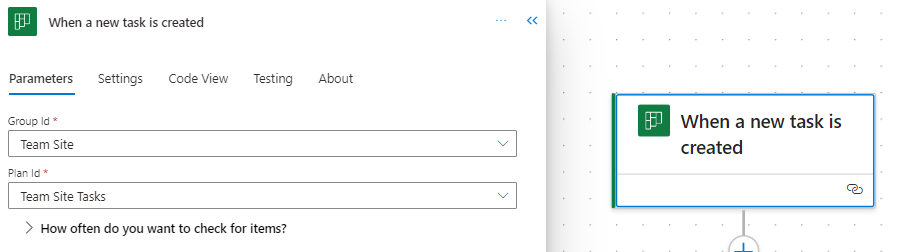
This trigger jumps into action as soon as a new task is created in Planner. It requires the Group Id and Plan Id to target the specific Planner board. This trigger can set a series of automated actions into motion, such as sending notifications to relevant team members, logging the task in an Excel reporting workbook, or triggering parallel tasks in a related project.

When a task is assigned to me

This trigger personalizes your task management experience. It activates when a task in Planner is assigned to you. This trigger can automate personal notifications, update your calendar with the new tasks, or prepare necessary documents or templates associated with the task. Simply select this Planner trigger and it is all set, there is no additional information required by the trigger. It’s an excellent way to stay on top of personal responsibilities and manage your workload efficiently.

When a task is completed

The completion of a task in Planner can signal the start of various subsequent actions, hinging on the completion status of a task in a specified plan. The required inputs are the Group Id and the Plan Id to identify the target Planner board. This trigger is instrumental in automating post-task processes like updating project status reports, notifying team members or stakeholders of the task completion, or archiving task details for accountability and future reference.

By leveraging these Planner triggers in Power Automate, we can not only automate but also streamline our workflows. Each trigger offers a unique avenue to enhance productivity and ensures that our focus remains on strategic and high-value tasks.


Navigating the complexities of project management requires tools that offer both flexibility and control. The integration of Microsoft Planner actions within Power Automate provides a robust solution for managing tasks efficiently. By leveraging Planner actions in Power Automate, we can automate and refine our task management processes. Let’s dive into some of the different Planner actions.

Adding and Removing assignees

Task assignment is a critical aspect of project management. These actions in Power Automate facilitate flexible and dynamic assignment and reassignment of team members to tasks in Planner, adapting to the ever-changing project landscape.

Add assignees to a task
This action allows us to assign team members to specific tasks, with inputs including the task ID and the user ID(s) of the assignee(s). It’s particularly useful for quickly adapting to changes in project scope or team availability, ensuring that tasks are always in the right hands.

Remove assignees from a task
Inputs for this action are the task ID and the user ID(s) of the assignee(s) to be removed. It’s essential for reorganizing task assignments when priorities shift or when team members need to be reallocated to different tasks, maintaining optimal efficiency.

Creating and Deleting tasks

The lifecycle of a task within any project involves its creation and eventual completion or removal. These actions in Power Automate streamline these essential stages, ensuring seamless task management within Planner.

Create a task
Every project begins with a single step, or in the case of our Planner board, a single task. To create a task we must provide the essentials, including Group Id, Plan Id, and Title. This action is invaluable for initiating tasks in response to various Power Automate triggers, such as email requests or meeting outcomes, ensuring timely task setup.

When using the new Power Automate designer (pictured above), be sure to provide all optional details of the task by exploring the Advanced parameters dropdown. Under the advanced parameters we will find task details to set in order to create a task specific to what our project requires. We can set the newly created task’s Bucket Id, Start Date Time, Due Date Time, Assigned User Id, as well as applying any tags needed to create a detailed and well defined task. When using the classic designer we will see all these options listed within the action block.

Delete a task
Keeping our Planner task list updated and relevant is equally important to successful project lifecycle management. Removing completed, outdated, or irrelevant tasks can help us maintain clarity and focus on the overall project plan. This action just requires us to provide the Task Id of the task we want deleted from our Planner board.

Getting and Updating tasks

Accessing and updating task information are key aspects of maintaining project momentum. These actions provide the means to efficiently manage task within Planner.

Get a task
Understanding each task’s status is crucial for effective management, and the Get a task action offers a window into the life of any task in our Planner board. By providing the Task Id, this action fetches the task returning information about the specific task. It is vital for our workflows that require current information about a task’s status, priority, assignees, or other details before proceeding to subsequent steps. This insight is invaluable for keeping a pulse on our projects progress.

Update a task
This action, requires the Task Id and the task properties to be updated, allowing for real-time modifications of task properties. It is key for adapting tasks to new deadlines, changing assignees, or updating a task’s progress. Using this action we can ensure that our Planner board always reflects the most current state of our tasks providing a current overview of the overall project status.

Getting and Updating task details

Detailed task management is often necessary for complex projects. These actions cater to this need by providing and updating in-depth information about tasks in Planner.

Get task details
Each task in a project has its own story, filled with specific details and nuances. This action offers a comprehensive view of a task, including its description, checklist items, and more. It is an essential action for workflows that require a deep understanding of task specifics for reporting, analysis, or decision making.

Update task details
With inputs for detailed aspects of our tasks, such as its descriptions and checklist items, this action allows for precise and thorough updates to our task information. It is particularly useful for keeping tasks fully aligned with project developments and team discussions.

List buckets

Effective task categorization is vital for clear project visualization and management. The List buckets action in Power Automate is designed to provide a comprehensive overview of task categories or buckets within our Planner board. We provide this action the Group Id and Plan Id and it returns a list of all the buckets within the specified plan, including details like bucket Id, name, and an order hint.

This information can aid in our subsequent actions, such as creating a new task within a specific bucket on our Planner board.

List Tasks

Keeping a tab on all tasks within a project is essential for effective project tracking, reporting, and management. The List tasks action in Power Automate offers a detailed view of tasks within a specific planner board.

We need to provide this action the Group Id and Plan Id, and it provides a detailed list of all tasks. The details provided for each task include the title, start date, due date, status, priority, how many active checklist items the task has, categories applied to the task, who created the task, and who the task is assigned to. This functionality is invaluable for teams to gain insights into task distribution, progress, and pending actions, ensuring that no task is overlooked and that project milestones are met.


Basic Workflows: Simplifying Task Management with Planner and Power Automate

Before diving into some more advanced examples and integrations, it is essential to understand how Planner and Power Automate can simplify everyday task management through some basic workflows. These workflows will provide a glimpse into the potential of combining these two powerful tools.

Weekly Summary of Completed Tasks

This workflow automates the process of summarizing completed tasks in Planner, sending a weekly email to project managers so they can keep their finger on the pulse of project progress.

The flow has a reoccurrence trigger which is set to run the workflow on a weekly basis. The workflow then starts by gathering all the tasks from the planner board using the List tasks action. This action provides two helpful task properties that we can use to pinpoint the task that have been completed in the last week.

The first is percentComplete, we add a filter data operation action to our workflow and filter to only tasks that have a percentComplete equal to 100 (i.e. are marked completed). We set the From input to the value output of the List task action and define our Filter Query.

The second property we can use from List tasks is the completedDateTime, we can use this to further filter our completed task to just those completed within the last week. Here we use the body of our Filter array: Completed tasks action and use an expression to calculated the difference between when the task was completed and when the flow is ran, in days.

The expression used in the filter query is:

int(split(dateDifference(startOfDay(getPastTime(1, 'Week')), item()?['completedDateTime']), '.')[0])

This expression starts by getting the start of the day 1 week ago using getPastTime and startOfDay. Then we calculate the difference using dateDifference. The date difference function will return a string value in the form of 7.00:00:00.0000000, representing Days.Hours:Minutes:Seconds. For our purposes we are only interested in the number of days, specifically whether the value is positive or negative, that is was it completed before or after the date 1 week ago. To extract just the days as an integer we first use split to split the string based on periods, and then we use the first item in the resulting array ([0]), and pass this to the int function, to get a final integer value.

We then use the Create HTML table action to create a summary table of the Planner tasks that were completed in the past week.

Then we can send out an email to those that require the weekly summary of completed tasks, using the output of the Create HTML table: Create summary table action.

Here is an overview of the entire Power Automate workflow that automates our process of summarizing our Planner tasks that have been completed in the past week.

This automated summary is invaluable for keeping track of progress and upcoming responsibilities, ensuring that our team is always aligned and informed about the week’s achievements and ready to plan for what is next.

Post a Teams message for Completed High Priority Tasks

This workflow is tailored to enhance team awareness and acknowledgement of completed high-priority tasks. It automatically sends a Teams notification when a high-priority task in Planner is marked as completed.

The workflow triggers when a Planner task on the specified board is marked complete. The workflow then examines the priority property of the task to determine if a notification should be sent. For the workflow a high-priority task is categorized as a task marked as Important or Urgent in Planner.

The workflow uses a condition flow control to evaluate each task’s priority property. An important note here is that, although in Planner the priorities are shown as Low, Medium, Important, and Urgent, the property values associated with these values are stored in the task property as 9, 5, 3, 1, respectively. So the condition used evaluates to true if the priority value is less than or equal to 3, that is the task is Important or Urgent.

When the condition is true, the workflow gathers more details about the task and then sends a notification to keep the team informed about these critical tasks.

Let’s break down the three actions used to compose and send the Teams notification. First, we use the List buckets action to provide a list of all the buckets contained within our Planner board. We need this to get the user friendly bucket name, because the task item only provides us the bucket id.

Then we can use use the Filter data operation to filter the list of all the buckets to the specific bucket the complete task resides in.

Here, value is the output of our List bucket action, id is the current bucket list item, and bucketId is the id of the current task item of the For each: Completed task loop. We can then use the dynamic content from the output of this action to provide a bit more detail to our Teams notification.

Now we can piece together helpful information and notify our team when high-priority tasks are completed using the Teams Post a message in a chat or channel action, shown above. Providing our team details like the task name, the bucket name, and a link to the Planner board.

These basic yet impactful workflows illustrate the seamless integration of Planner with Power Automate, setting the stage for more advanced and interconnected workflows. They highlight how simple automations can significantly enhance productivity and team communication.


Advanced Workflows: Leveraging Planner with Excel and GitHub Integrations

The integration of Microsoft Planner with other services through Power Automate unlocks new dimensions in project management, offering innovative ways to manage tasks and enhance collaboration.

Excel Integration for Reporting Planner Tasks

A standout application of this integration is the reporting of Planner tasks in Excel. By establishing a flow in Power Automate, task updates from Planner can be seamlessly merged to an Excel workbook. This setup is invaluable for generating detailed reports, tracking project progress, and providing more in-depth insights.

For an in-depth walkthrough of a workflow, leveraging this integration check out this post that covers the specifics of setting up and utilizing this integration.

Explore the Detailed Workflow for Seamless Task Management and Enhanced Reporting Capabilities.

GitHub Integration for Automated Task Creation

Combining Planner with GitHub through Power Automate creates a streamlined process for managing software development tasks. A key workflow in this integration is the generation of Planner tasks in response to new GitHub issues assigned to you. When an issue is reported in GitHub, a corresponding task is automatically created in Planner, complete with essential details from the GitHub issue. This integration ensures prompt attention to issues and their incorporation into the broader project management plan.

Check back, for a follow up post focus specifically on providing a detailed guide on implementing this workflow.

These advanced workflows exemplify the power and flexibility of integrating Planner with other services. By automating interactions across different platforms, teams can achieve greater efficiency and synergy in their project management practices.


Unleashing New Dimensions in Project Management with Planner and Power Automate

Finishing our exploration of Microsoft Planner and Power Automate, it’s evident that these tools are more than mere facilitators of task management and workflow automation. They embody a transformative approach to project management, blending efficiency, collaboration, and innovation in a unique and powerful way.

The synergy between Planner and Power Automate opens up a realm of possibilities, enabling teams and individuals to streamline their workflows, integrate with a variety of services, and automate processes in ways that were previously unimaginable. From basic task management to complex, cross-platform integrations with services like Excel and GitHub, these tools offer a comprehensive solution to the challenges of modern project management.

The journey through the functionalities of Planner and Power Automate is a testament to the ever-evolving landscape of digital tools and their impact on our work lives. As these tools continue to evolve, they offer fresh opportunities for enhancing productivity, fostering team collaboration, and driving innovative project management strategies.

Experiment with these tools and explore the myriad of features they have to offer, and discover new ways to optimize your workflows. The combination of Planner and Power Automate isn’t just a method for managing tasks; it’s a pathway to redefining project management in the digital age, empowering teams to achieve greater success and efficiency.


Thank you for reading! Stay curious, and until next time, happy learning.

And, remember, as Albert Einstein once said, “Anyone who has never made a mistake has never tried anything new.” So, don’t be afraid of making mistakes, practice makes perfect. Continuously experiment, explore, and challenge yourself with real-world scenarios.

If this sparked your curiosity, keep that spark alive and check back frequently. Better yet, be sure not to miss a post by subscribing! With each new post comes an opportunity to learn something new.

Mastering DAX Text Expressions: Making Sense of Your Data One String at a Time


Ever felt like your data was whispering secrets just beyond your grasp? Dive into the world of DAX Text Functions and turn those whispers into powerful narratives. Unlock stories hidden within text strings, and let your data weave tales previously untold.


Introduction to DAX Text Functions

We live in a world that’s overflowing with data. But let’s remember: data can be so much more than just numbers on a spreadsheet. It can be the letters we string together, and the words we read. Get ready to explore the exciting world of DAX Text Functions!

If you have ever worked with Power BI, you are likely familiar with DAX or Data Analysis Expressions. If you are new to Power BI and DAX check out these blog posts to get started:

Row Context — What it is, When is it available, and its Implications

Iterator Functions — What they are and What they do

DAX is the backbone that brings structure and meaning to the data we work with in Power BI. Especially when we are dealing with textual data, DAX stands out with its comprehensive set of functions dedicated just for this purpose.

So whether you’re an experienced data analyst or a beginner just starting your journey, you have landed on the right page. Prepare to explore the depth and breadth of DAX Text Functions. This is going to be a deep dive covering various functions, their syntax, and plenty of of examples!

For those of you eager to start experimenting there is a Power BI report loaded with the sample data used in this post ready for you. So don’t just read, dive in and get hands-on with DAX Functions in Power BI. Check out it here:

This dynamic repository is the perfect place to enhance your learning journey.


LEFT, RIGHT, & MID — The Text Extractors

Starting with the basics, LEFT, RIGHT, and MID. Their primary role is to provide tools for selectively snipping portions of text, enabling focused data extraction. Let’s go a little deeper and explore their nuances.

LEFT Function: As the name subtly suggests, the LEFT function fetches a specific number of characters from the start, or leftmost part, of a given text string.

The syntax is as simple as:

LEFT(text, number_of_characters)

Here, text is the text string containing the characters you want to extract, and number_of_characters is an optional parameter that indicates the number of characters you want to extract. It defaults to a value of 1 if a value is not provided.

For more details see:

Learn more about: LEFT

RIGHT Function: The RIGHT function, mirrors the functionality of LEFT and aims to extract the characters from the end of a string, or the rightmost part.

The syntax is the same as we saw for LEFT:

RIGHT(text, number_of_characters)

For more details see:

Learn more about: RIGHT

MID Function: Now we have the MID function. This is the bridge between LEFT and RIGHT that doesn’t restrict you to the start or end of the text string of interest. MID enables you to pinpoint a starting position and then extract a specific number of characters from there.

The syntax is as follows:

MID(text, start_number, number_of_characters)

Here, text is the text string containing the characters you want to extract, start_number is the position of the first character you want to extract (positions in the string start at 1), and number_of_characters is the number of characters you want to extract.

For more details see:

Learn more about: MID

Practical Examples: Diving Deeper with the Text Extractors

Let’s dive deeper with some examples. Let’s say we have a Product Code column within our Product Table. The Product Code takes the form of product_abbreviation-product_num-color_code for example, SM-5933-BK.

We will first extract the first two characters using LEFT, these represent the product abbreviation. We can create a calculated column in the products table using the following expression:

Product Abbrev = LEFT(Products[Product Code], 2)

Next, let’s use RIGHT to extract the last two characters which represent the color code of the product. We will add another calculated column to the products table using the following:

Product Color = RIGHT(Products[Product Code], 2)

Lastly, to pinpoint the unique product number which is nestled in the middle we will use MID. We add another calculated column to the products table using this expression:

Product Number = MID(Products[Product Code], 4, 4)

Together, these three functions form the cornerstone of text extraction. However, they can sometimes stumble when there are unexpected text patterns. Take, for instance, the last row shown below for Product Code TBL-57148-BLK.

You might have noticed that the example expressions above may not always extract the intended values due to their reliance on hardcoded positions and number of characters. This highlights the importance of flexible and dynamic text extraction methods.

Enter FIND and SEARCH! As we venture further into this post, we will uncover how these functions can provide much-needed flexibility to our extractions, making them adaptable to varying text lengths and structures. So, while the trio of LEFT, RIGHT, and MID are foundational, there is a broader horizon of DAX Text Functions to explore.

So, don’t halt your DAX journey here; continue reading and discover the expanded universe of text manipulation tools. Dive in, and let’s continue to elevate your DAX skills.


FIND & SEARCH — Navigators of the Text Terrain

In the landscape of DAX Text Functions, FIND and SEARCH stand out as exceptional navigators, aiding you in locating a substring within another text string. Yet, despite their apparent similarities, they come with clear distinctions that could greatly impact your results.

FIND Function: the detail-oriented one of the two functions. It is precise, and is case-sensitive. So, when using FIND, ensure you embrace the details and match the exact case of the text string you are seeking.

The syntax of FIND is:

FIND(find_text, within_text[, [start_number][, NotFoundValue]])

Here, find_text is the text string you are seeking, you can use empty double quotes "" to match the first character of within_text. Speaking of, within_text is the text string containing the text you want to find.

The other parameters are optional, start_number is the position in within_text to start the seeking and defaults to 1 meaning the start of within_text. Lastly, NotFoundValue although optional is highly recommended and represents the value the function will use when find_text is not found in within_text, typical values include 0, -1.

For more details see:

Learn more about: FIND

SEARCH Function: SEARCH is the more laid-back of the two functions. It is adaptable and does not account for case, whether it’s upper case, lower case or a mix SEARCH will find the text you are looking for.

The syntax for SEARCH is as follows:

SEARCH(find_text, within_text[, [start_number][, NotFoundValue]])

SEARCH operates using the same parameters as FIND, which can facilitate a streamlined approach when having to switch between them.

For more details see:

Learn more about: SEARCH

Practical Examples: Amplifying Flexibility

When combined with LEFT, RIGHT, or MID the potential of FIND and SEARCH multiplies, allowing for dynamic text extraction. Let’s consider the problematic Product Code TBL-57148-BLK again.

We started by extracting the product abbreviation with the following expression:

Product Abbrev = LEFT(Products[Product Code], 2)

This works well when all the product codes start with a two-letter abbreviation. But what if they don’t? The fixed number of characters to extract might yield undesirable results. Let’s use FIND to add some much-needed flexibility to this expression.

We know that the product abbreviation is all the characters before the first hyphen. To determine the position of the the first hyphen we can use:

First Hyphen = FIND("-", Products[Product Code])

For TBL-57148-BLK this will return a value of 4. We can then use this position to update our expression to dynamically extract the product abbreviation.

Product Abbrev Dynamic = 
LEFT(
  Products[Product Code], 
  FIND("-", Products[Product Code]) - 1
)

Next, let’s add some adaptability to our Product Color expression to handle when the color code may contain more than two characters. We started with the following expression:

Product Color = RIGHT(Products[Product Code], 2)

This expression assumes that all product color codes are consistently placed at the end and always two characters. However, if there are variations in the length (e.g. TBL-57148-BLK) this method might not be foolproof. To introduce some adaptability, let’s utilize SEARCH.

To determine the position of the last hyphen, since the color code will always be all the characters following this we can use:

Last Hyphen =
SEARCH (
    "-",
    Products[Product Code],
    FIND ( "-", Products[Product Code] ) + 1
)

Here, for the start_number we use the same FIND expression that we did to locate the first hyphen and then add 1 to the position to start the search for the second.

With this position, we can update our Product Color function to account for potential variations:

Product Color Dynamic =
VAR _firstHyphenPosition =
    FIND (
        "-",
        Products[Product Code]
    )
VAR _lastHyphenPosition =
    SEARCH (
        "-",
        Products[Product Code],
        _firstHyphenPosition + 1
    )
RETURN
    RIGHT (
        Products[Product Code],
        LEN ( Products[Product Code] ) - _lastHyphenPosition
    )

The updated calculated column finds the position of the first hyphen, and then uses this position to search for the position of the last hyphen. Once we know the position, we can use this position and the length of the string to determine the number of characters needed to extract the color code ( LEN(Products[Product Code]) - _lastHyphenPosition).

Through the use of FIND, SEARCH, and RIGHT, the DAX text extraction becomes more adaptable, and handles even unexpected product code formats with ease.

Similarly, we can update the the Product Number expression to:

Product Number Dynamic =
VAR _firstHyphenPosition =
    FIND (
        "-",
        Products[Product Code]
    )
VAR _lastHyphenPosition =
    SEARCH (
        "-",
        Products[Product Code],
        _firstHyphenPosition + 1
    )
VAR _productNumberLength = _lastHyphenPosition - _firstHyphenPosition - 1
RETURN
    MID (
        Products[Product Code],
        _firstHyphenPosition + 1,
        _productNumberLength
    )

Through these examples we have highlighted how to build upon the basics of LEFT, RIGHT, and MID by amplifying their flexibility through the use of FIND and SEARCH.

Practical Examples: Demonstrating Distinct Characteristics

When it comes to locating specific strings within a text string, both FIND and SEARCH offer a helping hand. But, as is often the case with DAX, the devil is in the details. While they seem quite similar at a glance, a deeper exploration uncovers unique traits that set them apart. What’s main difference? Case sensitivity.

Let’s explore this by comparing the results of the following expressions:

Position with FIND = FIND("rd", Products[Product Code], 1, -1)
Position with SEARCH = SEARCH("rd", Products[Product Code], -1)

In these example DAX formulas we can see the key difference between FIND and SEARCH. Both calculated columns are looking for “rd” within the Product Code. However, for SM-7818-RD we see FIND does not identify “rd” as a match whereas SEARCH does identify “rd” as a match starting at position 9.

Both of these functions are essential tools in your DAX toolbox, your choice between them will hinge on whether case sensitivity is a factor in your data analysis needs.

By mastering the combination of these text functions, you not only enhance text extraction but also pave the way to advanced text processing with DAX. The intricate synergy of FIND and SEARCH with other functions like LEFT, RIGHT, and MID showcases DAX’s textual data processing potential. Keep reading, as we journey further into more complex and fascinating DAX functions!


CONCATENATE & COMBINEVALUES — Craftsmen of Cohesion

While both CONCATENATE and COMBINEVALUES serve the primary purpose of stringing texts together, they achieve this with unique characteristics. CONCATENATE is the timeless classic, merging two strings with ease, while COMBINEVALUES adds modern finesse by introducing delimiters.

CONCATENATE Function: is designed to merge two text strings, with a syntax as simple as the concept.

CONCATENATE(text1, text2)

The first text string you want to merge is represented by text1, and the second text string to be merged is represented by text2. The text strings can include text, numbers, or you can use a column references.

For more details see:

Learn more about: CONCATENATE

COMBINEVALUES Function: combines text strings while also integrating a specified delimiter between them, adding some versatility when needed. The syntax is as follows:

COMBINEVALUES(delimiter, expression, expression[, expression]...)

The character or set of characters you wish to use as a separator is denoted by delimiter. The expression parameters are the DAX expressions whose value will be joined into the single string.

For more details see:

Learn more about: COMBINEVALUES

Practical Examples: Illuminating Their Craft

Let’s put these functions to use and examine some real-world scenarios.

Let’s say we need to create a new Product Label column in the Products table. The label should consist of the product abbreviation directly followed by the product number. We can achieve this using the previously created columns Product Abbrev Dynamic and Product Number Dynamic along with CONCATENATE. The expression for the new column would look like this:

Product Label =
CONCATENATE (
    Products[Product Abbrev Dynamic],
    Products[Product Number Dynamic]
)

The expression merges the dynamically determined product abbreviation and product number.

Now, let’s change it up a bit and work with creating a new measure with COMBINEVALUES. Say, we need a page of the report specific to the current year’s sales and we want to create a page title that provides the current year and the YTD sales value. Additionally, we want to avoid hardcoding the current year value and the YTD sales figure because these will continually change and would require continual updating. We can use COMBINEVALUES to meet this requirement, and the expression would look like this:

Yearly Page Title =
COMBINEVALUES (
    " ",
    YEAR (TODAY ()),
    "- Year to date sales:",
    FORMAT ([YTD Sales TOTALYTD], "Currency")
)

This measure, dynamically generates the title text by combining the current year (Year(TODAY())), the text string “- Year to date sales:”, followed by a YTD measure ([YTD Sales TOTALYTD]).

The [YTD Sales TOTALYTD] measure uses a another set of powerful DAX functions: Time Intelligence functions. For details on the creation of the [YTD Sales TOTALYTD] along with other Time Intelligence functions check out this post that provides an in-depth guide to these functions.

Journey through the Past, Present, and Future of Your Data with Time Intelligence Functions.

By mastering CONCATENATE and COMBINEVALUES, you can craft meaningful text combinations that suit various data modeling needs. Whether you are creating measures for reports or calculated column for your tables, you will find numerous applications for these DAX text function.

As we journey deeper into the realm of DAX, remember that the right tool hinges on your specific needs. While CONCATENATE and COMBINEVALUES both join texts, their nuanced differences could significantly influence the presentation of your data. Choose wisely!


REPLACE & SUBSTITUTE — Masters of Text Transformation

Diving into the transformative world of text manipulation, we find two helpful tools: REPLACE and SUBSTITUTE. While both aim to modify the original text, their methods differ. REPLACE focuses in on a specific portion of text based on position, allowing for precise modification. In contrast, SUBSTITUTE scans the entire text string, swapping out every occurrence of a particular substring unless instructed otherwise.

You know the drill, let’s take a look at their syntax before exploring the examples.

REPLACE Function: pinpoints a section of text based on its position and its syntax is:

REPLACE(old_text, start_number, number_characters, new_text)

The original text (i.e. the text you want to replace) is represented by old_text. The start_number denotes where, the position in old_text, you want the replacement to begin, and number_characters signifies the number of characters you would like to replace. Lastly, new_text is what you will be inserting in place of the old characters.

For more details see:

Learn more about: Power Automate Excel Online (Business) Actions

SUBSTITUTE Function: searches for a specific text string within the original text and replaces it with new text and has the following syntax:

SUBSTITUTE(text, old_text, new_text, instance_number)

The main text string where you want the substitution to occur is represented as text, with old_text denoting the existing text string within text that you want to replace. Once the function spots old_text, it replaces it with new_text. If you only wish to change a specific instance of old_text, you can use the optional parameter instance_number to dictate which occurrence to modify. If instance_number is omitted every instance of old_text will be replaced by new_text.

For more details see:

Learn more about: SUBSTITUTE

Practical Examples: Text Transformation in Action

Earlier we created a product label consisting of the product abbreviation and the product number. Let’s suppose now we need to create a new label based on this replacing the product number with the color code. We can use the REPLACE function to do this and the expression would look like this:

Product Label Color =
REPLACE (
    Products[Product Label],
    LEN ( Products[Product Abbrev Dynamic] ) + 1,
    LEN ( Products[Product Number Dynamic] ),
    Products[Product Color Dynamic]
)
``

Here we are creating a new calculated column Product Label Color which aims to replace the product number with the product color code. The old_text is defined as the column Products[Product Label]. Then, remember the syntax, we need to determine the position to start the replacement (start_number) and the number of characters to replace (number_characters). Since both of these are not consistent we use our previous dynamically determined columns to help.

Here is a break down of the details:

  1. Positioning: LEN(Products[Product Abbrev Dynamic])+1 helps find the starting point which is directly following the product abbreviation. LEN counts the length of the Product Abbrev Dynamic column value and adds one, this is then used to start the replacement directly after the abbreviation.
  2. Length of Replacement: LEN(Products[Product Number Dynamic]) helps determine the length of the segment we want to replace. It counts how many characters make up the product number, allowing for the product number to vary in length but always be fully replaced.

Lastly, the expression uses the product color code as determined by the Product Color Dynamic column we previously created as the new_text.

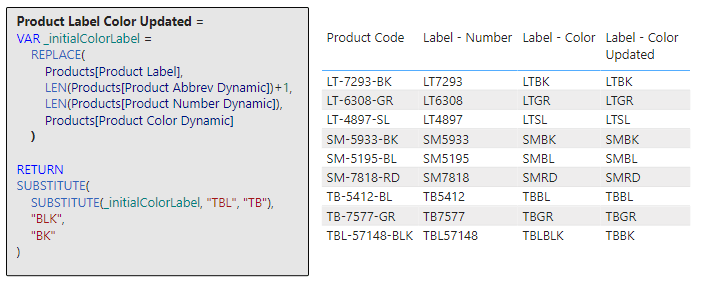
The transformation of data can often require several steps of modification to ensure consistency and clarity. We can see in the above the last product code is not consistent with the rest, resulting in a label that is also not consistent. Let’s build upon the previous example using SUBSTITUTE to add some consistency to the new label.

To do this the DAX expression would look like this:

Product Label Color Updated =
VAR _initialColorLabel =    
    REPLACE(
        Products[Product Label],
        LEN(Products[Product Abbrev Dynamic])+1,
        LEN(Products[Product Number Dynamic]),
        Products[Product Color Dynamic]
    )

RETURN
SUBSTITUTE(
    SUBSTITUTE(_initialColorLabel, "TBL", "TB"),
    "BLK",
    "BK"
)

Here we start by defining the variable _initialColorLabel using the same expression as the previous example. Then we refine this with a double substitution! The inner SUBSTITUTE (SUBSTITUTE(_initialColorLabel, "TBL", "TB")) takes the initial label as the main text string and searches for TBL and replaces it with TB. The result of this (i.e. TBBLK) is then used as the initial text string for the outer SUBSTITUTE, which searches this string for BLK and replaces it with BK. This produces the new label that is consistent for all products.

Now we are starting to see the true power of DAX Text Functions, this expression does so much more than just a singular adjustment: it first reshapes the product label and then it goes even further to make sure the abbreviation and color codes that make up the label are consistent and concise. It is an illustration of how DAX can incrementally build and refine results for more accurate and streamlined outputs.

Although, these examples are helpful, it may be best to perform these transformations upstream when creating the dynamic extractions. For example the Product Abbrev Dynamic column we created early:

Product Abbrev Dynamic = 
LEFT(
  Products[Product Code], 
  FIND("-", Products[Product Code]) - 1
)

Could be updated to :

Product Abbrev Dynamic =
SUBSTITUTE (
    LEFT (
        Products[Product Code],
        FIND ( "-", Products[Product Code] ) - 1
    ),
    "TBL",
    "TB"
)

This would ensure consistency where ever the product code is used within the report.

As we continue our journey into the realm of DAX, remember that the right tool hinges on your specific needs. While CONCATENATE and COMBINEVALUES both join text strings, their nuanced differences could significantly influence the effectiveness of your data analysis and the presentation of your data. Choose wisely!


LEN & FORMAT — The Essentials

In the realm of DAX Text Functions, while both LEN and FORMAT serve distinct purposes, they play crucial roles in refining and presenting textual data. Throughout this deep dive into DAX Text Functions, you may have noticed these functions quietly powering several of our previous examples, working diligently behind the scenes.

For instance, in our Product Color Dynamic calculated column LEN was instrumental in determining the appropriate number of characters for the RIGHT function to extract. Similarly, our Yearly Page Title measure makes use of FORMAT, to ensure an aesthetic presentation of the YTD Sales value.

These instances highlight the versatility of LEN and FORMAT, illustrating how they can be combined with other DAX functions to achieve intricate data manipulations and presentation. Let’s take a look at the details of these two essential functions.

LEN Function: provides a straightforward way to understand the length of a text string and the syntax couldn’t be more simple.

LEN(text)

The text string you wish to know the length of is represented by “, just pass this to LEN to determine how many characters make up the string. The text string of interest could also be a column reference.

For more details see:

Learn more about: LEN

Now that you are more familiar with the LEN function revisit the previous examples to see it in action.

Product Color Dynamic =
VAR _firstHyphenPosition =
    FIND (
        "-",
        Products[Product Code]
    )
VAR _lastHyphenPosition =
    SEARCH (
        "-",
        Products[Product Code],
        _firstHyphenPosition + 1
    )
RETURN
    RIGHT (
        Products[Product Code],
        LEN ( Products[Product Code] ) - _lastHyphenPosition
    )
Product Label Color =
REPLACE (
    Products[Product Label],
    LEN ( Products[Product Abbrev Dynamic] ) + 1,
    LEN ( Products[Product Number Dynamic] ),
    Products[Product Color Dynamic]
)

FORMAT Function: reshapes how data is visually represented, with this function you can transition the format of data types like dates, numbers, or durations into standardized, localized, or customized textual formats. The syntax is as follows:

FORMAT(value, format_string[, locale_name])

Here, value represents the data value or expression that evaluates to a single value you intend to format and could be a number, date, or duration. The format string, format_string, is the formatting template and determines how the value will be presented. For example a format string of 'MMMM dd, yyyy' would present a value of 2023-05-12 as May 12, 2023. The locale_name is optional and allows you to specify a locale, different regions or countries may have varying conventions for presenting numbers, dates, or durations. Examples include en-US, fi-FI, or it-IT.

For more details see:

Learn more about: FORMAT

Now that you know the details of FORMAT see it put to work by revisiting the Yearly Page Title measure.

Yearly Page Title =
COMBINEVALUES (
    " ",
    YEAR (TODAY ()),
    "- Year to date sales:",
    FORMAT ([YTD Sales TOTALYTD], "Currency")
)

In this example, you see that the format_string uses a value of Currency to format the YTD sales. This is an example of a predefined numeric format. For more details on predefined numeric formats, custom numeric formats, custom numeric format characters, predefined date/time formats, and custom date/time formats visit the documentation here:


Beyond Strings: The Culmination of DAX Text Wisdom

Words share our world. And in the realm of data, they offer valuable insights. With DAX Text Functions, you have the power to manipulate, transform, and uncover these insights.

We have explored just a subset of DAX Text Functions during our journey here. There is still more to be uncovered so don’t stop learning here. Keep expanding and perfecting your DAX textual skills by exploring other text functions here:

Learn more about: Text functions

And, remember, anyone who has never made a mistake has never tried anything new. So, don’t be afraid of making mistakes; practice makes perfect. Continuously experiment and explore new DAX functions, and challenge yourself with real-world data scenarios.


Thank you for reading! Stay curious, and until next time, happy learning.

And, remember, as Albert Einstein once said, “Anyone who has never made a mistake has never tried anything new.” So, don’t be afraid of making mistakes, practice makes perfect. Continuously experiment and explore new DAX functions, and challenge yourself with real-world data scenarios.

If this sparked your curiosity, keep that spark alive and check back frequently. Better yet, be sure not to miss a post by subscribing! With each new post comes an opportunity to learn something new.

Outsmarting the Out-of-Office Quandary: A Power Automate Approval Guide


Say goodbye to the world of endless email threads and approval documents that somehow get lost in the abyss of your inbox. With Power Automate, ensure that documents get the thumbs up even when the chosen approver is out of the office. Let’s roll up our sleeves and get automating!

From Hurdle to Handshake: Streamline Document Approvals with Power Automate

In an era of remote work, efficient collaboration and communication have become as crucial to a project’s success as coffee is to a Monday morning. One hurdle that often stumbles onto the path of efficient collaboration is a document approval. You might wonder, what happens when the assigned approver is nowhere to be found? Here’s where Microsoft Power Automate takes center stage, ensuring that no document is left unapproved.

This post is a step-by-step guide to establish a workflow that checks if the approver is available before passing the document to them for approval. If the approver is unavailable the workflow pokes you and lets you assign a new approver. No magic to be found here, just good ol’ automation at work!


A Quick Glance: What the Power Automate Workflow Looks Like

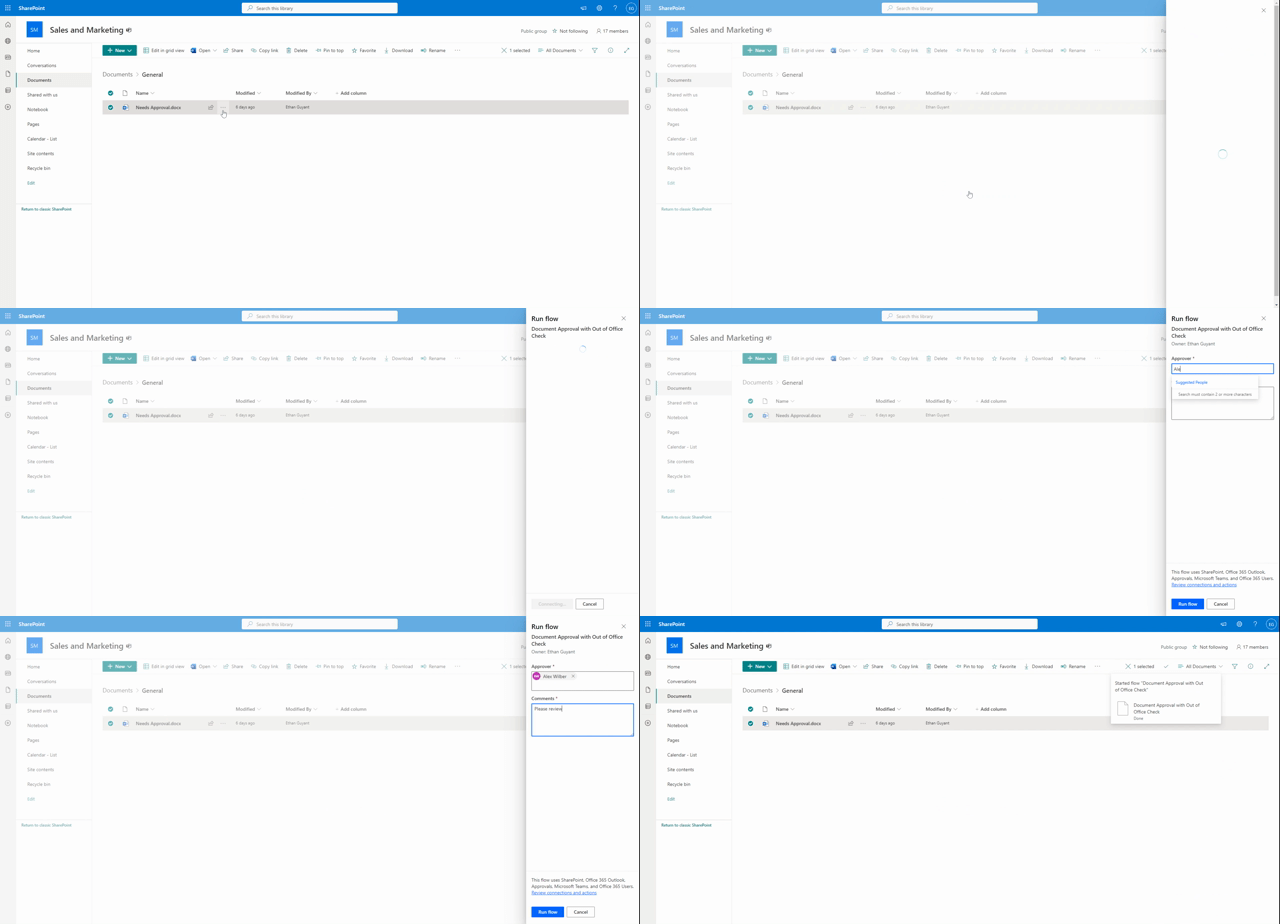
Our Power Automate workflow gets triggered for a selected document within a SharePoint document library. You provide the approver’s email address and any comments you have about the document, then set the Power Automate workflow into motion.

Now comes the genius part. The workflow examines the approver’s Outlook inbox, searching for an automatic or out-of-office reply (everyone deserves a vacation, right?). If the workflow finds an automatic reply, it sends you a notification via a Teams adaptive card. You then have the freedom to pick a new approver or stick to your initial choice.

If no automatic reply is detected, the document goes straight to the approver you chose when triggering the workflow.
Once the approval is complete, you’ll receive a final notification informing you of the approval’s outcome and any comments from the approver.

For a detailed guide on Power Automate, visit Microsoft’s official documentation.

Discover how to make the most of Power Automate with online training courses, docs, and videos covering product capabilities and how-to articles.


Unpacking the Details: Inside the Power Automate Workflow

Let’s delve deeper into the workflow.

Triggering the Process

Our trigger is a SharePoint for a selected document trigger. When triggering the workflow you will be prompted to enter two essential pieces of information:

  1. The email of the document approver.
  2. Your comments about the document.

This sets the dominoes in motion.

Assembling the Essentials: Get the Approver’s Profile, File Properties, and Initialize Variables

This phase of the workflow encompasses three action groups to collect the information needed for the workflow.

  1. Get user profile: This action retrieves the approver’s user profile, making information such as display name available to the workflow as dynamic content.
  2. Get file properties: This action fetches the details of the selected document, providing useful information like the document’s link to the workflow.
  3. Initialize variables: Three string variables are used within the workflow to gather and store information about the approval. These include approvalOutcome, approvalComments, and approvalApprover.

For detailed instructions on each action check out Microsoft’s guides on the Office 365 Users action Get user profile (V2), the SharePoint action Get file properties, and Variable action Initialize a variable.

Learn how to store, manage, use, and pass values by using variables in your flows

Is the Approver Available? How to Check for Automatic Replies

This stage uses the the Outlook action Get mail tips for a mailbox to see if the approver has an automatic reply turned on for their inbox. The automatic reply status is key because this could often signify the approver is either out of the office or generally unavailable.

For more detailed instructions, refer to Microsoft’s guide on the Outlook action Get mail tips for a mailbox (V2).

Evaluating the Approver’s Availability: An Inside Look at the Workflow Decision-Making Process

A critical part of the workflow is determining whether the assigned approver is available. This is done by checking if there is an automatic reply set for the approver’s inbox. To achieve this, the output of the Get mail tips for a mailbox action is examined. Here is an example of the information contained within the output body:

[
  {
    "mailboxFull": false,
    "externalMemberCount": 0,
    "totalMemberCount": 1,
    "deliveryRestricted": false,
    "isModerated": false,
    "maxMessageSize": 37748736,
    "emailAddress": {
      "name": "",
      "address": "XXXXX@XXXX.onmicrosoft.com"
    },
    "automaticReplies": {
      "message": "<div>\r\n<div style="font-family:Calibri,Arial,Helvetica,sans-serif;font-size:12pt;color:rgb(0,0,0)">\r\nI am currently out of the office.</div>\r\n</div>",
      "messageLanguage": {
        "locale": "en-US",
        "displayName": "English (United States)"
      }
    }
  }
]

From this data, the following expression is used to determine if an automatic reply is set for the inbox:

empty(outputs('Get_mail_tips_for_a_mailbox_(V2)')?['body/value'][0]?['automaticReplies/message'])`

This expression checks the message attribute within the automaticReplies property. If the message is empty (meaning no automatic reply message), the expression will evaluate to true.

If true, the workflow proceeds as planned, assigning the approval to the assignee. If false, however, the process takes a more intriguing turn, revealing deeper layers of automation. Continue reading to uncover the magic that unfolds.

For more detailed instructions on adding conditions to your workflows, check out Microsoft’s guide Add a condition to a cloud flow.

Specify that a cloud flow performs one or more tasks only if a condition is true.

From Alert to Decision: Using Adaptive Cards for Approval Reassignment

When an approver is unavailable and an automatic reply is detected, the workflow seamlessly switches to an alternative process to ensure that the approval request doesn’t get stuck in limbo. Through utilizing Teams adaptive cards, this branch of the workflow handles the process of alerting you and providing options for reassigning the approval or continuing with the initial approver. Allowing for flexibility and control even when the primary approver is out of reach.

Interactive Alerts: How Adaptive Cards Enhance the Approval Workflow

First, the workflow sends you a Teams adaptive card. This card alerts you that your action is needed and prompts you to either reassign the approval or send approval to the initial approver.

For detailed instructions on creating and using Adaptive Cards, refer to Microsoft’s guide Create your first adaptive card. Also, when designing your adaptive cards, the Adaptive Card Designer can be a helpful tool.

Learn how to create flows that post richly formatted content with adaptive cards to Microsoft Teams.

Decision-Making with Adaptive Cards: Reassigning or Confirming

The adaptive card presents you with two option: the first is to reassign the approval, and the second is to send it to the initial approver. Once you select an option and submit your response on the adaptive card, the workflow receives your response. Your response is then evaluated in another condition action within the workflow.

If the reassignApproval attribute of you response is false, meaning you selected Send Approval on the card, the workflow will continue to send the approval to the initial approver. However, if the reassignApproval is true, meaning you selected Reassign Approval, it will assign an approval to the email you provided as input into the adaptive card.

Closing the Loop: Notification of the Approval Outcome

Once the approver has completed their task, you are notified of the final outcome of their approval and informed of any comments that they may have left during the approval process.


Reaping the Benefits of Power Automate Approvals

By leveraging Power Automate efficiencies and features, we have turned a potential bottleneck into a smooth and efficient process. No more waiting for approvals or wondering about the status of a document. We have created a dynamic system that adapts to real-life situations, keeping your approvals moving and your teams productive.

Power Automate might seem like magic, but it is simply a powerful tool that can make your work life a whole lot easier. Embrace Power Automate’s efficiency and the rich array of Power Automate features to make document approval automation a breeze.

Check out these blog posts for other helpful Power Automate Guides:

Escape the email madness! Discover how to use Power Automate to declutter your inbox with effortless automation. Take back control of your inbox!

Ready to work smarter, not harder? Embrace the world of Power Automate and Dynamic Approvals.

Now that you have the blueprint for creating a document approval workflow with Power Automate, it is time to put it into action.

And remember, as Albert Einstein once said, “Anyone who has never made a mistake has never tried anything new.” So don’t be afraid to experiment, learn, and create workflows. A little bit of automation today can save you a lot of manual work tomorrow.

Happy Automating!


Thank you for reading! Stay curious, and until next time, happy learning.

And, remember, as Albert Einstein once said, “Anyone who has never made a mistake has never tried anything new.” So, don’t be afraid of making mistakes, practice makes perfect. Continuously experiment and explore new DAX functions, and challenge yourself with real-world data scenarios.

If this sparked your curiosity, keep that spark alive and check back frequently. Better yet, be sure not to miss a post by subscribing! With each new post comes an opportunity to learn something new.