Outsmarting the Out-of-Office Quandary: A Power Automate Approval Guide


Say goodbye to the world of endless email threads and approval documents that somehow get lost in the abyss of your inbox. With Power Automate, ensure that documents get the thumbs up even when the chosen approver is out of the office. Let’s roll up our sleeves and get automating!

From Hurdle to Handshake: Streamline Document Approvals with Power Automate

In an era of remote work, efficient collaboration and communication have become as crucial to a project’s success as coffee is to a Monday morning. One hurdle that often stumbles onto the path of efficient collaboration is a document approval. You might wonder, what happens when the assigned approver is nowhere to be found? Here’s where Microsoft Power Automate takes center stage, ensuring that no document is left unapproved.

This post is a step-by-step guide to establish a workflow that checks if the approver is available before passing the document to them for approval. If the approver is unavailable the workflow pokes you and lets you assign a new approver. No magic to be found here, just good ol’ automation at work!


A Quick Glance: What the Power Automate Workflow Looks Like

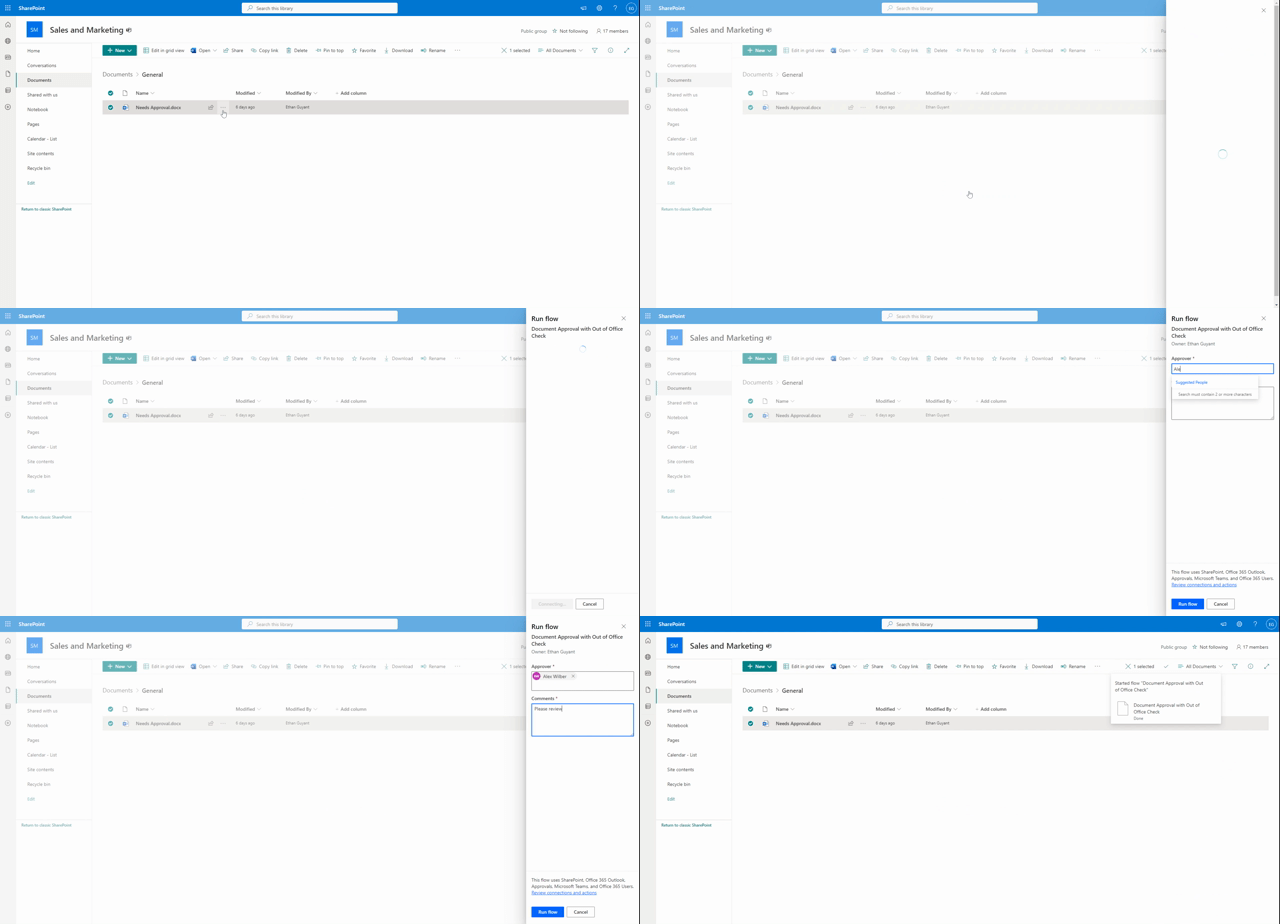
Our Power Automate workflow gets triggered for a selected document within a SharePoint document library. You provide the approver’s email address and any comments you have about the document, then set the Power Automate workflow into motion.

Now comes the genius part. The workflow examines the approver’s Outlook inbox, searching for an automatic or out-of-office reply (everyone deserves a vacation, right?). If the workflow finds an automatic reply, it sends you a notification via a Teams adaptive card. You then have the freedom to pick a new approver or stick to your initial choice.

If no automatic reply is detected, the document goes straight to the approver you chose when triggering the workflow.

Once the approval is complete, you’ll receive a final notification informing you of the approval’s outcome and any comments from the approver.

For a detailed guide on Power Automate, visit Microsoft’s official documentation.

Discover how to make the most of Power Automate with online training courses, docs, and videos covering product capabilities and how-to articles.


Unpacking the Details: Inside the Power Automate Workflow

Let’s delve deeper into the workflow.

Triggering the Process

Our trigger is a SharePoint for a selected document trigger. When triggering the workflow you will be prompted to enter two essential pieces of information:

  1. The email of the document approver.
  2. Your comments about the document.

This sets the dominoes in motion.

Assembling the Essentials: Get the Approver’s Profile, File Properties, and Initialize Variables

This phase of the workflow encompasses three action groups to collect the information needed for the workflow.

  1. Get user profile: This action retrieves the approver’s user profile, making information such as display name available to the workflow as dynamic content.
  2. Get file properties: This action fetches the details of the selected document, providing useful information like the document’s link to the workflow.
  3. Initialize variables: Three string variables are used within the workflow to gather and store information about the approval. These include approvalOutcome, approvalComments, and approvalApprover.

For detailed instructions on each action check out Microsoft’s guides on the Office 365 Users action Get user profile (V2), the SharePoint action Get file properties, and Variable action Initialize a variable.

Learn how to store, manage, use, and pass values by using variables in your flows

Is the Approver Available? How to Check for Automatic Replies

This stage uses the the Outlook action Get mail tips for a mailbox to see if the approver has an automatic reply turned on for their inbox. The automatic reply status is key because this could often signify the approver is either out of the office or generally unavailable.

For more detailed instructions, refer to Microsoft’s guide on the Outlook action Get mail tips for a mailbox (V2).

Evaluating the Approver’s Availability: An Inside Look at the Workflow Decision-Making Process

A critical part of the workflow is determining whether the assigned approver is available. This is done by checking if there is an automatic reply set for the approver’s inbox. To achieve this, the output of the Get mail tips for a mailbox action is examined. Here is an example of the information contained within the output body:

[
  {
    "mailboxFull": false,
    "externalMemberCount": 0,
    "totalMemberCount": 1,
    "deliveryRestricted": false,
    "isModerated": false,
    "maxMessageSize": 37748736,
    "emailAddress": {
      "name": "",
      "address": "XXXXX@XXXX.onmicrosoft.com"
    },
    "automaticReplies": {
      "message": "<div>\r\n<div style="font-family:Calibri,Arial,Helvetica,sans-serif;font-size:12pt;color:rgb(0,0,0)">\r\nI am currently out of the office.</div>\r\n</div>",
      "messageLanguage": {
        "locale": "en-US",
        "displayName": "English (United States)"
      }
    }
  }
]

From this data, the following expression is used to determine if an automatic reply is set for the inbox:

empty(outputs('Get_mail_tips_for_a_mailbox_(V2)')?['body/value'][0]?['automaticReplies/message'])`

This expression checks the message attribute within the automaticReplies property. If the message is empty (meaning no automatic reply message), the expression will evaluate to true.

If true, the workflow proceeds as planned, assigning the approval to the assignee. If false, however, the process takes a more intriguing turn, revealing deeper layers of automation. Continue reading to uncover the magic that unfolds.

For more detailed instructions on adding conditions to your workflows, check out Microsoft’s guide Add a condition to a cloud flow.

Specify that a cloud flow performs one or more tasks only if a condition is true.

From Alert to Decision: Using Adaptive Cards for Approval Reassignment

When an approver is unavailable and an automatic reply is detected, the workflow seamlessly switches to an alternative process to ensure that the approval request doesn’t get stuck in limbo. Through utilizing Teams adaptive cards, this branch of the workflow handles the process of alerting you and providing options for reassigning the approval or continuing with the initial approver. Allowing for flexibility and control even when the primary approver is out of reach.

Interactive Alerts: How Adaptive Cards Enhance the Approval Workflow

First, the workflow sends you a Teams adaptive card. This card alerts you that your action is needed and prompts you to either reassign the approval or send approval to the initial approver.

For detailed instructions on creating and using Adaptive Cards, refer to Microsoft’s guide Create your first adaptive card. Also, when designing your adaptive cards, the Adaptive Card Designer can be a helpful tool.

Learn how to create flows that post richly formatted content with adaptive cards to Microsoft Teams.

Decision-Making with Adaptive Cards: Reassigning or Confirming

The adaptive card presents you with two option: the first is to reassign the approval, and the second is to send it to the initial approver. Once you select an option and submit your response on the adaptive card, the workflow receives your response. Your response is then evaluated in another condition action within the workflow.

If the reassignApproval attribute of you response is false, meaning you selected Send Approval on the card, the workflow will continue to send the approval to the initial approver. However, if the reassignApproval is true, meaning you selected Reassign Approval, it will assign an approval to the email you provided as input into the adaptive card.

Closing the Loop: Notification of the Approval Outcome

Once the approver has completed their task, you are notified of the final outcome of their approval and informed of any comments that they may have left during the approval process.


Reaping the Benefits of Power Automate Approvals

By leveraging Power Automate efficiencies and features, we have turned a potential bottleneck into a smooth and efficient process. No more waiting for approvals or wondering about the status of a document. We have created a dynamic system that adapts to real-life situations, keeping your approvals moving and your teams productive.

Power Automate might seem like magic, but it is simply a powerful tool that can make your work life a whole lot easier. Embrace Power Automate’s efficiency and the rich array of Power Automate features to make document approval automation a breeze.

Check out these blog posts for other helpful Power Automate Guides:

Escape the email madness! Discover how to use Power Automate to declutter your inbox with effortless automation. Take back control of your inbox!

Ready to work smarter, not harder? Embrace the world of Power Automate and Dynamic Approvals.

Now that you have the blueprint for creating a document approval workflow with Power Automate, it is time to put it into action.

And remember, as Albert Einstein once said, “Anyone who has never made a mistake has never tried anything new.” So don’t be afraid to experiment, learn, and create workflows. A little bit of automation today can save you a lot of manual work tomorrow.

Happy Automating!


Thank you for reading! Stay curious, and until next time, happy learning.

And, remember, as Albert Einstein once said, “Anyone who has never made a mistake has never tried anything new.” So, don’t be afraid of making mistakes, practice makes perfect. Continuously experiment and explore new DAX functions, and challenge yourself with real-world data scenarios.

If this sparked your curiosity, keep that spark alive and check back frequently. Better yet, be sure not to miss a post by subscribing! With each new post comes an opportunity to learn something new.

From Chaos to Clarity: Revolutionize Your Inbox with Power Automate

Escape the email madness! Discover how to use Power Automate to declutter your inbox with effortless automation. Take back control of your inbox!

Power Automate offers a wide range of connectors for various services allowing for the automation of certain tasks. Managing and organizing emails is a common repetitive task that can take a fair amount of time and manual effort, and let’s face it’s not exciting work. Thankfully, Power Automate and the Outlook in Office 365 connector can provide some relief.

When searching the Power Automate connectors and actions for Outlook there is an Office 365 Outlook and an Outlook.com option. Microsoft recommends when using a work or school email account use Office 365 Outlook and when using a personal account use the Outlook.com connector

This article will provide an overview of the Outlook in Office 365 connector and some examples of how it can be used to conduct an Inbox Cleanup task.

Office 365 Outlook Actions

The Office 365 Outlook connector offers several actions or events that the Power Automate workflow could do — List of Office 365 Outlook Actions — below shows just a partial list.

Automating an Outlook inbox cleanup task will focus on the following actions.

Get emails (V3)

This action will retrieve emails from a folder (e.g. Inbox). This action can be configured to fetch both read and unread emails.

Move email (V2)

This action will move an email to the specified folder, within the same mailbox.

Using the low-code interface the specified folder must be selected, to dynamically set the destination folder based on the characteristics of the email the folder ID must be specified, see below for details.

The Basics

To get started the workflow will fetch up to 10 emails, and process them based on the Read status. Unread emails will be moved to the Unread folder and Read emails will be moved to the Read folder.

Flow Diagram

Power Automate Flow

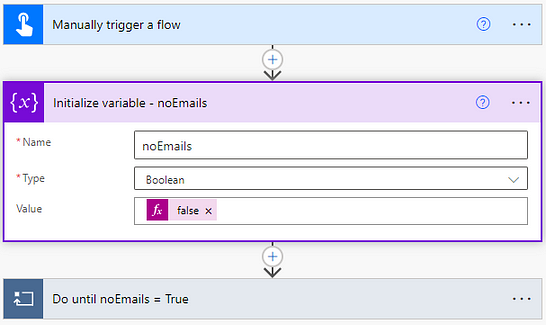
To start the Power Automate flow the trigger is defined, here it is a manual trigger, but could be scheduled. Following this, a noEmails variable is defined to be used to exit the Do until loop which will continue to fetch 10 email batches from the inbox until there are no more emails ( noEmails = True). After initializing the variable the Do until flow control is added.

Within the Do until loop, there are 3 main events:

  1. The Get emails action retrieves the top 10 emails from the Inbox. To configure this action, select the folder to retrieve the emails from, and then for this flow the Fetch Only Unread Messages was set to No and the Top option was set to 10 (pictured above in the Get emails (V3) section).
  2. Determine if there are emails to process and set the noEmails variable to the appropriate True or False value. The set variable value is determined by the expression: if(equals(length(outputs('Get_emails_(V3)_from_Inbox')?['body/value']),0), true, false)
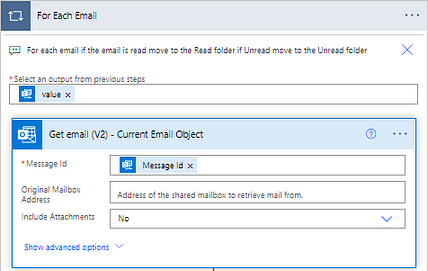
  3. The For Each Email loop iterates over each of the retrieved emails and moves the emails to the appropriate folder based on the email’s read status.

The For Each Email control structure applies the actions contained within it to each of the emails retrieved by the Get emails action.

Limitations

A limitation of the above flow is that the destination folder for the Move email actions had to be explicitly selected. This will likely be fine if there are only a few potential mailbox folders, however, can easily become unmanageable when the number of potential Inbox folders grows.

This limitation can be addressed by using Id:: <folder_id> for the Folder option within the Move email action. This solution comes with two main points to address:

  1. Where to find the Outlook folder IDs
  2. How to store/search for the folder IDs based on specific email characteristics (e.g. from specific people or domains).

Outlook Inbox Cleanup Workflow

The first example shown in this article explicitly selected the destination folder, in this example, the folder display names and IDs will be stored in an object variable. The workflow will then process the email, identifying which property from the object variable should be retrieved. Then the returned value (the folder ID) will be used in the Move email action. In this example, an object variable was used to store the display name and folder IDs, a Microsoft List could also be used. Retrieving the folder ID using this option would require a Get items action with the appropriate filter query.

Workflow Diagram

Outlook Folder Setup

The outlook mailbox used by this flow has the following folders to which the emails will be moved from the inbox. Internal emails will be moved into the Departments subfolder based on the sender’s department. External emails will be moved into the External subfolder based on the sender’s domain.

Get Folder IDs

Getting the folder IDs of an Outlook mailbox folder can involve using the Microsoft Graph API or using the peak code setting within Power Automate. Using Microsoft Graph can be a bit more advanced but still approachable when manually retrieving the folder IDs using peak code is unmanageable.

Peak Code

This method requires manually identifying each destination folder’s ID and adding it to the object variable. This can be an appropriate method when the number of destination folders is low and does not change frequently. The organizing of emails in this example primarily focuses on sorting into department folders which can be a good use case for this method because the number of departments in an organization is likely to be relatively stable.

The Move email action, shown below, shows that the folder is selected (HR).

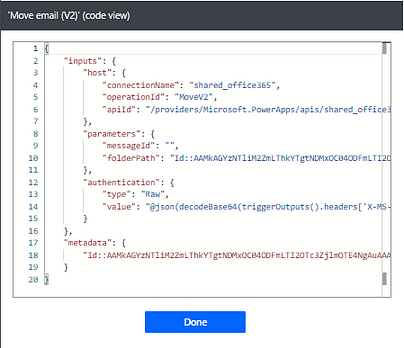
After selecting the destination folder, in the upper right of the action select the ellipses and then Peak code.

This will reveal the inputs to this action. Under the parameters property, the folderPath can be seen. What is required to be stored for this flow is the entire folder path following Id::, this ID and the folders display name are what is stored and accessed by the workflow. See the Power Automate Flow – Variable section for an example.

Microsoft Graph

When using the Microsoft Graph approach Graph Explorer is a helpful tool. This method can also be used to get the display names and IDs of child folders. See the Power Automate Flow — Microsoft Graph section for an example.

Power Automate Flow — Variable

Again the workflow is started with a manual trigger but could be set to a scheduled trigger. The first few actions of the flow initialize four variables utilized by the flow: noEmailsfolderIDspropertyName, and sorted.

  • noEmails: boolean variable used to exit the Do until loop which continues to retrieve emails from the Inbox until noEmails=True
  • folderIDs: an object variable that stores a folder’s display name (key) and folder id (value)
  • propertyName: string variable used to get the corresponding folderIDs from the folderIDs object
  • sorted: boolean variable used to determine if the current email has been sorted by a prior step

The Do until noEmail=True is a Do until flow control action which will continue to process and sort emails in the Inbox until there are no more emails to be processed. This contains the same three actions that were described above Get emails, determine if there are emails to process, then process each email. The For Each Email loop is where a majority of the Inbox management actions occur.

The For each loop contains 4 main steps:

  1. Get the current email object, this will make attributes of the email accessible through dynamic content
  2. Set the sorted variable to False and split the From email address into the domain and the user id (everything after @ and everything before @)
  3. Move Unread emails into an Unread folder. These will be moved back to the Inbox after all emails have been processed
  4. Check if the email was sorted into the Unread folder and if not evaluate email characteristics and move the email to the appropriate folder

Action Step #1

The first step gets the current email and makes the properties of the email accessible through dynamic content.

Action Step #2

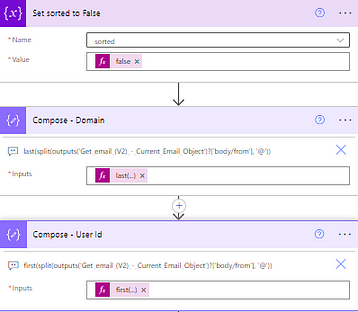
This step consists of setting the sorted value and two Compose data operations which splits the From email address into two parts, before the and after. The output of these two actions will be used to determine if the email came from an internal source which will be sorted by the sender’s department or an external source which will be sorted by domain.

The inputs expressions used are:

  • Compose — Domain: last(split(outputs('Get_email_(V2)_-_Current_Email_Object')?['body/from'], '@'))
  • Compose — User Id: first(split(outputs('Get_email_(V2)_-_Current_Email_Object')?['body/from'], '@'))

Action Step #3

This set of actions uses a Condition flow control to check the Is Read status of the current email. If False the email is moved to an Unread folder to be moved back to the Inbox folder later in the flow and sorted is set to True. If True no action is taken and the flow moves to the next set of actions.

Action Step #4

This step carries out the processing and sorting of each of the read emails. First, the flow checks the value of sorted, if sorted equals True no additional actions are taken, if False the email is sorted based on the attributes of the email.

When sorting actions are needed (sorted = False) the first action is another Condition flow control which checks if the Domain is equal to an internal domain.

If the above condition is met the email is sorted into a department folder by searching for the user profile of who sent the email using the Office 365 connector and setting the propertyName variable equal to the department attribute. Then the folder argument of the Move email action is set to:

variables('folderIds')?['departments'][variables('propertyName')].

It is important to note that the folder ID in the Move email actions is preceded by Id::

If the above condition is not met, the email is sorted by domain. This sorting involves three steps. First, a compose action is used to get the folderID of the corresponding domain folder with the inputs argument set to:

variables('folderIds')?['domain'][variables('propertyName')]

This is then followed by two Move email actions that have different configure after run settings. The Sorting Needed action is configured to run only when the compose Get propertName action fails (i.e. a property matching the domain does not exist in the folderIDs variable) and the email is moved into a Sorting Needed folder to be manually sorted.

The following External Sorting action is configured to run only when the Sorting Needed action is skipped (i.e. the Get propertName action was successful). The folder argument of the Move email action is set to the same expression as the above Get propertyName action.

After all emails in the Inbox have been processed the flow retrieves all emails that were moved to the Unread folder and moves them back to the Inbox.

Limitations

A main advantage of the approach is that the destination folder can be dynamically set without nesting Condition flow controls. However, this approach may become unmanageable if the destination folders change or if new folders are frequently added. To continue sorting into new folders would require a manual update of the folder name and ID storage source (variable or Microsoft List).

Power Automate Flow — Microsoft Graph

This approach has the same general layout as the previous flow, the only difference occurs within the Check if Internal Email flow control.

Here there are additional actions: Send an HTTP requestParse JSON, and For Each Child Folder.

The Send an HTTP request Outlook action requires a URI this can be explored and created using the Graph Explorer tool. The generalized query used here is:

https://graph.microsoft.com/v1.0/me/mailFolders/childFolders

The returned body of this action is then parsed with the Parse JSON action which allows properties of child folders (folders within Department and External) to be utilized as dynamic content.

The Schema of the Parse JSON action can be generated from a sample by testing the workflow before adding this action. Following the test, the output of the Send an HTTP request can be copied, then add the Parse JSON action and paste the output into the Insert a sample JSON Payload dialog box

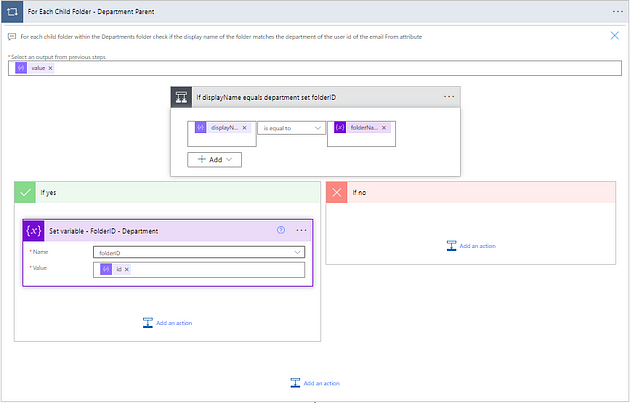
After these actions, there is a For Each flow control that iterates through each child folder and compares the display name of the folder with the department of the sender. If the two are equal the folderID variable is set to the id of the corresponding folder.

The folderID variable is then used in the following Move email action in the same way as the prior flow example.

The False branch of the Check if Internal Email operates in the same way, with the only changes being there is no need to search for users (external email) and the <ParentFolderID> in the Microsoft Graph query is the folder ID corresponding to the External folder, rather than Department.

Summary

This article covered various approaches using Power Automate to automate Outlook inbox cleanup and management. The three approaches shown in the article covered a basic application of sorting emails into a Read and Unread folder. The main limitation of this flow is that the destination folder was explicitly selected and set. The following two approaches in the article covered two methods of addressing this limitation by using a variable object and querying the folders present using Microsoft Graph.


Thank you for reading! Stay curious, and until next time, happy learning.

If this sparked your curiosity, keep that spark alive and check back frequently. Better yet, be sure not to miss a post by subscribing! With each new post comes an opportunity to learn something new.