Power Apps Tips: Visually Distinguishing Your App’s Environment


Are you tired of the confusion and mix-ups that come with managing Power Apps across multiple environments? We have all been there – one minute we are confidently testing a new feature, and the next, we are lost in a world of confusion until we realize we are in the production environment, not our development or testing environment. It can be both surprising, confusing, and disorienting.

But what if there was a way to make our apps and more importantly our users more environmentally aware. Imagine an app that clearly shows whether it is in development, testing, or production. This isn’t just a dream; it is entirely possible, and we are going to explore how. With a combination of environment variables, labels, and color properties, we can transform our apps and adjust their appearance all based on the environment they are in.

In this guide we will go from apps that are indistinguishable between environments.

To apps that are informative and allow us to develop, test, and use our apps with confidence.

Dive in and explore as we start with the basics of environment variables and then move to advanced techniques for dynamic configuration. By the end of the guide, we will not only learn how to do this, but it will become clear as to why this is helpful when managing Power Apps across different environments.

Here is what this guide will cover:

  1. Understanding Power Apps Environments and Environment Variables
    1. Introduction to Power Apps Environments
    2. The Role of Different Environments
    3. The Importance of Power Apps ALM
  2. The Significance of Environmental Awareness in Power Apps
    1. Common Challenges in Multi-Environment Scenarios
    2. Importance of Identifying the Current Environment
  3. Building The App
    1. Setting the Stage
    2. Creating the App in the Development Environment
    3. Extracting Environment Information
      1. Building the Power Automate Workflow
    4. Call the Workflow and Store the Outputs
  4. Adding the Environmental Visual Cues
    1. Adding Text Labels
    2. Environmental Specific Color Themes
    3. Deploying to Different Environments
  5. Wrapping Up: Ensuring Clarity and Efficiency in Your Power Apps

Understanding Power Apps Environments and Environment Variables

Power Apps is a fantastic and powerful platform that allows us to create custom business applications with ease. However, as our projects and solutions grow, we begin to dive into the realm of application development, and we encounter the need for efficient management. This is precisely where Power Apps environments step in to save the day.

Introduction to Power Apps Environments

Environments act as unique containers helping facilitate and guide us through the entire app development journey. Each environment is a self-contained unit, ensuring that our data, apps, and workflow are neatly compartmentalized and organized. This structure is particularly beneficial when managing multiple projects or collaborating with a team. Environments are like distinct workspaces, each tailored for specific stages of your app development journey.

These environments let use build, test, and deploy our applications with precision and control, ensuring that chaos never gets in the way of our creativity while crafting our Power Apps applications.

The Role of Different Environments

Let’s shed some light on the roles played by different environments. Environments can be used to target different audiences or for different purposes such as development, testing, and production. Here we will focus on staged environments (dev/test/prod) an environment strategy that helps ensure that changes during development do not break the app users’ access in our production environment.

First up is the development environment – the birthplace of our app ideas. It is where we sketch out our vision, experiment with various features and lay the foundation for our apps.

Next is the testing or QA environment which takes on the role of the quality assurance center. In this environment we examine our app, validate its functionality and user experience, and ensure everything works seamlessly and as expected before it reaches our final end users.

Lastly, we have our production environment, where our apps go live. It is the real-world stage where our apps become accessible to its intended users, interacts with live data, and requires stability and reliability.

The Importance of Power Apps ALM

We cannot get too far into exploring Power Apps environments, and environment strategies without mentioning Application Lifecycle Management (ALM). ALM is a pivotal aspect of successful software development, and our Power Apps are no exception. ALM within Power Apps helps ensure a smooth transition between the development, testing, and production phases of our projects. It encompasses maintaining version control, preventing disruptions, and streamlining the deployment process.

If you are curious to learn more about Power Apps ALM, I encourage you to visit the post below that discusses its different aspects including how to implement ALM, where Power Apps solutions fit into the picture, version control, change management, and much more.

Explore how ALM can enhance collaboration, improve performance, and streamline development in Power Platform solution. 


The Significance of Environmental Awareness in Power Apps

Common Challenges in Multi-Environment Scenarios

Navigating through multiple environments in Power Apps can sometimes feel like a tightrope walk. One common challenge is keeping track of which environment we are working in and what environment app we are accessing in our browser. It can be easy to lose track especially when we are deep in development and testing.

Image a scenario where we created a new feature in development, and as the developer we wish to verify this change before deploying the update to our testing environment. But as often happens, something comes up and we cannot check the functionality right away. When we come back later, we launch the app using the web link url, and we don’t see our expected update. Was it an issue how we developed the change, are we viewing the development app, are we viewing the testing app? All can lead us to more questions and confusion, that could be solved if our app clearly indicates the environment it resides in no matter how we access the ap.

Importance of Identifying the Current Environment

Informing us and other app users, especially those that may use the app across different environments, about the current environment is focused on providing control and safety. Being aware of our environment ensures that we are in the correct environment to carry out our tasks.

Identifying the environment is crucial for effective testing of our apps. By knowing we are in the right testing environment, we can experiment and troubleshoot without the fear of affecting the live application or data.

Moreover, it aids in communication within our teams. When everyone is on the same page about the environment they should be working in for specific tasks, collaboration becomes smoother, and we can minimize the chances of errors. The goal is to create a shared understanding and a common approach among team members.


Building The App

Setting the Stage

For our app we will be using a SharePoint List as the data source. Each environment will use its own specific list, so we have 3 different lists that are on different SharePoint sites. Once the lists are created, we can begin building our solution and app.

The first step to creating our Power App that we can easily move between environments is creating a solution to contain our app. In addition to the canvas app the solution will also contain the various other components we require, including a Power Automate workflow and environment variables.

To do this we navigate to our development environment and then select Solutions in the left-hand menu. On the top menu select New solution and provide the solution a name and specify the publisher. For additional details visit this article.

Learn how to create a solution in Power Apps

After creating our solution, we will first create our environment variables that will define the app’s data source. Since the SharePoint site and list will be changing as we progress our app from development to test to production, we will create two environment variables. The first to specify the SharePoint Site, and the second to specify the SharePoint List on the site. For details on environment variables and how they can be modified when importing a solution to another environment visit this article.

Use environment variables to migrate application configuration data in solutions

Here we will manually create the environment variables, so we have control over naming, but there is also the option to automatically create the environment variables from within our app. In the canvas app editor on the top menu select Settings. Within the General section locate the Automatically create environment variables when adding data sources, and toggle to the desired value.

To manually add environment variables to our solution, select New on the top menu, under more we will find Environment variables. Provide the environment variable a name and under Data Type select Data source. In the connector drop down select SharePoint and a valid SharePoint connection in the Connection drop down. For the first variable under Parameter Type select Site and then New site value and select the required SharePoint site or provide the site url. For the second environment variable select List for the Parameter Type, then for the Site select the newly created environment variable, and then New list value, and select the required SharePoint List.

Creating the App in the Development Environment

Our app starts to come to life in our development environment. First, we focus on creating the app’s core features and functionalities. This is where our creativity and technical skills come into play. We can experiment with different designs, workflows, and integrations, all within the safe confines of the development environment. Its a bit like being in a laboratory, where we can test hypotheses and make discoveries without worrying about breaking the version of the app our end user might be actively using.

First, we will connect to our data source using our environment variables. In the left side menu select the data menu, then add new data, and search for SharePoint. After selecting the SharePoint data source and connection, in the Connect to a SharePoint site pane select the Advanced tab and select the environment variable we created previously, and then do the same to select the list environment variable.

If we opted to not create the environment variables first, and ensured the automatically create environment variables when adding data source setting is turned on, we can provide a site URL and select a list. We will then be prompted that an environment variable will be automatically generated to store information about this data source.

Once connected to our data source we will build out the basic functionality of our app. For this simplified app this includes a vertical navigation component and a gallery element to display the list items. Here is the base app that will be our launching point to build a more informative and dynamic app.

Extracting Environment Information

As we deploy our app to different environments, we will update the SharePoint site and list environment variables. Since the values of these environment variables will be distinct and specific to the environment, we can leverage this to help determine and show what environment the app is in.

Now, if we search the data sources that we can add to our app for “environment”, we will find an environment variable values dataverse source. The data source can be used to extract the values of our environment variables however, this will give our app a Premium licenses designation. Premium licensing may not always be suitable or available, so we will explore an alternative method, using a Power Automate workflow and our App.OnStart property.

Building the Power Automate Workflow

In the left side menu, select the Power Automate menu option, then create new workflow.

To extract and return the information we need to our app we will create a simple flow, consisting only of the trigger and the Respond to a PowerApp or flow action. Selecting the Create new flow button will create a Power Automate workflow with a PowerApps (V2) trigger. For this workflow we will not need to add any inputs to this trigger action.

In the workflow designer, select New action and search for Respond to a PowerApp or flow, and add the action to the workflow. Here we will add two outputs, the first to return the value of the SharePoint site environment variable and the second to return the value of the SharePoint list environment variable. Depending on our requirements, we may only need one of these values to determine the appropriate environment information. For the output value we can find our environment variables listed in the dynamic content.

The final workflow is shown below. Once created give the workflow an informative name, then save and close the workflow.

Call the Workflow and Store the Outputs

On the start of our app, we will run our workflow and store the output values, which are the values of our environment variables, in a global variable within our app scope. We do this by using the App.OnStart property and setting a variable to store the outputs. We will add the following to the App.OnStart property.

Set(gblEnvironmentDetails, .Run())

Here, we create the gblEnvironmentDetails global variable which will store the outputs of our workflow. This variable has a record data type with values for both our sourcesiteurl and sourcelistid outputs.

The App.OnStart event, becomes crucial as it sets the stage for the entire app session. Now, each time our app starts are workflow will return the environment values we require ensuring this information is always available from the moment our app is launched.

We can visual these values, and how they change between our environments by adding labels to our app. We will add various environment detail labels. The first we will add will display out SharePoint site environment variable value, set the text property of the label to the following.

"SharePoint Site Environment Variable: " & gblEnvironmentDetails.sourcesiteurl

We will make this value a bit easier to work with and evaluate, by extracting the site name from the site url. We add another label to display the site name, and set the text property of the label to the following.

"SharePoint Site : " & Last(Split(gblEnvironmentDetails.sourcesiteurl, "/sites/")).Value

This expression splits the site url by the text “/sites/” and then returns all the text that follows it which is the site name.

Lastly, we add a text label to display the value stored in our SharePoint List environment variable by adding a new label and setting the text property to the following.

"SharePoint List Id : " & gblEnvironmentDetails.sourcelistid

Adding the Environmental Visual Cues

To make the environment distinction clear we will add environment-specific colors and text labels in our app’s design.

Adding Text Labels

We will start by adding an environment label in the header, that will be placed opposite of our app name. To do this we first create a named formula and then use this to set the text property of the new label in our header element. In the App.Formulas property add the following.

nfmEnvironment = Switch(
    Last(Split(gblEnvironmentDetails.sourcesiteurl, "/sites/")).Value,
    "PowerAppsDevSource", "DEV",
    "PowerAppsTestSource", "TEST",
    "SalesandMarketing", "PROD",
    "UNKNOWN"
);

This expression creates a new named formula nfmEnvironment and we use the switch function to evaluate the site name of our SharePoint site environment variable using the same formula we used above and return our environment label. For our app if our SharePoint site environment variable is for the Power Apps Dev Source site the named formula nfmEnvironment will return a value of DEV, when set to Power Apps Test Source it will return TEST and when set to our Sales and Marketing site it will return PROD. The formula also includes a default value of UNKNKOWN, if none of the above conditions are true, this will help identify a potential error or our app data source set to an unexpected site.

We then add a new label to our header element and set the text property to nfmEnvironment. Additionally, the navigational component used in our app has a text input to display the environment label near the bottom under the user profile image. We will set the input value also to nfmEnvironment.

Environmental Specific Color Themes

Next, we will elevate our awareness when working with our apps across different environments by moving beyond just labels. We will now leverage different visual cues and color themes between the different environments. In our development environment the navigation component and header will be green, when in our testing environment these elements will be gray, and finally in production they will be blue.

The first step to include this functionality is to define our color theme that we can then use to set the color of our different elements depending on the value of nfmEnvironment. To create our color theme, we will create a new named formula. In the App.Formulas property we will add the following to create a named formula containing the basics of a color theme used within our app.

nfmThemeColor =
{
    primary: "#004F6B",
    onPrimary: "#FFFFFF",
    primaryFixed: "#9DC8EB",
    onPrimaryFixed: "#004D67",
    secondary: "#005C3F",
    onSecondary: "#FFFFFF",
    secondaryFixed: "#78CDA7",
    onSecondaryFixed: "#005138",
    tertiary: "#394C57",
    onTertiary: "#FFFFFF",
    tertiaryFixed: "#D0DDE4",
    onTertiaryFixed: "#364954",
    background: "#F6FAFE",
    onBackground: "#171C1F",
    surface: "#F6FAFE",
    onSurface: "#171C1F",
    surfaceContainerLowest: "#FFFFFF",
    surfaceContainerLow: "#F0F4F8",
    surfaceContainer: "#EAEEF2",
    surfaceContainerHigh: "#E5E9ED",
    surfaceContainerHighest: "#DFE3E7"
};

This named formula now stores our different color values and we can use it and our nfmEnvironment formula to dynamically color our apps elements.

We will start with setting the fill of the header. The header is a responsive horizontal container containing our two text labels. The fill property of the container we will set to the following expression.

Switch(
    nfmEnvironment,
    "DEV", ColorValue(nfmThemeColor.secondary),
    "TEST", ColorValue(nfmThemeColor.tertiary),
    "PROD", ColorValue(nfmThemeColor.primary),
    Color.Black
)

Adding the color cues will following a similar pattern that we used to set the environment label text property. We use the Switch function to evaluate our nfmEnvironment value and depending on the value set the color to the secondary color (green), tertiary color (gray), primary color (blue), or if a condition is not met the header will be set to black.

We then use the same expression for the vertical selection indicator bar and next arrow icon in our app’s gallery element. Next we incorporate the same expression pattern to color the different aspects of the navigation element using the expressions below.

//Navigation Background
Switch(
    nfmEnvironment,
    "DEV", ColorValue(nfmThemeColor.secondaryFixed),
    "TEST", ColorValue(nfmThemeColor.tertiaryFixed),
    "PROD", ColorValue(nfmThemeColor.primaryFixed),
    Color.Black
)

//Selected Item Background
Switch(
    nfmEnvironment,
    "DEV", ColorValue(nfmThemeColor.onSecondaryFixed),
    "TEST", ColorValue(nfmThemeColor.onPrimaryFixed),
    "PROD", ColorValue(nfmThemeColor.onTertiaryFixed),
    Color.Black
)

//Base Icon Color
Switch(
    nfmEnvironment,
    "DEV", ColorValue(nfmThemeColor.onSecondaryFixed),
    "TEST", ColorValue(nfmThemeColor.onPrimaryFixed),
    "PROD", ColorValue(nfmThemeColor.onTertiaryFixed),
    Color.Black
)

After adding the dynamic color themes to our navigation our environment aware app is complete.

We now have a clear and informative app that instantly informs users about the app’s current environment. Using text labels and visual cues are simple yet effective ways to avoid confusion and ensure that everyone knows which version of the app they are interacting with.

Deploying to Different Environments

Now that our app is complete, we save and publish our version of the app and begin the process of deploying the app to the testing environment. First, we will edit each environment variables within out solution and remove the current site and current list from our solution. This will help ensure the values we set for these variables in our development environment don’t carry with our solution when we import it to different environments.

Then export the solution and download the exported .zip file. Next, we switch to our test environment, and import the solution. During the import process we are prompted to set our two environment variables, which help set our dynamic and environment specific visual cues in our app. We set the values and finish importing the app to our test environment to view our app in the test environment.

We can then also repeat the process, to see our app in the production environment.

Wrapping Up: Ensuring Clarity and Efficiency in Your Power Apps

As we wrap up our exploration of visually distinguishing environments in Power Apps, remember that the key to a successful app lies in its clarity and user-friendliness. By implement the techniques we have discussed, from color-coding elements of our app and labeling to using dynamic UI elements, we can significantly enhance the user experience. These strategies not only prevent confusion but also streamline our workflow across development, testing, and production environments. When we embrace these tips, we can make our Power Apps intuitive and efficient, ensuring that users always know exactly where they are and what they are working with.


Thank you for reading! Stay curious, and until next time, happy learning.

And, remember, as Albert Einstein once said, “Anyone who has never made a mistake has never tried anything new.” So, don’t be afraid of making mistakes, practice makes perfect. Continuously experiment, explore, and challenge yourself with real-world scenarios.

If this sparked your curiosity, keep that spark alive and check back frequently. Better yet, be sure not to miss a post by subscribing! With each new post comes an opportunity to learn something new.

Power Apps Dynamic Design: Explore Dynamic UI Strategies


Setting the Stage for Dynamic Interfaces

If you are new to the world of Power Apps, it is where we blend our creativity with technology to build some seriously powerful and helpful applications. In this particular exploration we will be diving into an inventory management application for Dusty Bottle Brewery.

Our focus? Dynamic user interfaces (UI). It is all about making an app that is not only functional but also engaging and intuitive. Imagine an inventory app that adapts in real-time, showcasing inventory updates, new arrivals, and even alerts when a popular brew or item is running low. That is the power of dynamic UI in action, it makes our app come alive.

Join me as we explore Power Apps and learn how to transform a standard inventory management application into an interactive and responsive tool. We will dive into leveraging visible properties, integrating role-based elements, and much more. Whether you are an expert or just starting, come along on this exciting journey to create a dynamic and vibrant app.


The Magic of Visible: More Than Meets the Eye

The Visible property in Power Apps is crucial for creating a dynamic app at Dusty Bottle Brewery and forms the cornerstone of creating an engaging user experience. Using this property effectively is focused on displaying the right information at the right time for a sleek yet informative interface.

Here’s how it works in action: when we open our Inventory App, we are brought to a dashboard showing current stock levels. This main dashboard uses the visible property of various elements to dynamically show additional information for each item.

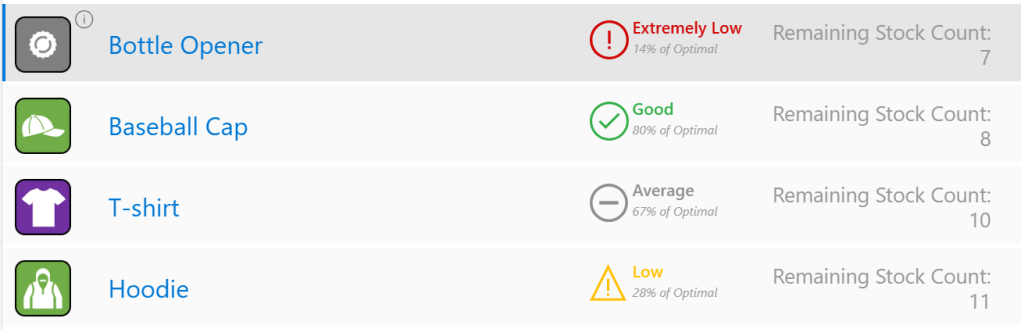
For example, each item shows a stock status badge indicating if the stock level is good, average, low, or extremely low. This is all made possible leveraging the visible property of these objects. It’s more than just hiding and showing object, we are creating a responsive experience that adapts to user interactions.

Let’s dive into the information (i) icon and the details it has to offer. By selecting the i icon for a product, we reveal additional information like the recommended order amount, cost per unit, and total cost for the recommended order.

Time to see how it works with some practical expressions. Below is the main dashboard. Notice how the information (i) icon appears on the selected item. This is accomplished by setting the visible property of the icon to ThisItem.IsSelected.

Additionally, by selecting this icon the user can display additional information. This information provides just in time insights. Providing for a responsive experience that displays all the required information at just the right time leaving a clean and simple dashboard with hidden power that is revealed through user interactions.

We use a variable to set the Visible property of the informational items. For the informational icons OnSelect property we use:

UpdateContext({locInfoVisible:!locInfoVisible});

The locInfoVisible variable toggles between true and false, acting as a switch. The pattern of using ! (i.e. not) and a boolean variable is helpful for flipping the variable’s value between true and false.

We are not limited to boolean variables to control our app objects visibility. Any expression that evaluates to true or false will work. An example of this within our app is the stock status badges. Each icon has its own specific condition controlling its visibility.

For each product we calculate the percentage of our target stock count. In the app we store this value in the text label lbl_Main_StockEval.

For example, the Extremely Low icon’s visible property is set to

Value(lbl_Main_StockEval.Text)<=20

This results in the icon showing only when the expression evaluates to true, that is if the item stock is less than or equal to 20% of the target amount.

Effectively pairing expressions with the visible property streamlines our app’s interface, focusing attention on what is most relevant. This elevates our apps from functional to intuitive and powerful.


User Roles and UI Elements: A Match Made in Heaven

Customizing apps based on user roles is crucial for any organization. Although this type of customizing includes things such as access control, it can go way beyond just that. Customizing our apps for different user roles is focused on making our apps more intuitive and user-friendly while recognizing what that means may differ for each individual or for each user role.

Let’s, examine a scenario with our Dusty Bottle Brewery inventory app where personnel should see a simplified dashboard focused on just their area of responsibility. Staff in the Brewing department should only see brewery related inventory, staff in the Sales and Marketing should only see merchandise related inventory, while staff in Logistics and Supply Chain should be able to view all items. This is where the flexibility of Power Apps shines, allowing us to tailor our apps based on the current user.

We first need to add the Office 365 Users data connector which then allows us to set UserProfile to the current user’s profile. In the Formulas property of the App object we add the following Named Formula:

UserProfile = Office365Users.MyProfileV2();

Note: This can also be done with a global variable by adding the following to the OnStart property of the App object.

Set(gblUserProfile, Office365Users.MyProfileV2());

The user profile provides the required information to personalize the user experience for our app. For example, we use UserProfile to welcome the current user in the top right of the app.

Next, we use the user’s department to control the data presented on the dashboard, ensuring relevant information is highlighted.

To add this role-based feature we add the following to the App OnStart property to pre-load the appropriate data.

Switch(
    true,
    UserProfile.department = "Brewing",
    ClearCollect(
        colSpInventory,
        Filter(
            Inventory,
            Category.Value = "Beer"
        )
    ),
    UserProfile.department = "Sales and Marketing",
    ClearCollect(
        colSpInventory,
        Filter(
            Inventory,
            Category.Value = "Merchandise"
        )
    ),
    UserProfile.department = "Logistics and Supply Chain",
    ClearCollect(
        colSpInventory,
        Inventory
    )
);

Here we filter the collection of inventory items (colSpInventory) based on the user’s department. This collection is then used in the Items property of the gallery displaying the inventory items. This approach enhances the efficiency and reducing clutter within our app.

For instance, Dusty Bottle’s Lead Brewer, Adele Vance, sees only brewery items, streamlining her experience. This helps Adele identify brewery items that are low in stock and provides all the information she requires without cluttering the dashboard with irrelevant information.

What is the most exciting about this level of control is the possibilities of the personalization aspect.

For example, let’s build on this role-based feature by expanding it beyond the user’s department. Dusty Bottle Brewery has a management team containing members of all departments and the members of this group should be able to see all inventory items. This group of users is defined by a Microsoft 365 group, and we will leverage the group’s membership to add this functionality to our app.

First, we add the Office 365 Group data connector to our app. Similar to Office 365 Users, this allows us to use Office365Group.ListGroupMembers to get all the members of our Management group.

Then we add another Named Formula to the Formulas property of the App.

ManagementMember = !IsBlank(
    LookUp(
        Office365Groups.ListGroupMembers("<group_object_id").value,
        displayName = UserProfile.displayName
    )
);

Let’s break this down, starting from the inside working out. We provide Office365Groups.ListGroupMembers the object id of the required group, this then provides a record. The record property value contains the membership user information we are looking for. We then use LookUp to see if the current user’s display name is within the group members. If the returned record from LookUp is not (!) blank, then the user is a member of the management group, and ManagementMember returns a value of true, otherwise false.

Finally, we update the OnStart property of our app to the following.

Switch(
    true,
    UserProfile.department = "Brewing",
    ClearCollect(
        colSpInventory,
        Filter(
            Inventory,
            Category.Value = "Beer"
        )
    ),
    UserProfile.department = "Sales and Marketing",
    ClearCollect(
        colSpInventory,
        Filter(
            Inventory,
            Category.Value = "Merchandise"
        )
    ),
    ManagementMember || UserProfile.department = "Logistics and Supply Chain",
    ClearCollect(
        colSpInventory,
        Inventory
    )
);

Providing each user or group a tailored interface that feels like it is made just for them. Using these role-based approaches we can deliver the right tools and information to the right people at the right time.


Input-Driven Interfaces: Reacting in Real-Time

In the dynamic environment of any organization, an input-driven interface can significantly improve the user experience by responding to user actions in real-time. This approach makes the app both intuitive and interactive.

For example, updating inventory involves selecting an item from the main dashboard to access its restocking screen. On the restocking screen the user is provided all the essential information for restocking an item.

This screen shows the cost, stock status indicator, stock count, and the target stock count on the left. On the right, is a dynamic input control and what the stock indicator would be if the input quantity is restocked. The default of this control is the difference between the current stock and the target stock value.

The input-driven interface updates information based on user input, ensuring accuracy and responsiveness. For instance, changing the restock quantity automatically updates the related information (e.g. Restock Total Cost).

What if the user is only able to restock 10 of these baseball caps. After updating the Restock Quantity input, we see the change reflected in the Restock Total Cost.

We achieve this by referencing the restock quantity (txt_Restock_QuantityAdded) in the text label displaying the total cost and the visible property fields of the stock indicator badges. The total cost label’s text property is set to the following.

Text(
    Value(txt_Restock_QuantyAdded.Text * gblSelectedItem.Cost),
    "$#,##0.00"
)

But the possibilities don’t have to end there. The app could integrate sliders or dropdown menus for inventory updates. As the user adjusts these controls, the interface could dynamically show the impact of these changes.

This approach can be extended to handle complex scenarios, like entering a new item, where the app reveals additional fields based on the item category or other properties. This can help keep the interface clean while also guiding the user through data entry in a logical, step-by-step manner.

Harnessing the power of input-driven interfaces transforms our apps into responsive companions, adapting to user needs and simplifying tasks.


Buttons and Actions: Bringing Our Interfaces to Life

Interactive buttons and actions play a pivotal role in bringing the user interface to life. They create engaging and interactive experiences for our users.

Consider our simple action of updating stock levels in our inventory app. Selecting the Restock button updates the stock value and, if successful, presents a success message to the user. This immediate feedback reassures users and enhances their interaction with the app.

Additionally, we can tailor buttons and actions for different user roles. For example, enabling the Restock button only for management staff. Using the ManagementMember named formula created previously, we set the DisplayMode of the Restock button to the following.

If(ManagementMember, DisplayMode.Edit, DisplayMode.Disabled)

By thoughtfully integrating these elements, we turn mundane tasks into engaging interactions, making our apps an integral part of the daily workflow.


Tying It All Together: Crafting a Seamless Navigation Menu

As our apps grow in complexity and expand, easy navigation becomes crucial. A well-crafted navigation menu integrates all the dynamic UI features we have discussed into one cohesive, user-friendly package.

First, the navigation menu’s visibility is a key aspect and is controlled by the Visible property. We can make the navigation menu appear and disappear with a simple button click. This approach keeps the interface clean and uncluttered, allowing users to access the menu when needed and hide it when focusing on other tasks. We us a hamburger menu icon to launch the menu when selected using the following for its OnSelect property.

UpdateContext({locNavigationVisible: true})

Additionally, we will set the Visible property of the hamburger icon to !locNavigationVisible. This will hide the icon after it is selected allowing us to show a cancel icon that when selected will hide the navigation menu. The Cancel icon’s OnSelect property is set to the following.

UpdateContext({locNavigationVisible: false})

While its Visible property is set to locNavigationVisible.

Next, we enrich the navigation with selectable icons and actions that allow users to effortlessly navigate between the different screens of our app. Each icon in the navigation menu is linked to a different screen in the app. Using the Power Apps Navigate function and the OnSelect property of the icons seamlessly transports the users to the desired screen, enhancing the app’s overall usability and flow.

Lastly, we tailor the navigation experience to different user roles. For instance, links to admin-specific screens. Above, we can see the navigation menu includes a button to navigate to the Admin screen. This screen should only be accessible to staff within the Logistics and Supply Chain department. To do this we add the following named formula to our App’s Formulas property.

AdminUser = UserProfile.department = "Logistics and Supply Chain"

We can then set the Visible property of the Admin button within the navigation menu to AdminUser. This will make this navigation button visible if the current user is within the Logistics and Supply Chain department and hide this option for all other staff.

Now, we can see that the Admin navigation icon is visible to Grady, who is within the Logistics and Supply Chain department.

However, when Adele uses this app, who is not in this department, the navigation icon is not shown.

By integrating these elements, the Inventory Management app’s navigation becomes a central hub that intelligently adapts to user needs and roles.


Wrapping Up: The Future of Dynamic UI in Power Apps

As we wrap up our journey through Dusty Bottle Brewer’s Inventory App, it is clear that the future of dynamic UI in Power Apps is here and now. Harnessing the power of features like the Visible property, role-based UI elements, input-driven interfaces, and more, we have seen how an app can transform from a simple tool into an essential part of the organizational ecosystem.

The power of Power Apps lies in its ability to continuously evolve allowing us to iterate on our apps, enhancing their responsiveness and efficiency. This inventory app showcases how technology meets business needs and enhances user experiences.

As we build upon our apps the possibilities are varied and exciting. We can incorporate more advanced integrations, AI-driven functionalities, and even more user-friendly designs. The goal will always remain the same: to create applications that are not just functional, but intuitive, responsive, and easy to use.

Here’s to the future of dynamic UI in Power Apps – a future where technology meets user needs in the most seamless and engaging ways possible. Cheers to that!


Thank you for reading! Stay curious, and until next time, happy learning.

And, remember, as Albert Einstein once said, “Anyone who has never made a mistake has never tried anything new.” So, don’t be afraid of making mistakes, practice makes perfect. Continuously experiment, explore, and challenge yourself with real-world scenarios.

If this sparked your curiosity, keep that spark alive and check back frequently. Better yet, be sure not to miss a post by subscribing! With each new post comes an opportunity to learn something new.

Outsmarting the Out-of-Office Quandary: A Power Automate Approval Guide


Say goodbye to the world of endless email threads and approval documents that somehow get lost in the abyss of your inbox. With Power Automate, ensure that documents get the thumbs up even when the chosen approver is out of the office. Let’s roll up our sleeves and get automating!

From Hurdle to Handshake: Streamline Document Approvals with Power Automate

In an era of remote work, efficient collaboration and communication have become as crucial to a project’s success as coffee is to a Monday morning. One hurdle that often stumbles onto the path of efficient collaboration is a document approval. You might wonder, what happens when the assigned approver is nowhere to be found? Here’s where Microsoft Power Automate takes center stage, ensuring that no document is left unapproved.

This post is a step-by-step guide to establish a workflow that checks if the approver is available before passing the document to them for approval. If the approver is unavailable the workflow pokes you and lets you assign a new approver. No magic to be found here, just good ol’ automation at work!


A Quick Glance: What the Power Automate Workflow Looks Like

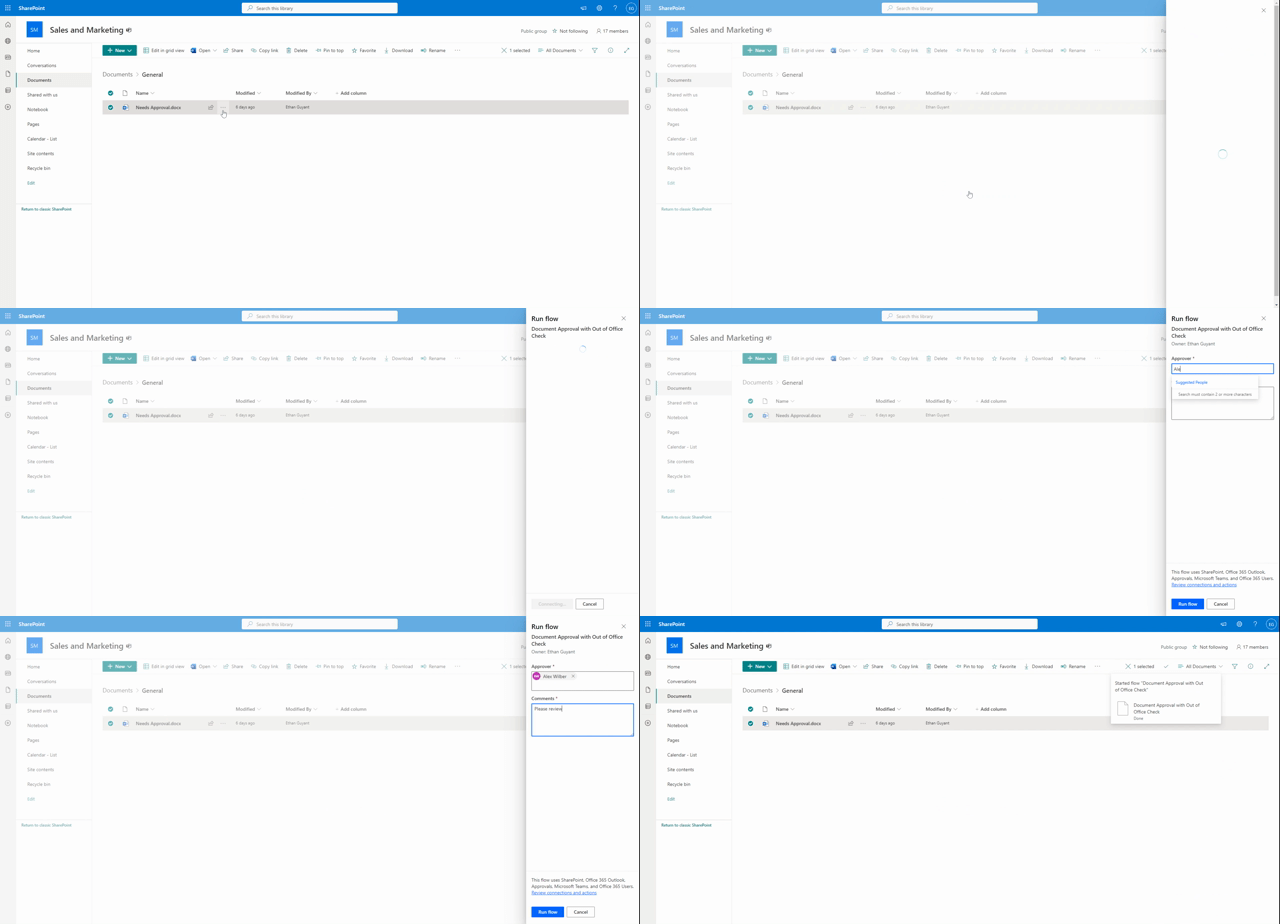
Our Power Automate workflow gets triggered for a selected document within a SharePoint document library. You provide the approver’s email address and any comments you have about the document, then set the Power Automate workflow into motion.

Now comes the genius part. The workflow examines the approver’s Outlook inbox, searching for an automatic or out-of-office reply (everyone deserves a vacation, right?). If the workflow finds an automatic reply, it sends you a notification via a Teams adaptive card. You then have the freedom to pick a new approver or stick to your initial choice.

If no automatic reply is detected, the document goes straight to the approver you chose when triggering the workflow.

Once the approval is complete, you’ll receive a final notification informing you of the approval’s outcome and any comments from the approver.

For a detailed guide on Power Automate, visit Microsoft’s official documentation.

Discover how to make the most of Power Automate with online training courses, docs, and videos covering product capabilities and how-to articles.


Unpacking the Details: Inside the Power Automate Workflow

Let’s delve deeper into the workflow.

Triggering the Process

Our trigger is a SharePoint for a selected document trigger. When triggering the workflow you will be prompted to enter two essential pieces of information:

  1. The email of the document approver.
  2. Your comments about the document.

This sets the dominoes in motion.

Assembling the Essentials: Get the Approver’s Profile, File Properties, and Initialize Variables

This phase of the workflow encompasses three action groups to collect the information needed for the workflow.

  1. Get user profile: This action retrieves the approver’s user profile, making information such as display name available to the workflow as dynamic content.
  2. Get file properties: This action fetches the details of the selected document, providing useful information like the document’s link to the workflow.
  3. Initialize variables: Three string variables are used within the workflow to gather and store information about the approval. These include approvalOutcome, approvalComments, and approvalApprover.

For detailed instructions on each action check out Microsoft’s guides on the Office 365 Users action Get user profile (V2), the SharePoint action Get file properties, and Variable action Initialize a variable.

Learn how to store, manage, use, and pass values by using variables in your flows

Is the Approver Available? How to Check for Automatic Replies

This stage uses the the Outlook action Get mail tips for a mailbox to see if the approver has an automatic reply turned on for their inbox. The automatic reply status is key because this could often signify the approver is either out of the office or generally unavailable.

For more detailed instructions, refer to Microsoft’s guide on the Outlook action Get mail tips for a mailbox (V2).

Evaluating the Approver’s Availability: An Inside Look at the Workflow Decision-Making Process

A critical part of the workflow is determining whether the assigned approver is available. This is done by checking if there is an automatic reply set for the approver’s inbox. To achieve this, the output of the Get mail tips for a mailbox action is examined. Here is an example of the information contained within the output body:

[
  {
    "mailboxFull": false,
    "externalMemberCount": 0,
    "totalMemberCount": 1,
    "deliveryRestricted": false,
    "isModerated": false,
    "maxMessageSize": 37748736,
    "emailAddress": {
      "name": "",
      "address": "XXXXX@XXXX.onmicrosoft.com"
    },
    "automaticReplies": {
      "message": "<div>\r\n<div style="font-family:Calibri,Arial,Helvetica,sans-serif;font-size:12pt;color:rgb(0,0,0)">\r\nI am currently out of the office.</div>\r\n</div>",
      "messageLanguage": {
        "locale": "en-US",
        "displayName": "English (United States)"
      }
    }
  }
]

From this data, the following expression is used to determine if an automatic reply is set for the inbox:

empty(outputs('Get_mail_tips_for_a_mailbox_(V2)')?['body/value'][0]?['automaticReplies/message'])`

This expression checks the message attribute within the automaticReplies property. If the message is empty (meaning no automatic reply message), the expression will evaluate to true.

If true, the workflow proceeds as planned, assigning the approval to the assignee. If false, however, the process takes a more intriguing turn, revealing deeper layers of automation. Continue reading to uncover the magic that unfolds.

For more detailed instructions on adding conditions to your workflows, check out Microsoft’s guide Add a condition to a cloud flow.

Specify that a cloud flow performs one or more tasks only if a condition is true.

From Alert to Decision: Using Adaptive Cards for Approval Reassignment

When an approver is unavailable and an automatic reply is detected, the workflow seamlessly switches to an alternative process to ensure that the approval request doesn’t get stuck in limbo. Through utilizing Teams adaptive cards, this branch of the workflow handles the process of alerting you and providing options for reassigning the approval or continuing with the initial approver. Allowing for flexibility and control even when the primary approver is out of reach.

Interactive Alerts: How Adaptive Cards Enhance the Approval Workflow

First, the workflow sends you a Teams adaptive card. This card alerts you that your action is needed and prompts you to either reassign the approval or send approval to the initial approver.

For detailed instructions on creating and using Adaptive Cards, refer to Microsoft’s guide Create your first adaptive card. Also, when designing your adaptive cards, the Adaptive Card Designer can be a helpful tool.

Learn how to create flows that post richly formatted content with adaptive cards to Microsoft Teams.

Decision-Making with Adaptive Cards: Reassigning or Confirming

The adaptive card presents you with two option: the first is to reassign the approval, and the second is to send it to the initial approver. Once you select an option and submit your response on the adaptive card, the workflow receives your response. Your response is then evaluated in another condition action within the workflow.

If the reassignApproval attribute of you response is false, meaning you selected Send Approval on the card, the workflow will continue to send the approval to the initial approver. However, if the reassignApproval is true, meaning you selected Reassign Approval, it will assign an approval to the email you provided as input into the adaptive card.

Closing the Loop: Notification of the Approval Outcome

Once the approver has completed their task, you are notified of the final outcome of their approval and informed of any comments that they may have left during the approval process.


Reaping the Benefits of Power Automate Approvals

By leveraging Power Automate efficiencies and features, we have turned a potential bottleneck into a smooth and efficient process. No more waiting for approvals or wondering about the status of a document. We have created a dynamic system that adapts to real-life situations, keeping your approvals moving and your teams productive.

Power Automate might seem like magic, but it is simply a powerful tool that can make your work life a whole lot easier. Embrace Power Automate’s efficiency and the rich array of Power Automate features to make document approval automation a breeze.

Check out these blog posts for other helpful Power Automate Guides:

Escape the email madness! Discover how to use Power Automate to declutter your inbox with effortless automation. Take back control of your inbox!

Ready to work smarter, not harder? Embrace the world of Power Automate and Dynamic Approvals.

Now that you have the blueprint for creating a document approval workflow with Power Automate, it is time to put it into action.

And remember, as Albert Einstein once said, “Anyone who has never made a mistake has never tried anything new.” So don’t be afraid to experiment, learn, and create workflows. A little bit of automation today can save you a lot of manual work tomorrow.

Happy Automating!


Thank you for reading! Stay curious, and until next time, happy learning.

And, remember, as Albert Einstein once said, “Anyone who has never made a mistake has never tried anything new.” So, don’t be afraid of making mistakes, practice makes perfect. Continuously experiment and explore new DAX functions, and challenge yourself with real-world data scenarios.

If this sparked your curiosity, keep that spark alive and check back frequently. Better yet, be sure not to miss a post by subscribing! With each new post comes an opportunity to learn something new.

Streamline Application Lifecycle Management with Power Platform Solutions

Application lifecycle management (ALM) is a critical process for any software development projects. ALM is a comprehensive process for developing, deploying, and maintaining robust scalable applications. Power Platform solutions offer a powerful toolkit that enables application development and provide essential ALM capabilities. ALM plays a vital role in maximizing the potential and ensuring the success of you Power Platform solutions.

The Microsoft Power Platform is a comprehensive suite of tools that includes Power Apps, Power Automate, and Power BI. These tools empower organizations to create custom applications, automate processes, and gain insights from data. Implementing ALM practices within the Power Platform can streamline the development process and deliver high-quality applications.

This blog post will explore how implementing ALM practices can enhance collaboration, improve performance, and streamline development for Power Platform solutions.


Why you need ALM

ALM for Power Platform solutions is crucial for several reasons:

Ensuring Quality, Security, and Performance: ALM practices help organizations maintain the quality, security, and performance of their applications across different environments. It ensures that applications meet the desired standards and perform optimally.

Collaborating with Other App Makers: ALM enables seamless collaboration between app makers within an organization. It provides a consistent development process, allowing multiple stakeholders to work together effectively.

Managing Dependencies and Compatibility: Power Platform solutions consist of various components such as tables, columns, apps, flows, and chatbots. ALM helps manage dependencies between these components and ensures compatibility across different versions and environments.

Automating Deployment and Testing: ALM enables organizations to automate the deployment and testing of Power Platform applications. It simplifies the process of tracking changes, applying updates, and ensuring the reliability of applications.

Monitoring and Collecting Feedback: ALM practices facilitate monitoring and troubleshooting of applications. They enable organizations to collect feedback from end-users, identify issues, and make necessary improvements.


How to implement ALM

To implement ALM for Power Platform solutions, building projects within solutions is essential. Solutions serve as containers for packaging and distributing application artifacts across environments. They encompass all the components of an application, such as tables, columns, apps, flows, and chatbots. Solutions can be exported, imported, and used to apply customizations to existing apps.

Collaborative Development

The Power Platform’s low-code development platform provides a collaborative environment for creators, business users, and IT professionals. The platform includes features like solution management and environment provisioning which play a role in establishing ALM for your Power Platform projects. The solution explorer enables managing multiple app components, tracking changes, and merging code updates. By enabling collaborative development, the Power Platform encourages teamwork and reduces conflicts during the development lifecycle.

Version Control and Change Management

When collaborating on components of a solution source control can be used as the single source of truth for storing each component. Source control is a system that tracks the changes and version of your code and allows you to revert or merge them as required.

Version control and change management are crucial elements of ALM. They ensure an organized development process and enable efficient management of code changes. The Power Platform integrates with source control tools such as GitHub or Azure DevOps, allowing developers to track changes, manage branches, and merge code updates effectively. Incorporating version control and change management practices allows you to establish a robust foundation for ALM.

Testing and Quality Assurance

Testing is a crucial phase in the ALM process to ensure the reliability and quality of Power Platform applications. The Power Platform provides various testing options to validate your solutions. Power Apps allows for unit testing, where developers can create and run automated tests to validate app functionality. Power Automate offers visual validation and step-by-step debugging for workflows. Power BI allows the creation of test datasets and simulation of real-world scenarios. Comprehensive testing practices identify and resolve issues early, ensuring the delivery of high-quality applications.

Continuous Integration and Deployment

Integrating Power Platform solutions with tools like Azure DevOps and GitHub enables continuous integration and deployment (CI/CD) pipelines. These automation tools streamline the deployment and testing processes. For example, Azure DevOps provides automation and release management capabilities allowing you to automate the deployment of Power Apps, Power Automate flows, and Power BI reports. With CI/CD pipelines, organizations can automate the build, testing, and deployment of their solutions. This approach accelerates release time, reduces human errors, and maintains consistency across environments. CI/CD pipelines also promote Agile and DevOps methodologies, fostering a culture of continuous improvement.

Monitoring and Performance Optimization

Once your applications are deployed, monitoring and performance optimization become an essential aspect of ALM. Monitoring tools can help you identify and resolve issues with your applications and improve their quality and functionality. Power Platform solutions provide built-in monitoring capabilities and integrate with Azure Monitor and Applications Insights. These tools offer real-time monitoring, performance analytics, and proactive alerts. Leveraging these features helps organizations identify and address issues promptly, optimize performance, and deliver a seamless end-user experience.


Conclusion

The Microsoft Power Platform offers a rapid low- to no-code platform for application and solution development. However, incorporating ALM practices goes beyond rapid development. By leveraging Power Apps, Power Automate, Power BI, and their integration with tools like Azure DevOps and GitHub, organizations can streamline collaborative development, version control, testing, and deployment. Implementing ALM best practices ensures the delivery of high-quality applications, efficient teamwork, and continuous improvement. Embracing ALM in Power Platform solutions empowers organizations to develop, deploy, and maintain applications with agility and confidence.

Now its time to maximize the potential of you Power Platform solutions by implementing ALM practices.


Thank you for reading! Stay curious, and until next time, happy learning.

And, remember, as Albert Einstein once said, “Anyone who has never made a mistake has never tried anything new.” So, don’t be afraid of making mistakes, practice makes perfect. Continuously experiment and explore new DAX functions, and challenge yourself with real-world data scenarios.

If this sparked your curiosity, keep that spark alive and check back frequently. Better yet, be sure not to miss a post by subscribing! With each new post comes an opportunity to learn something new.

Power Apps: Model-driven App Overview and Tutorial

This post starts with background information on Power Apps in general, Dataverse, and Model-Driven apps. If you are looking to jump right into building a model-driven app click here Build a Model-driven App

Background Information

Power Apps is a rapid low-code application development environment consisting of apps, services, connectors, and a data platform. It provides tools to build apps that can connect to your data stored in various data sources. The data sources can be Microsoft Dataverse (i.e. the underlying data platform) or other online and on-premises data sources including SharePoint, Excel, SQL Server, etc.

Within the Power Apps development environment you build applications with visual tools and apply app logic using formulas. This approach is similar to other commonly used business tools. Meaning you can get started using skills and knowledge you already have. The Power Platform also provides the opportunity to build upon the platform with custom developed components providing a way to create enriched experiences using web development practices.

The Power Apps platform provides two different types of apps that you can create. There are Canvas Apps and Model-driven Apps. Both app types are similar and built with similar components however, the major difference lie in the amount of developer control and uses cases.

Canvas apps provide the developer with the most control when developing the app. A canvas app starts with a blank canvas and provides full control over every aspect of the app. In addition to providing full control over the app a canvas app supports a wide variety of data sources.

Model-driven apps begin with the data model and are built using a data-first approach. The data-first approach requires more technical knowledge and is best suited for more complex applications. Model-driven apps are controlled by and depend on the underlying data model. The layout and functionality of the app is determined by the data rather than the develper who is developing the app.

The use cases of canvas apps and model-driven apps are different and each are leveraged in different situations. Canvas apps provide flexibility in the appearance and data sources and excel at creating simplified apps. Model-driven apps build a user interface on top of a data model utilized for a well defined business process.

This article will focus on creating a model-driven app including the underlying data model. Check back for a follow up article on creating your first Canvas App.


Dataverse Introduction

Dataverse is a relational database and is the data layer of the Power Platform.

Like other relational databases it contains tables or entities as the representation of real world objects. Relationships define how table rows relate to rows in other tables. What sets it apart from traditional relational databases are the business-oriented features. Some of these features include the set of standard tables and automatically adding columns to custom tables which support underlying processes. It also provides features such as creating views, forms, dashboards, charts, and business rules directly from the table configuration.

The components of the Dataverse include Storage, Metadata, Compute, Security, and Lifecycle Management.

The storage layer has different types of data storage available. Each type suited for different needs and types of data. These storage types include relational data, file storage, and key:value data.

The metadata component stores information about the primary data in Dataverse. A simple example of metadata for a table is the Display Name which you can customized. After applying customizations the changes in the table definition get stored in the metadata layer. The metadata layer is then available to the various components of the Power Platform. The metadata layer consists of the schema and the data catalog.

The compute layer is a set of functionalities that include Business Logic, Data Integration, and the API layer. Business rules or logic that apply across all applications for an organization get applied in a single location rather than each individual application. The single location these rules get applied is the Business Logic sub-layer. The business logic layer contains business rules, workflows, and plugins. The Data Integration layer consists of methods which bring data into the platform and integrating existing data in other data sources. The API layer provides the interface for other applications to connect to Dataverse.

The security layer of Dataverse can support enterprise-grade security for applications. Some features relevant to building applications include authorization, privilege, roles/groups, and auditing. Data in Dataverse is only available to authorized users with a security model based on the various components (e.g. table, columns, rows). A user’s privilege define what level of access they have or what they are able to do within the system (e.g. read, write, delete). Roles/groups are privileges that get bundled together. Authentication is the process of validating the identity of someone trying to access the system.

Application lifecycle management (ALM) is the process of managing the different phases of creating and maintaining an application. Such as development, maintenance, and decommissioning. The Lifecycle Management layer helps this process through implementing different environments, diagnostics, and solutions.


Model-Driven Apps Introduction

Model-driven apps build a user interface on top Dataverse. The foundation of the app is the underlying data model. Although a main requirement in any app development is setting up data sources, for model-driven apps it is the primary requirement. The first and essential step of model-driven app development is properly structuring the data and processes. The user interface and functionality of the app is dependent on the data model.

The development approach for model-driven apps has 3 focus areas:

  • Data Model: determining the required data and how it relates to other data
  • Defining Processes: defining and enforcing consistent processes is a key aspect of a model-driven app
  • Composing the app: using the app designer to add and configure the pages of the application

Components of Model-driven Apps

The components of a model-driven app get added through the app designer and build the appearance and functionality of the app. The components included in the app and their properties make up the app’s metadata.

There are four main types of components in the application and each has a designer used to create and edit the component.

Data Components

The data components specify the data the app builds upon.

The app design approach focuses on adding dashboards, forms, views, and charts to the application. The primary goal of a model-driven app is to provide a quick view of the data and support decision making.

ComponentDescriptionDesigner
TableA container of related recordsPower Apps table designer
ColumnA property of a recorded which is associated with a table.Power Apps table designer
RelationshipDefine how data in different tables relate to one another.Power Apps table designer
ChoiceSpecialized column that provides the user a set of predefined options.Power Apps option set designer

User Interface Components

The user interface (UI) components define how the user will interact with the app.

ComponentDescriptionDesigner
AppThe fundamental properties of the application specifying components, properties, client types, and URLApp designer
Site MapDetermines the navigation of the appSite map designer
FormA set of data-entry column for a specified tableForm designer
ViewDefine how a list of records for a table appear in the appView designer

App Logic

The logic defines the processes, rules, and automation of the app.

ComponentDescriptionDesigner
Business Process FlowA step-by-step aid guiding user through a standard processBusiness process flow designer
WorkflowAutomate processes without a user interfaceWorkflow designer
ActionsActions are a type of process that are invoked from a workflowProcess designer
Business RuleApply rules or recommendation logic to a formBusiness Rule Designer
Power AutomateCloud-based service to create automated workflows between apps and servicesPower Automate

Visual Components

The visual components visualize the app data.

Component
ChartA single graphic visualization that can be displayed within a view, on a form, or added to a dashboardChart designer
DashboardA collection of one or more visualizationsDashboard Designer
Embedded Power BIPower BI tiles and dashboards can be embedded in an appChart designer, dashboard designer, Power BI

Build a Model-driven App

We will be creating an app for Dusty Bottle Brewery. Dusty Bottle Brewery is a brewery that operates multiple brewpubs and distributes products to other local businesses.

The goal of the app is to provide greater insight on brewpub locations and partners. The app should provide details on brewpub capacities, outdoor seating, food availability, pet policies, landlords, etc.

Setting Up a Development Environment

First we will set up an environment to develop the app within. An environment is a container to store, manage, and share apps, workflows, and data. Environments can separate apps by security requirements or audiences (e.g. dev, test, prod).

Environments are created and configured on the Environments page of the Power Platform Admin Center (admin.powerplatform.microsoft.com). Each tenant when created has a Default environment, although it is generally recommended not to use this environment for app development that is not intended for personal use.

We will start by creating an environment for use during this post. Types of environments include Sandbox, Trial, Developer, and Production. Choose the environment appropriate for your needs, you can review more details at the link below.

Learn how to create and manage environments in the Power Platform admin center

Then we can navigate to make.powerapps.com.

When your tenant has multiple environments it is important to note which environment you are working in. You can view the current environment on the top right of the screen. You switch between environments by clicking on the Environment area of the top menu. This will open the Select environment pane where you can switch between the available environments.

Once in the correct environment you could start creating apps with the options provided. However, before we do we will first look at solutions.

Solutions Overview

A solution is a container within an environment that holds system changes and customizations (e.g. apps). You can export a solution from an environment, as a .zip file and deploy it to other environments.

In this demo we will first create a solution to hold the customizations needed for the app we will create.

When working with solutions you will also need to be familiar with publishers. All solutions require a publisher and the publisher will provide a prefix to all the customizations (e.g. a prefix to table names).

Now that we created the DustyBottleBrewery solution we can start developing our model-driven app within this solution.

Design the Data-model

We will start creating the data model for the app first focusing on tables, columns, rows, and relationships in Dataverse. When working with Dataverse the common terminology includes table, column, row, choice, and Yes/No. You may come across the associated legacy terms entity, field/attribute, record, option set/multi-select option set, pick list and two options.

The tables that we will need for the application include BrewPub, Landlord, Accounts, and Contact tables. Here it is important to note that when we provisioned Dataverse for an environment it comes with a set of commonly used standard tables. So before creating custom tables it is helpful to evaluate the standard tables.

For example, in Dataverse there already is a Contact table that includes columns such as address and phone number. We can use this standard table for the Brew Pub’s contact information.

A summary of the tables we will work with is:

BrewPub (Custom)Landlord (Custom)Manager (Standard Table: Contact)Account (Standard Table)
Street AddressStreet AddressBuilt-in ColumnsBuilt-in Columns
CityCity
StateState
Phone NumberPhone Number
Capacity
Pets Allowed
Patio Seating
Landlord
Contact

You may have noticed that the BrewPub table contains a Landlord and Contact column. These will be created when creating the relationships between these tables and serve as the basis for the relationships we will create within the data model.

Creating Tables

You create a custom table by navigating to the environment where the app is being developed (e.g. DustyBottleBrewery). Then on the Solutions page select the solution. On the Solution Objects page you can create a new table by selecting New on the top menu and then table. For this demo we will provide the table name and leave the other options as their default values. However, there are many advanced options that you can configure if needed.

After creating the table you can view the columns and see that it comes with a number of automatically created columns. These columns support underlying system processes. We will have to add some column such as Phone Number, Street Address, City, State, and other columns listed above.

You add columns by expanding Tables on the Object pane of the solution and then expanding the specific table to show its components. Then select columns to view the columns page.

From the columns page there are two options, add a New column or Add existing column. We will add the columns below with the New column option.

Column NameData Type
Street AddressText > Plain text
CityText > Plain text
StateText > Plain text
Phone NumberText > Phone number
CapacityNumber > Whole number
Pets AllowedChoice > Yes/no
Patio SeatingChoice > Yes/no
Food AvailableChoice > Yes/no

After adding the columns to the newly created BrewPub table repeat the process for the Landlord table.

After creating our two custom tables we must add the existing Contacts and Accounts table to our solution. We can do this by using the Add existing option in the menu. After selecting the table there are two options to be aware of. The first is include all components. The components of the table include the columns, relationships, views, etc. If this option is not selected specific components can be explicitly selected and added to the solution. The second is include table metadata. If you include all components then this option is selected and disabled. If components are added individually this option will have to be selected to include the metadata.

Creating Table Relationships

Relationships define how tables in the database relate to other tables. When working with the Power Platform there are two main relationship types to work with.

A one-to-many relationship is when a row in the Primary Table is associated or reference many rows in the Related Table. In Power Apps there are actually three relationship types listed when creating a relationship. However, every one-to-many relationship is also a many-to-one relationship viewed from the perspective of the related table. For this type of relationship, different relationship behaviors can be defined (e.g. cascading delete). For more detail on the various behaviors and actions check out Table Relationships for more information. Power Apps does provide pre-defined behavior/action grouping that can be used. These include Referential Remove Link, Referential Restrict Delete, and Parental.

Learn about table relationships in Microsoft Dataverse

A many-to-many relationship is when many rows in one table are associated or reference many rows in another table.

Creating a one-to-many (or many-to-one) relationship can be done in two ways. The first is to create a lookup field which creates the relationship for you. The second is to manually create the relationship which creates the lookup field for you. Manually creating the relationship is the only option available for the many-to-many relationship.

We will first create the one-to-many relationship between Landlord and BrewPub by creating a lookup field. In this relationship a BrewPub can have one landlord and a Landlord can have many BrewPubs. So the first question is on which table to add the lookup field.

Now will will create the many-to-many relationship between BrewPub and Contacts. In this relationship a BrewPub can have multiple contacts and a Contact can be associated with multiple BrewPubs. Since this relationship is many-to-many in Power Apps it does not matter which table you select to create the relationship.


Creating the App and the App Components

Now that the underlying data model is complete we can move to creating the user interface (UI). The UI resides on top of the data-model that users will interact with. Creating the app involves working with various UI components including the site map, forms, and views. In addition to the visual components we will incorporate business rules.

We create the model-driven app from within the solution under New > App > Model-driven app.

App Navigation

With the app now created we start by building out the site map or the navigation element of the app. On the left hand menu select Navigation to view the Navigation pane. Here you will see listed a few options created automatically. The Navigation bar is where you can set the options to show Home, Recent, and Pinned which are enabled by default. You can also enable collapsible groups and enable areas, both of these options are disabled by default.

We will first create an Accounts and Contacts group with two subareas. The subareas will be Accounts and Contacts linked to the associated table. Then we will repeat this process creating a second Dusty Bottle Brewery group with subareas for BrewPubs and Landlords.

App Forms

After building the navigation element we will add Forms to the app. Forms display a single row of data from a table. There are various elements of the form used to view associated data and carry out tasks.

  1. Command Bar: used to take action such as saving a record or creating a new one
  2. Tabs: easy access to grouped information
  3. Columns: displays the column data for the specific record
  4. Lookup Fields: specialized column to lookup a single related record
  5. Timeline: a list of recent actions or activities associated with the record
  6. Subgrid: displays the many side of a relationship (e.g. all the contacts associated with the account below)
  7. Form Selector: navigate between different forms for the specific table

The form selector (#7 above) navigates to different forms. There are various types of forms that look different and offer different functionalities.

Typedescription
Mainmain user interface for working with table data
Quick Createabbreviated form optimized for creating new rows
Quick Viewread-only form contained within another form to show information about related data
Cardpresents data in the unified interface dashboards

We will modify the main form of the BrewPub table. We locate the table in the objects viewer and navigate to Forms. All forms created automatically have a Name of Information so the main form can be identified by the Form type. Select the correct form to open the Form designer.

From here we can modify and add elements to the form. By default any required fields are included in the form (e.g. Name and Owner).

Within the form designer the default layout is 1 column and can be modified to 2 or 3 columns in the Formatting properties of the section. We will use 2 columns. Following this we will add additional table columns to the form. All available columns can be seen by selecting the Table columns in the left hand menu and then dragged and dropped on the form.

Additional sections can also be added from the Components menu. Sections here are containers for the displayed fields. We will add a new Contacts section to display the related contacts for the BrewPub record. Previously, we created a many-to-many relationship between the BrewPub and the Contact tables. Since for each BrewPub we need to display multiple contacts we will need to add a subgrid to this new section.

Following the change we Save and Publish to make the updates available. Then we can go to the Power App and add an example BrewPub and Landlord. Navigate to each in the left-hand Navigation of the app and select New.

After adding the data we can view a BrewPub record and associated contacts with that BrewPub using the subgrid. Navigate to the BrewPub Form and in the Contacts section select Add Existing Contact in the subgrid. This will open a lookup record menu, and since the dataverse was loaded with sample data, a list of contacts is presented. Select appropriate records and click Add.

App Views

Views within a model-driven app display a list of rows that are typically the same type (e.g. Active Contacts). The view definition is primarily made up of the columns that are displayed and any sorting or filter that should be applied.

There are three main types of views. Personal views are owned by an individual and only visible to them and anyone they share it with. Public views are general purpose and viewable by everyone. System views are special views used by the application (e.g. Quick Find, Lookup).

You toggle between different views from within the App. The default view can also be changed from within the app. The current default view for Contacts in My Active Contacts. We will first change the view to Inactive Contacts and then set the default to Active Contacts.

Business Rules

Business rules are utilized to dynamically update the app UI. Typical use cases for business rules include displaying error messages, setting or clearing field values, setting required fields, showing or hiding fields, and enabling or disabling fields.

We will create a business rule for the Account table to set the value of a company’s Payment Terms based on the company’s Credit Limit. First we look at the details of an Account and in the Billing section we can see both of these values are blank.

The business rule we will create looks at the companies credit limit and if it is greater or equal to $125,000 then the payment terms should be set to Net 60. Otherwise, the payment terms is set to Net 30.

To create the new business rule we must go to view the objects in the solution. Expand the Account table then Business rule, and finally New business rule. After selecting New business rule the visual designer will open in a new tab.

Once the business rule is complete we must Save it and then Activate the rule.

After activating the business rule we can move back to the app UI to see it in action.


Model-Drive App Security

Before adding a user to the environment the new app resides in the user must first be a user in the Microsoft tenant. If the user does not yet exist the account must be created in the tenant before adding then to the Power Apps environment.

After creating the user in the tenant we can go to the Power Apps Admin Center, and select Environments. We then navigate to the environment we are working in. Users are added to an environment in the environment settings under Users + permissions. You can also access this on the Environment overview screen in the Access section, under Users select See all. Once on the Users page select Add user and then search for the user to add. After adding the user you are prompted to set an appropriate security role for the user.

In general a security role defines what actions a user is allowed to do and where they are allowed to do those actions. For example a user’s security role could specify they have read permissions on the Account table. The permissions provided by the security role are on a per table basis. The same role describe above could provide the user read permissions on the Account table and write permissions on the BrewPub table.

In addition, to specifying the entity within the security role definition you can also specify which rows within the table the user can read or modify. More information on the built-in security roles and configuring a custom security role can be found here: Configure user security to resources in an environment. When we added the new user to the environment we assigned them the Basic User security role. Looking at the documentation, linked above, we can get more information on the type of privileges the role has.

security rolePrivilegesDescription
Basic UserRead (self), Create (self), Write (self), Delete (self)Can run an app within the environment and perform common tasks for the records that they own. Note that this only applies to non-custom entities.

Learn how to configure user access to resources in a Microsoft Dataverse environment.

An important thing to notice in the description is the last note. The Basic User role’s default privileges only apply to non-custom entities. For any custom table the privileges must be explicitly assigned.

Security roles are viewed, modified, and created by navigating to the environment settings > Users + permissions > security roles. In the list of roles we will locate the Basic User role and select the check mark next to it. Then on the top menu select Edit to open the security role designer. Then on the Custom Entities tab we locate the BrewPub and Landlord table and give the role basic access to these tables.


Sharing a Model-driven App

Sharing a model-driven app consists of three steps including setting up the security roles, sharing the app, and finally providing the app URL to the users.

To share our Dusty Bottle Brewery app, we select the check mark next to the app in our solution. Then on the top menu select Share. This opens a pane to share the app and consists of a couple different parts.

First on the top left is the security role of the app. This specifies the security roles that can be used by the app.

Second, under people we search for the users that we want to share the app with and set their security role.

Lastly, we must share the app URL with the users. The web URL is located on the app details page and provided to the users of the app. In addition, there are other ways to provide access and includes methods such as embedding an app within Microsoft Teams.


Next Steps

Now that the data-model and the app UI have been created, the security roles configured and assigned, and the app has been shared with the users the focus shifts to management of the app.

This management is simplified through the use of solutions. Remember the solution acts as a container of all the different components which can be deployed to different environments (e.g. development to testing to production).

There are many options on how the management can be carried out and involves working with unmanaged and managed solutions. The deployment of the app can be a manual process or utilize tools such as Azure DevOps pipelines to automate and incorporate source control into the deployment process.

Check back for a follow up post focused specifically on the lifecycle management of apps created in Power Apps.


Summary

This post covered the different aspects of building and deploying a Power Apps Model-driven app. We started with general background information about Power Apps. Highlighted the two types of apps that you can build in Power Apps. These app type primarily differ on the amount of user control over the app’s data sources and interface elements. Canvas apps can be used with a variety of data sources and allow full control over the app’s user interface. And Model-driven apps must be used with Dataverse and the user interface is driven by the underlying data-model.

After covering the basics of Power Apps the post provided an introduction to Dataverse. Understanding of Dataverse and its components is critical for model-driven apps.

Then the post provides more detailed background on Model-driven apps specifically. Covering the different components that make up the model-driven app.

Finally, the post provided a step-by-step to get a model-driven app up and running. This started with the development of the data-model, the creation of the app UI, defining security roles, and sharing the app with end users.


Thank you for reading! Stay curious, and until next time, happy learning.

And, remember, as Albert Einstein once said, “Anyone who has never made a mistake has never tried anything new.” So, don’t be afraid of making mistakes, practice makes perfect. Continuously experiment and explore new DAX functions, and challenge yourself with real-world data scenarios.

If this sparked your curiosity, keep that spark alive and check back frequently. Better yet, be sure not to miss a post by subscribing! With each new post comes an opportunity to learn something new.