Learn how to trigger Power BI dataset refreshes automatically using Power Automate when new files are added to SharePoint.
We have created a Power BI report that connects to a SharePoint folder where our team uploads new files every month. The process is simple: upload the file, refresh the report to incorporate the latest data, and then view the updated report.
But our users view the report, and then the messages begin “Is the report updated yet?” “Do I need to refresh it?
Manual refreshes could work, but it can also be challenging to manage and they are often overlooked. Scheduled refreshes present another option. However, they may not always be suitable. These refreshes occur on a fixed schedule, regardless of whether the data has changed. As a result, we may refresh too early and miss the new file, or we may refresh too late, leading users to view outdated information.
This post will explore an event-driven approach that aligns our report updates with the addition of new files.
With Power Automate, we can automatically trigger a dataset refresh when (and only when) a new file is added to our SharePoint source. This event-based refresh ensures our reports remain in sync with our data.
The Workflow
The Scenario
Let’s say we maintain a Power BI report that tracks product reviews. Each month, a CSV file is delivered, which the product team uploads to SharePoint. Once the file is uploaded, it is appended to our Power BI dataset, incorporating the reviews from the previous month.
The delivery and upload of files are manual processes that occur on the first weekday of each month. We could schedule the report refresh, but we need to determine the best frequency. Should we refresh it daily? If we do, we might refresh the report 30 times in a month without any new data. Alternatively, if we choose a weekly refresh, users may have to wait longer to access the latest information.
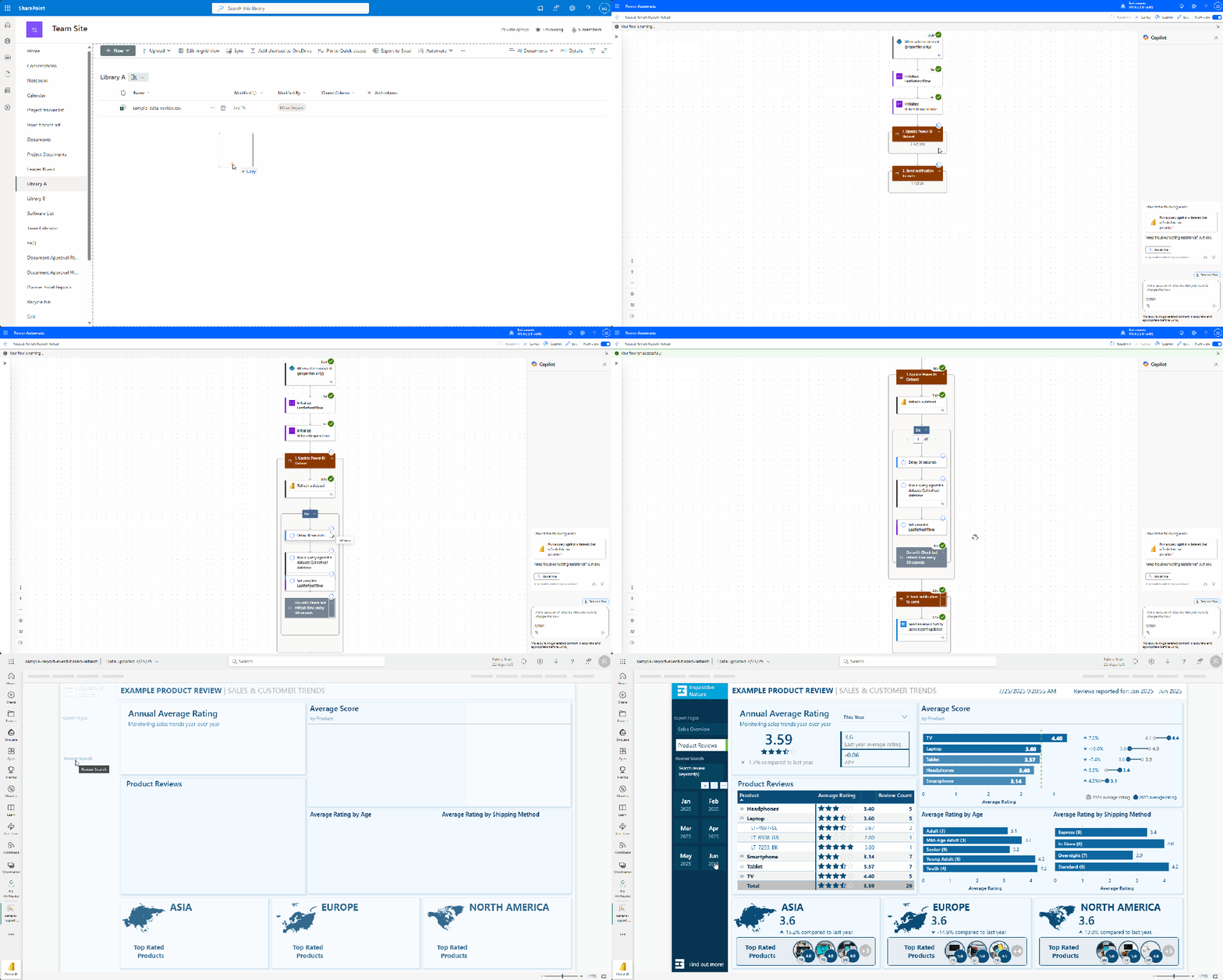
We will use Power Automate to monitor the SharePoint document library. By utilizing the When a new file is created trigger, the workflow starts automatically whenever a new file is added. This process refreshes the dataset and can even send a notification with a link to the updated report once it’s complete.
Build the Flow
The workflow is divided into three main sections: the trigger, refresh, and notification.
Trigger & Setup
We start with the When a file is created (properties only) SharePoint trigger, configured to the site and library where our file is uploaded. If necessary, we can utilize trigger conditions to prevent unnecessary refreshes.
The workflow uses two variables to verify that the refresh has completed before notifying users.
LastRefreshTime: tracks the current timestamp of the last dataset refresh.
RefreshRequestTime: stores the timestamp at which the flow starts the refresh.
Refresh the Dataset
We then use the Refresh a dataset Power BI action to trigger the report update. This action targets the specified workspace and dataset.
Note: the Power BI dataset includes a reference table called Last Refresh DateTime , which stores the timestamp (DateTimeZone.utcNow()) for when the dataset was last refreshed.
After initiating the refresh, we add a Do until loop that waits for the refresh to complete. The loop actions include:
Delay 30 seconds between checking the LastRefreshTime
Execute a query against the dataset to retrieve the Last Refresh DateTime value (DAX Query: EVALUATE Last Refresh DateTime)
Update the LastRefreshTim variable.
The loop repeats until the LastRefreshTime value is greater than the RefreshRequestTime.
Notify Users
After the refresh is complete, the workflow sends a confirmation email using the Send an email action. This email can be directed to the report owners or a shared inbox to confirm that the data is up to date. It can even include a link for users to view the report.
Tips for a More Reliable Setup
Here are some tips to enhance the reliability of our refresh automation.
Structure files consistently
Maintaining a consistent naming convention for files used in our automation reduces confusion and provides options for additional filtering within the workflow. It also simplifies our Power Query transformations.
Add retry logic and error handling
Delays and errors are inevitable, so it’s important to plan for them in advance. Incorporate branching or error-handling logic to notify the appropriate individuals when issues arise. For guidance on creating a dynamic failure notification system, see Elevate Power Automate Error Handling with Centralized Failure Notifications.
Keep the refresh lightweight
Avoid complex refresh dependencies. Preprocess large files or utilize staging tables to maintain the responsiveness and efficiency of our Power BI model.
Test with testing files first
Before automating production reports, upload sample files and verify the entire process to ensure accuracy. Confirm that the refresh timestamp updates correctly and that notifications are received as expected.
Try This Next
After automating our refresh process, the next step is to clean and shape the incoming data in a consistent and repeatable manner. Power Query parameters and functions simplify this task, enabling us to reuse common logic across different files. For instance, we can easily set data types, remove duplicates, and format text fields.
Manually refreshing datasets is only effective for a small number of reports serving a limited team. As our data expands and more users depend on timely insights, automation becomes crucial.
Scheduled refreshes are beneficial when new data arrives consistently or continuously. However, if our report data does not fit this scenario, scheduled refreshes will still run even if there are no updates to the data.
Our event-driven approach effectively addresses this scenario. Instead of estimating when to schedule updates, we implement a strategy that responds in real-time. By integrating SharePoint Online, Power BI, and Power Automate, we can create reliable and straightforward workflows that ensure our reports remain up-to-date and accurate.
Thank you for reading! Stay curious, and until next time, happy learning.
And, remember, as Albert Einstein once said, “Anyone who has never made a mistake has never tried anything new.” So, don’t be afraid of making mistakes, practice makes perfect. Continuously experiment, explore, and challenge yourself with real-world scenarios.
If this sparked your curiosity, keep that spark alive and check back frequently. Better yet, be sure not to miss a post by subscribing! With each new post comes an opportunity to learn something new.
How to Update Locked SharePoint Files Without Loops or User Headaches
The Hidden Workflow Killer: Locked Files in SharePoint
Imagine you have created a Power Automate workflow for a document approval process that updates a status property of the document to keep end users informed. The workflow operates smoothly until you encounter failures, with an error message stating, “The file <file_path> is locked for shared use by <user_email>“.
This is a common issue encountered in workflows that update file metadata while users have the file open or during co-authoring. Without proper error handling, users may not even realize that the workflow has failed, which can lead to confusion and increased support requests to resolve the workflow problem.
A common solution to this problem involves checking whether the file is locked and repeatedly attempting to update it until the lock is released.
In this post, we will explore a more practical approach. Instead of waiting for the file lock to be released, we can detect the lock, extract the source control lock ID, and use it to update the file without any user intervention, even when the file is in use.
The Waiting Game: Why Do Until Loops Leave Everyone Hanging
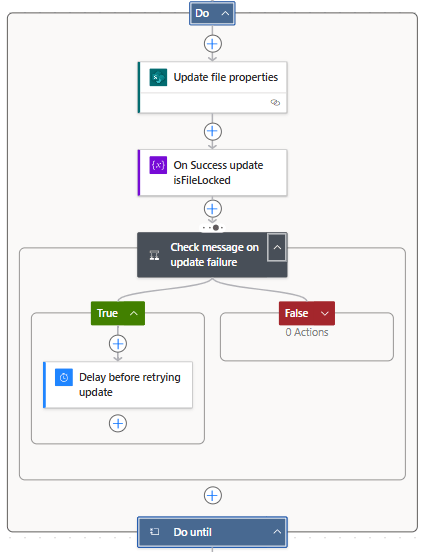
One workaround for a locked SharePoint file in Power Automate is to use a Do Until loop. The concept is straightforward: check if the file is locked, and if it is, use a delay action to wait before checking again. Repeat this process until the file becomes available. While it may not be the most elegant solution, it effectively gets the job done—at least sometimes.
Here is how this approach may look.
This process can be improved by identifying the user who has locked the file and sending them a notification to close it, allowing the workflow to continue. While this approach enhances the system, it still requires user intervention for the workflow to proceed.
In practice, this approach can be clunky. By default, it runs silently in the background and continues to loop without providing feedback to users. From their perspective, the workflow is broken. Users may attempt to retry the action, submit duplicate requests, or contact the workflow owner. When, in reality, the workflow is functioning as intended, it is simply waiting for the file to become available.
Even if notifications are sent to the user who has the file locked, the process still relies on that user to take action before it can proceed. If the user ignores the alert, is away or is out of the office, the process stalls. This type of automated update to file metadata should not depend on user action to function correctly.
The Upgrade: Skip the Wait and Update Locked Files Instantly
There is a more effective way to manage locked files without needing to retry failed updates or alert users to close their documents. Instead of waiting for SharePoint to release the lock, we can leverage some lesser-known features and properties of the files.
The key component of this approach is the LockedByUser file property. We can send an HTTP request to SharePoint using the lockedByUser endpoint to determine if the file is locked and by whom. More importantly, SharePoint also maintains a source control lock ID that can be used to override the lock in specific scenarios.
The process operates as follows: The workflow first checks if the file is locked by inspecting the lockedByUser response. If the file is locked, the workflow extracts the lock ID and then updates the file by passing the lock ID to SharePoint. If the file is not locked, it is updated as usual.
This method allows users to bypass waiting on the workflow. The file metadata is updated seamlessly, and the workflow moves to its subsequent actions.
Step-by-Step Guide to Implementing the New Approach
This method may seem technical, and while it is more complex than the Do until loop workaround, it is more straightforward than you might think.
Here is the workflow overview.
Get the file properties
The workflow starts by using the Get file properties action to retrieve all the properties of the file that triggered the workflow. We set the Site Address and Library Name and use dynamic content to select the ID from the selected file trigger.
Get lockedByUser Property
To retrieve the lockedByUser property value, we use the Send an HTTP request to SharePoint action. In this action, we set the Site Address to our SharePoint site and set the Method to GET. For the Uri, we use:
Finding the <documentlibrary_guid> for this action can be challenging. However, since we already have the Get file properties action, we can use Power Automate’s Code view to locate the required value.
Then, we use dynamic content for the <documentlibrary_itemId> to add the required ID value. Lastly, under Advanced parameters, we set the headers as follows:
If odata.null is not equal to true, our file is locked, and the workflow progresses down the True branch. We first need to obtain the source control lock ID to update the locked file.
You might be wondering where to find the lock ID. To view a list of file properties available within our workflow—beyond the basic properties returned by the Get file properties action—we add another Send an HTTP request to SharePoint action.
First, set the Site Address to our SharePoint site and choose “GET” as the Method. Then, use the following URI:
_api/web/lists('<documentlibrary_guid>')/items('<documentlibrary_itemId>')/File/Properties

*See the Get lockedByUser Property section to located <documentlibrary_guid> and <documentlibrary_itemId>
We can proceed to run a test of our workflow to examine the raw output of this request. In the output, we will see a list of available properties. The specific property we need is the value of vti_x005f_sourcecontrollockid.
Next, we will update the URI to select this particular property value.
Once we have the required lock ID, we use another Send HTTP request to SharePoint action to perform the update. We set the Site Address to our SharePoint site and choose POST as the Method. Then, under the Advanced parameters, we select Show all to provide the necessary headers and body values.
If the file is not locked, we use the Send a HTTP request to SharePoint action to update the file. We configure the action the same way as the HTTP request used for the locked file, with the only difference being the body parameter.
Since the file is not locked, we do not include the sharedLockId property in the body parameter.
{
   "formValues": [
      {
         "FieldName": "ApprovalStatus",
         "FieldValue": "In Process (Updated Locked File)"
      }
   ],
   "bNewDocumentUpdate": true
}
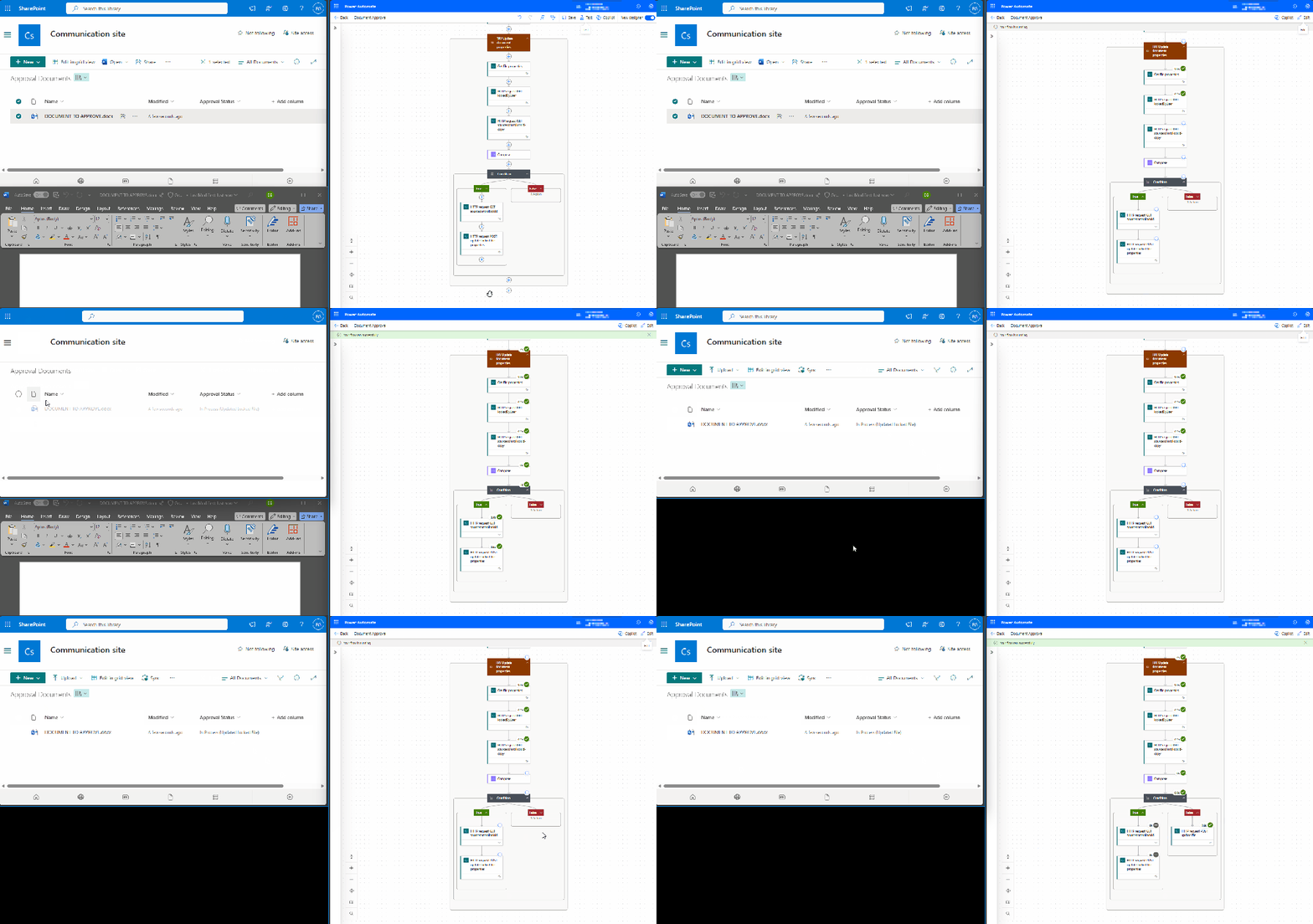
Here is the workflow in action.
Continue the workflow with any Additional Actions
Once the update to the file metadata is complete, the workflow continues as usual. The file is updated directly, regardless of whether it is locked.
Although this approach requires some initial setup, once implemented, the workflow becomes more resilient and less dependent on unpredictable user behavior.
Wrapping Up
Locked SharePoint files can disrupt our Power Automate workflows, causing updates to stall and confusing users. Common fixes, such as using Do Until loops and notifications rely heavily on timing and user intervention.
The approach outlined here first checks if the file is locked. If it is, the method extracts the lock ID and sends an HTTP request to update the file with no retries or end-user intervention.
This workflow makes our workflow more efficient and reliable, enabling true automation without requiring any user action for the workflow to proceed.
Curious about the TRY Update document properties scope within the workflow?
Check out this post focused on Power Automate error handling and notifications.
Learn how to create a dynamic failure notification framework across Teams channels with a centralized SharePoint setup.
Thank you for reading! Stay curious, and until next time, happy learning.
And, remember, as Albert Einstein once said, “Anyone who has never made a mistake has never tried anything new.” So, don’t be afraid of making mistakes, practice makes perfect. Continuously experiment, explore, and challenge yourself with real-world scenarios.
If this sparked your curiosity, keep that spark alive and check back frequently. Better yet, be sure not to miss a post by subscribing! With each new post comes an opportunity to learn something new.
Learn how to create a dynamic failure notification framework across Teams channels with a centralized SharePoint setup
Handling errors in Power Automate workflows can be challenging, especially when managing notifications across multiple flows. Adding contact details to each flow can become inefficient and difficult to maintain.
The Microsoft ecosystem offers various options and integrations to address these inefficiencies. In this approach, we will use a SharePoint list to centralize contact information, such as Teams Channel IDs and Teams Tag IDs. This method simplifies management and enhances our failure notification framework.
We will explore two methods. The first involves using Teams shared channels with @mentioning Teams tags to notify a specific group of users within our Power Automate Failure Notifications Teams team. The second method utilizes direct user @mentions in private Teams channels. Both methods employ a solution-aware flow, providing a reusable failure notification framework.
Power Automate Error Handling Best Practices
Before we can send failure notifications using our reusable framework, we first need to identify and handle errors within our workflows. It is essential to incorporate error handling into all our business-critical workflows to ensure that our Power Automate flows are resilient and reliable.
The configure run after setting is crucial for identifying the outcomes of actions within a workflow. It lets us know which actions were successful, failed, skipped, or timed out. By utilizing this feature, we can control how subsequent actions will behave based on the result of prior actions. Customizing these settings allows us to develop flexible and robust error-handling strategies.
Beyond using configure run after, there are important patterns that support effective error management in Power Automate:
Scoped Control (Try-Catch blocks): Grouping actions within the Scope control object aids in managing the outcomes of that set of actions. This method is valuable for isolating distinct parts of our workflow and handling errors effectively.
Parallel Branching: Establishing parallel branches enables certain workflow actions to continue even if others encounter errors. This approach allows us to run error-handling notifications or fallback actions concurrently with the primary process, enhancing the resilience of our flow and preventing interruptions.
Do Until Loop: For situations where actions may need multiple attempts to succeed, the Do Until control object permits us to execute actions until a specified success condition is met or a failure condition triggers our error-handling process.
These patterns collectively improve the reliability of our workflows by incorporating structured and consistent error handling. Identifying errors is just the first step; we must also notify the relevant individuals when a workflow encounters an issue so they can determine if further action or bug fixes are necessary.
Managing error notifications across multiple workflows can be difficult when contact information, such as an email address, is hardcoded into each individual flow. To address this, we will explore centralizing error notification details using a SharePoint list. This approach allows us to separate contact management from the flow logic and definitions.
The Final Solution in Action
Using Teams and Shared Channels with @mentioning Teams tags offers a practical and flexible solution. Teams tags enable us to group team members by their responsibilities, such as Development Team or workflow-specific groups. Using Teams tags makes it easy to alert an entire group using a single @mention tag.
In this example, we implement the Scoped Control (Try-Catch blocks) error handling pattern. This pattern groups a related set of actions into a scope, so if any action fails, we can handle the errors using an associated catch scope.
Here’s a basic flow that is triggered manually and attempts to list the members of a Teams Group chat.
When a non-existent Group chat ID is provided, the List members action will fail. This failure triggers the CATCH scope to execute. The CATCH scope is configured to run only when the TRY scope fails or times out.
When the CATCH scope executes, the flow filters the result of the TRY scope to identify which action failed or timed out using the following expressions:
Next, the flow utilizes the reusable notification framework to send a notification to Teams identifying that an error has occurred and providing details of the error message. We use the Run a Child Flow action and select our reusable error notification workflow for this purpose. This workflow requires three inputs:
When this workflow is triggered, and the TRY scope fails, we receive a Teams notification dynamically sent to the appropriate channel within our Power Automate Failure Notification Team, alerting the necessary individuals using the Dev Team Teams tag and direct @mentioning the technical contact.
The advantage of this approach and framework is that the notification solution only needs to be built once, allowing it to be reused by any of our solution-aware and business-critical workflows that require error notifications.
Additionally, we can manage the individuals alerted by managing the members assigned to each Teams tag or by updating the technical and functional contact details within our SharePoint list. All these updates can be made without altering the underlying workflow.
Continue reading for more details on how to set up and build this error notification framework. This post will cover how the Power Automate Failure Notifications Teams team was set up, provide resources on Teams tags, demonstrate how to create and populate a centralized SharePoint list for the required notification details, and finally, outline the construction of the failure notification workflow.
Setting Up Teams
Our error notification solution utilizes a private Microsoft Team, which can consist of both shared and private channels.
Shared channels are a convenient and flexible option for workflows that are not sensitive in nature. By using shared channels, we can take advantage of the List all tags Teams action to notify a group with a single @mention in our error notifications.
For additional information on managing and using Teams tags, see the resources below:
Private channels should be used when the workflow involves more sensitive information or when error notifications need to be restricted to a specific subset of team members. In this case, the error notifications target specific individuals by using direct user @mentions.
Centralized Error Notifications Details with SharePoint
To improve the maintainability of our error notifications, we will centralize the storage of key information using a SharePoint list. This approach enables us to store essential details, such as functional and technical contacts, Teams channel IDs, Teams Tag IDs, workflow IDs, and workflow names in one location, making it easy to reference this information in our error notification workflow.
The SharePoint list will serve as a single source for all required flow-related details for our notification system. Each entry in the list corresponds to a specific flow. This centralized repository minimizes the need for hardcoded values. When teams or contact details change, we can simply update the SharePoint list without the need to modify each individual flow.
Steps to Create the SharePoint List
Create a New List: In SharePoint, create a new list with a descriptive name and an appropriate description.
Add Required Columns: Include all necessary required and optional columns to the new SharePoint list.
FlowDisplayName: identifies the specific flow that utilizes the error notification system we are creating.
FlowId: unique identifier for the workflow associated with the error notification system.
Technical Contact: the primary person responsible for technical oversight who will be notified of any errors.
Functional Contact: secondary contact, usually involved in business processes or operational roles.
TeamsChannelName: name of the Teams Channel where error notifications will be sent.
TeamsChannelId: unique identifier for the Teams Channel that the flow uses to direct notifications.
TeamsTagId: this field is relevant only for shared channel notifications and contains the ID of the Teams Tag used to notify specific groups or individuals.
Populate the List with Flow Details
Our failure notification system will send alerts using the Post message in a chat or channel action. When we add this action to our flow, we can use the drop-down menus to manually select which channel within our Power Automate Failure Notifications team should receive the message.
However, it’s important to note that the Channel selection displays the channel name for convenience. Using the peak code option, we can see that the action utilizes the Channel ID.
The same applies when using the Get a @mention token for a tag. To dynamically retrieve the token, we need the Tag ID, not just the Tag name.
These key pieces of information are essential for our Failure Notification solution to dynamically post messages to different channels or @mention different tags within our Failure Notification team.
While there are various methods, such as peek code, to manually find the required values, this can become inefficient as the number of flows increases. We can streamline this process by creating a SharePoint Setup workflow within our Failure Notification solution.
This workflow is designed to populate the SharePoint list with the details necessary for the dynamic error notification framework. By automatically retrieving the relevant Teams channel information and Teams tag IDs, it ensures that all the required data is captured and stored in the SharePoint list for use in error notification flows.
SharePoint Set Up Workflow
This workflow has a manual trigger and allows us to run the setup as needed by calling it using the Run a Child Flow action when we want to add our error notifications to a workflow.
The inputs consist of 6 required string inputs and 1 optional string input.
channelDisplayName (required): the channel display name that appears in Teams. workflowId (required): the flow ID to which we add our error notifications. We can use the expression: workflow()?['name']. workflowDisplayName(required): the display name of the flow to which we are adding our error notifications. We can manually type in the name or use the expression: workflow()?['flowDisplayName']. technicalContact(required): the email for the technical contact. functionalContact (required): the email for the functional contact. workflowEnvironment (required): the environment the flow we are adding the error handling notifications to is running in. We can use the expression: workflow()?['tags']?['environmentName'] tagName (optional): the display name of the Teams tag, which is manually entered. This input is optional because the error notification solution can be used for Shared or Private Teams channels. However, @mentioning a Teams tag is only utilized for Shared channels.
Following the trigger, we initialize two string variables. The first ChannelId and the second TagId.
Get the Teams Channel ID
The next set of actions lists all the channels for a specified Team and uses the channelDisplayName input to extract the ID for the channel and set the ChannelId variable.
The Teams List channels action retrieves a list of all available channels in our Power Automate Failure Notifications Teams team. The Filter array action then filters this list based on the channelDisplayName input parameter.
The flow then attempts to set the ChannelId variable using the expression: outputs('Filter_array_to_input_teams_channel')['body'][0]?['id'].
However, if the output body of the Filter array action is empty, setting the variable will fail. To address this, we add an action to handle this failure and set the ChannelId to “NOT FOUND”. This indicates that no channel within our Power Automate Failure Notifications team matches the provided input value.
To achieve this, we use the Configure run after setting mentioned earlier in the post and set this action to execute only when the TRY Set ChannelId action fails.
Get the Teams Tag ID
After extracting the Teams Channel ID, the flow has a series of similar actions to extract the Tag ID.
Create an item on the SharePoint List
Lastly, the flow creates a new item on our supporting SharePoint list using the flow-specific inputs to store all the required information for our error notification solution.
Reusable Error Notification Flow Architecture
As the number of our workflows increases, a common challenge is developing a consistent and scalable error notification system. Instead of creating a new notification process for each workflow, we can leverage reusable solution-aware flows across multiple workflows within our environment. This approach minimizes duplication and streamlines our error notification processes.
Flow Structure for Reusable Notifications
The reusable notification flow is triggered when an error occurs in another workflow using the Run a Child Flow action and providing the required inputs.
The notification workflow parses the details of the workflow that encounters an error, creates an HTML table containing the details of the error that occurred, and then sends the notification using the centralized SharePoint list created in the previous section and dynamically alerts the appropriate individuals.
Trigger Inputs & Data Operations
We can catch and notify responsible parties that an error occurred in a workflow by calling this notification flow, using the Run a Child Flow action, and providing the workflowDetails, errorMessage, and scropeName.
After the trigger, we carry out two data operations. First, we parse the workflowDetails using the Parse JSON action and the expression json(triggerBody()?['text']) for the Content. Then, we create an HTML table using the information provided by our errorMessage input.
For the Create HTML table action, we use the following expressions for the inputs:
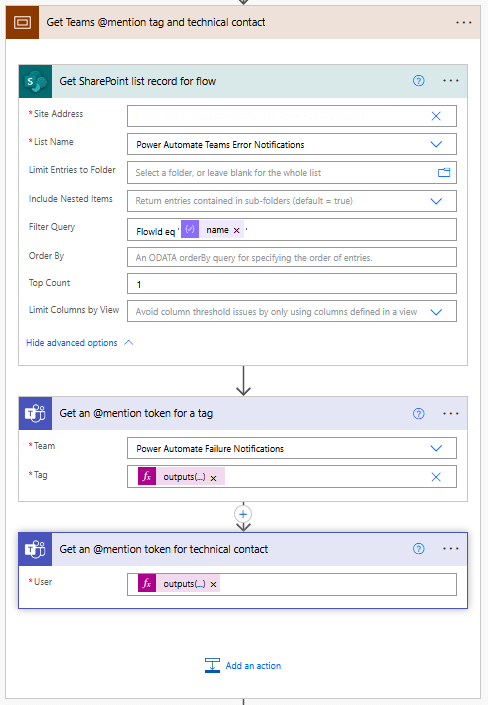
The notification flow queries the centralized SharePoint list to retrieve the necessary contact details and Teams information associated with the workflow that encountered the error.
We begin this subprocess by using the SharePoint Get items action with the Filter Query: FlowId eq 'body('Parse_workflowDetails_JSON')?['name']'.
Since each FlowID on our list should have only 1 record, we set the Top Count to 1.
Then, if our Power Automate Failure Notification Teams team uses Shared Channels, we use the Teams Get an @mention token for a tag and pass it the TagId stored within our SharePoint list using: outputs('Get_SharePoint_list_record_for_flow')?['body/value'][0]?['TagId'].
If the notification team uses private channels, this action can be excluded.
Lastly, for both Shared and Private channel notifications, we use the Teams Get an @mention token for user action to get the token for the technical contact stored within our SharePoint list using: outputs('Get_SharePoint_list_record_for_flow')?['body/value'][0]?['TechnicalContact']?['Email']
Send Teams Notification
Once we have retrieved the required contact details from SharePoint and Teams, the flow sends a notification to the appropriate Teams channel, notifying the relevant individuals. For Shared Channels, the message uses the @mention token for a Teams tag. If Private Channels are utilized, this should be removed from the flow and message.
Additionally, the message can be posted as the Flow bot when using Shared channels. However, when using Private channels, the message must be posted as User.
The flow dynamically sets the Channel using the ChannelId stored within our SharePoint list with the expression: outputs('Get_SharePoint_list_record_for_flow')?['body/value'][0]?['ChannelId'].
The message begins by identifying the workflow in which an error was encountered and the environment in which it is running.
Error reported in workflow: body('Parse_workflowDetails_JSON')?['tags']?['flowDisplayName'] {body('Parse_workflowDetails_JSON')?['tags']?['environmentName']}
Then, the message adds the HTML table created with the error message details using the following expression: body('Create_HTML_table_with_error_action_and_message').
Finally, it notifies the contacts for the workflow by using the @mention tokens for the Teams tag and/or the technical contact. The message also provides the details on the functional contact using the expression: outputs('Get_SharePoint_list_record_for_flow')?['body/value'][0]?['FunctionalContact']?['Email']
The notification process sends an informative and targeted message, ensuring all the appropriate individuals are alerted that an error has occurred within a workflow.
Reusability
This architecture enables us to develop a single workflow that can trigger error notifications for any new workflows, making our error handling and notification process scalable and more efficient.
By using this approach, we can avoid hardcoding notification logic and contact details in each of our workflows. Instead, we can centrally manage all error notifications. This reduces the time and effort needed to maintain consistent error notifications across multiple workflows.
Wrapping Up
This Power Automate error notification framework provides a scalable solution for managing notifications by centralizing contact information in a SharePoint list and leveraging solution-aware flows. Setting up a single, reusable notification flow eliminates the need to hardcode contact details within each workflow, making maintenance and updates more efficient.
The framework targeted two notification methods: Shared Teams channels with tags and Private Teams channels with direct mentions. This system ensures error notifications are delivered to the right individuals based on context and need.
Shared Channels with Teams Tags
This approach sends notifications to a shared Teams channel, with Teams tags allowing us to notify a group of individuals (such as a “Dev Team”) using a single @mention.
How It Works: The notification flow retrieves tag and channel details from the SharePoint list. It then posts the error notification to the shared channel, @mentioning the relevant Teams tag to ensure all tag members are alerted.
Advantages: This method is scalable and easy to manage. Team members can be added or removed from tags within Teams, so updates don’t require changes to the flow definition. This is ideal for notifying larger groups or managing frequent role changes.
Private Channels with Direct @Mentions
Private channels are used to send notifications directly alerting a technical contact when workflow and error details should not be visible to the entire Team.
How It Works: The flow dynamically retrieves contact details from the SharePoint list and posts the error notification to the private channel, mentioning the designated technical contact.
Advantages: This approach provides greater control over the visibility of the notifications, as access is restricted to only those users included in the private channel.
Each of these approaches is flexible and reusable across multiple workflows, simplifying the process of managing error notifications while ensuring messages reach the appropriate individuals based on the notification requirements.
Thank you for reading! Stay curious, and until next time, happy learning.
And, remember, as Albert Einstein once said, “Anyone who has never made a mistake has never tried anything new.” So, don’t be afraid of making mistakes, practice makes perfect. Continuously experiment, explore, and challenge yourself with real-world scenarios.
If this sparked your curiosity, keep that spark alive and check back frequently. Better yet, be sure not to miss a post by subscribing! With each new post comes an opportunity to learn something new.
The Art of Visual Cues: A Simple Yet Powerful Tool for Environment Identification
Are you tired of the confusion and mix-ups that come with managing Power Apps across multiple environments? We have all been there – one minute we are confidently testing a new feature, and the next, we are lost in a world of confusion until we realize we are in the production environment, not our development or testing environment. It can be both surprising, confusing, and disorienting.
But what if there was a way to make our apps and more importantly our users more environmentally aware. Imagine an app that clearly shows whether it is in development, testing, or production. This isn’t just a dream; it is entirely possible, and we are going to explore how. With a combination of environment variables, labels, and color properties, we can transform our apps and adjust their appearance all based on the environment they are in.
In this guide we will go from apps that are indistinguishable between environments.
To apps that are informative and allow us to develop, test, and use our apps with confidence.
Dive in and explore as we start with the basics of environment variables and then move to advanced techniques for dynamic configuration. By the end of the guide, we will not only learn how to do this, but it will become clear as to why this is helpful when managing Power Apps across different environments.
Understanding Power Apps Environments and Environment Variables
Power Apps is a fantastic and powerful platform that allows us to create custom business applications with ease. However, as our projects and solutions grow, we begin to dive into the realm of application development, and we encounter the need for efficient management. This is precisely where Power Apps environments step in to save the day.
Introduction to Power Apps Environments
Environments act as unique containers helping facilitate and guide us through the entire app development journey. Each environment is a self-contained unit, ensuring that our data, apps, and workflow are neatly compartmentalized and organized. This structure is particularly beneficial when managing multiple projects or collaborating with a team. Environments are like distinct workspaces, each tailored for specific stages of your app development journey.
These environments let use build, test, and deploy our applications with precision and control, ensuring that chaos never gets in the way of our creativity while crafting our Power Apps applications.
The Role of Different Environments
Let’s shed some light on the roles played by different environments. Environments can be used to target different audiences or for different purposes such as development, testing, and production. Here we will focus on staged environments (dev/test/prod) an environment strategy that helps ensure that changes during development do not break the app users’ access in our production environment.
First up is the development environment – the birthplace of our app ideas. It is where we sketch out our vision, experiment with various features and lay the foundation for our apps.
Next is the testing or QA environment which takes on the role of the quality assurance center. In this environment we examine our app, validate its functionality and user experience, and ensure everything works seamlessly and as expected before it reaches our final end users.
Lastly, we have our production environment, where our apps go live. It is the real-world stage where our apps become accessible to its intended users, interacts with live data, and requires stability and reliability.
The Importance of Power Apps ALM
We cannot get too far into exploring Power Apps environments, and environment strategies without mentioning Application Lifecycle Management (ALM). ALM is a pivotal aspect of successful software development, and our Power Apps are no exception. ALM within Power Apps helps ensure a smooth transition between the development, testing, and production phases of our projects. It encompasses maintaining version control, preventing disruptions, and streamlining the deployment process.
If you are curious to learn more about Power Apps ALM, I encourage you to visit the post below that discusses its different aspects including how to implement ALM, where Power Apps solutions fit into the picture, version control, change management, and much more.
Explore how ALM can enhance collaboration, improve performance, and streamline development in Power Platform solution.
The Significance of Environmental Awareness in Power Apps
Common Challenges in Multi-Environment Scenarios
Navigating through multiple environments in Power Apps can sometimes feel like a tightrope walk. One common challenge is keeping track of which environment we are working in and what environment app we are accessing in our browser. It can be easy to lose track especially when we are deep in development and testing.
Image a scenario where we created a new feature in development, and as the developer we wish to verify this change before deploying the update to our testing environment. But as often happens, something comes up and we cannot check the functionality right away. When we come back later, we launch the app using the web link url, and we don’t see our expected update. Was it an issue how we developed the change, are we viewing the development app, are we viewing the testing app? All can lead us to more questions and confusion, that could be solved if our app clearly indicates the environment it resides in no matter how we access the ap.
Importance of Identifying the Current Environment
Informing us and other app users, especially those that may use the app across different environments, about the current environment is focused on providing control and safety. Being aware of our environment ensures that we are in the correct environment to carry out our tasks.
Identifying the environment is crucial for effective testing of our apps. By knowing we are in the right testing environment, we can experiment and troubleshoot without the fear of affecting the live application or data.
Moreover, it aids in communication within our teams. When everyone is on the same page about the environment they should be working in for specific tasks, collaboration becomes smoother, and we can minimize the chances of errors. The goal is to create a shared understanding and a common approach among team members.
Building The App
Setting the Stage
For our app we will be using a SharePoint List as the data source. Each environment will use its own specific list, so we have 3 different lists that are on different SharePoint sites. Once the lists are created, we can begin building our solution and app.
The first step to creating our Power App that we can easily move between environments is creating a solution to contain our app. In addition to the canvas app the solution will also contain the various other components we require, including a Power Automate workflow and environment variables.
To do this we navigate to our development environment and then select Solutions in the left-hand menu. On the top menu select New solution and provide the solution a name and specify the publisher. For additional details visit this article.
After creating our solution, we will first create our environment variables that will define the app’s data source. Since the SharePoint site and list will be changing as we progress our app from development to test to production, we will create two environment variables. The first to specify the SharePoint Site, and the second to specify the SharePoint List on the site. For details on environment variables and how they can be modified when importing a solution to another environment visit this article.
Use environment variables to migrate application configuration data in solutions
Here we will manually create the environment variables, so we have control over naming, but there is also the option to automatically create the environment variables from within our app. In the canvas app editor on the top menu select Settings. Within the General section locate the Automatically create environment variables when adding data sources, and toggle to the desired value.
To manually add environment variables to our solution, select New on the top menu, under more we will find Environment variables. Provide the environment variable a name and under Data Type select Data source. In the connector drop down select SharePoint and a valid SharePoint connection in the Connection drop down. For the first variable under Parameter Type select Site and then New site value and select the required SharePoint site or provide the site url. For the second environment variable select List for the Parameter Type, then for the Site select the newly created environment variable, and then New list value, and select the required SharePoint List.
Creating the App in the Development Environment
Our app starts to come to life in our development environment. First, we focus on creating the app’s core features and functionalities. This is where our creativity and technical skills come into play. We can experiment with different designs, workflows, and integrations, all within the safe confines of the development environment. Its a bit like being in a laboratory, where we can test hypotheses and make discoveries without worrying about breaking the version of the app our end user might be actively using.
First, we will connect to our data source using our environment variables. In the left side menu select the data menu, then add new data, and search for SharePoint. After selecting the SharePoint data source and connection, in the Connect to a SharePoint site pane select the Advanced tab and select the environment variable we created previously, and then do the same to select the list environment variable.
If we opted to not create the environment variables first, and ensured the automatically create environment variables when adding data source setting is turned on, we can provide a site URL and select a list. We will then be prompted that an environment variable will be automatically generated to store information about this data source.
Once connected to our data source we will build out the basic functionality of our app. For this simplified app this includes a vertical navigation component and a gallery element to display the list items. Here is the base app that will be our launching point to build a more informative and dynamic app.
Extracting Environment Information
As we deploy our app to different environments, we will update the SharePoint site and list environment variables. Since the values of these environment variables will be distinct and specific to the environment, we can leverage this to help determine and show what environment the app is in.
Now, if we search the data sources that we can add to our app for “environment”, we will find an environment variable values dataverse source. The data source can be used to extract the values of our environment variables however, this will give our app a Premium licenses designation. Premium licensing may not always be suitable or available, so we will explore an alternative method, using a Power Automate workflow and our App.OnStart property.
Building the Power Automate Workflow
In the left side menu, select the Power Automate menu option, then create new workflow.
To extract and return the information we need to our app we will create a simple flow, consisting only of the trigger and the Respond to a PowerApp or flow action. Selecting the Create new flow button will create a Power Automate workflow with a PowerApps (V2) trigger. For this workflow we will not need to add any inputs to this trigger action.
In the workflow designer, select New action and search for Respond to a PowerApp or flow, and add the action to the workflow. Here we will add two outputs, the first to return the value of the SharePoint site environment variable and the second to return the value of the SharePoint list environment variable. Depending on our requirements, we may only need one of these values to determine the appropriate environment information. For the output value we can find our environment variables listed in the dynamic content.
The final workflow is shown below. Once created give the workflow an informative name, then save and close the workflow.
Call the Workflow and Store the Outputs
On the start of our app, we will run our workflow and store the output values, which are the values of our environment variables, in a global variable within our app scope. We do this by using the App.OnStart property and setting a variable to store the outputs. We will add the following to the App.OnStart property.
Set(gblEnvironmentDetails, .Run())
Here, we create the gblEnvironmentDetails global variable which will store the outputs of our workflow. This variable has a record data type with values for both our sourcesiteurl and sourcelistid outputs.
The App.OnStart event, becomes crucial as it sets the stage for the entire app session. Now, each time our app starts are workflow will return the environment values we require ensuring this information is always available from the moment our app is launched.
We can visual these values, and how they change between our environments by adding labels to our app. We will add various environment detail labels. The first we will add will display out SharePoint site environment variable value, set the text property of the label to the following.
"SharePoint Site Environment Variable: " & gblEnvironmentDetails.sourcesiteurl
We will make this value a bit easier to work with and evaluate, by extracting the site name from the site url. We add another label to display the site name, and set the text property of the label to the following.
"SharePoint Site : " & Last(Split(gblEnvironmentDetails.sourcesiteurl, "/sites/")).Value
This expression splits the site url by the text “/sites/” and then returns all the text that follows it which is the site name.
Lastly, we add a text label to display the value stored in our SharePoint List environment variable by adding a new label and setting the text property to the following.
"SharePoint List Id : " & gblEnvironmentDetails.sourcelistid
Adding the Environmental Visual Cues
To make the environment distinction clear we will add environment-specific colors and text labels in our app’s design.
Adding Text Labels
We will start by adding an environment label in the header, that will be placed opposite of our app name. To do this we first create a named formula and then use this to set the text property of the new label in our header element. In the App.Formulas property add the following.
This expression creates a new named formula nfmEnvironment and we use the switch function to evaluate the site name of our SharePoint site environment variable using the same formula we used above and return our environment label. For our app if our SharePoint site environment variable is for the Power Apps Dev Source site the named formula nfmEnvironment will return a value of DEV, when set to Power Apps Test Source it will return TEST and when set to our Sales and Marketing site it will return PROD. The formula also includes a default value of UNKNKOWN, if none of the above conditions are true, this will help identify a potential error or our app data source set to an unexpected site.
We then add a new label to our header element and set the text property to nfmEnvironment. Additionally, the navigational component used in our app has a text input to display the environment label near the bottom under the user profile image. We will set the input value also to nfmEnvironment.
Environmental Specific Color Themes
Next, we will elevate our awareness when working with our apps across different environments by moving beyond just labels. We will now leverage different visual cues and color themes between the different environments. In our development environment the navigation component and header will be green, when in our testing environment these elements will be gray, and finally in production they will be blue.
The first step to include this functionality is to define our color theme that we can then use to set the color of our different elements depending on the value of nfmEnvironment. To create our color theme, we will create a new named formula. In the App.Formulas property we will add the following to create a named formula containing the basics of a color theme used within our app.
This named formula now stores our different color values and we can use it and our nfmEnvironment formula to dynamically color our apps elements.
We will start with setting the fill of the header. The header is a responsive horizontal container containing our two text labels. The fill property of the container we will set to the following expression.
Adding the color cues will following a similar pattern that we used to set the environment label text property. We use the Switch function to evaluate our nfmEnvironment value and depending on the value set the color to the secondary color (green), tertiary color (gray), primary color (blue), or if a condition is not met the header will be set to black.
We then use the same expression for the vertical selection indicator bar and next arrow icon in our app’s gallery element. Next we incorporate the same expression pattern to color the different aspects of the navigation element using the expressions below.
After adding the dynamic color themes to our navigation our environment aware app is complete.
We now have a clear and informative app that instantly informs users about the app’s current environment. Using text labels and visual cues are simple yet effective ways to avoid confusion and ensure that everyone knows which version of the app they are interacting with.
Deploying to Different Environments
Now that our app is complete, we save and publish our version of the app and begin the process of deploying the app to the testing environment. First, we will edit each environment variables within out solution and remove the current site and current list from our solution. This will help ensure the values we set for these variables in our development environment don’t carry with our solution when we import it to different environments.
Then export the solution and download the exported .zip file. Next, we switch to our test environment, and import the solution. During the import process we are prompted to set our two environment variables, which help set our dynamic and environment specific visual cues in our app. We set the values and finish importing the app to our test environment to view our app in the test environment.
We can then also repeat the process, to see our app in the production environment.
Wrapping Up: Ensuring Clarity and Efficiency in Your Power Apps
As we wrap up our exploration of visually distinguishing environments in Power Apps, remember that the key to a successful app lies in its clarity and user-friendliness. By implement the techniques we have discussed, from color-coding elements of our app and labeling to using dynamic UI elements, we can significantly enhance the user experience. These strategies not only prevent confusion but also streamline our workflow across development, testing, and production environments. When we embrace these tips, we can make our Power Apps intuitive and efficient, ensuring that users always know exactly where they are and what they are working with.
Thank you for reading! Stay curious, and until next time, happy learning.
And, remember, as Albert Einstein once said, “Anyone who has never made a mistake has never tried anything new.” So, don’t be afraid of making mistakes, practice makes perfect. Continuously experiment, explore, and challenge yourself with real-world scenarios.
If this sparked your curiosity, keep that spark alive and check back frequently. Better yet, be sure not to miss a post by subscribing! With each new post comes an opportunity to learn something new.










 Ethan Guyant