Elevate Your Productivity with Planner and Power Automate


Introduction to Power Automate and Microsoft Planner

In today’s fast-paced business environment, mastering the art of productivity is not just an option, but a necessity. The dynamic duo of Microsoft Planner and Power Automate are our allies in the realm of project and task management. Imagine a world where our projects flow seamlessly, where every task aligns perfectly with your goals, and efficiency is not just a buzzword but a daily reality. This is all achievable with the integrations of Microsoft Planner and Power Automate in your corner.

Microsoft Planner, is our go-to task management tool, that allows us and our teams to effortlessly create, assign, and monitor tasks. It provides a central hub where tasks aren’t just written down but are actively managed and collaborated on. Its strength lies in its visual organization of tasks, with dashboard and progress indicators providing an bird’s-eye view of our project, making organization and prioritization a breeze. It is about managing the chaos of to-dos into an organized methodology of productivity, with each task moving smoothly from To Do to Done.

On the other side of this partnership we have Power Automate, the powerhouse of process automation. It bridges the gap between our various applications and services, automating the mundane so we can focus on what is important. Power Automate is our behind the scenes tool for productivity, connecting our favorite apps and automating workflows whether that’s collecting data, managing notifications, sending approvals, and so much more all without us lifting a finger, after the initial setup of course.

Together, these tools don’t just manage tasks; they redefine the way we approach project management. They promise a future where deadlines are met with ease, collaboration is effortless, and productivity peaks are the norm.

Ready to transform your workday and elevate your productivity? Let Microsoft Planner and Power Automate streamline your task management.

Here’s an overview of what is explored within this post. Start with an overview of Power Automate triggers and actions specific to Microsoft Planner or jump right to some example workflows.

  1. Introduction to Power Automate and Microsoft Planner
  2. Unveiling the Power of Planner Triggers in Power Automate
    1. When a new task is created
    2. When a task is assigned to me
    3. When a task is completed
  3. Navigating Planner Actions in Power Automate
    1. Adding and Removing assignees
    2. Creating and Deleting tasks
    3. Getting and Updating tasks
    4. Getting and Updating task details
    5. List buckets
    6. List Tasks
  4. Basic Workflows: Simplifying Task Management with Planner and Power Automate
    1. Weekly Summary of Completed Tasks
    2. Post a Teams message for Completed High Priority Tasks
  5. Advanced Workflows: Leveraging Planner with Excel and GitHub Integrations
    1. Excel Integration for Reporting Planner Tasks
    2. GitHub Integration for Automated Task Creation
  6. Unleashing New Dimensions in Project Management with Planner and Power Automate

Unveiling the Power of Planner Triggers in Power Automate

Exploring Planner triggers in Power Automate reveals a world of automation that streamlines task management and enhances productivity. Let’s dive into three key triggers and their functionalities.

When a new task is created

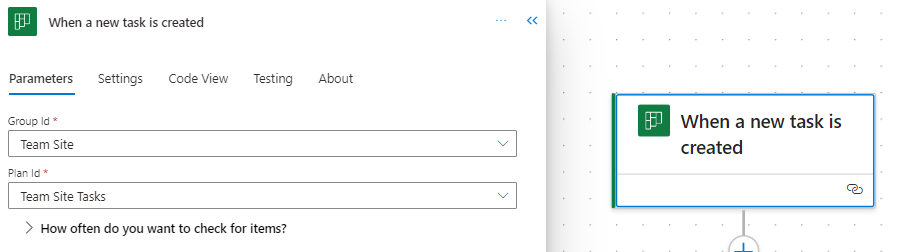
This trigger jumps into action as soon as a new task is created in Planner. It requires the Group Id and Plan Id to target the specific Planner board. This trigger can set a series of automated actions into motion, such as sending notifications to relevant team members, logging the task in an Excel reporting workbook, or triggering parallel tasks in a related project.
When a task is assigned to me

This trigger personalizes your task management experience. It activates when a task in Planner is assigned to you. This trigger can automate personal notifications, update your calendar with the new tasks, or prepare necessary documents or templates associated with the task. Simply select this Planner trigger and it is all set, there is no additional information required by the trigger. It’s an excellent way to stay on top of personal responsibilities and manage your workload efficiently.

When a task is completed

The completion of a task in Planner can signal the start of various subsequent actions, hinging on the completion status of a task in a specified plan. The required inputs are the Group Id and the Plan Id to identify the target Planner board. This trigger is instrumental in automating post-task processes like updating project status reports, notifying team members or stakeholders of the task completion, or archiving task details for accountability and future reference.

By leveraging these Planner triggers in Power Automate, we can not only automate but also streamline our workflows. Each trigger offers a unique avenue to enhance productivity and ensures that our focus remains on strategic and high-value tasks.


Navigating the complexities of project management requires tools that offer both flexibility and control. The integration of Microsoft Planner actions within Power Automate provides a robust solution for managing tasks efficiently. By leveraging Planner actions in Power Automate, we can automate and refine our task management processes. Let’s dive into some of the different Planner actions.

Adding and Removing assignees

Task assignment is a critical aspect of project management. These actions in Power Automate facilitate flexible and dynamic assignment and reassignment of team members to tasks in Planner, adapting to the ever-changing project landscape.

Add assignees to a task
This action allows us to assign team members to specific tasks, with inputs including the task ID and the user ID(s) of the assignee(s). It’s particularly useful for quickly adapting to changes in project scope or team availability, ensuring that tasks are always in the right hands.

Remove assignees from a task
Inputs for this action are the task ID and the user ID(s) of the assignee(s) to be removed. It’s essential for reorganizing task assignments when priorities shift or when team members need to be reallocated to different tasks, maintaining optimal efficiency.

Creating and Deleting tasks

The lifecycle of a task within any project involves its creation and eventual completion or removal. These actions in Power Automate streamline these essential stages, ensuring seamless task management within Planner.

Create a task
Every project begins with a single step, or in the case of our Planner board, a single task. To create a task we must provide the essentials, including Group Id, Plan Id, and Title. This action is invaluable for initiating tasks in response to various Power Automate triggers, such as email requests or meeting outcomes, ensuring timely task setup.

When using the new Power Automate designer (pictured above), be sure to provide all optional details of the task by exploring the Advanced parameters dropdown. Under the advanced parameters we will find task details to set in order to create a task specific to what our project requires. We can set the newly created task’s Bucket Id, Start Date Time, Due Date Time, Assigned User Id, as well as applying any tags needed to create a detailed and well defined task. When using the classic designer we will see all these options listed within the action block.

Delete a task
Keeping our Planner task list updated and relevant is equally important to successful project lifecycle management. Removing completed, outdated, or irrelevant tasks can help us maintain clarity and focus on the overall project plan. This action just requires us to provide the Task Id of the task we want deleted from our Planner board.

Getting and Updating tasks

Accessing and updating task information are key aspects of maintaining project momentum. These actions provide the means to efficiently manage task within Planner.

Get a task
Understanding each task’s status is crucial for effective management, and the Get a task action offers a window into the life of any task in our Planner board. By providing the Task Id, this action fetches the task returning information about the specific task. It is vital for our workflows that require current information about a task’s status, priority, assignees, or other details before proceeding to subsequent steps. This insight is invaluable for keeping a pulse on our projects progress.

Update a task
This action, requires the Task Id and the task properties to be updated, allowing for real-time modifications of task properties. It is key for adapting tasks to new deadlines, changing assignees, or updating a task’s progress. Using this action we can ensure that our Planner board always reflects the most current state of our tasks providing a current overview of the overall project status.

Getting and Updating task details

Detailed task management is often necessary for complex projects. These actions cater to this need by providing and updating in-depth information about tasks in Planner.

Get task details
Each task in a project has its own story, filled with specific details and nuances. This action offers a comprehensive view of a task, including its description, checklist items, and more. It is an essential action for workflows that require a deep understanding of task specifics for reporting, analysis, or decision making.

Update task details
With inputs for detailed aspects of our tasks, such as its descriptions and checklist items, this action allows for precise and thorough updates to our task information. It is particularly useful for keeping tasks fully aligned with project developments and team discussions.

List buckets

Effective task categorization is vital for clear project visualization and management. The List buckets action in Power Automate is designed to provide a comprehensive overview of task categories or buckets within our Planner board. We provide this action the Group Id and Plan Id and it returns a list of all the buckets within the specified plan, including details like bucket Id, name, and an order hint.

This information can aid in our subsequent actions, such as creating a new task within a specific bucket on our Planner board.

List Tasks

Keeping a tab on all tasks within a project is essential for effective project tracking, reporting, and management. The List tasks action in Power Automate offers a detailed view of tasks within a specific planner board.

We need to provide this action the Group Id and Plan Id, and it provides a detailed list of all tasks. The details provided for each task include the title, start date, due date, status, priority, how many active checklist items the task has, categories applied to the task, who created the task, and who the task is assigned to. This functionality is invaluable for teams to gain insights into task distribution, progress, and pending actions, ensuring that no task is overlooked and that project milestones are met.


Basic Workflows: Simplifying Task Management with Planner and Power Automate

Before diving into some more advanced examples and integrations, it is essential to understand how Planner and Power Automate can simplify everyday task management through some basic workflows. These workflows will provide a glimpse into the potential of combining these two powerful tools.

Weekly Summary of Completed Tasks

This workflow automates the process of summarizing completed tasks in Planner, sending a weekly email to project managers so they can keep their finger on the pulse of project progress.

The flow has a reoccurrence trigger which is set to run the workflow on a weekly basis. The workflow then starts by gathering all the tasks from the planner board using the List tasks action. This action provides two helpful task properties that we can use to pinpoint the task that have been completed in the last week.

The first is percentComplete, we add a filter data operation action to our workflow and filter to only tasks that have a percentComplete equal to 100 (i.e. are marked completed). We set the From input to the value output of the List task action and define our Filter Query.

The second property we can use from List tasks is the completedDateTime, we can use this to further filter our completed task to just those completed within the last week. Here we use the body of our Filter array: Completed tasks action and use an expression to calculated the difference between when the task was completed and when the flow is ran, in days.

The expression used in the filter query is:

int(split(dateDifference(startOfDay(getPastTime(1, 'Week')), item()?['completedDateTime']), '.')[0])

This expression starts by getting the start of the day 1 week ago using getPastTime and startOfDay. Then we calculate the difference using dateDifference. The date difference function will return a string value in the form of 7.00:00:00.0000000, representing Days.Hours:Minutes:Seconds. For our purposes we are only interested in the number of days, specifically whether the value is positive or negative, that is was it completed before or after the date 1 week ago. To extract just the days as an integer we first use split to split the string based on periods, and then we use the first item in the resulting array ([0]), and pass this to the int function, to get a final integer value.

We then use the Create HTML table action to create a summary table of the Planner tasks that were completed in the past week.

Then we can send out an email to those that require the weekly summary of completed tasks, using the output of the Create HTML table: Create summary table action.

Here is an overview of the entire Power Automate workflow that automates our process of summarizing our Planner tasks that have been completed in the past week.

This automated summary is invaluable for keeping track of progress and upcoming responsibilities, ensuring that our team is always aligned and informed about the week’s achievements and ready to plan for what is next.

Post a Teams message for Completed High Priority Tasks

This workflow is tailored to enhance team awareness and acknowledgement of completed high-priority tasks. It automatically sends a Teams notification when a high-priority task in Planner is marked as completed.

The workflow triggers when a Planner task on the specified board is marked complete. The workflow then examines the priority property of the task to determine if a notification should be sent. For the workflow a high-priority task is categorized as a task marked as Important or Urgent in Planner.

The workflow uses a condition flow control to evaluate each task’s priority property. An important note here is that, although in Planner the priorities are shown as Low, Medium, Important, and Urgent, the property values associated with these values are stored in the task property as 9, 5, 3, 1, respectively. So the condition used evaluates to true if the priority value is less than or equal to 3, that is the task is Important or Urgent.

When the condition is true, the workflow gathers more details about the task and then sends a notification to keep the team informed about these critical tasks.

Let’s break down the three actions used to compose and send the Teams notification. First, we use the List buckets action to provide a list of all the buckets contained within our Planner board. We need this to get the user friendly bucket name, because the task item only provides us the bucket id.

Then we can use use the Filter data operation to filter the list of all the buckets to the specific bucket the complete task resides in.

Here, value is the output of our List bucket action, id is the current bucket list item, and bucketId is the id of the current task item of the For each: Completed task loop. We can then use the dynamic content from the output of this action to provide a bit more detail to our Teams notification.

Now we can piece together helpful information and notify our team when high-priority tasks are completed using the Teams Post a message in a chat or channel action, shown above. Providing our team details like the task name, the bucket name, and a link to the Planner board.

These basic yet impactful workflows illustrate the seamless integration of Planner with Power Automate, setting the stage for more advanced and interconnected workflows. They highlight how simple automations can significantly enhance productivity and team communication.


Advanced Workflows: Leveraging Planner with Excel and GitHub Integrations

The integration of Microsoft Planner with other services through Power Automate unlocks new dimensions in project management, offering innovative ways to manage tasks and enhance collaboration.

Excel Integration for Reporting Planner Tasks

A standout application of this integration is the reporting of Planner tasks in Excel. By establishing a flow in Power Automate, task updates from Planner can be seamlessly merged to an Excel workbook. This setup is invaluable for generating detailed reports, tracking project progress, and providing more in-depth insights.

For an in-depth walkthrough of a workflow, leveraging this integration check out this post that covers the specifics of setting up and utilizing this integration.

Explore the Detailed Workflow for Seamless Task Management and Enhanced Reporting Capabilities.

GitHub Integration for Automated Task Creation

Combining Planner with GitHub through Power Automate creates a streamlined process for managing software development tasks. A key workflow in this integration is the generation of Planner tasks in response to new GitHub issues assigned to you. When an issue is reported in GitHub, a corresponding task is automatically created in Planner, complete with essential details from the GitHub issue. This integration ensures prompt attention to issues and their incorporation into the broader project management plan.

Check back, for a follow up post focus specifically on providing a detailed guide on implementing this workflow.

These advanced workflows exemplify the power and flexibility of integrating Planner with other services. By automating interactions across different platforms, teams can achieve greater efficiency and synergy in their project management practices.


Unleashing New Dimensions in Project Management with Planner and Power Automate

Finishing our exploration of Microsoft Planner and Power Automate, it’s evident that these tools are more than mere facilitators of task management and workflow automation. They embody a transformative approach to project management, blending efficiency, collaboration, and innovation in a unique and powerful way.

The synergy between Planner and Power Automate opens up a realm of possibilities, enabling teams and individuals to streamline their workflows, integrate with a variety of services, and automate processes in ways that were previously unimaginable. From basic task management to complex, cross-platform integrations with services like Excel and GitHub, these tools offer a comprehensive solution to the challenges of modern project management.

The journey through the functionalities of Planner and Power Automate is a testament to the ever-evolving landscape of digital tools and their impact on our work lives. As these tools continue to evolve, they offer fresh opportunities for enhancing productivity, fostering team collaboration, and driving innovative project management strategies.

Experiment with these tools and explore the myriad of features they have to offer, and discover new ways to optimize your workflows. The combination of Planner and Power Automate isn’t just a method for managing tasks; it’s a pathway to redefining project management in the digital age, empowering teams to achieve greater success and efficiency.


Thank you for reading! Stay curious, and until next time, happy learning.

And, remember, as Albert Einstein once said, “Anyone who has never made a mistake has never tried anything new.” So, don’t be afraid of making mistakes, practice makes perfect. Continuously experiment, explore, and challenge yourself with real-world scenarios.

If this sparked your curiosity, keep that spark alive and check back frequently. Better yet, be sure not to miss a post by subscribing! With each new post comes an opportunity to learn something new.

Outsmarting the Out-of-Office Quandary: A Power Automate Approval Guide


Say goodbye to the world of endless email threads and approval documents that somehow get lost in the abyss of your inbox. With Power Automate, ensure that documents get the thumbs up even when the chosen approver is out of the office. Let’s roll up our sleeves and get automating!

From Hurdle to Handshake: Streamline Document Approvals with Power Automate

In an era of remote work, efficient collaboration and communication have become as crucial to a project’s success as coffee is to a Monday morning. One hurdle that often stumbles onto the path of efficient collaboration is a document approval. You might wonder, what happens when the assigned approver is nowhere to be found? Here’s where Microsoft Power Automate takes center stage, ensuring that no document is left unapproved.

This post is a step-by-step guide to establish a workflow that checks if the approver is available before passing the document to them for approval. If the approver is unavailable the workflow pokes you and lets you assign a new approver. No magic to be found here, just good ol’ automation at work!


A Quick Glance: What the Power Automate Workflow Looks Like

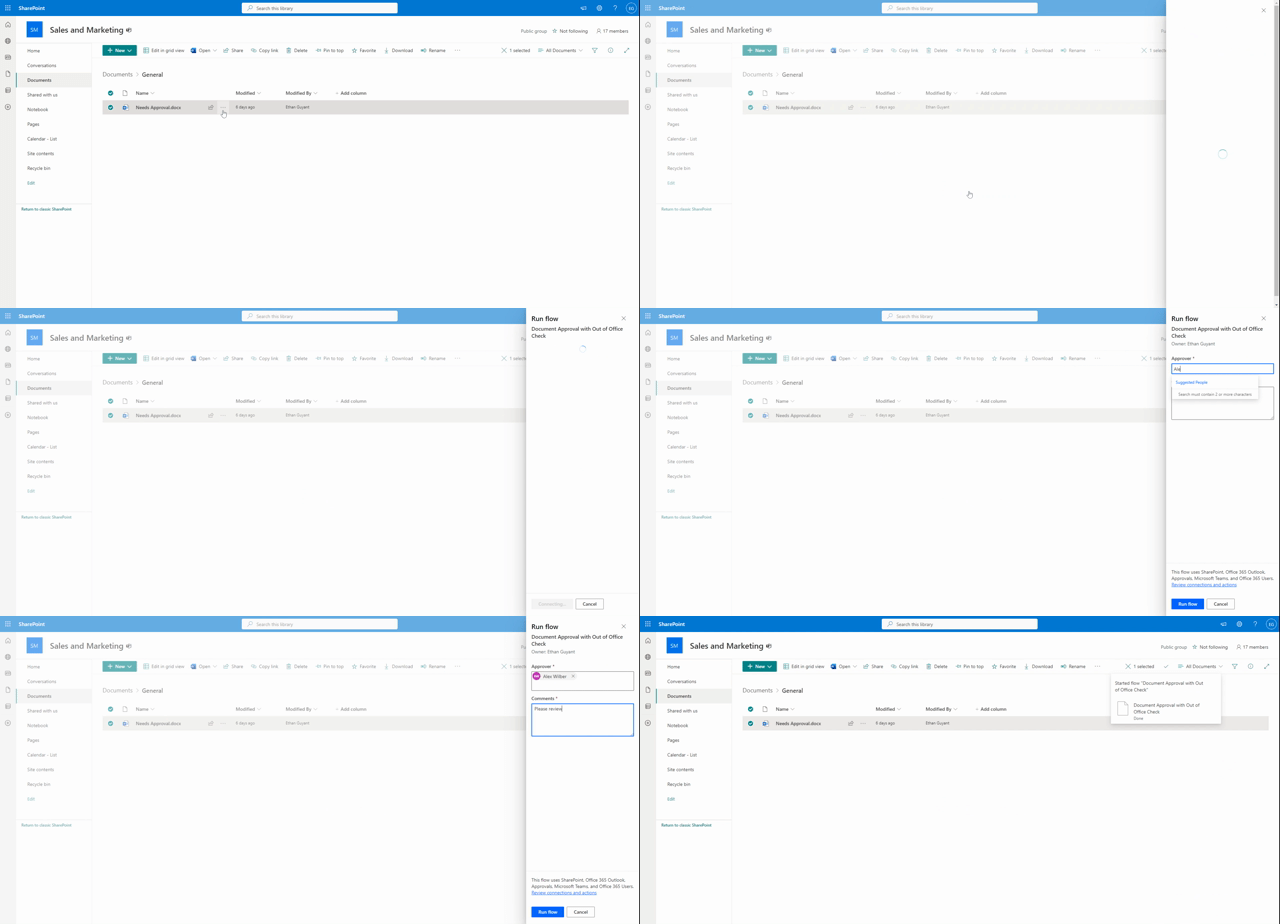
Our Power Automate workflow gets triggered for a selected document within a SharePoint document library. You provide the approver’s email address and any comments you have about the document, then set the Power Automate workflow into motion.

Now comes the genius part. The workflow examines the approver’s Outlook inbox, searching for an automatic or out-of-office reply (everyone deserves a vacation, right?). If the workflow finds an automatic reply, it sends you a notification via a Teams adaptive card. You then have the freedom to pick a new approver or stick to your initial choice.

If no automatic reply is detected, the document goes straight to the approver you chose when triggering the workflow.

Once the approval is complete, you’ll receive a final notification informing you of the approval’s outcome and any comments from the approver.

For a detailed guide on Power Automate, visit Microsoft’s official documentation.

Discover how to make the most of Power Automate with online training courses, docs, and videos covering product capabilities and how-to articles.


Unpacking the Details: Inside the Power Automate Workflow

Let’s delve deeper into the workflow.

Triggering the Process

Our trigger is a SharePoint for a selected document trigger. When triggering the workflow you will be prompted to enter two essential pieces of information:

  1. The email of the document approver.
  2. Your comments about the document.

This sets the dominoes in motion.

Assembling the Essentials: Get the Approver’s Profile, File Properties, and Initialize Variables

This phase of the workflow encompasses three action groups to collect the information needed for the workflow.

  1. Get user profile: This action retrieves the approver’s user profile, making information such as display name available to the workflow as dynamic content.
  2. Get file properties: This action fetches the details of the selected document, providing useful information like the document’s link to the workflow.
  3. Initialize variables: Three string variables are used within the workflow to gather and store information about the approval. These include approvalOutcome, approvalComments, and approvalApprover.

For detailed instructions on each action check out Microsoft’s guides on the Office 365 Users action Get user profile (V2), the SharePoint action Get file properties, and Variable action Initialize a variable.

Learn how to store, manage, use, and pass values by using variables in your flows

Is the Approver Available? How to Check for Automatic Replies

This stage uses the the Outlook action Get mail tips for a mailbox to see if the approver has an automatic reply turned on for their inbox. The automatic reply status is key because this could often signify the approver is either out of the office or generally unavailable.

For more detailed instructions, refer to Microsoft’s guide on the Outlook action Get mail tips for a mailbox (V2).

Evaluating the Approver’s Availability: An Inside Look at the Workflow Decision-Making Process

A critical part of the workflow is determining whether the assigned approver is available. This is done by checking if there is an automatic reply set for the approver’s inbox. To achieve this, the output of the Get mail tips for a mailbox action is examined. Here is an example of the information contained within the output body:

[
  {
    "mailboxFull": false,
    "externalMemberCount": 0,
    "totalMemberCount": 1,
    "deliveryRestricted": false,
    "isModerated": false,
    "maxMessageSize": 37748736,
    "emailAddress": {
      "name": "",
      "address": "XXXXX@XXXX.onmicrosoft.com"
    },
    "automaticReplies": {
      "message": "<div>\r\n<div style="font-family:Calibri,Arial,Helvetica,sans-serif;font-size:12pt;color:rgb(0,0,0)">\r\nI am currently out of the office.</div>\r\n</div>",
      "messageLanguage": {
        "locale": "en-US",
        "displayName": "English (United States)"
      }
    }
  }
]

From this data, the following expression is used to determine if an automatic reply is set for the inbox:

empty(outputs('Get_mail_tips_for_a_mailbox_(V2)')?['body/value'][0]?['automaticReplies/message'])`

This expression checks the message attribute within the automaticReplies property. If the message is empty (meaning no automatic reply message), the expression will evaluate to true.

If true, the workflow proceeds as planned, assigning the approval to the assignee. If false, however, the process takes a more intriguing turn, revealing deeper layers of automation. Continue reading to uncover the magic that unfolds.

For more detailed instructions on adding conditions to your workflows, check out Microsoft’s guide Add a condition to a cloud flow.

Specify that a cloud flow performs one or more tasks only if a condition is true.

From Alert to Decision: Using Adaptive Cards for Approval Reassignment

When an approver is unavailable and an automatic reply is detected, the workflow seamlessly switches to an alternative process to ensure that the approval request doesn’t get stuck in limbo. Through utilizing Teams adaptive cards, this branch of the workflow handles the process of alerting you and providing options for reassigning the approval or continuing with the initial approver. Allowing for flexibility and control even when the primary approver is out of reach.

Interactive Alerts: How Adaptive Cards Enhance the Approval Workflow

First, the workflow sends you a Teams adaptive card. This card alerts you that your action is needed and prompts you to either reassign the approval or send approval to the initial approver.

For detailed instructions on creating and using Adaptive Cards, refer to Microsoft’s guide Create your first adaptive card. Also, when designing your adaptive cards, the Adaptive Card Designer can be a helpful tool.

Learn how to create flows that post richly formatted content with adaptive cards to Microsoft Teams.

Decision-Making with Adaptive Cards: Reassigning or Confirming

The adaptive card presents you with two option: the first is to reassign the approval, and the second is to send it to the initial approver. Once you select an option and submit your response on the adaptive card, the workflow receives your response. Your response is then evaluated in another condition action within the workflow.

If the reassignApproval attribute of you response is false, meaning you selected Send Approval on the card, the workflow will continue to send the approval to the initial approver. However, if the reassignApproval is true, meaning you selected Reassign Approval, it will assign an approval to the email you provided as input into the adaptive card.

Closing the Loop: Notification of the Approval Outcome

Once the approver has completed their task, you are notified of the final outcome of their approval and informed of any comments that they may have left during the approval process.


Reaping the Benefits of Power Automate Approvals

By leveraging Power Automate efficiencies and features, we have turned a potential bottleneck into a smooth and efficient process. No more waiting for approvals or wondering about the status of a document. We have created a dynamic system that adapts to real-life situations, keeping your approvals moving and your teams productive.

Power Automate might seem like magic, but it is simply a powerful tool that can make your work life a whole lot easier. Embrace Power Automate’s efficiency and the rich array of Power Automate features to make document approval automation a breeze.

Check out these blog posts for other helpful Power Automate Guides:

Escape the email madness! Discover how to use Power Automate to declutter your inbox with effortless automation. Take back control of your inbox!

Ready to work smarter, not harder? Embrace the world of Power Automate and Dynamic Approvals.

Now that you have the blueprint for creating a document approval workflow with Power Automate, it is time to put it into action.

And remember, as Albert Einstein once said, “Anyone who has never made a mistake has never tried anything new.” So don’t be afraid to experiment, learn, and create workflows. A little bit of automation today can save you a lot of manual work tomorrow.

Happy Automating!


Thank you for reading! Stay curious, and until next time, happy learning.

And, remember, as Albert Einstein once said, “Anyone who has never made a mistake has never tried anything new.” So, don’t be afraid of making mistakes, practice makes perfect. Continuously experiment and explore new DAX functions, and challenge yourself with real-world data scenarios.

If this sparked your curiosity, keep that spark alive and check back frequently. Better yet, be sure not to miss a post by subscribing! With each new post comes an opportunity to learn something new.

Streamline Application Lifecycle Management with Power Platform Solutions

Application lifecycle management (ALM) is a critical process for any software development projects. ALM is a comprehensive process for developing, deploying, and maintaining robust scalable applications. Power Platform solutions offer a powerful toolkit that enables application development and provide essential ALM capabilities. ALM plays a vital role in maximizing the potential and ensuring the success of you Power Platform solutions.

The Microsoft Power Platform is a comprehensive suite of tools that includes Power Apps, Power Automate, and Power BI. These tools empower organizations to create custom applications, automate processes, and gain insights from data. Implementing ALM practices within the Power Platform can streamline the development process and deliver high-quality applications.

This blog post will explore how implementing ALM practices can enhance collaboration, improve performance, and streamline development for Power Platform solutions.


Why you need ALM

ALM for Power Platform solutions is crucial for several reasons:

Ensuring Quality, Security, and Performance: ALM practices help organizations maintain the quality, security, and performance of their applications across different environments. It ensures that applications meet the desired standards and perform optimally.

Collaborating with Other App Makers: ALM enables seamless collaboration between app makers within an organization. It provides a consistent development process, allowing multiple stakeholders to work together effectively.

Managing Dependencies and Compatibility: Power Platform solutions consist of various components such as tables, columns, apps, flows, and chatbots. ALM helps manage dependencies between these components and ensures compatibility across different versions and environments.

Automating Deployment and Testing: ALM enables organizations to automate the deployment and testing of Power Platform applications. It simplifies the process of tracking changes, applying updates, and ensuring the reliability of applications.

Monitoring and Collecting Feedback: ALM practices facilitate monitoring and troubleshooting of applications. They enable organizations to collect feedback from end-users, identify issues, and make necessary improvements.


How to implement ALM

To implement ALM for Power Platform solutions, building projects within solutions is essential. Solutions serve as containers for packaging and distributing application artifacts across environments. They encompass all the components of an application, such as tables, columns, apps, flows, and chatbots. Solutions can be exported, imported, and used to apply customizations to existing apps.

Collaborative Development

The Power Platform’s low-code development platform provides a collaborative environment for creators, business users, and IT professionals. The platform includes features like solution management and environment provisioning which play a role in establishing ALM for your Power Platform projects. The solution explorer enables managing multiple app components, tracking changes, and merging code updates. By enabling collaborative development, the Power Platform encourages teamwork and reduces conflicts during the development lifecycle.

Version Control and Change Management

When collaborating on components of a solution source control can be used as the single source of truth for storing each component. Source control is a system that tracks the changes and version of your code and allows you to revert or merge them as required.

Version control and change management are crucial elements of ALM. They ensure an organized development process and enable efficient management of code changes. The Power Platform integrates with source control tools such as GitHub or Azure DevOps, allowing developers to track changes, manage branches, and merge code updates effectively. Incorporating version control and change management practices allows you to establish a robust foundation for ALM.

Testing and Quality Assurance

Testing is a crucial phase in the ALM process to ensure the reliability and quality of Power Platform applications. The Power Platform provides various testing options to validate your solutions. Power Apps allows for unit testing, where developers can create and run automated tests to validate app functionality. Power Automate offers visual validation and step-by-step debugging for workflows. Power BI allows the creation of test datasets and simulation of real-world scenarios. Comprehensive testing practices identify and resolve issues early, ensuring the delivery of high-quality applications.

Continuous Integration and Deployment

Integrating Power Platform solutions with tools like Azure DevOps and GitHub enables continuous integration and deployment (CI/CD) pipelines. These automation tools streamline the deployment and testing processes. For example, Azure DevOps provides automation and release management capabilities allowing you to automate the deployment of Power Apps, Power Automate flows, and Power BI reports. With CI/CD pipelines, organizations can automate the build, testing, and deployment of their solutions. This approach accelerates release time, reduces human errors, and maintains consistency across environments. CI/CD pipelines also promote Agile and DevOps methodologies, fostering a culture of continuous improvement.

Monitoring and Performance Optimization

Once your applications are deployed, monitoring and performance optimization become an essential aspect of ALM. Monitoring tools can help you identify and resolve issues with your applications and improve their quality and functionality. Power Platform solutions provide built-in monitoring capabilities and integrate with Azure Monitor and Applications Insights. These tools offer real-time monitoring, performance analytics, and proactive alerts. Leveraging these features helps organizations identify and address issues promptly, optimize performance, and deliver a seamless end-user experience.


Conclusion

The Microsoft Power Platform offers a rapid low- to no-code platform for application and solution development. However, incorporating ALM practices goes beyond rapid development. By leveraging Power Apps, Power Automate, Power BI, and their integration with tools like Azure DevOps and GitHub, organizations can streamline collaborative development, version control, testing, and deployment. Implementing ALM best practices ensures the delivery of high-quality applications, efficient teamwork, and continuous improvement. Embracing ALM in Power Platform solutions empowers organizations to develop, deploy, and maintain applications with agility and confidence.

Now its time to maximize the potential of you Power Platform solutions by implementing ALM practices.


Thank you for reading! Stay curious, and until next time, happy learning.

And, remember, as Albert Einstein once said, “Anyone who has never made a mistake has never tried anything new.” So, don’t be afraid of making mistakes, practice makes perfect. Continuously experiment and explore new DAX functions, and challenge yourself with real-world data scenarios.

If this sparked your curiosity, keep that spark alive and check back frequently. Better yet, be sure not to miss a post by subscribing! With each new post comes an opportunity to learn something new.
What is the Microsoft Power Platform?


Introducing Microsoft Power Platform

Microsoft Power Platform is a set of tools and services used to build custom applications and automate processes. It provides a low-code development platform for building applications, business intelligence tools, and process automation. The main components of the Power Platform are Power BI, Power Apps, Power Automate, and Power Virtual Agents. You can use the main components together or individually.

Power BI is a business intelligence tool that allows for analyzing data and communicating insights. Power BI includes a desktop application for report development and a cloud service to host and share reports and dashboards.

Power Apps is a low-code platform for custom application development. Power App’s simple and approachable interface allows business users and developers to create applications.

Power Automate is a workflow automation tool that helps automate repetitive processes (e.g. data collection, and document approvals).

Power Virtual Agents is a tool to develop and deploy chatbots in a low-code environment.

Utilizing the components of the Power Platform allows organizations to Analyze data and deliver insights, Act by building low-code solutions, Automate business processes, and Assist with inquiries with chatbots.


Power BI

Power BI is a tool for analyzing data and making informed decisions. The basic parts of Power BI include Workspaces, Datasets, Reports & Dashboards, and Apps.

A workspace is a container to store related datasets, reports, dashboards, and dataflows. Workspaces come in two types either My workspace or workspaces. My workspace is a personal workspace. Workspaces is a container for collaborating and sharing content. All workspace members require a Power BI Pro license.

Datasets are the data imported, connected to, or created within Power BI. The datasets are the data that underlie Power BI reports. When creating a dataset you associate it with a workspace. You can include a dataset in multiple workspaces and use it in multiple reports.

A report is a collection of visualizations (e.g. line chart, bar chart, KPIs, etc.). Reports can consist of multiple pages each with its own set of visualizations. A Dashboard is a collection of tiles. A tile can display a single visualization pinned from a report or an entire report page. An app in Power BI is a collection of reports, dashboards, and datasets that you package together and share.

Power BI Desktop

Power BI Desktop is a free application that you can use to extract and transform data. The data can be from various sources and you build reports on this data. After extracting the data Power BI provides the option to transform the data. The data transformations can range from data cleaning operations to improving readability by clarifying column names and setting data types to more complex operations.

There are three main pages in Power BI Desktop which you can navigate between on the left menu. The first is the Report page. This is the report canvas where you add and configure visualizations.

The second is the Data page. Once you load data to the Power BI data model you can view it on this page. Also, from here you can perform additional data manipulation. This can include operations such as adding calculated columns using the Power Query Editor.

The last is the Model page. On this page, you can construct and view the data model. You can also view, configure, and add any relationships between different data tables.

Power BI Report Visuals

When viewing the report canvas you can add a variety of elements to your report from the Insert menu on the top ribbon. On the right-hand side of the Power BI Desktop application, there are panes for Filters, Visualizations, and Fields. You can add visuals to the report from the Visualizations pane. On the Field pane, you are able to add or change the data displayed on the visual. There are many built-in visualizations to add to Power BI reports. A few examples include bar and column charts, single and multi-row cards, KPIs, pie charts, and tables. In addition to the built-in visualizations, you can add custom visuals from the Power BI AppSource.

Publishing Power BI Reports

Once you complete a report you must publish it to share with others. You publish a report from the Power BI Desktop Home menu using the Publish option in the top ribbon. When publishing a report you must select the workspace to associate it with. Selecting any workplace other than My workspace requires a Power BI Pro license. Any reports published to My workspace are for personal content.

For more details on Power BI Fundamentals check out this four-part series.

Row Context — What it is, When is it available, and its Implications

Iterator Functions — What they are and What they do

Filter Context – How to create it and its impact on measures


Power Apps

Power Apps is a rapid low-code platform for custom application development. It consists of apps, connectors, and data that are all integrated providing the tools and environment required for application development.

With Power Apps, there are 3 types of apps that you can create. The first type is a Canvas app. These apps start blank and connect to various data sources. You construct the app using the low code interface. Model-driven apps are applications built on top of an existing data model. You build these apps using forms, views, and dashboards. Dataverse is the data source for model-driven apps. The last type of app is Portal. Portal creates public-facing websites. Like model-driven apps, Dataverse is the data source for Power Apps Portal.

The Build Blocks of Power Apps

The basic building blocks of Power Apps include screens, controls, and functions. Screens are the canvas of the app’s user interface. You add different components and controls to the screens. Each app can have multiple screens. Each with its own set of controls, with each screen typically serving a different purpose.

Components are reusable groupings of controls and formulas within the app. Components become helpful when creating parts of an app (e.g. navigation section) that repeat on multiple screens. Without the use of components the repeated part of the app would have to be rebuilt on each screen.

Controls are the different elements that make up the app. Controls include things such as buttons, text labels and inputs, galleries, and icons. The complete list is viewable in the Power Apps Studio on the Insert tab. Each control has its own array of properties and events which are viewable after adding it to the app.

The basic building blocks above develop the visual aspects of the app. However, typically there is a data aspect to the app. Power Apps connectors connect to and access data from various sources. There are standard connectors and there are premium connectors that require a Power Apps premium license.


Power Automate

Power Automate is a workflow engine used to improve business processes through automation. It excels at automating repetitive manual processes which consist of predefined steps. The processes automated can range in complexity. They can be as simple as sending notifications and document approvals. Or complex multi-flow processes where certain tasks are conditionally triggered.

Power Automate flows consist of the trigger, actions, and controls. The triggers available depend on the type of flow. While the actions available depend on the specific connector. Controls can create conditional evaluations and branches within the workflow.

Types of Flows

In Power Automate there are three types of flows.

Cloud flows are flows built that consist of a trigger and at least one other action. There are different types of cloud flows. Automated flows get triggered when a specific action occurs. Examples of these trigger actions include a new document in a SharePoint document library or when a new Outlook email arrives. Instant flows are triggered by a user. The trigger of instant flows can be a button click, running the flow from a Power App, or on a selected SharePoint list item.

Business Process flows provide a guided experience for the collection and entry of data. They augment the experience of a model-driven app.

Desktop flows provide robotic process automation to Power Automate. Desktop flows allow users to record their actions while completing a process. These actions and interactions with applications are then played back and automated by the flow.

For Power Automate examples see the following related posts.

Your document approvals are about to get a whole lot smarter!

Utilize Power Automate to automate Outlook inbox cleanup, management, and sorting of emails.

Leverage flow control structures to create a flexible approval process


Power Virtual Agents

Power Virtual Agents is an app powered by AI and used to create chatbots. Power Virtual Agents is a tool to develop solutions for a specific topic where the bot will ask a series of questions. Using the responses to the questions the Power Virtual Agent will perform associated actions.

Topics

When developing a Power Virtual Agent a topic is what the person who is interacting with the bot talks to the bot about. The topic is a discrete conversation path that defines how the conversation will be processed. Each topic has phrases, keywords, or questions that act as trigger phrases. These phrases define how the bot responds and what it should do.

Entities

Entities group information. Power Virtual Agents provide prebuilt entities and the ability to create custom ones. Pre-built entities represent commonly used information. With the use of these entities, the bot recognizes relevant information from user interactions. The information is then saved and used to inform later actions. Use custom entities when developing a chatbot for a specific purpose. Creating a custom entity involves teaching the chatbot language understanding model the domain-specific information.

Canvas

The canvas is where the conversation pattern gets constructed. The conversation pattern generally consists of questions, conditions, and messages. Questions can be multiple choice, text input, or an entity. The response to questions then gets stored in variables. Conditions create flow control and branches within the conversation pattern based on the responses to questions. Messages are the blocks of text displayed on the screen and viewed by the user.

Actions

The Power Virtual Agents can perform actions by calling a Power Automate flow. The flows get passed the required information from Power Virtual Agent. Power Virtual agents can leverage flows that are already created in the Power Apps environment or can use a flow created within the Power Virtual Agent canvas.

Publishing

Once complete the chatbot can be published to multiple platforms or channels including websites, mobile apps, and Microsoft Teams. Following each update of the chatbot, it must be published again to update the bot on all channels.


Power Platform Related Components

Across each of the four apps mentioned there are cross-cutting features that enable utilizing the Power Platform to its full potential. The Power Platform products use a set of three shared services or components. The core components include AI Builder, Dataverse, and Connectors. These components allow the Power Platform apps to be closely integrated.

AI Builder is a solution that lets users add intelligence to created workflows and apps. These AI capabilities can predict outcomes and aid in improving business performance.

Dataverse is a data storage service that allows users to securely store and manage data. A Dataverse database provides the data structure supporting interconnected apps and processes.

Connectors enable users to connect apps, data, and devices. They act as an abstraction layer for APIs for other services.


Thank you for reading! Stay curious, and until next time, happy learning.

And, remember, as Albert Einstein once said, “Anyone who has never made a mistake has never tried anything new.” So, don’t be afraid of making mistakes, practice makes perfect. Continuously experiment and explore new DAX functions, and challenge yourself with real-world data scenarios.

If this sparked your curiosity, keep that spark alive and check back frequently. Better yet, be sure not to miss a post by subscribing! With each new post comes an opportunity to learn something new.