From Data to Insights: Maximizing Power BI’s Calculated Measures and Columns for Deeper Analysis


Explore the power of calculated measures and columns in Power BI that will revolutionize the way you uncover insights and elevate your Power BI skills.

Introduction

In the world of data analysis, the ability to derive meaningful insights from raw data is crucial. Power BI empowers you to go beyond just the basics and unlock the full potential of your data through calculated measures and columns. These game-changing features allow you to perform complex calculations and create new data points based on existing information. Enabling you to gain deeper insights and make more and better informed decisions.


Calculated Measures

Creating calculated measures in Power BI is a straightforward process. With just a few simple steps, you can unleash a whole new level of analysis. For example, say you have a sales dataset and want to calculate the average unit price of products sold. This can easily be accomplished by creating a calculated measure.

Start by opening Power BI Desktop and navigating to the report or dataset where you want to create the calculated measure. Right-click on the desired table, select New Measure and enter the required formula or expression that defines the calculation. To demonstrate the example above we will enter:

Average Unit Price = AVERAGE(SalesOrderDetail[UnitPrice])

Power BI will instantly calculate the average unit price based on the defined formula.

But wait, there is more! Calculated measures go way beyond just calculating basic aggregations. We can step up our calculated measure game by using DAX iterator functions. Iterator functions are DAX expressions that operate row-by-row, or are in Power BI referred to as having row context. These functions typically end with an X (e.g. SUMX, AVERAGEX).

Our Sales table has OrderQty, UnitPrice and UnitPriceDiscount columns but no column for the sales amount. We are interested in this sales amount value and how it trend over time.

To analyze this we can create a new measure Sales Amount defined by the following expression:

SalesAmount = 
SUMX(
   SalesOrderDetail, SalesOrderDetail[OrderQty] * 
   SalesOrderDetail[UnitPrice] * (1 - 
   SalesOrderDetail[UnitPriceDiscount])
)

This calculated measure allows you to gain insights into the overall sales performance and identify patterns or trends over time.

For a deep dive and further exploration of iterator functions check out the Power BI Iterators: Unleashing the Power of Iteration in Power BI Calculations.

Iterator Functions — What they are and What they do

Whether it’s aggregating data, calculating ratios, or applying logical functions, Power BI offers a rich set of DAX functions that have got you covered.


Calculated Columns

In addition to calculated measures Power BI also offers the ability to create calculated columns. Calculated column take your data analysis to another level by allowing you to create new data points at the individual row level. The possibilities are endless when you can combine existing columns, apply conditional logic, or generate dynamic values. Let’s consider a products dataset where you have the Product Number which contains a two letter product type code followed by the product number. For your analysis you require an additional column containing just the product type identifier. Calculated columns are well suited to meet this need.

Within Power BI Desktop right-click the table where you want to add the calculated column, select New Column, and define the formula or expression. To extract the first two characters (i.e. the product type code) we will use:

ProductType = LEFT(Products[ProductNumber],2)

Power BI will extract the first two characters of the Product Number for each row, creating a new Product Type column. This calculated column makes it easier to analyze and filter data based on the product type. Power BI’s intuitive interface and DAX language make this process seamless and approachable.

For more details on calculated measures and columns check out Power BI Row Context: Understanding the Power of Context in Calculations.

Row Context — What it is, When is it available, and its Implications

The post highlights the key differences between calculated measures and columns and when it is best practice or beneficial to you one method over the other.


Beyond the Basics

Why limit yourself to basic calculations? Power BI’s calculated measures and columns give you the power to dig deeper into your data. Using complex calculations you can uncover deeper patterns, trends, and correlations that were previously hidden. For example, with our sales data we want to analyze the percentage of total sales for each product type. With Power BI, you can create a calculated measure using the formula:

Percentage Sales =
VAR Sales = SalesOrderDetail[Sales Amount]
VAR AllSales = 
  CALCULATE(
    SalesOrderDetail[Sales Amount], 
    REMOVEFILTERS(Products[Product Type])
  )

RETURN
DIVIDE(Sales, AllSales)

Important Concepts

To continue to elevate your skills in developing calculated measures and columns there are a few concepts to understand. These include row context, filter context, and context transition.

When Power BI evaluates DAX expressions the values the expression can access are limited by what is referred to as the evaluation context. The two fundamental types of evaluation context are row context and filter context.

For further information and a deeper dive into these concepts checkout the following posts:

Row Context — What it is, When is it available, and its Implications

Filter Context – How to create it and its impact on measures

Remember, the flexibility of calculated measures and columns in Power BI allows you to customize and adapt your calculations to suit your specific business needs. With a few simple and well crafted formulas, you can transform your data into meaningful insights and drive data-informed decisions.


Visualize Your Calculations

By incorporating calculated measures and columns into you visualizations you can communicate your data insights effectively. Drag and drop these calculations into your reports and dashboards to display dynamic results that update in real-time. Combine them with filters, slicers, and interactive features to empower users to explore the data and gain deeper insights on their own.


Conclusion

With the power of calculated measures and columns in Power BI, you have the tools to elevate your data analysis to new heights. Discover the full potential of your data, uncover hidden insights, and make data-driven decisions with confidence. Embrace the simplicity and versatility of calculated measures and columns in Power BI and watch your data analysis thrive. Get ready to embark on your journey to deeper insights and unlock the true power of your data.


Thank you for reading! Stay curious, and until next time, happy learning.

And, remember, as Albert Einstein once said, “Anyone who has never made a mistake has never tried anything new.” So, don’t be afraid of making mistakes, practice makes perfect. Continuously experiment and explore new DAX functions, and challenge yourself with real-world data scenarios.

If this sparked your curiosity, keep that spark alive and check back frequently. Better yet, be sure not to miss a post by subscribing! With each new post comes an opportunity to learn something new.

Unleashing the Power of Power Query: A Guide to Power Query in Power BI

Introduction

Power Query is a powerful data preparation and transformation tool within Power BI. It empowers users to connect to various data sources, shape and cleanse data, and load it into the Power BI environment for visualization and analysis.

This blog post will explore what Power Query is, the ins and outs of Power Query and how to use it effectively leveraging its full potential in Power BI for data analysis.

What is Power Query

Power Query is a versatile data connectivity and transformation tool that enables users to extract, manipulate, and load data from a wide range of sources into Power BI. It provides an intuitive user interface providing a comprehensive set of data preparation functionalities. The data preparation tools help transform raw messy data into clean data suitable for analysis.


How to use Power Query

Lets explore how to leverage Power Query to retrieve data from data sources and perform transformations to prepare data for analysis.

Connecting to Data Sources

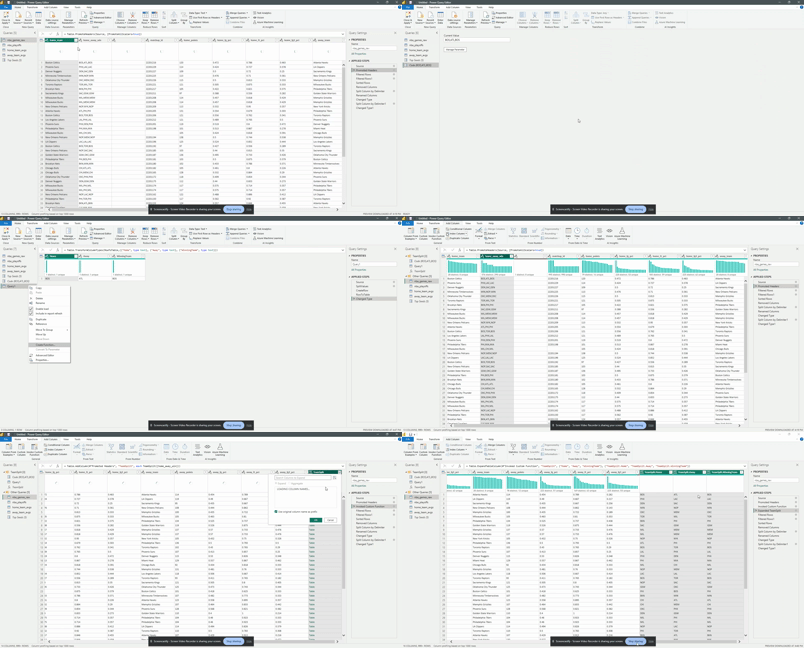
We can access Power Query from Power BI Desktop. On the top ribbon click the “Get Data” button on the Home tab. Selecting the chevron will show a list of common data sources, to view all data sources select more listed on the bottom or you can select the icon above “Get Data”.

Choose the desired data sources from the available options. Available sources include databases, Excel files, CSV files, web pages, and cloud-based services. Provide the required credentials and connection details to establish a connection to the selected data sources.

Data Transformation and Cleansing

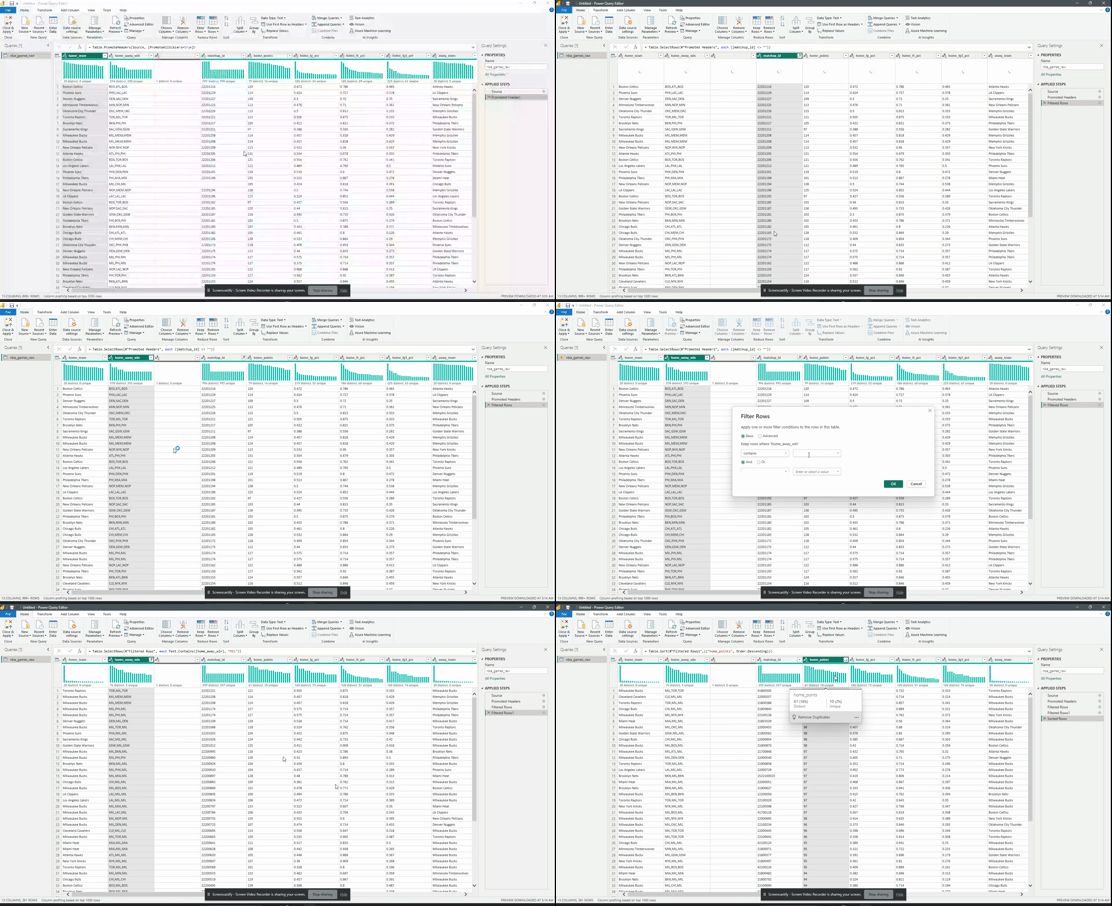
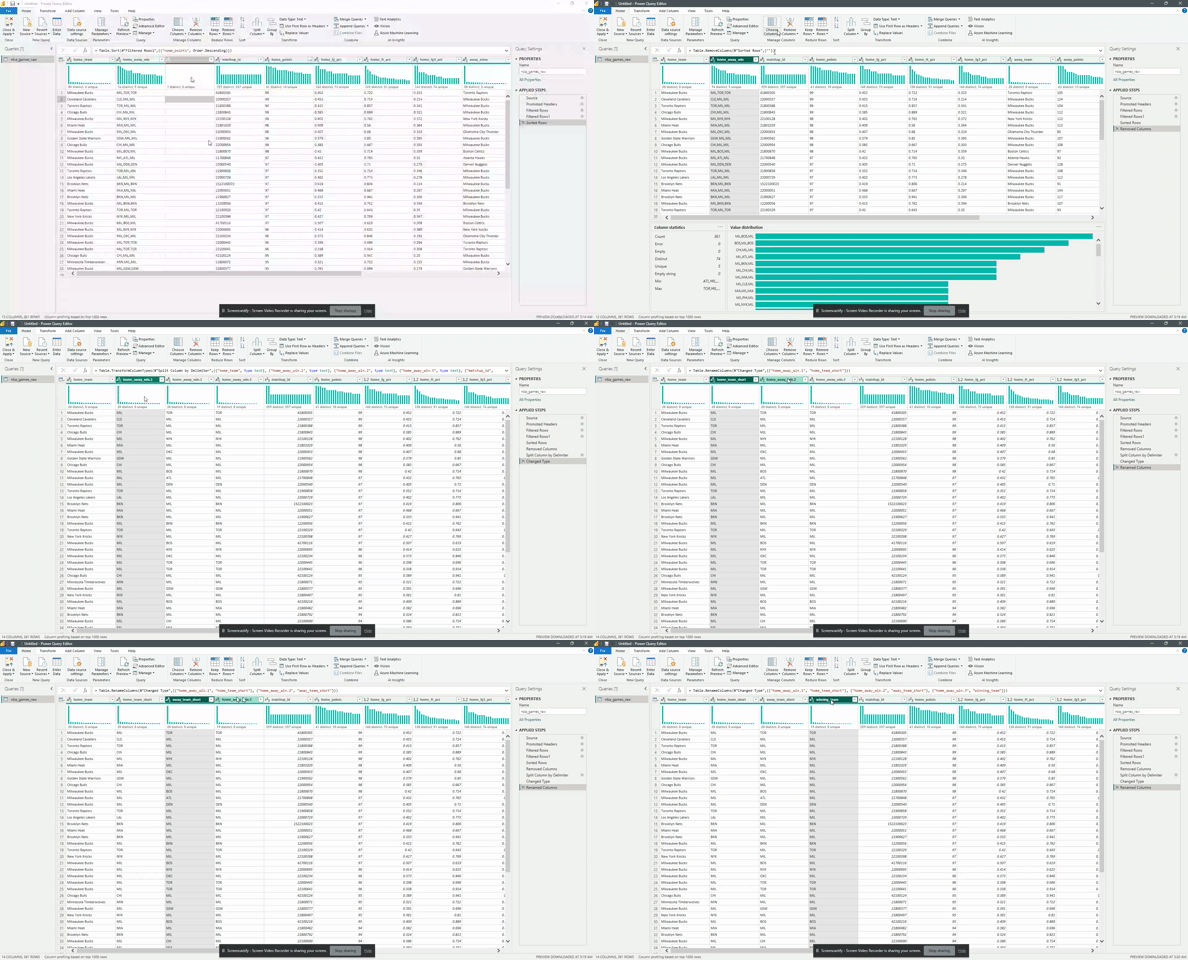
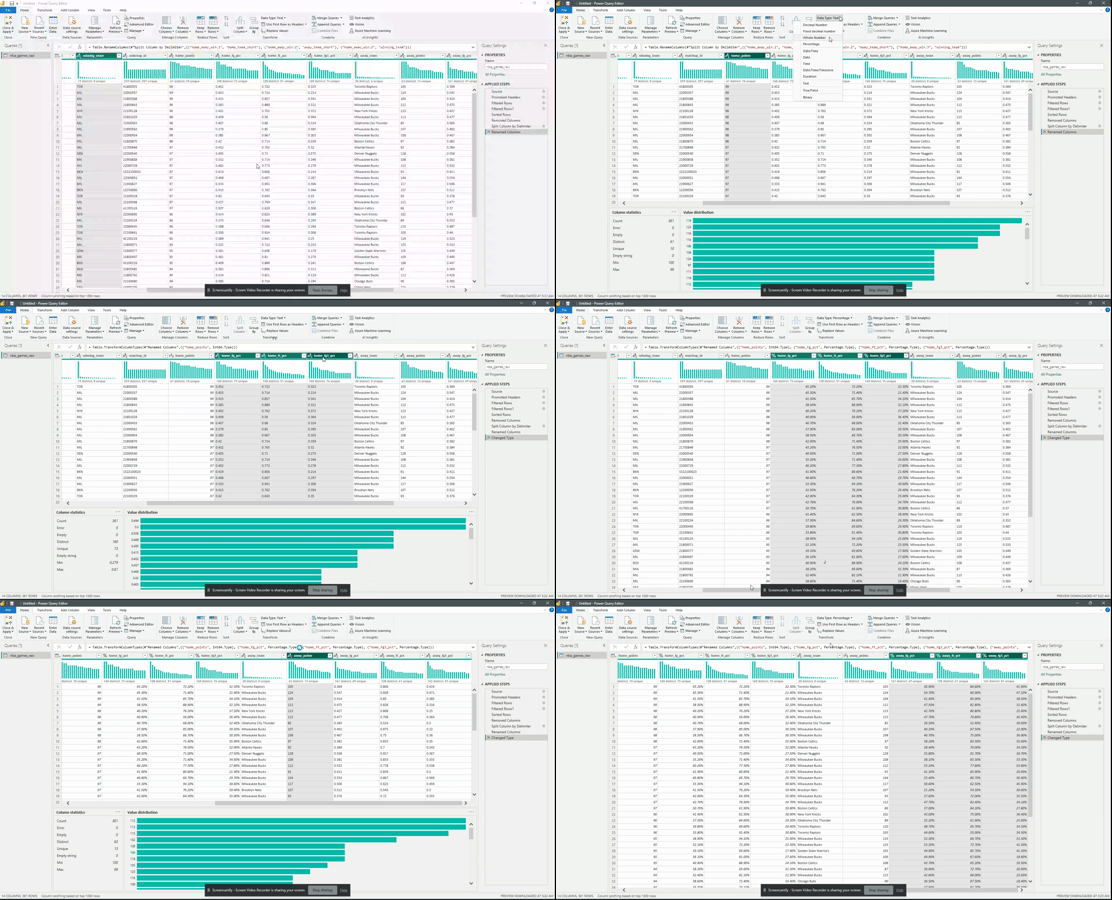
Power Query provides a range of data transformation capabilities. Utilizing the Power Query Editor you can shape and clean data to meet your requirements. You can perform operations like filtering, sorting, removing duplicates, splitting columns, renaming columns, merging data from multiple sources and creating custom calculated columns.

Filter and sorting data using a familiar interface.

Remove, split, and rename columns within your dataset.

Ensure the correct data types of you data by setting the column data type.

Leverage the power of Power Query functions and formulas to optimize your data transformation process.

Applied Steps

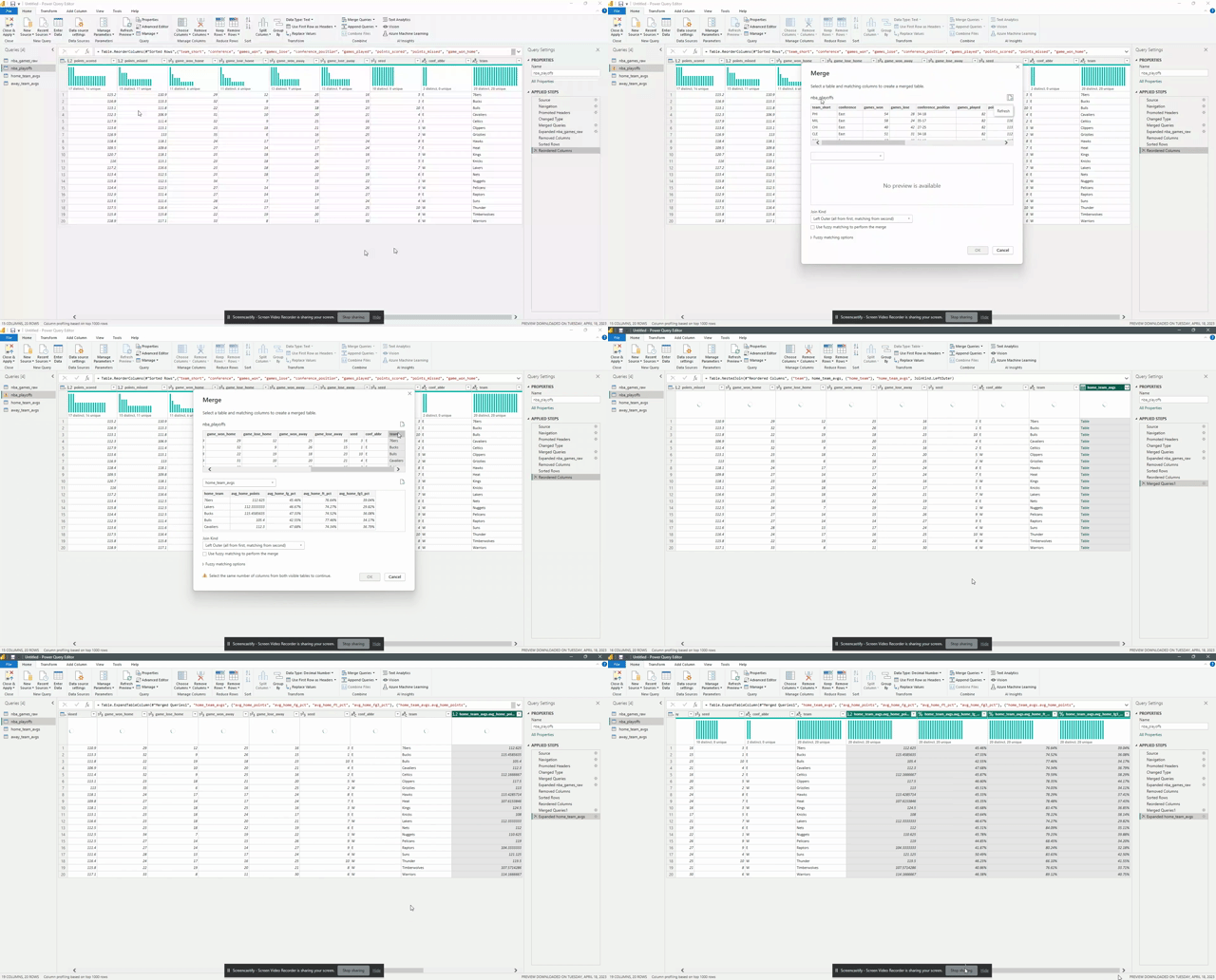
As you build your transformation Power Query using either built-in functions or custom transformations using the Power Query Formula Language (M Language) each transformation is recorded as an Applied Step. Each Applied Step can be viewed in the Query Settings panes.

You can review and modify the Applied Steps to adjust the data transformation process as required. During the review of the Applied Steps you can further refine the data preparation process and improve query performance. Implementing query folding and other query optimization techniques can improve the efficiency of the your Power Queries.

Query Dependencies and Data Merging

Power Query enables the the development of multiple queries, each representing a specific data source or data transformation step. You can utilize query dependencies to define relationships between queries, allowing for data merging and consolidation. Leverage merging capabilities to combine data from multiple queries based on common fields, such as performing inner joins, left joins, or appending data.

Combine or merge data from multiple queries based on one or more matching column with the Merge Queries operation.

Proper use of merging capabilities can optimize your data analysis process.

Query Parameters, Dynamic Filtering, and Functions

Power Query allows for the use of query parameters. These query parameters act as placeholder for values that can be dynamically changed. This allows for dynamic filtering options. The use of query parameters can increase the flexibility, interactivity, and reusability of queries and the resulting Power BI reports.

Custom functions within Power Query can be used to encapsulate complex data transformations and you can reuse them across multiple queries.

Data Loading and Refreshing

After applying the required transformations, you load the data into the Power BI data model by clicking Close & Apply. Power Query creates a new query or appends the transformed data to an existing query within the Power BI data model. To ensure the data stays up to date with the source systems by setting up automatic data refreshes.

Advanced Power Query Features

There are advanced features within Power Query such as conditional transformations, grouping and aggregation, unpivoting columns, and handling advanced data types. These features and other optimization techniques can be implemented to handle complex data scenarios and improve efficiency of you data analysis.


Conclusion

Power Query is a powerful tool for data preparation and transformation in Power BI. Its approachable interface and expansive capabilities empower users to connect to various data sources, cleanse and shape data, and load it into the Power BI data model. By expanding your knowledge and use of Power Query advanced features you can optimize your data analysis process, streamline data preparation, and unlock the full potential of your data. Implement the strategies outlined in this guide to improve your Power BI reports and dashboards expanding your analysis to new heights of insight and effectiveness.

Start your exploration of Power Query and its features to further the effectiveness of your data analysis with increased flexibility and efficiency.


Thank you for reading! Stay curious, and until next time, happy learning.

And, remember, as Albert Einstein once said, “Anyone who has never made a mistake has never tried anything new.” So, don’t be afraid of making mistakes, practice makes perfect. Continuously experiment and explore new DAX functions, and challenge yourself with real-world data scenarios.

If this sparked your curiosity, keep that spark alive and check back frequently. Better yet, be sure not to miss a post by subscribing! With each new post comes an opportunity to learn something new.
Power BI — Key Differences Between Data Connectivity Modes

Introduction

Power BI is a data analysis and reporting tool that connects to and consumes data from a wide variety of data sources. Once connected to data sources it provides a power tool for data modeling, data visualization, and report sharing.

All data analysis projects start with first understanding the business requirements and the data sources available. Once determined the focus shifts to data consumption. Or how to load the required data into the analysis solution to provide the required insights.

Part of dataset planning is determining between the various data Power BI connectivity modes. The connectivity modes are methods to connect to or load data from the data sources. The connectivity mode defines how to get the data from the data sources. The selected connectivity mode impacts report performance, data freshness, and the Power BI features available.

The decision is between the default Import connectivity mode, DirectQuery connectivity mode, Live Connection connectivity mode, or using a composite model. This decision can be simple in some projects, where one option is the only workable option due to the requirements. In other projects this decision requires an analysis of the benefits and limitations of each connectivity mode.

So which one is the best?
Well…it depends.

Each connectivity type has its use cases and generally one is not better than the other but rather a trade-off decision. When determining which connectivity mode to use it is a balance between the requirements of the report and the limitations of each method.

This article will cover each connectivity mode and provides an overview of each method as well as covering their limitations.


Overview

Import mode makes an entire copy of a subset of the source data. This data is then stored in-memory and made available to Power BI. DirectQuery does not load a copy of the data into Power BI. Rather Power BI stores information about the schema or shape of the data. Power BI then queries the data source making the underlying data available to the Power BI report. Live Connection store a connection string to the underlying analysis services and leverages Power BI as a visualization layer.

As mentioned in some projects determining a connectivity mode can be straight forward. In general, when a data source is not equipped to handle a high volume of analytical queries the preferred connectivity mode is Import mode. When there is a need for near real-time data then DirectQuery or Live Connection are the only options that can meet this need.

For the projects where you must analyze each connectivity mode, keep reading to get a further understanding of the benefits and limitations of each mode.


Getting Started

When establishing a connection to a data source in Power BI you are presented with different connectivity options. The options available depend on the selected data source.

Available data sources can viewed by selecting Get data on the top ribbon in Power BI Desktop. Power BI presents a list of common data sources, and the complete list can be viewed by selecting More... on the bottom of the list.

Loading or connecting to data can be a different process depending on the selected source. For example, loading a local Excel file you are presented with the following screen.

From here you can load the data as it is within the Excel file, or Transform your data within the Power Query Editor. Both options import a copy of the data to the Power BI data model.

However, if the SQL Server data source is select you will see a screen similar to that below.

Here you will notice you have an option to select the connectivity mode. There are also additional options under Advanced option such as providing a SQL statement to evaluate against the data source.

Lastly, below is an example of what you are presented if you select Analysis Services as a data source.

Again here you will see the option to set the connectivity mode.


Import

Import data is a common, and default, option for loading data into Power BI. When using Import Power BI extracts the data from the data source and stores it in an in-memory storage engine. When possible it is generally recommended to use Import mode. Import mode takes advantage of the high-performance query engine, creates highly interactive reports offering the full range of Power BI features. The alternative connectivity modes discussed later in this article can be used if the requirements of the report cannot be met due to the limitations of the Import connectivity mode.

Import models store data using Power BI’s column-based storage engine. This storage method differs from row-based storage typical of relational database systems. Row-based storage commonly used by transactional systems work well when the system frequently reads and writes individual or small groups of rows.

However, this type of storage does not perform well with analytical workloads generally needed for BI reporting solutions. Analytical queries and aggregations involve a few columns of the underlying data. The need to efficiently execute these type of queries led to the column-based storage engines which store data in columns instead of rows. Column-based storage is optimized to perform aggregates and filtering on columns of data without having to retrieve the entire row from the data source.

Key considerations when using the Import connectivity mode include:

1) Does the imported data needed to get update?

2) How frequent does the data have to be updated?

3) How much data is there?

Import Considerations

  • Data size: when using Power BI Pro your dataset limit is 1GB of compressed data. With Premium licenses this limit increases to 10GB or larger.
  • Data freshness: when using Power BI Pro you are able to schedule up to 8 refreshes per day. With Premium licenses this increases to 48 or every 30 minutes.
  • Duplicate Work: when using analysis services all the data modeling may already be complete. However, when using Import mode much of the data modeling may have to be redone.

DirectQuery

DirectQuery connectivity mode provides a method to directly connect to a data source so there is no data imported or copied into the Power BI dataset. DirectQuery can address some of the limitations of Import mode. For example for a large datasets the queries are processed on the source server rather than the local computer running Power BI Desktop. Additionally since it provides a direct connection there is less of a need for data refreshes in Power BI. DirectQuery report queries are ran when the report is opened or interacted with by the end user.

Like importing data, when using DirectQuery with an on-premises data source an on-premises data gateway is required. Although there is no schedule refreshes when using DirectQuery the gateway is still required to push the data to the Power BI Service.

While DirectQuery can address the limitations presented by Import mode, DirectQuery comes with its own set of limitations to consider. DirectQuery is a workable option when the underlying data source can support interactive query results within an acceptable time and the source system can handle the generated query load. Since with DirectQuery analytical queries are sent to the underlying data source the performance of the data source is a major consideration when using DirectQuery.

DirectQuery Consideration

  • A key limitation when considering DirectQuery is that not all data sources available in Power BI support DirectQuery.
  • If there are changes to the data source the report must be refreshed to show the updated data. Power BI reports use caches of data and due to this there is no guarantee that visuals always display the most recent data. Selecting Refresh on the report will clear any caches and refresh all visuals on the page.

Example
Below is an example of the above limitation. Here we have a Power BI table and card visual of a products table on the left and the underlying SQL database on the right. For this example we will focus on ProductID = 680 (HL Road Frame – Black, 58) with an initial ListPrice of $1,431.50.

The ListPrice is updated to a value of $150,000 in the data source. However, after the update neither the table visual nor the card showing the sum of all list prices updates.

There is generally no change detection or live streaming of the data when using DirectQuery.

When we set the ProductID slicer to a value of 680 however, we see the updated value. The interaction with the slicer sends a new query to the data source returning the updated results displayed in the filtered table.

Clearing the slicer shows the initial table again, without the updated value. Refreshing the report clears all caches and runs all queries required by the visuals on the page.


  • Power BI Desktop reports must be refreshed to reflect schema changes. Once you publish a report to the Power BI Service selecting Refresh only refreshes the visuals in the report. If the underlying schema changes Power BI will not automatically update the available field lists. Updating the data schema requires opening the .pbix file in Power BI Desktop, refresh the report, then republish the report.

Example
Below is an example the limitation noted above. Here, we have the same Power BI report on the right as the example above and the SQL database on the left. We will start by executing the query which adds a new ManagerID column to the Product table, sets the value as a random number between 0 and 100, and then selects the top 100 products to view the update.

After executing the query we can refresh the columns of the Product table in SQL Server Management Studio (SSMS) to verify it was created. However, in Power BI we see that the fields available to add to the table visual does not include this new column.

To view schema updates in Power BI the .pbix file must be refreshed and the report must be republished.

As noted above if columns or tables are removed from the underlying data source Power BI queries can break. To see this we first remove the ManagerId column in the data source, and then refresh the report. After refreshing the report we can see there is an issue with the table visual.


  • The limit of rows returned by a query is capped at 1 million rows.
  • The Power BI data model cannot be switched from Import to DirectQuery mode. A DirectQuery table can be switched to Import, however once this is done it cannot be switched back.
  • Some Power Query (M Language) features are not supported by DirectQuery. Adding unsupported features to the Power Query Editor will result in a This step results in a query that is not supported by DirectQuery mode error message.
  • Some DAX functions are not supported by DirectQuery. If used results in a Function <function_name> is not supported by DirectQuery mode error message.

Example
For the example report we only need the ProductIDName, and ListPrice field. However, you can see in the data pane we have all the columns present in the source data. We can modify which columns are available in Power BI be editing the query in the Power Query Editor.

After removing the unneeded columns we can view the native query that get executed against the underlying data source and see the SELECT statement includes only the required columns (i.e. column not removed by the Removed Columns step).


Other implications and considerations of DirectQuery include performance and load implications on the data source, data security implications, data-model limitations, and reporting limitations.

DirectQuery Use Cases

With its given limitations DirectQuery can still be a suitable option for the following use cases.

  • When report requirements include the need for near real-time data.
  • The report requires a large dataset, greater than what is supported by Import mode.
  • The underlying data source defines and applies security rules. When developing a Power BI report with DirectQuery Power BI connects to the data source by using the current user’s (report developer) credentials. DirectQuery allows a report viewer’s credentials to pass through to the underlying source, which then applies security rules.
  • Data sovereignty restrictions are applicable (e.g. data cannot be stored in the cloud). When using DirectQuery data is cached in the Power BI Service, however there is no long term cloud storage.

Live Connection

Live Connection is a method that lets you build a report in Power BI Desktop without having to build a dataset to under pin the report. The connectivity mode offloads as much work as possible to the underlying analysis services. When building a report in Power BI Desktop that uses Live Connection you connect to a dataset that already exists in an analysis service.

Similar to DirectQuery when Live Connection is used no data is imported or copied into the Power BI dataset. Rather Power BI stores a connection string to the existing analysis services (e.g. SSAS) or published Power BI dataset and Power BI is used as a visualization layer.

Live Connection Considerations

  • Can only be used with a limited number of data sources. Existing Analysis Service data model (SQL Server Analysis Services (SSAS) or Azure Analysis Services)
  • No data-model customizations are available, any changes required to the data-model need to be done at the data source. Report-Level measures are the one exception to this limitation.
  • User identity is passed through to the data source. A report is subject to row-level security and access permissions that are set on the data-model.

Composite Models

Power BI no longer limits you to choosing just Import or DirectQuery mode. With composite models the Power BI data-model can include data connections from one (or more) DirectQuery or Import data connections.

A composite model allows you to connect to different types of data sources when creating the Power BI data-model. Within a single .pbix file you can combine data from one or more DirectQuery sources and/or combine data from DirectQuery sources and Import data.

Each table within the composite model will list its storage mode which shows whether the table is based on a DirectQuery or Import source. The storage mode can be viewed and modified on the properties pane of the table.


Example
The example below is a Power BI report with a table visual of a products table. We have added the ManagerID column to this table, however there is no Managers table in the underlying SQL database. Rather this information is contained within a local product_managers Excel file. With a composite model we can combine these two different data sources and connectivity modes to create a single report.

Initially the report storage mode is DirectQuery because to start we only have the Product table DirectQuery connection.

We use the Import connectivity mode to load the product_mangers data and create the relationship between the two tables.

You can check the storage mode of each table in the properties pane under Advanced. We can see the SalesLT Product table has a DirectQuery storage mode and that Sheet1 has a Import storage mode.

Once the data model is a composite model we see the report Storage Mode update to a value of Mixed.


Composite Model Considerations

  • Security Implications: A query sent to one data source could include data values that have been extracted from a different data source. If the extracted data is confidential the security impacts of this should be considered. You should avoid extracting data from one data source via an encrypted connection to then include this data in a query sent to a different source via an unencrypted connection.
  • Performance Implications: Whenever DirectQuery is used the performance of the underlying system should be considered. Ensure that it has the resources required to support the query load due to users interacting with the Power BI report. A visual in a composite model can send queries to multiple data source with the results from one query being passed to another query from a different source

Thank you for reading! Stay curious, and until next time, happy learning.

And, remember, as Albert Einstein once said, “Anyone who has never made a mistake has never tried anything new.” So, don’t be afraid of making mistakes, practice makes perfect. Continuously experiment and explore new DAX functions, and challenge yourself with real-world data scenarios.

If this sparked your curiosity, keep that spark alive and check back frequently. Better yet, be sure not to miss a post by subscribing! With each new post comes an opportunity to learn something new.
Power BI Context Transition: Navigating the Transition between Row and Filter Contexts

Series Review

One of the early stages of creating any Power BI report is the development of the data model. The data model will consist of data tables, relationships, and calculations. There are two types of calculations: calculated columns, and measures.

Check out Power BI Row Context: Understanding the Power of Context in Calculations for key differences between calculated columns and measures.

Row Context — What it is, When is it available, and its Implications

One of the most powerful elements of Power BI is that all measure calculations are done in context. The evaluation context limits the values in the current scope when evaluating an expression. The filter context and/or the row context make up the evaluation context.

Power BI Row Context: Understanding the Power of Context in Calculations of this series explores the row context in depth.

While Power BI Iterators: Unleashing the Power of Iteration in Power BI Calculations explores iterator functions, which are functions that create row context.

Iterator Functions — What they are and What they do

And finally, Power BI Filter Context: Unraveling the Impact of Filters on Calculations explores the concept of the filter context.

Filter Context – How to create it and its impact on measures

When evaluating expressions, the row context can be transitioned into a filter context within Power BI. This transition can help create more complex measures. Row context, filter context, and context transition can be confusing when starting with DAX so visit references and documentation often.

This post is the fourth of a Power BI Fundamental series with a focus on the context transition. The example file used in this post is can be found on GitHub at the link below.

Power BI key fundamentals example files


Understanding Context Transition

The row context by itself does not filter data. Row context iterates through a table row-by-row. Context transition is when the row context transitions into the filter context. Context transition occurs with the CALCULATE() function and when the expression of an iterator function is a DAX measure.

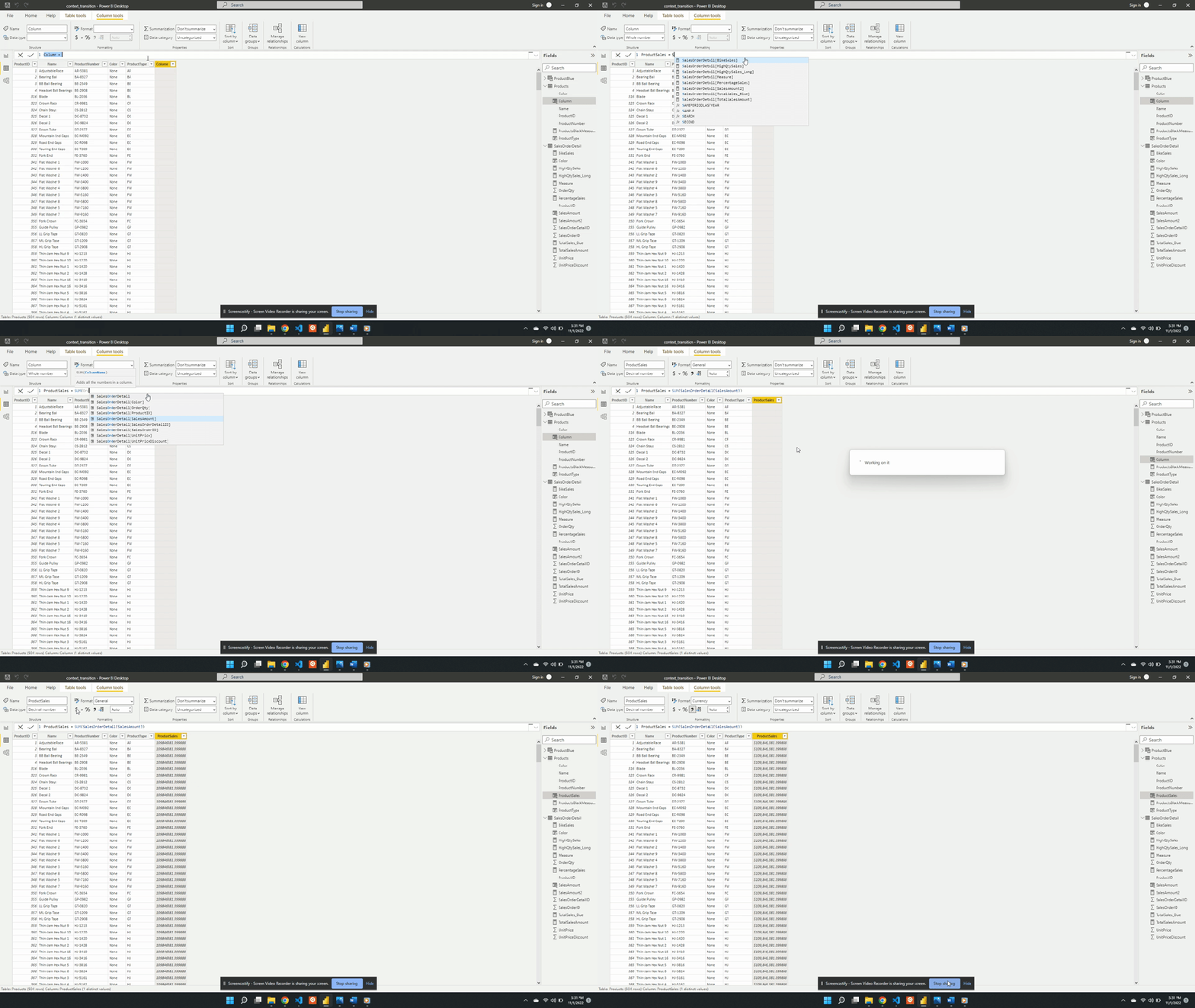
The concept of context transition can be a bit abstract so it can be easiest to learn through examples. To explore, we will create a new calculated column in the Products table. The new ProductsSales calculates the total sales for each product and we define it as:

ProductSales = 
SUM(SalesOrderDetail[SalesAmount])

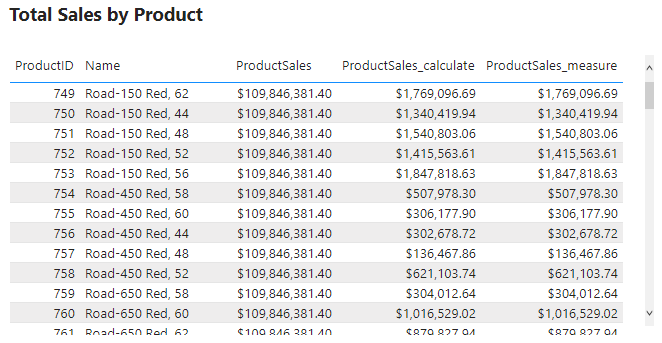
After evaluating ProductSales we see it repeats the same $109.85M sales value for each row. This value is the total sales amount for the entire dataset. This is not what we want ProductSales to calculate, so what happened?

ProductSales calculates the total sales of the entire data rather than the filtered per-product value because row context is not a filter. For example, the row context includes the ProductID value but this identifier is not a filter on the data during evaluation. And because the row context is not a filter DAX does not distinguish between different rows (i.e products) when evaluating ProductSales.

For example, looking at the table above while evaluating the measure DAX does not distinguish the Adjustable Race row from the LL Crankarm row. Since all rows are viewed as the same the total sales value is repeated for each row.

You may have guessed it but, the example above calculates the wrong value because it does not contain a context transition. The row context does not shift to the filter context causing the error in the calculated value. This simple example highlights why context transition is important and when it’s needed. To correct this we must force the context transition. This will convert the row values into a filter and calculate the sales for each product. There are various ways to do this, and below are two options.

Option #1: The CALCULATE() Function

We can force context transition by wrapping ProductSales with the CALCULATE() function. To demonstrate we create a new ProductSales_calculate column. ProductSales_calculate is defined as:

ProductSales_calculate = 
CALCULATE(
   SUM(SalesOrderDetail[SalesAmount])
)

This new calculated column shows the correct sales value for each product. We view the product type BK and can see now each row in the ProductSales_calculate column is different for each row.

Option #2: Using Measures

Within the data model, we have already created a measure SalesAmount2.

We defined SalesAmount2 as:

SalesAmount2 = 
SUMX(
   SalesOrderDetail, 
   SalesOrderDetail[OrderQty] * SalesOrderDetail[UnitPrice] * (1 - 
   SalesOrderDetail[UnitPriceDiscount])
)

We can see by the expression SalesAmount2 uses the iterator function SUMX(). This measure calculates the sales amount row-by-row in the SalesOrderDetail table. As mentioned before context transition occurs within iterator functions. So rather than using CALCULATE() and SUM() we create another calculated column that references this measure.

ProductSales_measure = SalesAmount2

We add the new column to the table visual and can see that it has the same value as ProductSales_calculate. This shows that a measure defined with an iterator also forces context transition.

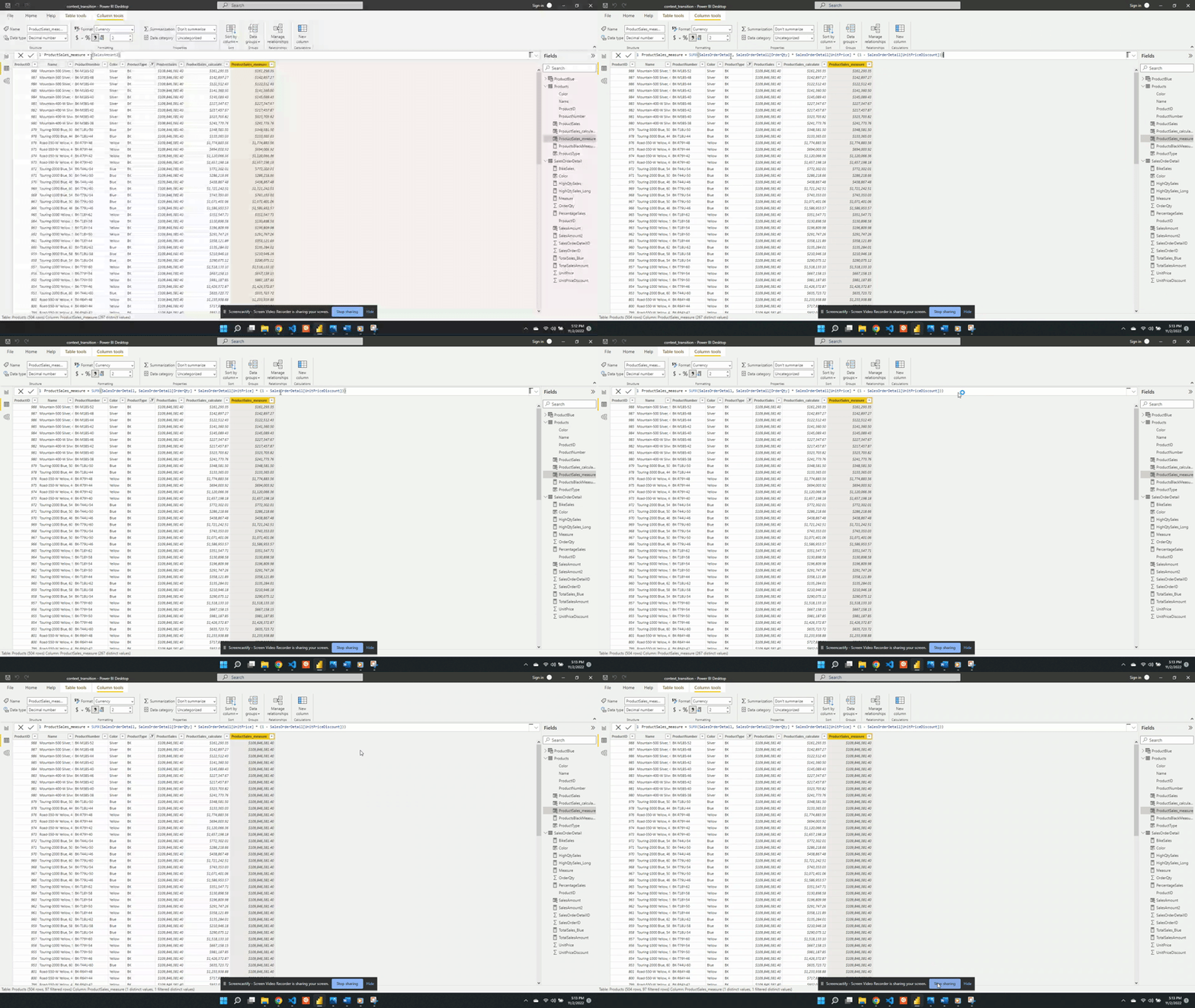
An important note about this new column is that the ProductsSales_measure works as expected when referencing the measure. However, it will not work if we define this column as the same expression that defines SalesAmount2.

We can see below if we update ProductSales_measure to:

SUMX(
   SalesOrderDetail, 
  SalesOrderDetail[OrderQty] * SalesOrderDetail[UnitPrice] * (1 - 
  SalesOrderDetail[UnitPriceDiscount])
)

The same expression used when defining SalesAmount2, will result in wrong values.

After updating ProductSales_measure we can see it returns the total sales values and not the sales per product. With this updated definition DAX is no longer able to apply the context transition. We can correct this by wrapping the expression with CALCULATE().


Maximum Daily Sales by Month Example

A question of interest is what is the maximum daily sales amount for each month in the dataset. In other words we would like to determine for each month what day of the month had the highest sales and what was the total daily sales value. We start by creating a new MaxDailySales measure and add it to the Max Daily Sales by Month and Year table visual.

We define MaxDailySales as:

MaxDailySales = 
MAXX(SalesOrderDetail, [SalesAmount2])

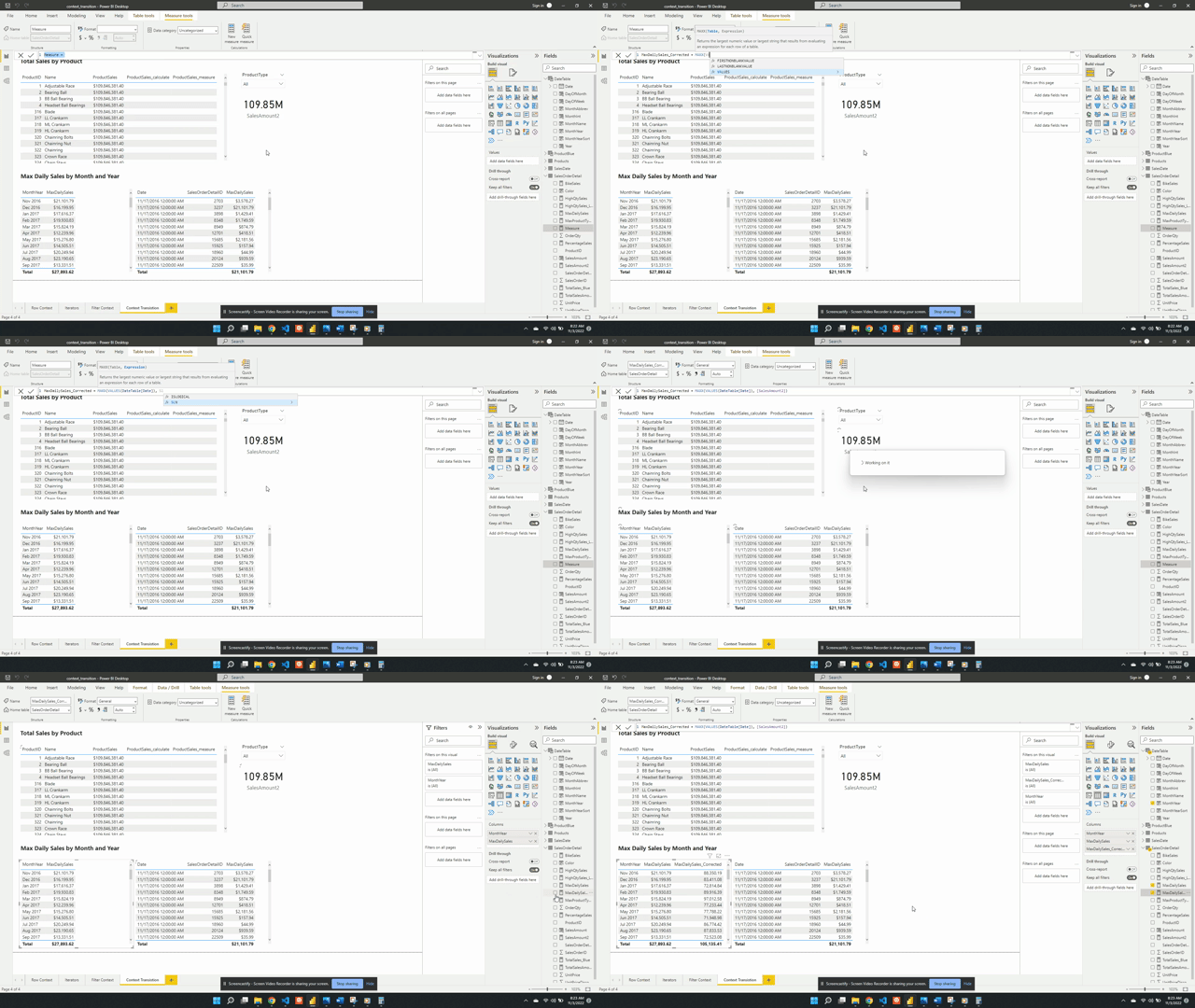
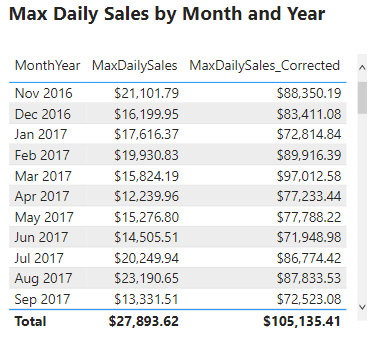
After adding the measure to the table we can see the sales amount value for each month. For example, the table currently shows that the maximum daily sales for November 2016 is $21,202.79. This value may appear reasonable but when examined closely we can determine it is incorrect. Currently, MaxDailySales is returning the maximum sale for each month and is not accounting for multiple sales within each day. We can see this by creating a new visual with the Date, MaxSales, and SalesOrderDetailID fields.

This table shows that the MaxDailySales for November 2016 is the same value as a single sale that occurred on November 17th. Yet, there are multiple sales on this day and every other day. The desired outcome is to calculate the total sales for each day and then determined the highest daily total value for each month.

This error occurs because context transition is not being applied correctly. It is important to note that context transition is occurring while evaluating MaxDailySales because it is a measure. However, the context transition is not being applied on the correct aggregation level. The context transition is occurring on the SalesOrderDetail level, meaning for each row of this table. To correct this measure we will have to force the context transition on the correct, daily, aggregation level. We update the MaxDailySales expression using the VALUES() function.

We define MaxDailySales_Corrected as:

MaxDailySales_Corrected = 
MAXX(
   VALUES(DateTable[Date]), 
   [SalesAmount2]
)

We change the table passed to MAXX() from SalesOrderDetail to VALUES(DateTable[Date]). Using VALUES(DateTable[Date]) aggregates all the dates that are the same day shifting the context transition to the correct aggregation level. The VALUES() function in the expression provides a unique list of dates. For each day in the unique list, the SalesAmount2 measure gets evaluated and returns the maximum daily total value. We then add the new measure to the table visual and now it shows the correct maximum daily sales for each month.

The above example shows context transition at two different aggregation levels. They also highlight that the context transition can be shifted to return the specific value that is required. As well as showing why it is important to take into consideration the aggregation level when developing measures like MaxDailySales.


Context Transition Pit Falls

Context transition is when row values transition into or replace the filter context. When context transition occurs it can sometimes lead to unexpected and incorrect values. An important part of context transition to understand is that it transitions the entire row into the filter. So what occurs when a row is not unique? Let’s explore this with the following example.

We add a new SimplifiedSales table to the data model.

Then we add a TotalSales measure. TotalSales is defined as:

TotalSales = 
SUMX(
   SimplifiedSales, 
   SimplifiedSales[OrderQty] * SimplifiedSales[UnitPrice] * (1 - 
   SimplifiedSales[UnitPriceDiscount])
)

Viewing the two tables above, we can confirm that the TotalSales values are correctly aggregating the sales data. Now we add another measure to the table which references the measure TotalSales. Referencing this measure will force context transition due to the implicit CALCULATE() added to measures. See above for details.

We define TotalSales_ConextT as:

TotalSales_ContextT = 
SUMX(SimplifiedSales, [TotalSales])

In the new column we can see that the values for Road-350-W Yellow, 48 and Touring-3000 Blue, 44 have not changed and are correct. However, Mountain-500 Silver, 52 did update, and TotalSales_ContextT column shows an incorrect value. So what happened?

The issue is the context transition. Viewing the SimplifiedSales table we can see that Mountain-500 Silver, 52 appears twice in the table. With both records having identical values for each field. Remember, context transition utilizes the entire row. Meaning the table gets filtered on Mountain-500 Silver, 52/ 1/$450.00. Because of this, the result gets summed up in the TotalSales measure returning a value of $900.00. This value is then evaluated twice, once for each identical row.

This behavior is not seen for the Road-350-W, 48 records because they are unique. One row has a UnitPriceDiscount of 0.0% and the other has a value of 5.0%. This difference makes each row unique when context transition is applied.

Knowing what context transition is and when it occurs is important to identifying when this issue may occur. When context transition is applied it is important to check the table and verify calculations to ensure it is applied correctly.


Thank you for reading! Stay curious, and until next time, happy learning.

And, remember, as Albert Einstein once said, “Anyone who has never made a mistake has never tried anything new.” So, don’t be afraid of making mistakes, practice makes perfect. Continuously experiment and explore new DAX functions, and challenge yourself with real-world data scenarios.

If this sparked your curiosity, keep that spark alive and check back frequently. Better yet, be sure not to miss a post by subscribing! With each new post comes an opportunity to learn something new.
Power BI Filter Context: Unraveling the Impact of Filters on Calculations

Series Review

One of the early stages of creating any Power BI report is the development of the data model. The data model will consist of data tables, relationships, and calculations. There are two types of calculations: calculated columns, and measures.

Check out Power BI Row Context: Understanding the Power of Context in Calculations for key differences between calculated columns and measures.

Row Context — What it is, When is it available, and its Implications

All expressions, either from a calculated column or a measure, get evaluated within the evaluation context. The evaluation context limits the values in the current scope when evaluating an expression. The filter context and/or the row context make up the evaluation context.

Power BI Row Context: Understanding the Power of Context in Calculations explores the row context in depth. While Power BI Iterators: Unleashing the Power of Iteration in Power BI Calculations explores iterator functions, which are functions that create row context.

Iterator Functions — What they are and What they do

This article is the third of a Power BI Fundamental series with a focus on the filter context. The example file used in this post is located here – GitHub.


Introduction to Filter Context

Filter context refers to the filters applied before evaluating an expression. This filter context limits the set of rows of a table available to the calculation. There are two types of filters to consider, the first is implicit filters or filters applied by the user via the report canvas. The second type is explicit filters which use functions such as CALCULATE() or CALCULATETABLE().

The applied filter context can contain one or many filters. When there are many filters the filter context will be the intersection of all the filters. When the filter context is empty all the data is used during the evaluation.

Filter context propagates through the data model relationships. When defining each model relationship the cross-filter direction is set. This setting determines the direction(s) the filters will propagate. The available cross-filter options depend on the cardinality type of the relationship. See available documentation for more information on Cross-filter Direction and Enabling Bidirectional Cross-filtering.

It is important to be familiar with certain DAX functions which can modify the filter context. Some examples used in the post include CALCULATE()ALL(), and FILTER().


The CALCULATE Function

The CALCULATE() function can add filters to a measure expression, ignore filters applied to a table, or overwrite filters applied from within the report visuals. The CALCULATE() function is a powerful and important tool when updating or modifying the filter context.

The syntax of CALCULATE() is:

CALCULATE(<expression>, <filter1>, <filter2>, ...)

Use the CALCULATE() function when modifying the filter context of an expression that returns a scalar value. Use CALCULATETABLE() when modifying the filter context of an expression that returns a table.


Exploring Filter Context

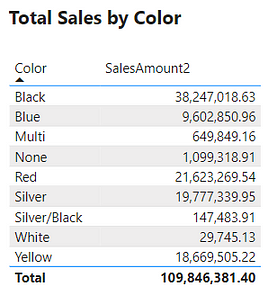
The table below is a visualization of the total sales amount for each product color.

The table visual creates filter context, as seen by the total sales amount for each color or row. Evaluating SalesAmount2 occurs by first filtering the SalesOrderDetail table by the color, and then evaluating the measure with the filtered table. This is then repeated for each product color in the SalesOrderDetail table.
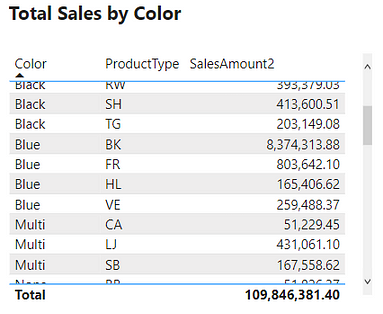
The above example only contained the single product color filter. However, as mentioned previously, the filter context can contain multiple filters. The example table below adds the ProductType to the table. The addition of this field breaks down the total sales first by color and then by product type. For each row, the underlying SalesOrderDetail table is first filtered by color and product type before evaluating the SalesAmount2 measure. In these examples, it is the table visual that is creating the filter context.


Create Filter Context with Slicers

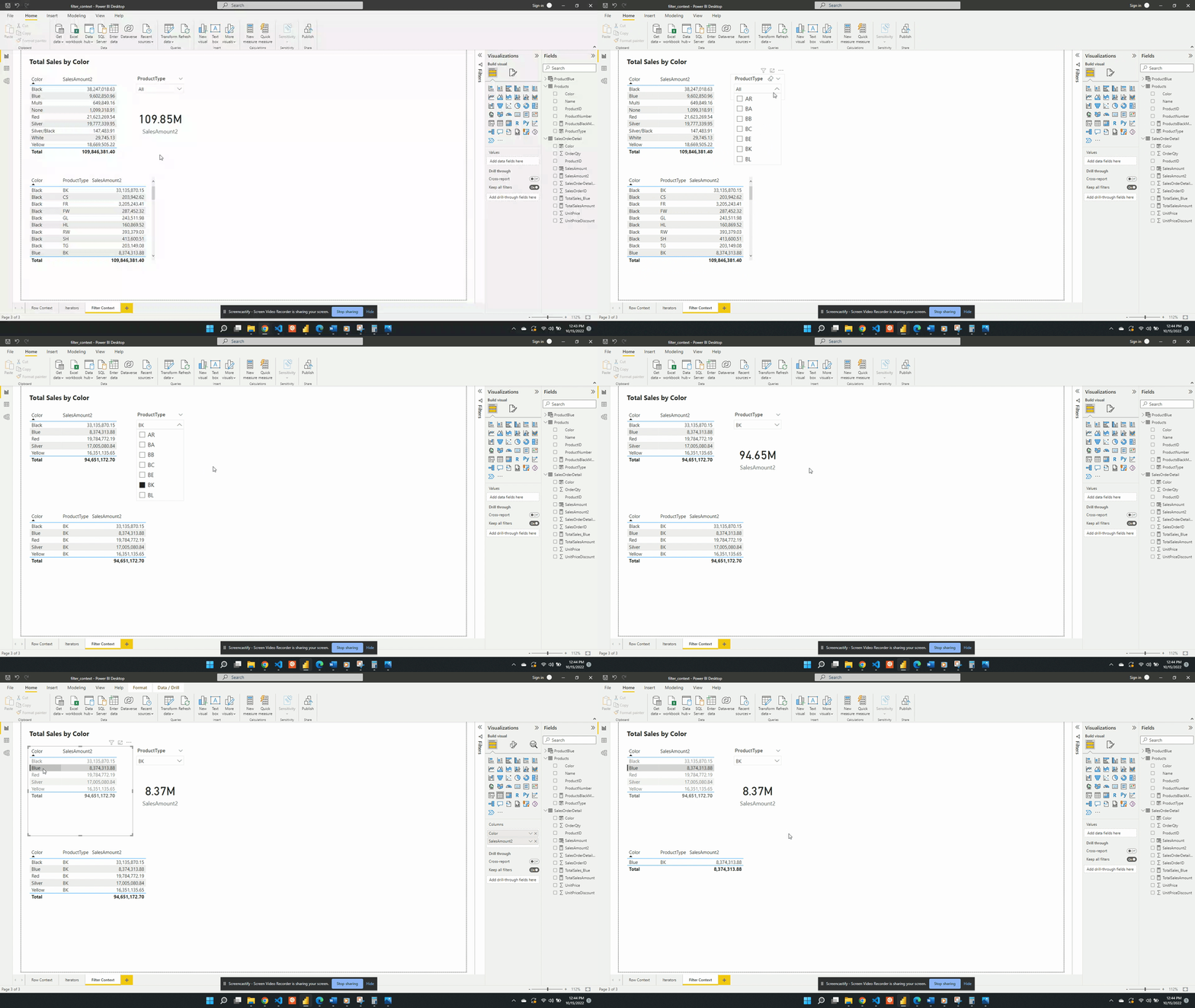
Another way to create filter context is through the use of slicer visuals. For this example, a slicer of the ProductType is created.

When no value is selected in the slicer the filter context from the slicer visual is null. Meaning at first the card visual shows the SalesAmount2 value evaluated for all data. Additionally, when no value is selected in the slicer the only filter context is ProductColor from the table visual.

Following the selection of BK in the product type slicer, the values in both the table and the card visual are updated. The card visual now has one filter context which is the product type BK. This is evaluated by creating a filtered table and SalesAmount2 is evaluated for this filtered table.

The SalesAmount2 measure is defined by:

SalesAmount2 =
SUMX (
    SalesOrderDetail,
    SalesOrderDetail[OrderQty] * SalesOrderDetail[UnitPrice] * 
    ( 1 - SalesOrderDetail[UnitPriceDiscount] )
)

After selecting an option from the slicer the measure is re-evaluated. The re-evaluation occurs to account for the newly created filter context. The filter context creates a subset of the SalesOrderDetail table that matches the slicer selection. Then the row context evaluates the expression row-by-row for the filtered table and is summed. SUMX() is an example of an iterator function, see Power BI Iterators: Unleashing the Power of Iteration in Power BI Calculations for more details. The updated value is then displayed on the card visual.

Iterator Functions — What they are and What they do

The table visual works in a similar fashion but, there are two filters applied. The table visual has an initial filter context of the product color. After the selection of BK, the table gets updated to visualize the intersection of the product color filter and the product type filter.

Following a selection in the slicer visual, if a row in the table visual is selected this will also apply a filter. The filter context is the intersection of the table selection filters and the slicer. The updated filter context gets applied to all other visuals (e.g. the card visual).


Create Filter Context with CALCULATE

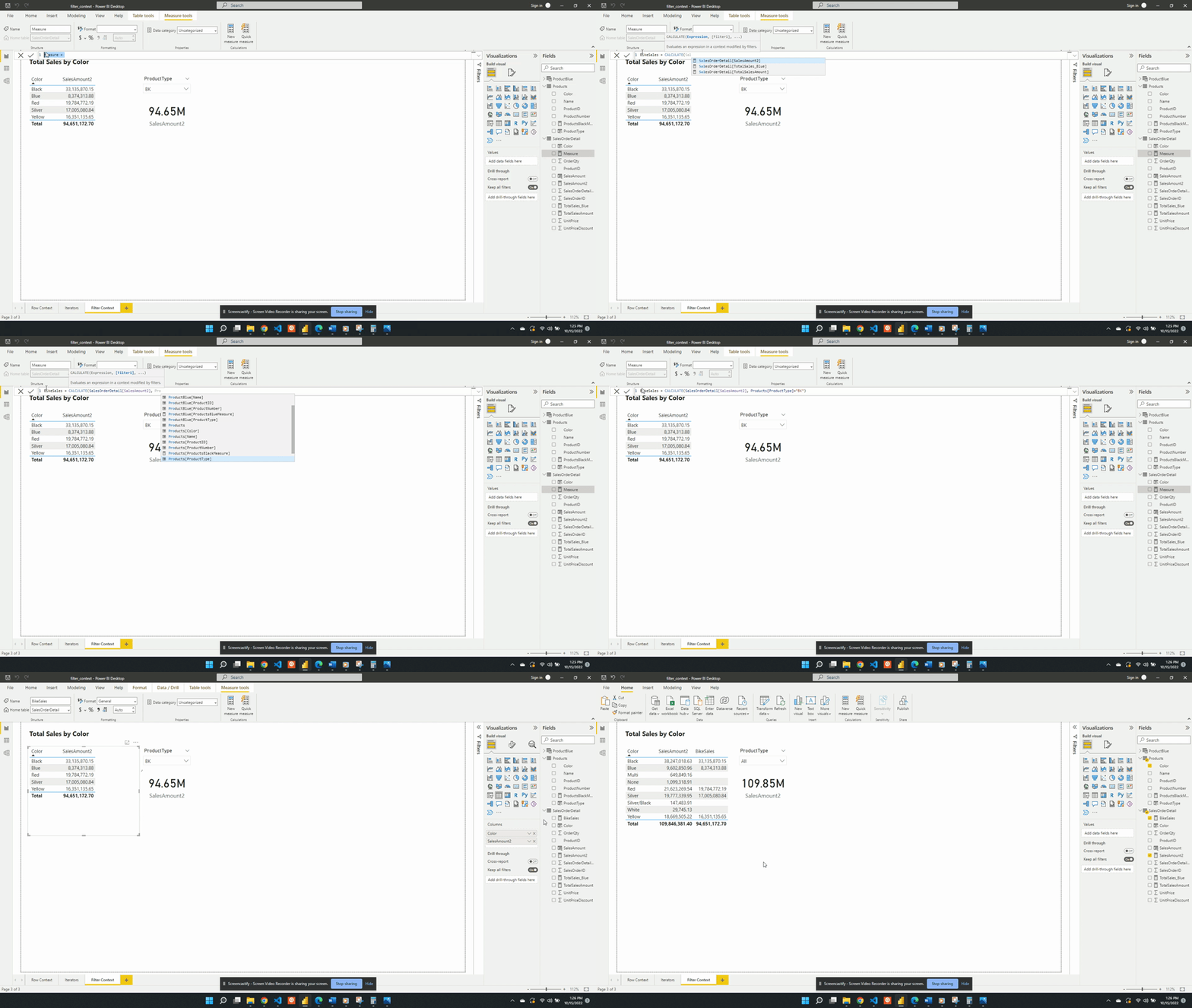
Previous examples created the filter context using implicit filters. Generally, the user creates this type of filter through the user interface. Another way to create filter context is by using explicit filters. Explicit filters get created through the use of functions such as CALCULATE(). For this example, rather than having to select BK in the slicer to view total bike sales, we will use CALCULATE(). We will create a new measure that will force the filter context. We can do this because CALCULATE() allows us to set the filter context for an expression.

We define the BikeSales measure as:

BikeSales =
CALCULATE ( 
   SalesOrderDetail[SalesAmount2], 
   Products[ProductType] = "BK" 
)
  • Expression: SalesOrderDetails[SalesAmount2]
  • Filter: Products[ProductType]="BK"

BikeSales is then added to the table visual alongside SalesAmount2. When the BK product type is the slicer selection the two table columns are equal. Both measures have the same filter context created by product color and product type. Removing the implicit product type filter by unselecting a product type updates the filter context. The SalesAmount2 expression is re-evaluated with the updated filter context. Since the filter context created by the slicer is now null the SalesAmount2 value calculates using all the data. The BikeSales values do not change. This is because of the explicit filter used by the CALCULATE() function when we defined the measure. The BikeSales measure still has the filter Products[ProductType]="BK" applied regardless of the product type slicer.

The CALCULATE() function only creates filter context and does not create row context. So an important question to ask is why or how the BikeSales measure works. The CALCULATE() function references a specific column value, Products[ProductType]="BK". Yet, the CALCULATE() function does not have row context. So how does Power BI know which row it is working with? The answer is that the CALCULATE() function applies the FILTER() function. And the FILTER function creates the row context required to evaluate the measure.

Within the CALCULATE() function the Products[ProductType]="BK filter is shorten syntax. The filter argument passed to CALCULATE() is equivalent to FILTER(ALL(Products[ProductType]), Products[ProductType]="BK")). The ALL() function removes any external filters on the ProductType column and is another example of a function that can modify the filter context.

Keep External filters with CALCULATE

The CALCULATE() function evaluates the filter context both outside of and within the function. The filter context outside of the function can come from user interaction with visuals. The filter context within the function is the filter expression(s).

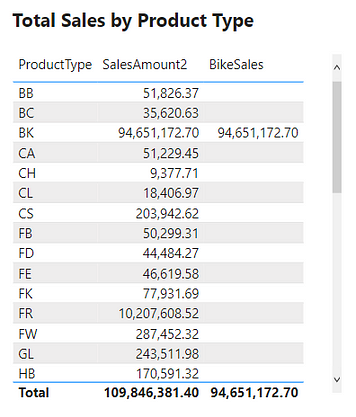
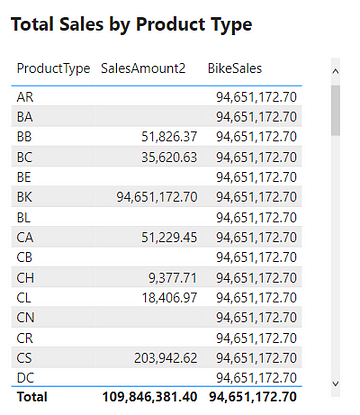
To explore this we create a table with the Product Type, SalesAmount2, and SalesBike.

The SalesAmount2 column shows the total sales amount, if any, as expected. While the BikeSales column shows the same repeated value for all rows and is incorrect. Looking at the Product Type BK row we can see this row is correct. This table demonstrates that CALCULATE()overwrites external filters.

For example, the BB product type row filters SalesOrderDetail before evaluating SalesAmount2. This returns the correct total sales for the BB product type. When evaluating BikeSales this external product type filter gets overwritten. The measure calculates the sales amount value for the BK product type due to the explicit filter and returns this value for all rows.

Using the KEEPFILTERS() function within CALCULATE() will force CALCULATE() to keep both external and internal filters.

To do this we update BikeSales to:

BikeSales = 
CALCULATE(
   SalesOrderDetail[SalesAmount2], 
   KEEPFILTERS(Products[ProductType]="BK")
)

After updating the measure definition the resulting table is shown below.

Keeping the external filters is shown by the empty values for all rows except BK. For example, we look again at the BB product type row. When evaluating BikeSales Power BI keeps the external filter Products[ProductType]="BB" and the internal filter Products[ProductType]="BK". When applying more than one filter the filter context is the intersection of the two. The intersection of the two applied filters for the BB row is empty. A product cannot be both of type BB and BK.


More CALCULATE Examples

The CALCULATE() function plays an integral part in the filter context. Below are more examples to show key concepts and show that CALCULATE() is an important part of the filter context.

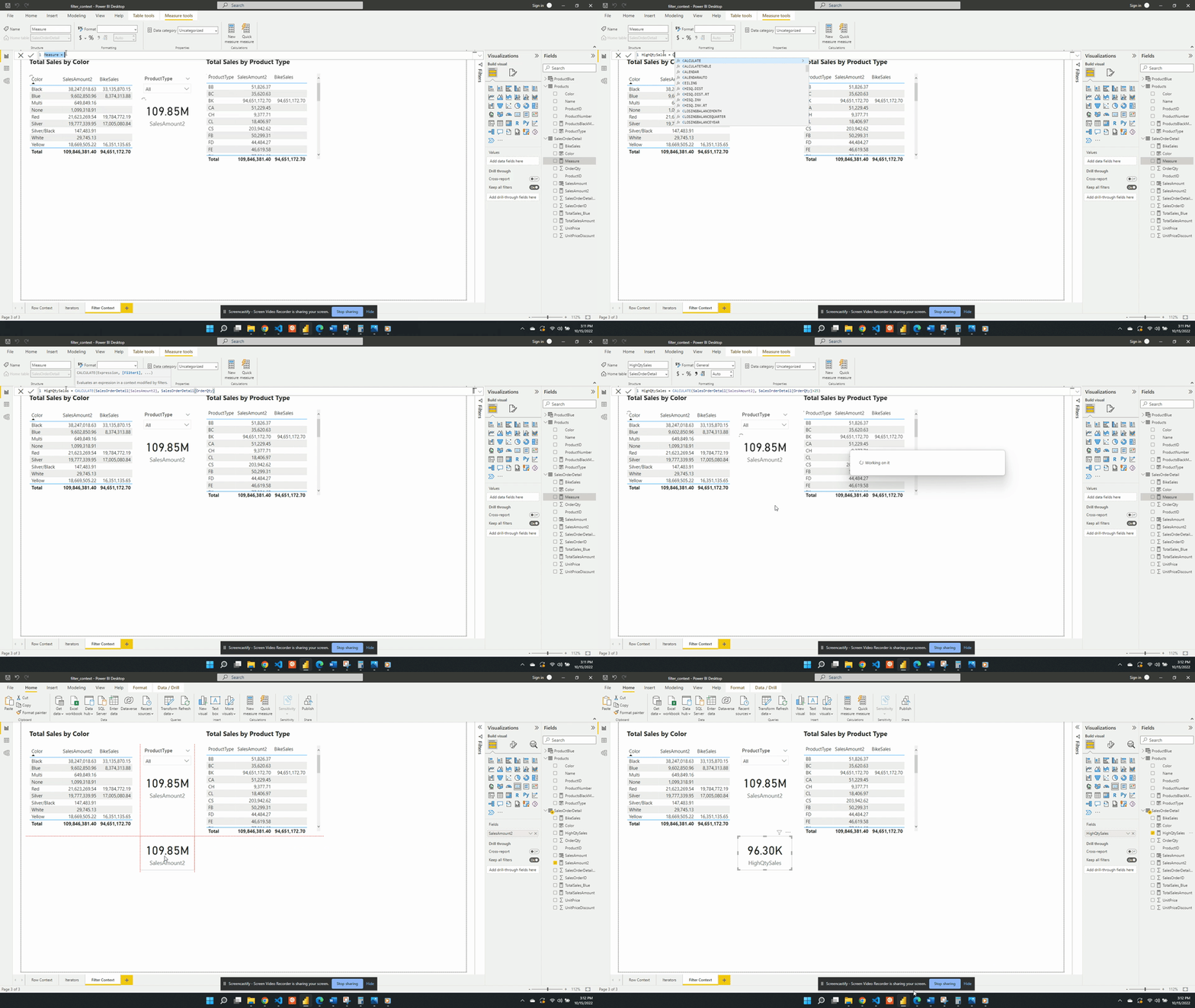
Creating a measure of High Quantity Sales

For the first example, we will be creating a sales measure showing the total sales amount for high-quantity orders. Creating this measure requires first filtering the SalesOrderDetail table based on the OrderQty. Then evaluating the SalesAmount2 measure with this filtered table.

We define HighQtySales as:

HighQtySales = 
CALCULATE(
   [SalesAmount2], 
   SalesOrderDetail[OrderQty]>25
)

We then visualize this measure on a card visual and see that 96.30K of our total 109.85M sales come from a high-quantity order. This again demonstrates the filter arguments passed to CALCULATE() are shorthand syntax. The filter arguments within CALCULATE() use the FILTER() function to create the row context required. In this example SalesOrderDetail[OrderQty]>25 is equivalent to FILTER(ALL(SalesOrderDetail),SalesOrderDetail[OrderQty] > 25).

The FILTER() function is an example of an iterator function and creates the row context. The row context allows for row-by-row evaluation of the OrderQty. Meaning it evaluates SalesOrderDetail[OrderQty] > 25 for each row of the SalesOrderDetail table. FILTER() then returns a virtual tale that is a subset of the original and contains only orders with a quantity greater than 25.

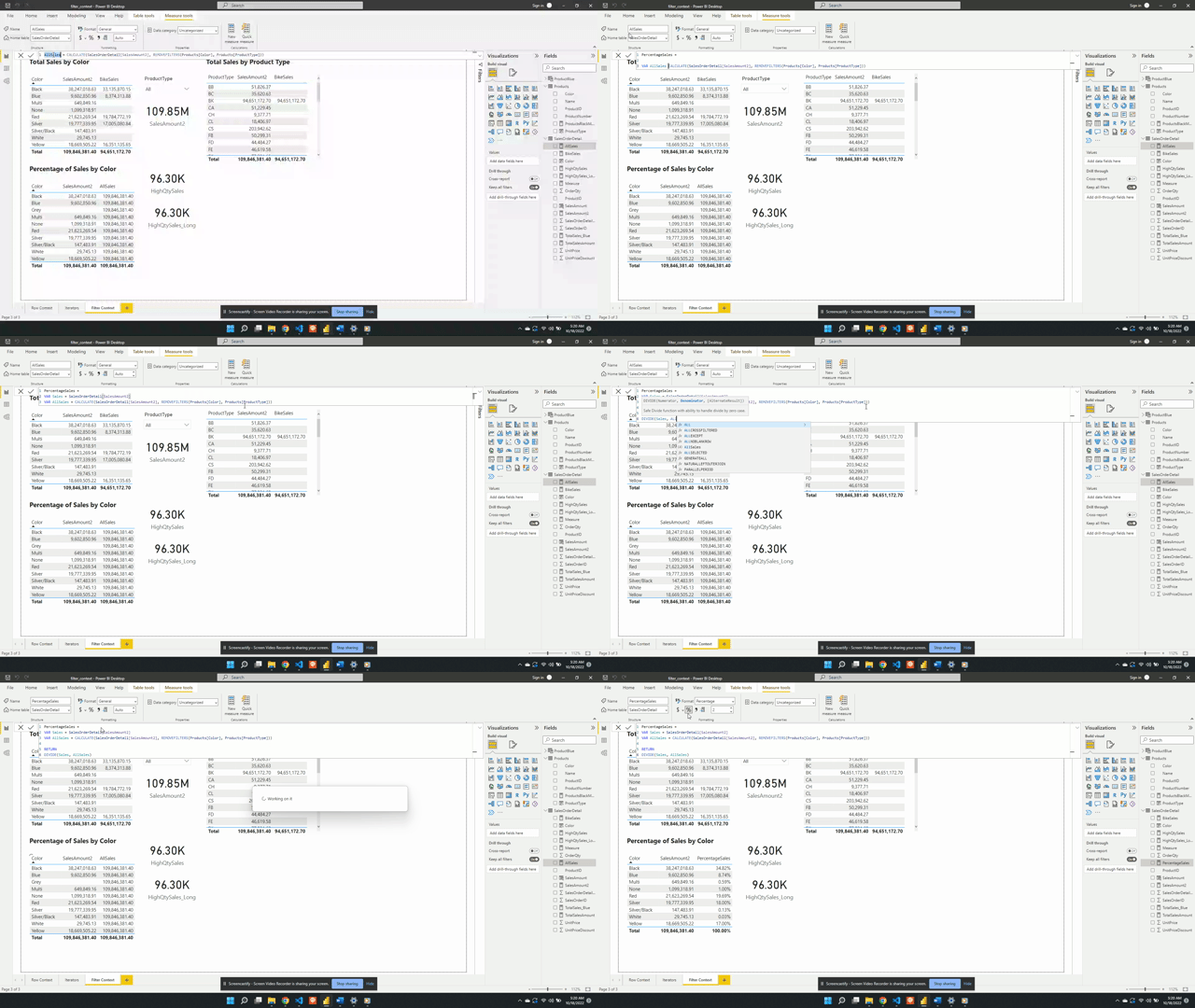
Percentage of Sales by Product Color

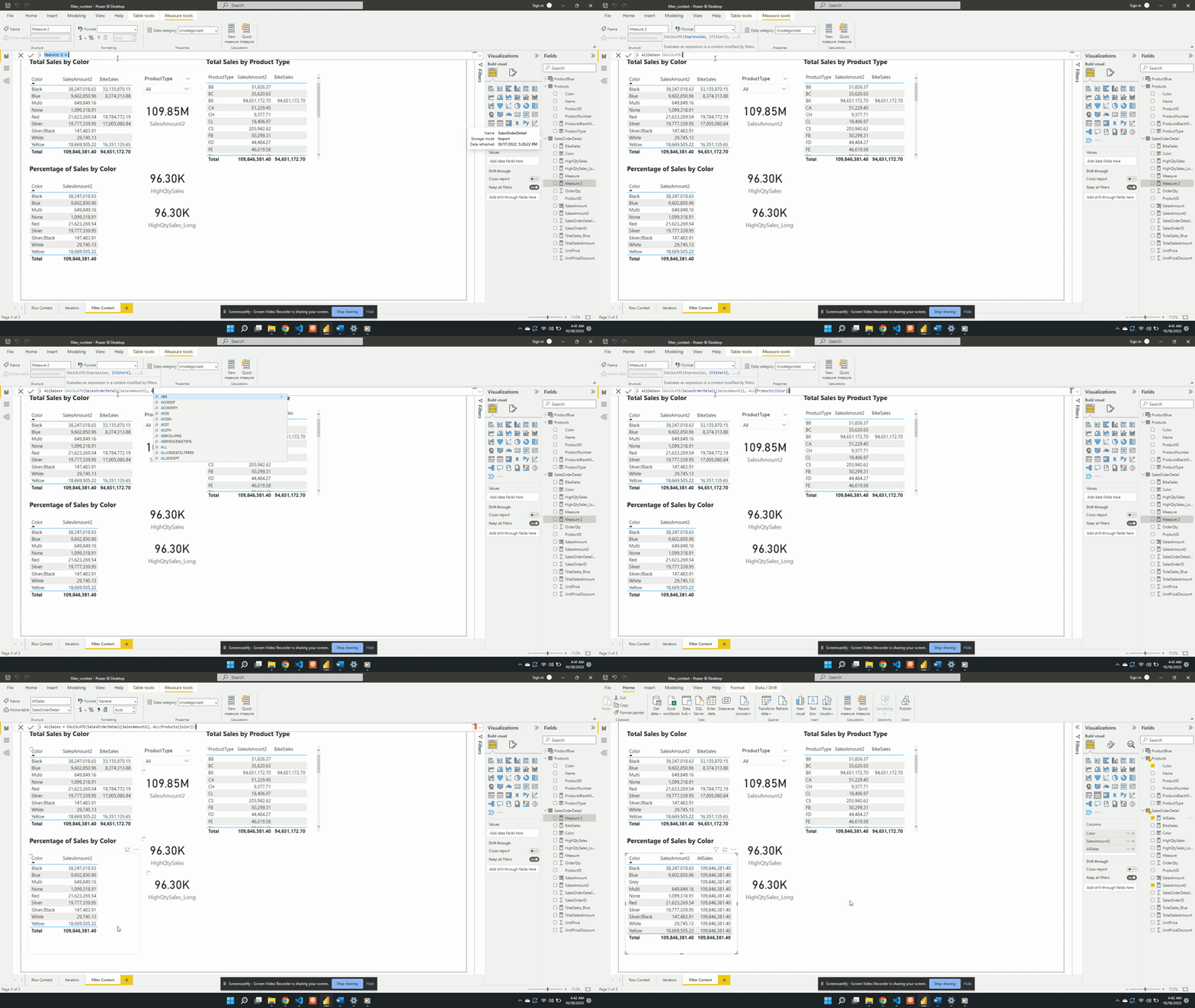
For the second example, we will create a measure to show the percentage of total sales for each product color. To create this we will start with a new AllSales measure. AllSales uses the CALCULATE() function to remove any filters and evaluates SalesAmount2.

We define AllSales as:

AllSales = 
CALCULATE(
   [SalesAmount2], 
   ALL(Products[Color])
)

AllSales is then added to the table visual Percentage of Sales by Color. Once added the AllSales column shows 190.85M total sales value for each color. This is consistent with the SalesAmount2 card visual. Repeating this value for each color is also expected because of the filter expression ALL(Products[Color]).

ALL(Products[Color]) creates a new filter context and gets evaluated with any other filters from the visuals. In this example, CALCULATE() overwrites any external filters on Products[Color]. This is why once added to the table visual AllSales displays the total sales value repeated for each row.

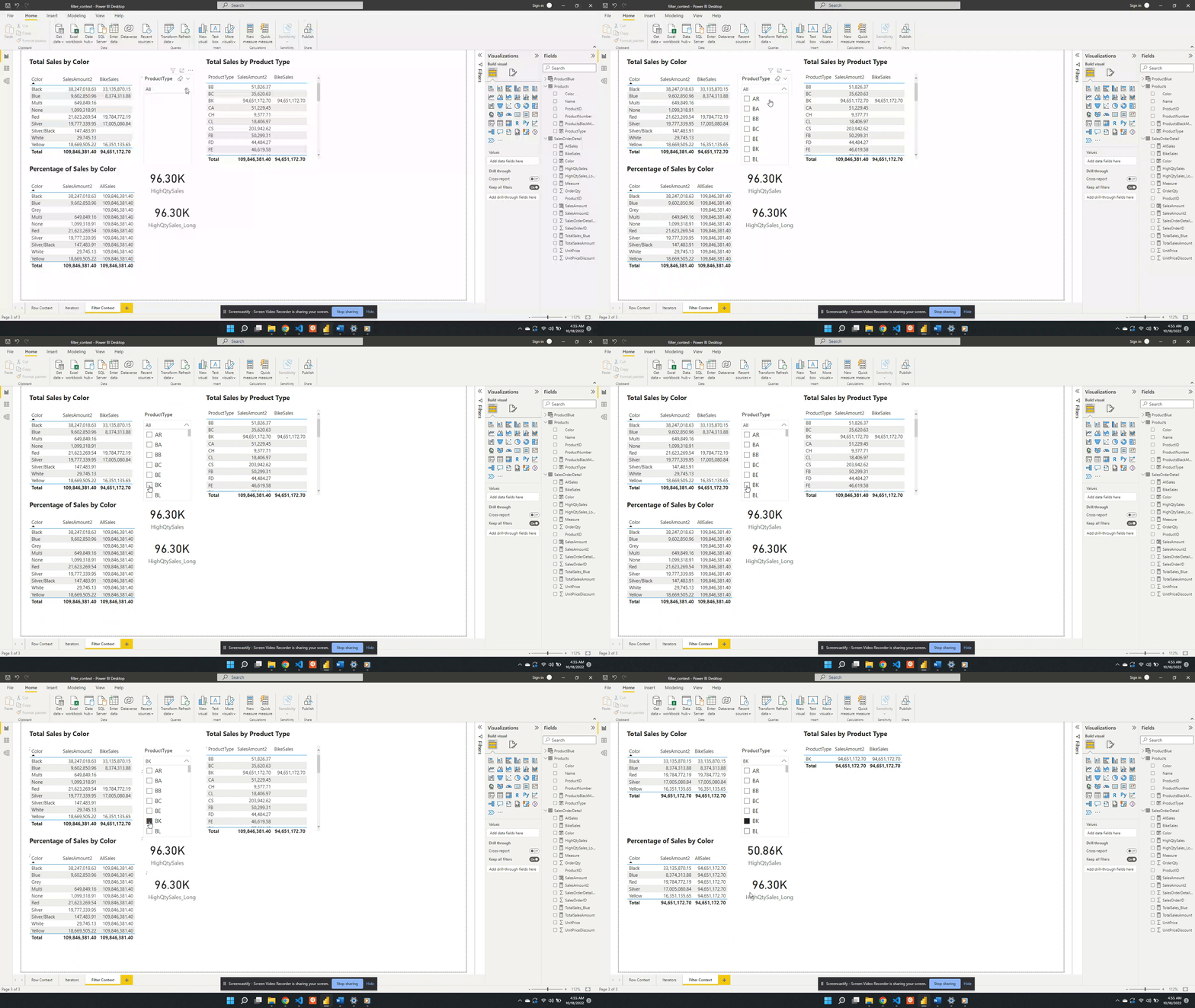
The ALL() function removes any filter limiting the color column that may exist while evaluating AllSales. It is best practice to define a measure as specific as possible. Notice, in this example ALL() applies to Product[Color], rather than the entire Product table. If other filters exist on other columns from the visuals these filters will still impact the evaluation. For example, selecting a product type from the slicer will adjust all values.

Following the selection, SalesAmount2 represents the total BK sales for each color. While the AllSales measure now represents the total sales for all BK product types. This occurs because when there are multiple filters the result is the intersection of all the filters.

In this case, All(Product[Color]) removes the filter on the color column. The slicer visual creates an external filter context of only BK product types. During the evaluation, the intersection of these two creates the evaluation context.

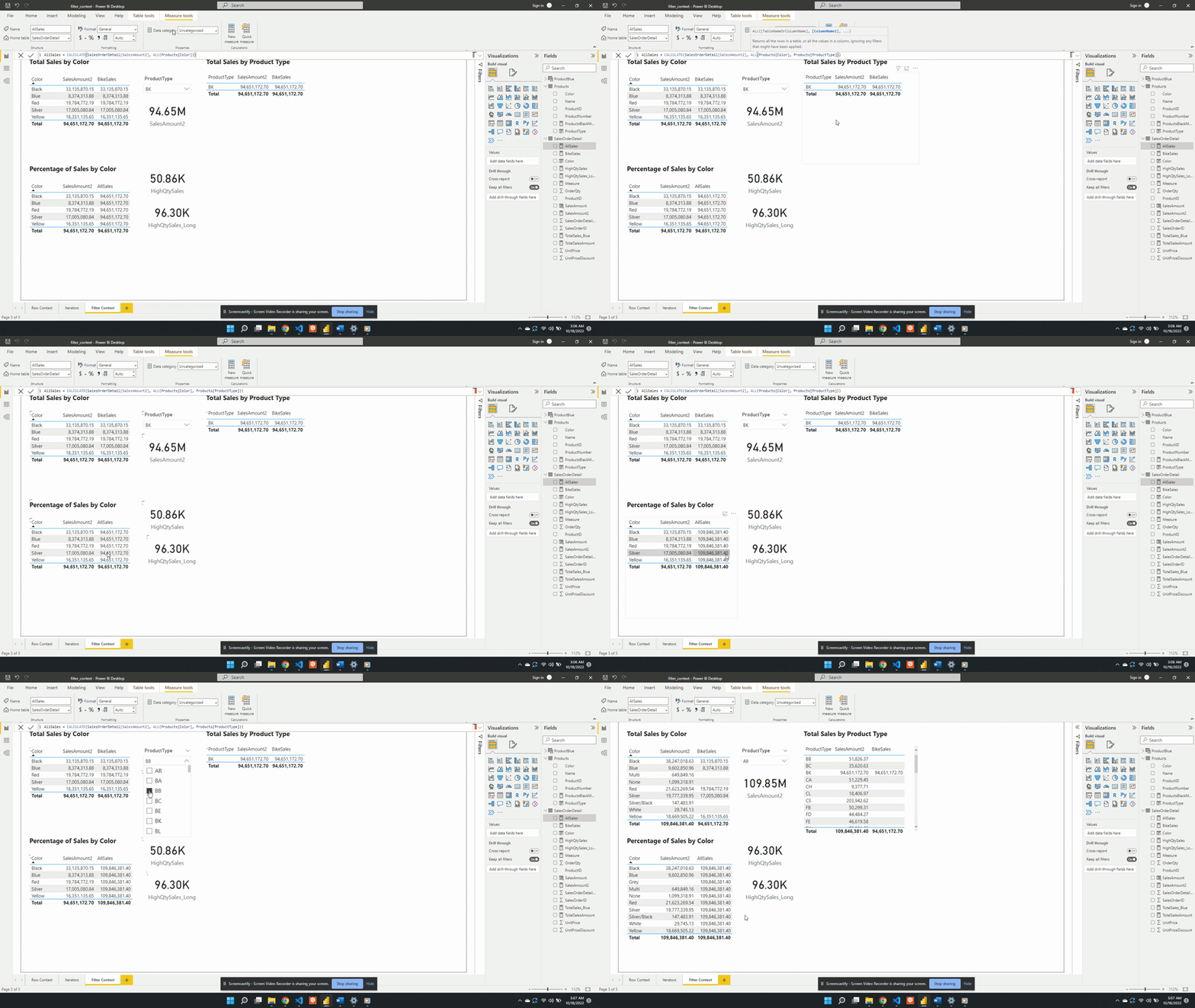
We can also remove the external filter context created by the product type slicer. To do this, we update the AllSales measure to include Products[ProductType] as an additional filter argument.

We update the filter expression of the CALCULATE() function to:

AllSales = 
CALCULATE(
   [SalesAmount2], 
   ALL(Products[Color], 
   Products[ProductType]
)

After updating the measure the AllSales column of the table visual updates to the total sales value. The column now displays the expected 109.85M value and is no longer impacted by the filter context created by the slicer visual.

Another option to remove the filter context within CALCULATE() is to use the REMOVEFILTER() function.

AllSales = 
CALCULATE(
   SalesOrderDetail[SalesAmount2], 
   REMOVEFILTERS(
      Products[Color], 
      Products[ProductType]
   )
)

We created AllSales as an initial step of the broader goal to calculate the percentage of total sales. To calculate the percentage we will update the AllSales expression. We can do this by saving the AllSales expression as a variable within the measure. We will also create another variable to store the SalesAmount2 value, which will be the total sales for each product color. Lastly, we will update the measure name to PercentageSales which will RETURN the division of the two sales variables.

PercentageSales =
VAR Sales = SalesOrderDetail[SalesAmount2]
VAR AllSales = 
CALCULATE(
   SalesOrderDetail[SalesAmount2], 
   REMOVEFILTERS(
      Products[Color],
      Products[ProductType]
   )
)

RETURN
DIVIDE(Sales, AllSales)

Thank you for reading! Stay curious, and until next time, happy learning.

And, remember, as Albert Einstein once said, “Anyone who has never made a mistake has never tried anything new.” So, don’t be afraid of making mistakes, practice makes perfect. Continuously experiment and explore new DAX functions, and challenge yourself with real-world data scenarios.

If this sparked your curiosity, keep that spark alive and check back frequently. Better yet, be sure not to miss a post by subscribing! With each new post comes an opportunity to learn something new.