Explore Power BI Core Visualizations: Part 4 – Table and Matrix Visuals


Table and Matrix visuals in Power BI are essential for presenting detailed and structured data. Both visuals excel at displaying large amounts of information while highlighting trends, relationships, and hierarchies.

Tables offer a simple way to present data in a straightforward tabular format and are best for displaying detailed row-level data, such as sales records, inventory lists, or customer information. Unlike other visuals that summarize data at a high level, tables retain all details, making them an excellent tool for deep-dive analysis.

Matrix visuals enhance this capability by grouping and summarizing data hierarchically. Unlike tables that present data in a flat structure, matrix visuals allow for expandable rows. Users can then collapse or expand these groupings interactively to meet their needs.

Table and Matrix visuals are excellent for presenting data and hierarchical summaries, but they may not be suitable for every situation. It’s important to choose the right visual for effective reporting. To discover other essential visuals, check out Parts #1, #2, and #3 of the Explore Power BI Core Visualizations series.

Chart your data journey! Transform data into insights with Power BI core visualizations. 

Chart your data journey! Transform data into insights with Power BI core visualizations. 

Chart your data journey! Transform data into insights with Power BI core visualizations. 


Customizing Table Visuals

Table visuals in Power BI can be challenging to read and may become overwhelming if not formatted properly. Power BI offers a range of properties that allow us to customize our table visuals, enhancing readability, improving structure, and dynamically highlighting key insights.

Formatting the Table Layout

The fundamentals of formatting our table visuals involve customizing the grid, values, column headers, and totals properties. By adjusting these elements, we can enhance the appearance and clarity of our table visuals, making them more readable for our viewers.

The grid properties of our table visuals dictate how rows and columns are separated, providing a structured appearance.

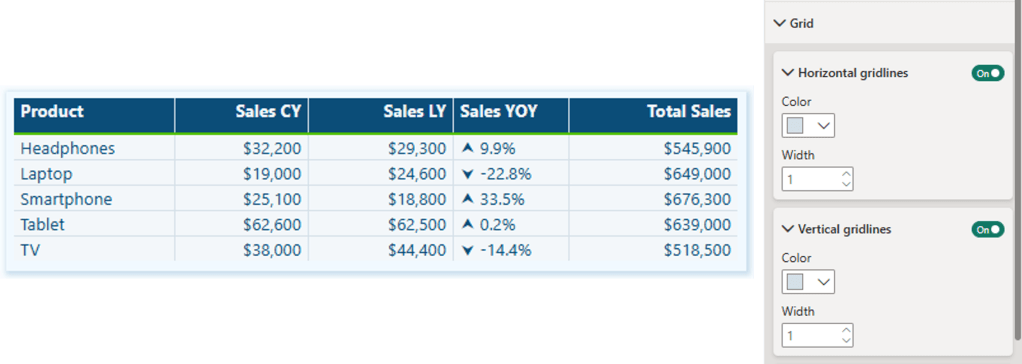
We can toggle the horizontal and vertical gridlines on or off based on the requirements of the visual and the desired level of separation between rows and columns. Enabling the gridlines results in a structured layout, while disabling them offers a more minimalist design.

Additionally, the borders property allows us to define and apply borders to various sections of the table visual, including the column header, values section, and totals section.

In this example, we enable both the horizontal and vertical gridlines and set the bottom border of the column header section to an accent green color.
Next, we will focus on the Values property section. This area allows us to customize text styles and background colors, essential for ensuring our tables are readable and visually engaging.

We can specify the primary text color, background color, and alternate colors to differentiate between alternating rows in the visual. Alternating the styles of the rows improves readability and makes it easier to track values across each row.

The final basic formatting properties to consider are the column headers and totals. The column header properties allow us to adjust the font size, background color, and text alignment, which helps create a structured and easy-to-read table.

When we enable the Totals property, our table will include a row that aggregates the values from each column. We can customize this row’s font style, text color, and background color to distinguish it from the standard data rows.

In our example, we set the column headers to white with a dark blue background, making the header row easily identifiable. Additionally, we activate the totals row, giving it dark blue text, a gray background, and top and bottom borders to further differentiate it from the other data rows.

Enhancing Tables with Advanced and Conditional Formatting

In addition to basic formatting, Power BI provides multiple settings and options for advanced and conditional formatting, allowing for greater control over the appearance of table visuals. These options enable targeted formatting for specific columns and dynamic styling for key data points and trends.

We can utilize the specific column properties to apply unique formatting to individual columns, offering the flexibility to adjust the styling of headers, values, and total values for different series.

For example, we can include the count of transactions alongside our sales data in the table. Using the specific column properties, we can set the text color of the values and totals to visually distinguish them from the primary focus of the sales amounts.

The cell elements properties offer additional customization options and enable dynamic formatting. These customizations enhance our ability to highlight trends and identify key values.

For instance, using these properties, we can conditionally format the background and text color of the Sales Year-over-Year (YoY) series. This lets us quickly see which products have experienced growth or decline compared to the previous year.

We enable data bars for the current and last year’s sales series, visually comparing sales values across different products.

We also activate the icons feature for the current year’s sales values. We add a trending upward arrow for products whose current-year sales exceed those of the previous year and a downward arrow for products whose current-year sales are lower than last year’s. This visual representation quickly indicates product sales growth next to each product category and complements the Sales Year-over-Year series.

By integrating fundamental concepts, specific column formatting, cell elements, and conditional formatting, our Power BI table visuals can become dynamic and intuitive report elements that lead users to insights.


Customize Matrix Visuals

The Matrix visual in Power BI shares many of the same formatting options as the Table visual, including Grid, Values, Column headers, Specific column, and Cell elements formatting. However, Matrix visuals introduce additional formatting options for the hierarchical data structure.

Row Headers

Row headers are a key feature of Matrix visuals, allowing viewers to group and drill into the data. Power BI lets us define the font styling, text alignment, text color, and background color. We can also customize the size and color of the expand and collapse (+/-) buttons, or not show them all together.

Subtotals and Grand Totals

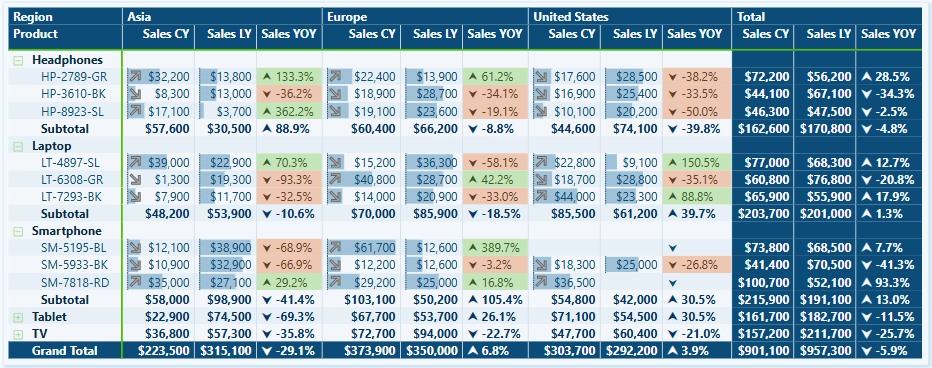
Row subtotals summarize data at each hierarchical level, allowing viewers to see how individual categories contribute to the overall total.

By toggling a setting in the Format options, we can enable or disable row subtotals. When row subtotals are enabled, we can customize the font and background styling and define the total label and its position.

In our example, we enable row subtitles and adjust the styling to ensure consistency with other visual elements. We then set the position of the subtotal to the bottom and activate the row-level settings. Under these settings, we select Product Code and label it as “Subtotal.” Next, we choose Product and label it “Grand Total.”

Grand totals display the final sum of all row and column values in our Matrix visuals. Proper formatting ensures these totals remain distinct and easy to locate.

The formatting options include font styling, font color, and background color.

Advanced Techniques and Customizations

The table and matrix visuals in Power BI provide a range of options for creating unique presentations that enhance data visualization, interactivity, and analytical depth. By designing these visuals thoughtfully, we can highlight key insights, delve deeper into our data, and create dynamic reports tailored to the viewers’ needs. Let’s explore some advanced examples that go beyond the basics.

Clean and Straightforward Sales Totals

This matrix visual presents a structured overview of our sales totals across different regions, product categories, and years. The clear and straightforward presentation makes analyzing trends over time and across regions easy.

We add a matrix visual to our report canvas to create this visual. Next, we place the Region and Product data into the Rows field, the Year into the Columns field, and a Total Sales measure into the Values field. After that, we expand all rows by one level and position the row subtotals at the bottom. Finally, we change the label for the Product row level label to Subtotal.

In the Layouts and Style Presets options, we set the Style to “None” and the Layout to “Outline.” We also toggled off the Repeat Row Headers option.

Under the Values properties, we adjust the background color and alternate background color to match the color of the matrix background.

Next, we format our column headers and the grand total section.

Column Headers:

  • Background color: matrix background color
  • Font color: dark blue font color
  • Font style: semi-bold and font size 11

Row/Column Grand Total:

  • Background color: a darker tone of the matrix background color
  • Font color: the same dark blue used for the values
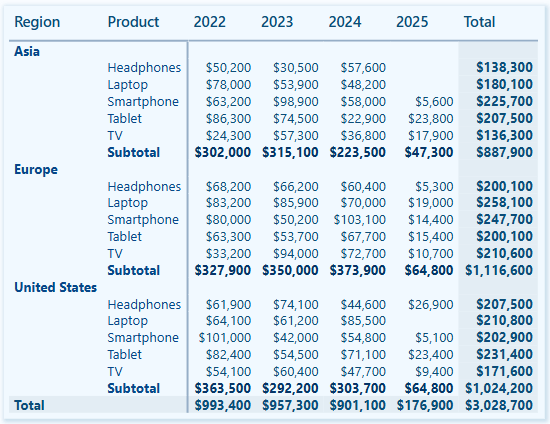
To complete the visual, under the Cell elements properties, we enable data bars and set the positive bar color to a tone of the matrix background, ensuring that the bars and values are easy to read.

Month and Day of Week Sales Heat Map

We can use the Power BI matrix visual to create a heat map that visually displays sales performance across different days of the week and months. This heat map is created using the conditional formatting feature for cell elements, effectively highlighting patterns in our sales distribution.

We place a month name series in the rows field, a weekday name abbreviation series in the columns field, and a total sales measure in the values field.

Then, we toggle off the row and column subtotals.

To create a heat map, we start by enabling the background color property under the Cell elements section.

In the Background Color dialog box, we set the Format Style to gradient based on our Total Sales measure. Next, we add a middle color and set the colors for both the minimum and center values to match the matrix background, while the color for the maximum value is set to a dark blue. Including a middle color helps emphasize the top performances in the heat map.

Next, we enable the font color property under Cell elements.

In the Font Color dialog box, we set the Format Style to gradient based on our Total Sales measure. We then add a middle color and set both the minimum and maximum values to match the background color of the matrix. For the center value, we select a slightly darker shade. By setting these colors, we can hide values close to the minimum, gradually reveal values as they approach the maximum, and ensure that the light color of the maximum stands out against the dark blue background.

Product Review Ratings with Custom SVG Icons

This matrix visual uses custom SVG icons to show average product ratings by region, product, and product code.

We start by adding the Product and Product Code columns to the Rows fields, the Region column to the Columns field, three measures to the Values fields, and applying general formatting to the column headers.

The measures are:

Score SVG = 
VAR prefix = MAXX(FILTER(Icons, Icons[Name]="prefix"), Icons[SVGIcon])
VAR _00 = MAXX(FILTER(Icons, Icons[Name]="Satisfaction0.0"), Icons[SVGIcon])
VAR _05 = MAXX(FILTER(Icons, Icons[Name]="Satisfaction0.5"), Icons[SVGIcon])
VAR _10= MAXX(FILTER(Icons, Icons[Name]="Satisfaction1.0"), Icons[SVGIcon])
VAR _15= MAXX(FILTER(Icons, Icons[Name]="Satisfaction1.5"), Icons[SVGIcon])
VAR _20= MAXX(FILTER(Icons, Icons[Name]="Satisfaction2.0"), Icons[SVGIcon])
VAR _25= MAXX(FILTER(Icons, Icons[Name]="Satisfaction2.5"), Icons[SVGIcon])
VAR _30= MAXX(FILTER(Icons, Icons[Name]="Satisfaction3.0"), Icons[SVGIcon])
VAR _35= MAXX(FILTER(Icons, Icons[Name]="Satisfaction3.5"), Icons[SVGIcon])
VAR _40= MAXX(FILTER(Icons, Icons[Name]="Satisfaction4.0"), Icons[SVGIcon])
VAR _45= MAXX(FILTER(Icons, Icons[Name]="Satisfaction4.5"), Icons[SVGIcon])
VAR _50= MAXX(FILTER(Icons, Icons[Name]="Satisfaction5.0"), Icons[SVGIcon])

RETURN
SWITCH(
    TRUE(),
    [Average Score]<0.5, prefix&_00,
    [Average Score]>=0.5 && [Average Score]<1.0, prefix&_05,
    [Average Score]>=1.0 && [Average Score]<1.5, prefix&_10,
    [Average Score]>=1.5 && [Average Score]<2.0, prefix&_15,
    [Average Score]>=2.0 && [Average Score]<2.5, prefix&_20,
    [Average Score]>=2.5 && [Average Score]<3.0, prefix&_25,
    [Average Score]>=3.0 && [Average Score]<3.5, prefix&_30,
    [Average Score]>=3.5 && [Average Score]<4.0, prefix&_35,
    [Average Score]>=4.0 && [Average Score]<4.5, prefix&_40,
    [Average Score]>=4.5 && [Average Score]<=5.0, prefix&_50
)
Average Score = 
AVERAGE(Reviews[SatisfactionScore])
Review Count = 
COALESCE(COUNTROWS(Reviews), 0)

We enable column and row subtotals and format the grand totals section to visually distinguish it from the main data.

This visual enhances the user experience by making the review score data more intuitive to explore and understand.

These examples demonstrate how Power BI’s Table and Matrix visuals can be used and customized to improve our reports. By leveraging these visuals and the customization options they offer, we can create engaging, insightful, and easy-to-interpret reports.


Wrapping Up

Table and Matrix visuals in Power BI are effective tools for presenting structured data, whether through detailed tables or hierarchical matrices. By applying formatting and customization techniques, these visuals can transform our data and provide clear and intuitive insights.

Advanced features such as drill-down capabilities, cell element customization, and conditional formatting enhance these visuals beyond merely presenting numbers, making them more interactive and visually engaging. Table and Matrix visuals offer the flexibility to meet a variety of our reporting needs.

If you’d like to follow along and practice these techniques, sample data, and a Power BI report template file are available here: GitHub – EMGuyant Power BI Core Visuals.


Thank you for reading! Stay curious, and until next time, happy learning.

And, remember, as Albert Einstein once said, “Anyone who has never made a mistake has never tried anything new.” So, don’t be afraid of making mistakes, practice makes perfect. Continuously experiment, explore, and challenge yourself with real-world scenarios.

If this sparked your curiosity, keep that spark alive and check back frequently. Better yet, be sure not to miss a post by subscribing! With each new post comes an opportunity to learn something new.

Enhancing Bar Charts in Power BI: A 2025 Workout Wednesday Challenge


Workout Wednesday is a weekly challenge series designed to help develop Power BI skills through hands-on exercises.

This guide outlines my solution for the Power BI 2025 Week 5 challenge, which focused on adding an All category to a bar chart in Power BI. The challenge emphasized data transformation, visualization, and dynamic formatting to enhance insights.


The Challenge Requirements

The 2025 Week 5 Power BI challenge involved creating a bar chart that displays the unadjusted percent change in the consumer price index from December 2023 to December 2024 across various categories. Here are the challenge requirements:

  1. Add a “total average” row to the data that contains the average of the unadjusted_percent_change values in the original data set.
  2. Plot the items and associated percent increase in a bar chart. Sort the items by descending value of unadjusted_percent_change.
  3. Add data labels to the bar chart to show the exact percent change for each item.
  4. Use a different bar color for eggs to make it stand out. Also, use a different color for your total average to make it look distinct from the other items. 
  5. Use a canvas background color or image related to eggs.

The Final Result

Before we start the step-by-step guide, let’s look at the final result.

The original data sources are BLS and USDA, and the data used for this challenge is hosted on Data.World. The background image is a photo by Gaelle Marcel on Unsplash.


Adding a Total Average Row in Power Query

The initial step involved loading and transforming the raw dataset in the Power Query Editor, where a total average row was added. This row calculates the average unadjusted percent change values and acts as a benchmark for comparison.

Here is the Power Query used to complete this step.

let
    Source = Excel.Workbook(File.Contents("C:\temp\PBIWoW2025W5.xlsx"), null, true),
    data = Source{[Item="Sheet1",Kind="Sheet"]}[Data],
    setHeaders = Table.PromoteHeaders(data, [PromoteAllScalars=true]),
    
    // Adjust "Unadjusted Percent Change" by converting values to percentages
    adjustPercentages = Table.TransformColumns(setHeaders, {{"Unadjusted Percent Change", each _*0.01}}),
    
    // Calculate the total average and create a new row
    totalAverage = List.Average(adjustPercentages[Unadjusted Percent Change]),
    averageRow = #table(
        Table.ColumnNames(setHeaders), 
        {{"Total average", totalAverage}}
    ),

    //Append Total Average to the initial dataset
    finalTable = Table.Combine({adjustPercentages, averageRow}),
    
    setDataTypes = Table.TransformColumnTypes(finalTable,{{"Item", type text}, {"Unadjusted Percent Change", Percentage.Type}})
in
    setDataTypes

Once the data is loaded, Power Query converts the percent values so they display correctly when the data type is set to Percentage.Type.

It then calculates the average of the unadjusted percent change data using the List.Average() function, which computes the average of all the values in the unadjusted percent change column. Once calculated, we create a single-row table using #table() to ensure the structure matches the initial dataset. In this table, Total Average is set for the Item column, and the calculated average is in the Unadjusted Percent Change column.

Lastly, the Power Query appends this row to our initial dataset using Table.Combine() and sets the column data types.


Creating the Bar Chart and Sorting the Data

With the Total Average data now included in the dataset, the next step was creating the Power BI bar chart to visualize the data.

The visual is a clustered bar chart, where Item is set for the y-axis and Unadjusted Percent Change is set for the x-axis.

The axis is sorted in descending order by Unadjusted Percent Change and data labels are enabled.

Additional formatting steps included disabling the titles for the x- and y-axes, darkening the vertical gridlines, and removing the visual background.

At this point, the bar chart displays all categories, including the Total Average row, but the colors are uniform. The next step is to apply conditional formatting using DAX to highlight key insights to improve clarity.


Applying Conditional Formatting Using DAX

The bar colors differentiate key categories to make the visualization more insightful.

  • Values above the average should be highlighted to stand out*.
  • The average value should have a distinct color to serve as a benchmark.
  • Values below the average should have a uniform color.

* This only applies to the Eggs category in the current data set. Although this doesn’t strictly meet the requirement of explicitly making the Eggs category stand out, it remains dynamic. It will highlight any value in the future that would be above the average.

Here is the DAX measure:

Bar Color = 
VAR _totalAverage = 
    COALESCE(
        LOOKUPVALUE(
            pbiwow2025w5[Unadjusted Percent Change], 
            pbiwow2025w5[Item], 
            "Total average"
        ), 
        0
    )
VAR _value = 
    COALESCE(
        SELECTEDVALUE(pbiwow2025w5[Unadjusted Percent Change]), 
        0
    )
RETURN
SWITCH(
    TRUE(),
    _value < _totalAverage, "#ecc88f",
    _value > _totalAverage, "#183348",
    _value = _totalAverage, "#ad6b1f"
)

The measure looks up the total average value and retrieves the Unadjusted Percent Change value of the category within the current evaluation context.

Then, using the SWITCH() function, the color code is set based on whether the current _value is less than, equal to, or greater than the total average.

Applying the DAX Measure to the Bar Chart

  • Select the visual on the report canvas.
  • In the Format pane, locate the Bars sections.
  • Click the fx (Conditional Formatting) button next to the Bar Color property.
  • In the Format style drop-down, select Field value, and in the What field should we base this on? select the newly created Bar Color measure.

To also have the data label match the bar color, locate the data labels section in the Format pane and the Values section. Follow the same steps to set the color of the data label value.

The visual is now structured to highlight key categories based on their relationship to the Total Average value.


BONUS: Creating Dynamic Titles with DAX

To improve the visualization, a dynamic subtitle can be added. This subtitle automatically updates based on the dataset, providing insights at a glance.

I start by creating the DAX measure:

Subtitle = 
VAR _topPercentChange = 
    TOPN(1, pbiwow2025w5, pbiwow2025w5[Unadjusted Percent Change], DESC)
VAR _topItem = 
    MAXX(_topPercentChange, pbiwow2025w5[Item])
VAR _topValue = 
    MAXX(_topPercentChange, pbiwow2025w5[Unadjusted Percent Change])
VAR _average = 
    COALESCE(
        LOOKUPVALUE(
            pbiwow2025w5[Unadjusted Percent Change], 
            pbiwow2025w5[Item], 
            "Total average"
        ), 
        0
    )
VAR _belowAverage =
    ROUNDUP(
        MAXX(
            FILTER(pbiwow2025w5, pbiwow2025w5[Unadjusted Percent Change] < _average), 
            pbiwow2025w5[Unadjusted Percent Change]
        ), 
        2
    )

RETURN
_topItem & " prices have increased by " 
& FORMAT(_topValue, "0.0%") & ", exceeding the average of " 
& FORMAT(_average, "0.00%") & ", while other categories remain under " 
& FORMAT(_belowAverage, "0%") & "."

The measure identifies the category with the highest percentage change, extracting both the item name and the percent change value. It then retrieves the total average value to incorporate into the title. Next, it finds the highest percent change value for all the items that fall below the average and rounds the value up.

Finally, the RETURN statement constructs a text summary that displays the category with the highest price change, its percentage change, a comparison to the total average, and a summarized value for all items below the average.

Applying the Dynamic Subtitle

  • Select the visual on the report canvas.
  • In the Format pane, locate the Title section.
  • Under the Subtitle section, select the fx button next to the Text property.
  • In the Format style drop-down, select Field value, and in the What field should we base this on? select the newly created Subtitle measure.

This subtitle provides quick insights for our viewers.

Wrapping Up

This guide outlines my approach to completing the Workout Wednesday 2025 Week 5 Power BI Challenge, focusing on essential data transformation and visualization techniques.

Now that you have seen my approach, how would you tackle this challenge? Would you use a different Power Query transformation method, a different visualization style, or an alternative approach to dynamic formatting?

For complete challenge details, visit Workout Wednesday – 2025 Week 5.

If you’re looking to grow your Power BI skills further, be sure to check out the Workout Wednesday Challenges and give them a try!


Thank you for reading! Stay curious, and until next time, happy learning.

And, remember, as Albert Einstein once said, “Anyone who has never made a mistake has never tried anything new.” So, don’t be afraid of making mistakes, practice makes perfect. Continuously experiment, explore, and challenge yourself with real-world scenarios.

If this sparked your curiosity, keep that spark alive and check back frequently. Better yet, be sure not to miss a post by subscribing! With each new post comes an opportunity to learn something new.

Power BI Feature Spotlight: Data Filtering and Modeling


The Power BI November 2024 update introduced several exciting enhancements and preview features.

I was particularly interested in the new text slicer preview feature and the quick query option for defining measures in DAX query view. Both of these improvements have the potential to enhance data filtering flexibility, simplify workflows, and increase overall efficiency.


The New Text Slicer: Customized Filtering for Power BI

The new text slicer visual preview feature, introduced in the November 2024 Power BI update, is a versatile tool designed to enhance interactivity and filtering based on text input. This feature allows users to enter specific text, making it easier to explore data and quickly find relevant information.

Benefits of the Text Slicer: Improved Usability and Customization

The text slicer offers a user-friendly and adaptable filtering option with straightforward functionality. Its advantages are particularly evident when filtering datasets that contain high-cardinality fields, such as customer names, product IDs, or order numbers.

Additionally, the slicer features customization options that allow us to adjust its design to fit our report. We can set placeholder text to guide users on what input is expected, and its properties enable us to customize the font and color of various elements, ensuring both readability and visual appeal.

Check out this post for a good explanation of the new text slicer’s options and properties: Drumroll please! The new Text slicer is here!

Getting Started with the Text Slicer

After updating to the latest version of Power BI Desktop, you can enable the new feature by navigating to Options and Settings > Options > Preview features and then checking the box next to the Text Slicer visual.

Once enabled, you will find the new slicer in the Build menu, allowing you to add the visual to your report canvas.

After adding the visual to the report canvas, drag the text field from the data model that you want the slicer to filter on into the slicer’s Field property. Then, type your desired text into the slicer’s input box and click the apply icon to filter the results instantly.

Use Cases: Applying the Text Slicer in Reports

Filtering by Product Category – Exploring the basics

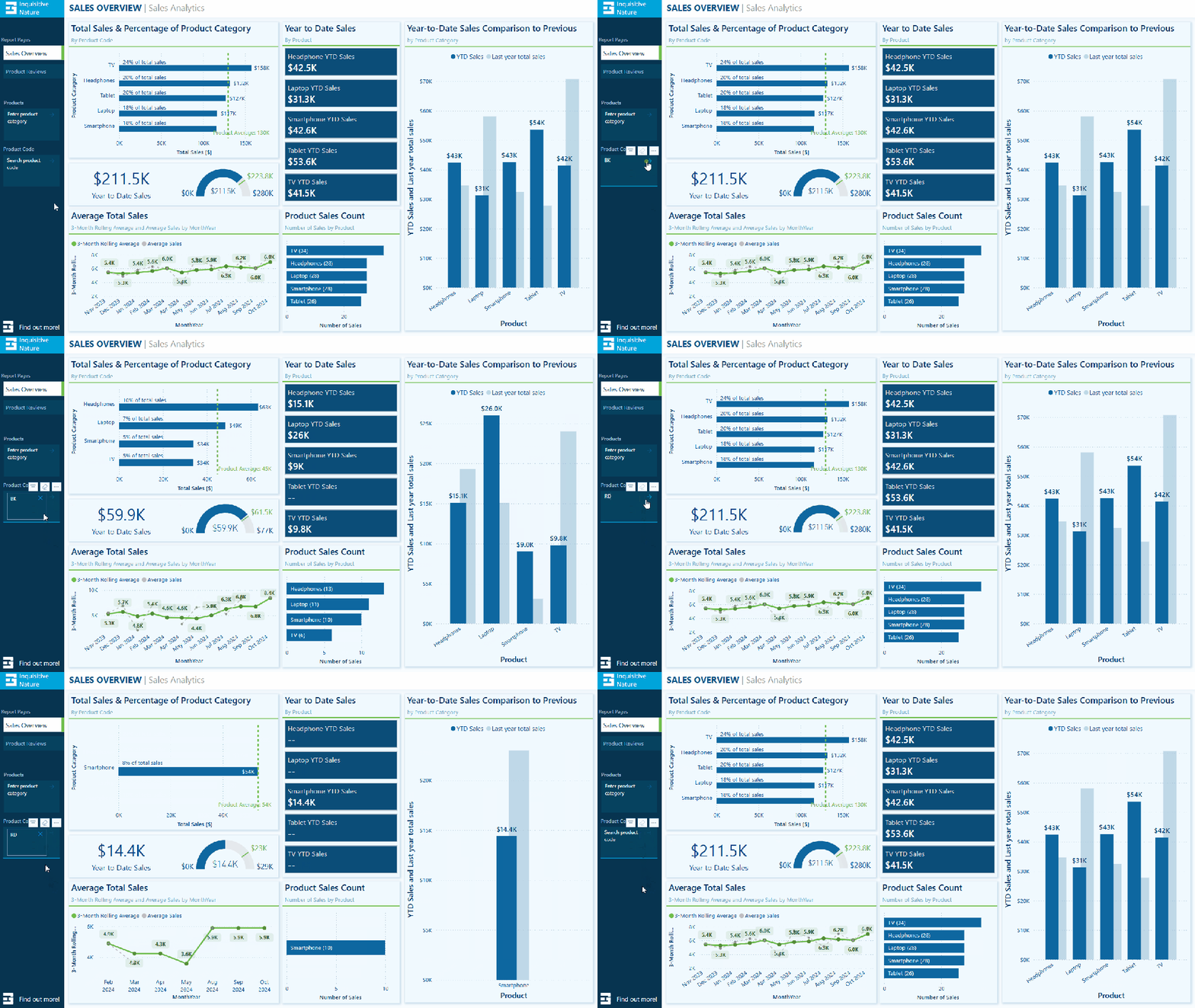
My sample dataset includes product sales, with each product assigned to a specific category. We can use the text slicer to filter the data by product category, such as “Laptop.”

After entering and applying the desired input, the text slicer quickly filters the report page to display only the specified product category. Once the filter is applied, clicking the dismiss (“X”) button will remove it and return to the full dataset.

Filtering our dataset using the text filter alongside the product category yields the same results as using the standard slicer. However, unlike the standard slicer, which displays all categories, the text slicer allows users to type and filter to the desired category directly.

This feature is handy when there are numerous categories to choose from, as scrolling through the list can be time-consuming. Additionally, the text slicer does not require users to toggle on a search functionality like the standard dropdown-styled slicer. With the text slicer, users can enter the category, apply the filter, and quickly narrow the report to the relevant sales data.

This application serves as a good introduction to the functionality of the text slicer and provides a useful comparison with the standard slicer.

Filter on Parts of a Product CodeExplore data without a standalone field

The Products table in the dataset contains product codes that have embedded information, such as the product’s color code. The text slicer offers a quick and effective solution for filtering on this embedded information.

For instance, a product code like SM-5933-BK includes the color code “BK,” which signifies the color black. Using a text slicer on the product code field with the input “BK,” we can filter all products linked to the color black without needing a separate product color filtering dimension in the data model.

The text slicer in this scenario helps us better utilize the data in our dataset to analyze sales data.

Removing the need to extract the color code and add extra filtering dimensions to the data model can be beneficial, especially in cases where changes to the data model are not allowed.

Search and Filter Product Review – Analyze long-form text fields

The sample dataset includes a table of product reviews. The text slicer allows us to filter by keywords, enabling exploration and analysis of specific feedback. For instance, entering the keyword “battery” filters the report page to only the reviews that mention battery across all products.

This allows decision-makers to concentrate on relevant reviews, recognize trends, and extract insights regarding common issues or exceptional features.

Since the text slicer is currently a preview feature, I am not prepared to incorporate it into any production reports just yet. However, I find the potential it offers for our reports intriguing. A current limitation of the text slicer is it only allows us to input a single text input, limiting our ability to search a variety of related terms. I look forward to seeing how it develops with the introduction of new properties and functionalities.


DAX Query View Quick Queries: Define new measure

With the November 2024 update, the DAX query view quick queries options were updated and now include a define new measure option. Quick queries boost productivity for common tasks and can be further modified. Adding the ability to define a new measure to the quick queries options will aid in streamlining workflows in Power BI.

This option, available through the context menu of tables and columns, generates a query-scoped DAX measure formula framework, allowing us to modify and execute custom measures with minimal setup.

For instance, the Review Count visual utilizes the implicit count of Review IDs to show the number of reviews for each product category. We can quickly and easily use the Define a new measure option to create our DAX formula syntax to get started creating an explicit summary measure to add to this visual. After customizing the formula for our specific measure, we can view the results and update the data model accordingly.

This simple and clear example demonstrates how quick queries can assist us in starting common tasks. We can easily expand on this foundation to develop more complex calculations and measures to enhance our data model.

To learn more about working with DAX query view, check out the Work with DAX query view documentation.


Wrapping Up

The new text slicer preview feature in the November 2024 Power BI update is an exciting addition. It will be interesting to see how this feature develops over time. Once fully implemented, its ability to provide quick and intuitive filtering will enhance user interactivity, making it a valuable tool for dynamic and user-friendly reporting.

The new “Define a new measure” quick query option in DAX query view is a helpful addition. This feature allows us to quickly create new measures by providing a starting point for the syntax needed to create a query-scoped measure DAX formula.

Power BI updates continually transform how we explore and analyze data, enabling us to create more compelling and interactive reports. By experimenting with the text slicer and other new features, we can gain a better understanding of how to fully utilize them in our reports.

Check out the Power BI November 2024 Feature Summary for more details and updates.


Thank you for reading! Stay curious, and until next time, happy learning.

And, remember, as Albert Einstein once said, “Anyone who has never made a mistake has never tried anything new.” So, don’t be afraid of making mistakes, practice makes perfect. Continuously experiment, explore, and challenge yourself with real-world scenarios.

If this sparked your curiosity, keep that spark alive and check back frequently. Better yet, be sure not to miss a post by subscribing! With each new post comes an opportunity to learn something new.

Power BI Feature Spotlight: Marker Enhancements


With each update, Power BI continues to grow its feature set, offering more options to improve how we present our data to our report viewers. The October 2024 update included enhancements to data markers in our line and scatter visuals.

Data markers can easily be overlooked, but they effectively draw the report viewer’s attention to critical data within our visuals. This update introduces new options and flexibility to customize these data point markers within our line and scatter visuals.

In this post, we will examine these new options and their benefits, providing practical examples to demonstrate how to maximize these updates in your Power BI reports.


What’s New with Marker Enhancements

The enhancements to the markers provide us with a broader toolkit to emphasize specific data points and series. The updates allow us to customize markers for individual categories as well as for the entire series, opening up new opportunities to highlight trends, make comparisons, and showcase key insights.

Our markers for line and scatter charts can be customized in two ways.

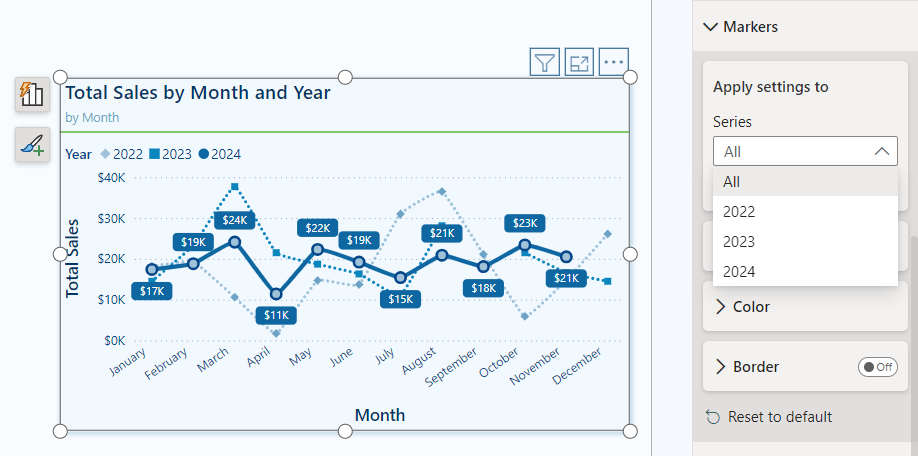
Categories: When our visual does not include individual series, the Markers dropdown menu shows the categories represented on the x-axis. This feature allows us to adjust the markers for each data point based on its category. We can use this option to highlight specific time periods or product categories within our dataset.

Series: When our visual includes a series legend, the Markers dropdown menu displays the available series. By selecting a series, we can customize the markers for the entire series. This modification enables us to create more cohesive visual indicators that distinguish between different series, rather than relying solely on color differences.

New Formatting & Customization Options

Our line and scatter visuals now include three additional formatting options for our data markers.

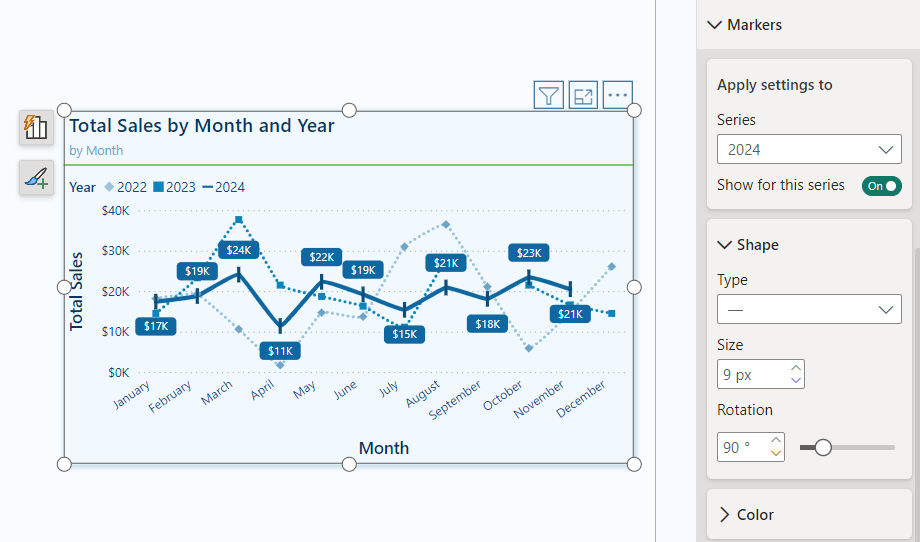
Shape: We can modify the shape and size of our markers, and now we can also rotate the shape (with the exception of circle markers) within our line and scatter marker properties. This added feature allows us to create unique shapes for different data series, offering greater variety in representation.

Color: Alongside the new shape properties, we now have improved color options for our markers. We can adjust the transparency of markers on a per-category or per-series basis. This flexibility enables us to present details subtly without overwhelming the visual impact.

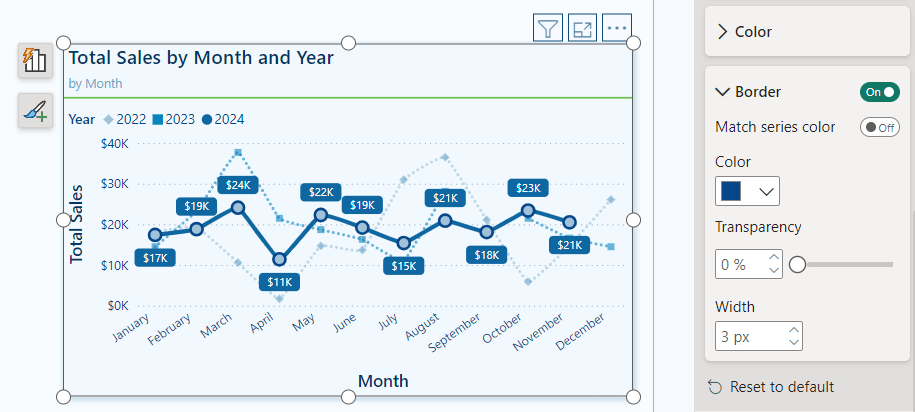
Border: Marker borders are a new customization feature that lets us tailor our markers according to our preferences. We can add borders to specific categories, series, or to all markers within the visual. These border options are excellent for adding depth to our visuals and for highlighting specific data points.

Practical Applications: Marker Customization

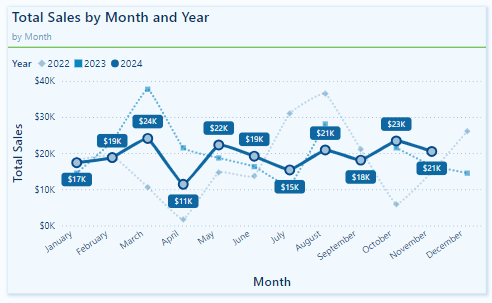
These new marker customizations offer a wide range of possibilities for enhancing visuals in our Power BI reports. Below is a visual representing Total Sales by Month, showcasing various options for using markers to highlight specific trends and series.

In this example, the marker properties are adjusted for each series to ensure they are visually distinct from one another, not just by color.

The markers for the 2022 and 2023 series are displayed with a transparency level set to 40%. This subtle adjustment allows viewers to see historical data without overshadowing the 2024 data, making it easier to focus on the current year’s trends while still retaining reference to past data when necessary.

For the 2024 series, the markers have a border that matches the line series color and a lighter blue fill. This combination draws attention to each data point, emphasizing it against the more muted markers of the previous years.


Recommendations for Using Markers in Power BI Visuals

With the expanded marker customization options in Power BI, it can be easy to overdo it. To use these enhancements effectively, it’s important to follow some recommended best practices.

Markers are useful tools for emphasizing data; however, overusing or misapplying them can lead to visual clutter, negatively affecting the clarity of our reports. Here are some guidelines for using markers in Power BI visuals:

Use sparingly: Avoid placing markers on every data point unless necessary. Instead, use markers to highlight the most critical data series or points.

Consistency is key: When using markers across multiple visuals in a report, keep the sizes, shapes, and colors consistent. This creates a cohesive visual experience and makes it easier for viewers to interpret data across different visuals.

Accessibility: To ensure our visuals are accessible to all users, choose marker colors, sizes, and shapes that stand out clearly. Do not rely solely on color to differentiate data point markers. Utilizing the new shape rotation and border properties can help make markers more distinguishable.

Transparency and emphasis: Carefully adjust the transparency properties to emphasize certain data points while minimizing visual noise.

Borders for added contrast: Using borders can effectively create contrast between data points. Contrasting border colors can help them stand out, drawing viewers’ attention to the most critical data.


Wrapping Up: Power BI Marker Enhancements

The recent marker enhancement update in Power BI introduces greater customization and flexibility for line and scatter charts. With increased control over marker shapes, transparency, borders, and settings specific to each series, we can better highlight key data points.

While these marker enhancements are beneficial, an additional feature that could improve our marker customization is the ability to apply conditional formatting directly within the marker properties. This would streamline the process of highlighting specific data points that meet certain conditions, eliminating the need for separate DAX measures or other workarounds.

Power BI updates continue to empower us to craft compelling data stories. By experimenting with the new marker options, we can fully leverage the customization capabilities that Power BI provides. For more details and additional updates, check out the Power BI October 2024 Feature Summary.


Thank you for reading! Stay curious, and until next time, happy learning.

And, remember, as Albert Einstein once said, “Anyone who has never made a mistake has never tried anything new.” So, don’t be afraid of making mistakes, practice makes perfect. Continuously experiment, explore, and challenge yourself with real-world scenarios.

If this sparked your curiosity, keep that spark alive and check back frequently. Better yet, be sure not to miss a post by subscribing! With each new post comes an opportunity to learn something new.

Explore Power BI Core Visualizations: Part 3 – Pie, Donut, and Treemap


Pie, Donut, and Treemap charts can be helpful tools when we need to show how different parts contribute to a whole. Pie charts represent data as slices of a circle and show the relationship of parts to a whole. Donut charts are similar to pie charts. However, their center is blank, providing space to add a label or other icon. Treemap charts use nested rectangles to visualize each level of hierarchy in our data.

These charts can be helpful for specific visualizations, but it is important to recognize their limitations. As with all of our data visualization tasks, choosing the right type of visual is essential. To explore bar and column charts, visit Part #1 of this series, and to learn more about line and area charts, check out Part #2.

Chart your data journey! Transform data into insights with Power BI core visualizations. 

Chart your data journey! Transform data into insights with Power BI core visualizations. 


Customizing Pie Charts

Customizing our pie charts enhances their clarity, making it easier for our report viewers to interpret the data.

Adjusting Colors

The color choices used in our pie charts play a crucial role in their readability. Within the Slices property of our Pie chart, we can customize the colors used for each slice. When selecting colors, we should ensure they are visually distinct and that the colors used for our data categories are consistent across all visuals on the page and within the report.

We set the color of our slices in the Format pane, under the slices section. Here, we will find each data category included in the chart, and we can explicitly see the color.

Formatting Data Labels

The data labels on our pie charts help convey important insights to our viewers. Within the Data label properties of our pie chart we find several options to edit and format our data labels. We have options to set the position of our data labels (e.g. outside, prefer inside), what information to display such as category name, values, or percent of total, and under the Value grouping, we can format the text of the data labels.

Using a combination of these properties, we can make our charts more informative at a glance. For example, we can improve the above plot by displaying the category name and percent of total directly on our chart.

It is important to be cautious when using data labels. We want to provide essential information without overcrowding the chart with too much text. Adjusting the font size, background, font color, and label position can help us maintain a clean and organized look.

Using Legends Effectively

Our data labels display information directly on our charts, while legends offer a clean way to display what data category corresponds to which chart slice. Within the Legend properties we can set the position of the legend, set the title, and format the text and title of the legend.

We can update the Pie chart above to display the legend and then update the data label to display the total sales value and the percent of total value.

When using pie charts, it is important to limit the number of categories to ensure clarity. Pie charts are most effective when displaying data with no more than a few slices. If this cannot be accomplished, it’s best to consider other visuals to provide our insights.


Customizing Donut Charts

Donut charts provide an alternative to pie charts, with the added benefit of a central blank space. This space can be used for a variety of purposes or left blank. By customizing our donut charts, we can enhance their effectiveness and make them more informative and engaging.

Like pie charts, donut charts allow us to set the color of each chart slice, use data labels to provide additional information and position the legend to provide additional context.

Donut charts also offer additional properties we can customize to enhance these charts even further.

Modifying the Inner Radius

One of the main differences between our pie and donut charts is the open area in the center. Within the Slices property grouping, we will find a Spacing option. Here, we can adjust the inner radius, controlling how wide or narrow the chart’s ring appears.

Increasing this value creates a more pronounced donut shape, which can help draw viewers’ attention to the center of the chart. Decreasing this value makes the chart look more like a traditional pie chart.

Donut charts can be helpful when we need to compare proportions while also displaying an aggregate metric that we can place in the open center of the visual. However, like pie charts it is important to only use these charts when there is a small and manageable number of segments. When there are too many segments, donut and pie charts become cluttered and difficult to interpret.

When using these comparison charts, we should aim for simplicity and clarity.


Customizing Treemap Charts

Treemap charts are useful when visualizing hierarchical data. They allow us to display a large amount of information in a compact space. Each category in the visual is represented by a rectangle, the size of which reflects the category’s value.

Treemap charts offer various properties that we can customize to enhance their clarity, ensuring they effectively convey complex data structures and insights.

Adjusting the Colors

In our treemap visuals, colors distinguish between our different categories. Like in our other charts, we can set the color for each category, and it is important that this color selection is consistent across all visuals within our report. For example, we can create a treemap of our Total Sales by product category and product code and set the colors for each category to ensure visual consistency.

Setting Labels and Viewing Tooltips

Like many of our other Power BI visuals, Treemap visuals allow us to customize visual labels and tooltip properties to improve the readability of our visuals. Labels on our visuals provide context by displaying category names and values directly within each rectangle. By using the options available under the data labels and categories labels we can adjust the font size, color, display units, and the number of decimal places to improve the clarity of our visual.

We will use these properties to improve the treemap above by increasing the font size and weight of the category labels so they are easily identifiable. We will also turn on data labels to provide our viewers with precise information for the largest contributors.

Tooltips are another feature common across our Power BI visuals that adds an interactive element to our reports and can provide our viewers with additional information. When a user hovers over a rectangle, a tooltip appears, providing them with information about that category. Additionally, the information included within the tooltip can be customized to provide further context, such as percentages or other metrics.

In treemaps, some rectangles may be too small to display the data label, and tooltips become a valuable asset for delivering details without cluttering the visual.

Using Drill-Down Features

One strength of treemaps is their ability to represent hierarchical data. Power BI’s drill-down functionality lets us explore these hierarchies in detail. A user can use the drill-down feature to drill into the next level of the hierarchy, focusing on the subcategories or finer details of the data.

Drill-down features provide our viewers with another interactive element, allowing them to explore the dataset at multiple levels without overwhelming them with too much information upfront.

In our example treemap above, the first-level category is Product, and the second is Region. This allows our viewers to drill into a product category to view the distribution of product sales across sales regions.

Treemap charts can be a helpful tool for comparing proportions within hierarchical data. However, they are most effective when the differences in value between categories are significant. When all categories are similar in size, the visual can be difficult to interpret, so it is important to evaluate whether a treemap is appropriate for each use case.


Advanced Techniques and Customizations

Current Year Sales by Product Selection

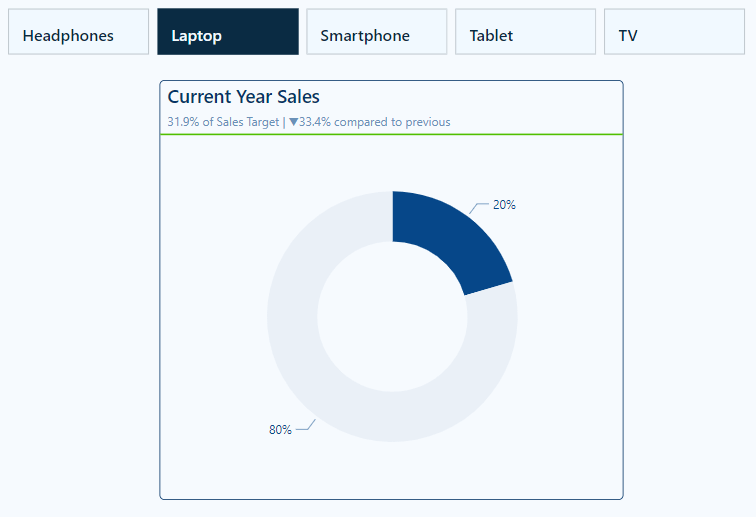
The Current Year Sales donut chart helps visualize how a selected product contributes to the total current year sales.

To build this visual, we first, create two measures: Total Sales CY and Remaining CY Sales.

The Total Sales CY measure calculates the current year’s total sales, and the Remaining CY Sales calculates the difference between the total sales of all products and the selected product’s sales.

Total Sales CY = TOTALYTD([Total Sales], DateTable[Date])
Remaining CY Sales = 
VAR _allSales = CALCULATE([Total Sales CY], ALL(Sales))

RETURN
_allSales - [Total Sales CY]

We then add these two measures to our donut chart’s Values property and set the color of the Total Sales CY to a dark blue and Remaining CY Sales to a light gray.

We then turn off the legend, and update the data labels to show only the percent of total value.

Next, we create a new measure that will be used for the visual subtitle. The subtitle provides additional context by showing how close the product’s sales are to hitting a sales target, and how this year’s sales compare to last year’s sales for the same period of time.

Product Sales Subtitle = 
VAR _lyYTDSales = 
   TOTALYTD(
      [Total Sales],
      DATESBETWEEN(
         DateTable[Date], 
         DATE(MAX(DateTable[Year])-1, 1, 1), 
         DATE(YEAR(TODAY())-1, MONTH(TODAY()), DAY(TODAY()))
      )
   )
VAR _compare = 
   [Total Sales CY] - _lyYTDSales
VAR _percentDiff =
    _compare/((_lyYTDSales+[Total Sales CY])/2)

RETURN
FORMAT(
   [CY Sales Percent of Target], "0.0%") 
   & " of Sales Target | " 
   & IF(_compare<0, "▼", "▲") 
   & FORMAT(ABS(_percentDiff), "0.0%") & " compared to previous"

Lastly, we use the empty center of the donut chart to provide additional details to our viewers. Here, we display the total sales value for the selected product and add a dynamic label to clearly show what the sales value represents.

To do this we create another measure to dynamically update based on user selections. The Selected Product measure shows “All Products” when there is no product selection; otherwise, it displays the selected product name, or when there are multiple selections, it displays a list of all the selected products.

Selected Product = 
IF (
    ISFILTERED ( Products[Product] ),
    IF (
        HASONEVALUE ( Products[Product] ),
        VALUES ( Products[Product] ),
        CONCATENATEX ( 
            ALLSELECTED ( Products[Product] ), 
            Products[Product], 
            ", "
        ) & " Sales"
    ),
    "All Products"
)

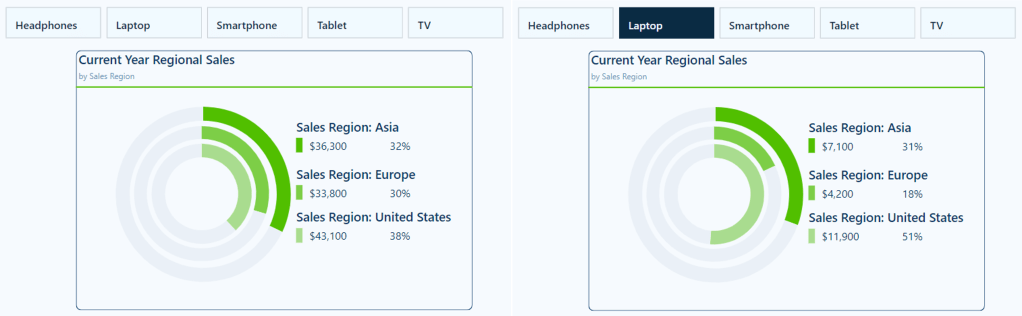
Current Year Regional Sales

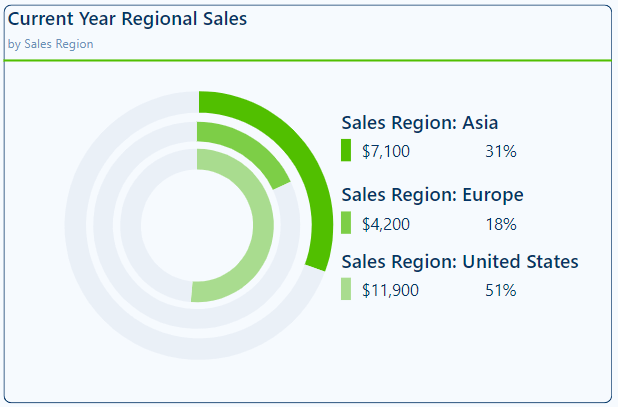
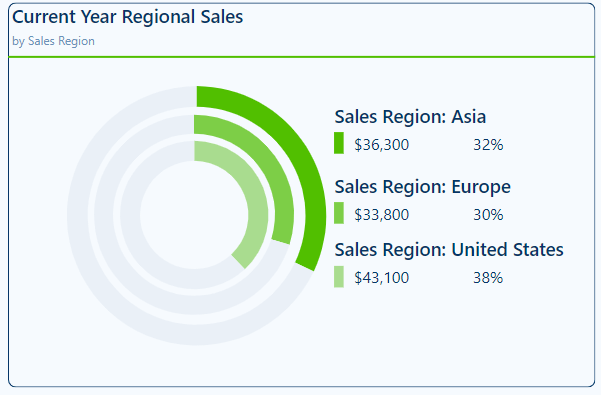
The Current Year Regional Sales donut chart compares sales across different sales regions.

We start building this chart with a series of measures. First, a set of measures calculating the current year sales for each region.

Asia Sales CY = CALCULATE([Total Sales CY], Regions[Region]="Asia")
Europe Sales CY = CALCULATE([Total Sales CY], Regions[Region]="Europe")
US Sales CY = CALCULATE([Total Sales CY], Regions[Region]="United States")

Then, we add another set of measures calculating the difference between the total sales and the region-specific sales.

Asia Sales CY Diff = [Total Sales CY] - [Asia Sales CY]
Europe Sales CY Diff = [Total Sales CY] - [Europe Sales CY]
US Sales CY Diff = [Total Sales CY] - [US Sales CY]

Similar to the visual above, we add the region-specific measures to a donut chart and format them to appear as concentric donut charts. This is done by turning off the border and background of the two inner donut charts and resizing them.

Next, we build a customized legend element that not only shows the total sales for each region but also the percentage that each region contributes to the overall sales. The percentage of overall sales is calculated using 3 new measures.

Asia CY % Sales = DIVIDE([Asia Sales CY], [Total Sales CY])
Europe CY % Sales = DIVIDE([Europe Sales CY], [Total Sales CY])
US CY % Sales = DIVIDE([US Sales CY], [Total Sales CY])

This visual is also dynamic based on the user interaction and selections made on the product slicer.

This visual provides our viewers with a quick comparison of regional sales. It clearly shows the sales distribution across our regions, allowing our viewers to identify which regions have the highest or lowest sales.


Wrapping Up

In this part of the series, we explored Pie, Donut, and Treemap charts and how to effectively use and customize these visuals in our Power BI reports. Pie and Donut charts can be helpful tools when displaying proportions but should be used selectively when comparing only a few categories. Treemap charts excel at displaying hierarchical data and provide us with a compact and insightful way to visualize this data.

While these visuals can prove to be just the right fit for a given requirement, they must only be used in the right scenarios, with an emphasis on simplicity and clarity.

In the next part of the series, we will explore Power BI’s Gauge, Card, and KPI visuals. These visuals help us display metrics and provide at-a-glance insights into key data points.


Thank you for reading! Stay curious, and until next time, happy learning.

And, remember, as Albert Einstein once said, “Anyone who has never made a mistake has never tried anything new.” So, don’t be afraid of making mistakes, practice makes perfect. Continuously experiment, explore, and challenge yourself with real-world scenarios.

If this sparked your curiosity, keep that spark alive and check back frequently. Better yet, be sure not to miss a post by subscribing! With each new post comes an opportunity to learn something new.