Design Meets Data: A Guide to Building Interactive Power BI Report Navigation


In the world of data visualization, we are constantly seeking ways to convey information and captivate our audience. Our goal is to enhance the aesthetic appeal of our Power BI reports, making them more than just vehicles for data—they become compelling narratives. By leveraging Figma, we aim to infuse our reports with design elements that elevate the overall user experience, transforming complex data into interactive stories that engage and enlighten.

A cornerstone of impactful multi-page reports is effective navigation. Well-designed navigation is a beacon that guides our users through the sea of data, ensuring they can uncover the insights they seek without feeling overwhelmed or lost. This post serves as a guide on how we can use Figma to enhance our Power BI report navigation beyond the use of just Power BI shapes, buttons, and bookmarks to create interactive report navigation that boosts the user experience of our reports.

In this guide, we will explore how to go beyond using the page navigator button option in Power BI and craft a report navigation that is intuitive, interactive, and elevates the visual aspects of our report. We will dive into how we can use Figma’s design capabilities combined with the interactive features of Power BI to create such an experience.
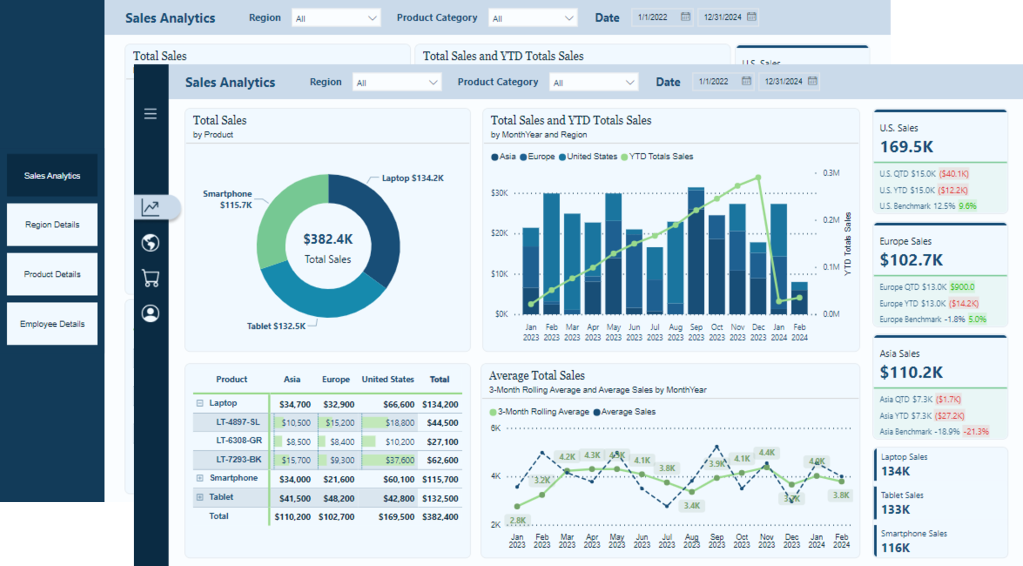
The navigation we will create is a vertical and minimalistic navigation displaying visual icons for each of the report’s pages. This allows our users to focus on the data and the report visuals and not be distracted by the navigation. However, when our users require details on the navigation options, we will provide an interactive experience to expand and collapse the menu.
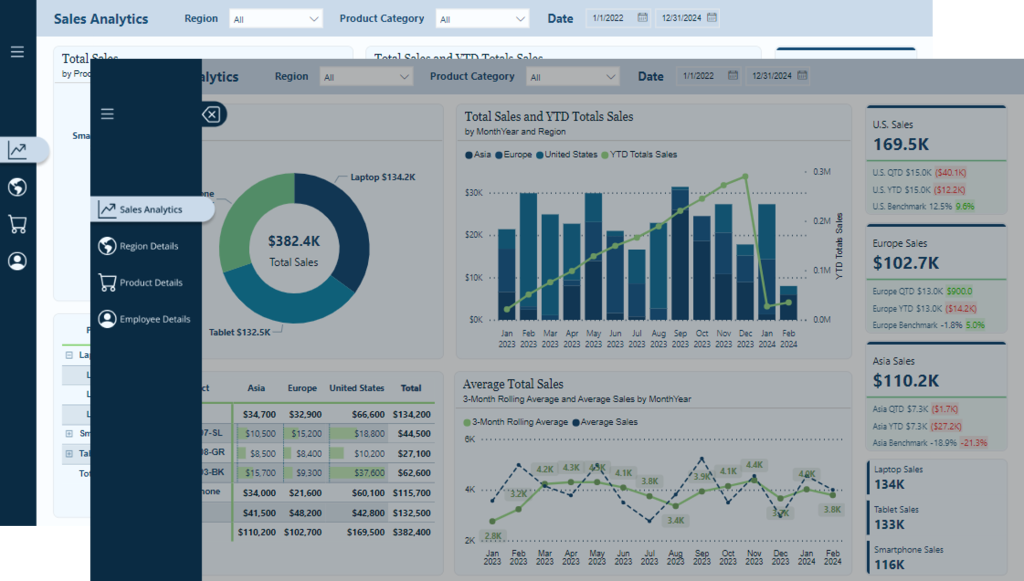
Keep reading to get all the details on leveraging the design functionality offered by Figma and the interactive elements, including buttons and bookmarks in Power BI. By the end, we will have all we need to craft report navigation elements that captivate and guide our audience, making every report an insightful and enjoyable experience.

Get Started with Power BI Templates: For those interested in crafting a similar navigation experience using Power BI built-in tools, visit the follow-up post below. Plus, get started immediately with downloadable Power BI templates!

User-Centric Design: Next level reporting with interactive navigation for an enhanced user experience

Also, check out the latest guide on using Power BI’s page navigator for a streamlined, engaging, and easy-to-maintain navigational experience.

Streamlined report navigation with built-in tools to achieve functional, maintainable, and engaging navigation in Power BI reports.

Diving Into Figma: Designing Our Navigation

Starting the journey of enhancing our Power BI reports with Figma begins with understanding why Figma is a powerful design tool. The beauty of Figma lies in its simplicity and power. It is a web-based tool that allows designers to create fluid and dynamic UI elements without a steep learning curve associated with some other design software. Another great aspect of Figma is the community that provides thousands of free and paid templates, plugins, and UI kits to get our design kickstarted.

Explore thousands of free and paid templates, plugins, and UI kits to kickstart your next big idea.

To get started with Figma, we will need to create an account. Figma offers various account options, including a free version. The free version provides access to the most important aspects of Figma but limits the number of files we can collaborate on with others. Here is a helpful guide on getting started.

Welcome to Figma. Start your learning journey with beginner-friendly resources that will have you creating in no time.

For our Power BI reports, using Figma means designing elements that are aesthetic and functional. Reducing the number of shapes and design elements required in our Power BI reports aids in performance.

Crafting the Report Navigation

Once logged into Figma, we will start by selecting Drafts from the left side menu, then Design File in the upper right to open a new design file in Figma.
To get started with our new design we will add a frame to our design file and define the shape and size of our design.
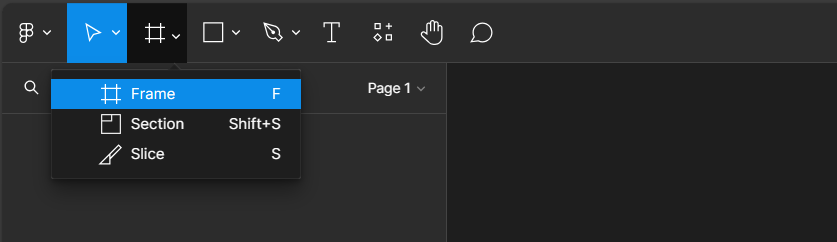
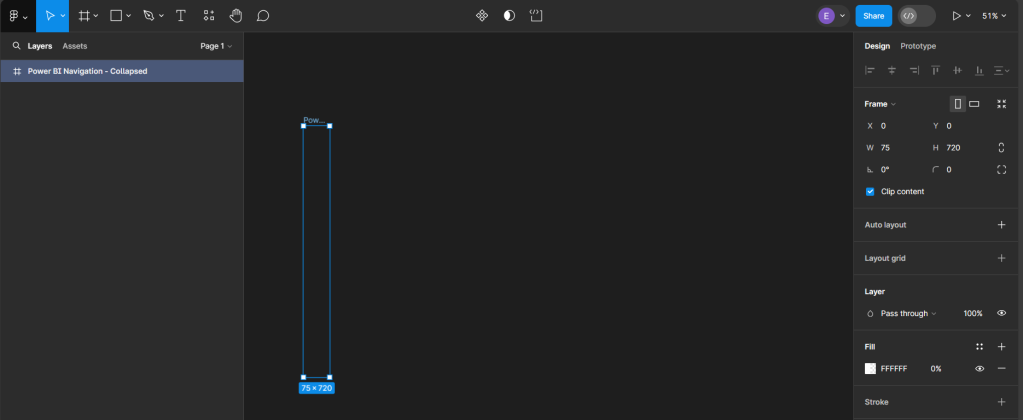
After selecting Frame, a properties panel will open to set the size of the Frame. For a standard Power BI report, the canvas size is typically 1280 x 720. We can use the pre-established size option for TV (under Desktop). We then rename the Frame by double-clicking on the Frame name in the Layers Panel and entering the new name, here we will use Power BI Navigation Collapsed. Then modify the width, since the navigation won’t occupy the entire report, to 75, and set the fill to transparent. This will act as the background or a container for our navigation when collapsed.
Creating Local Variables and Base Elements

Before getting started adding elements to our navigation we will create local variables to store the theme colors of our navigation. On the Design pane, locate local variables and then select open variables.
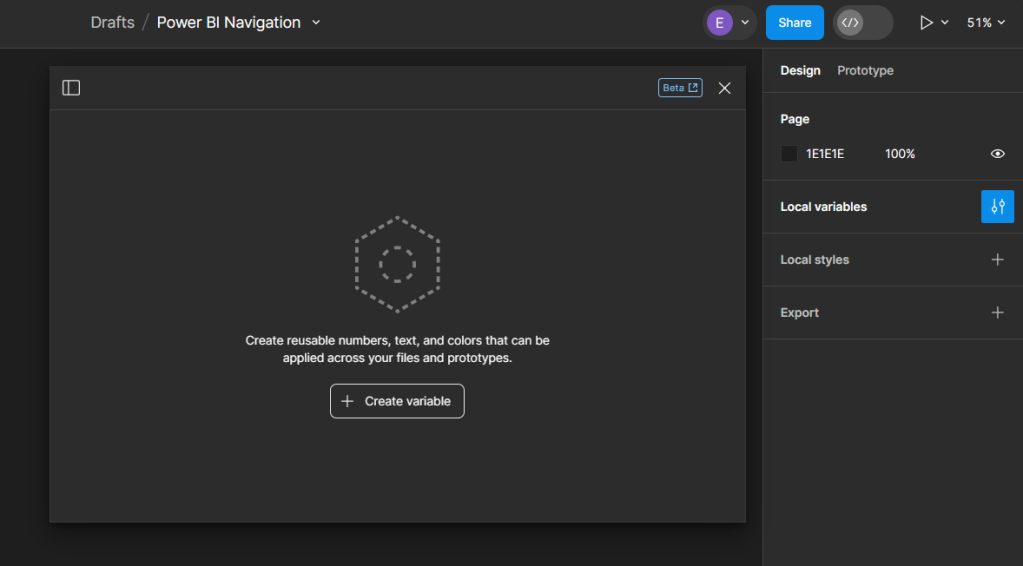
Select Create variable and then Color to get started. For the navigation, we will create two color variables, one corresponding to the background element color and the other the first-level element color of our Power BI theme. If we are using Figma to design wireframes or mock-ups of our Power BI report, we can easily expand the number of variables to include all the colors used within the Power BI theme.

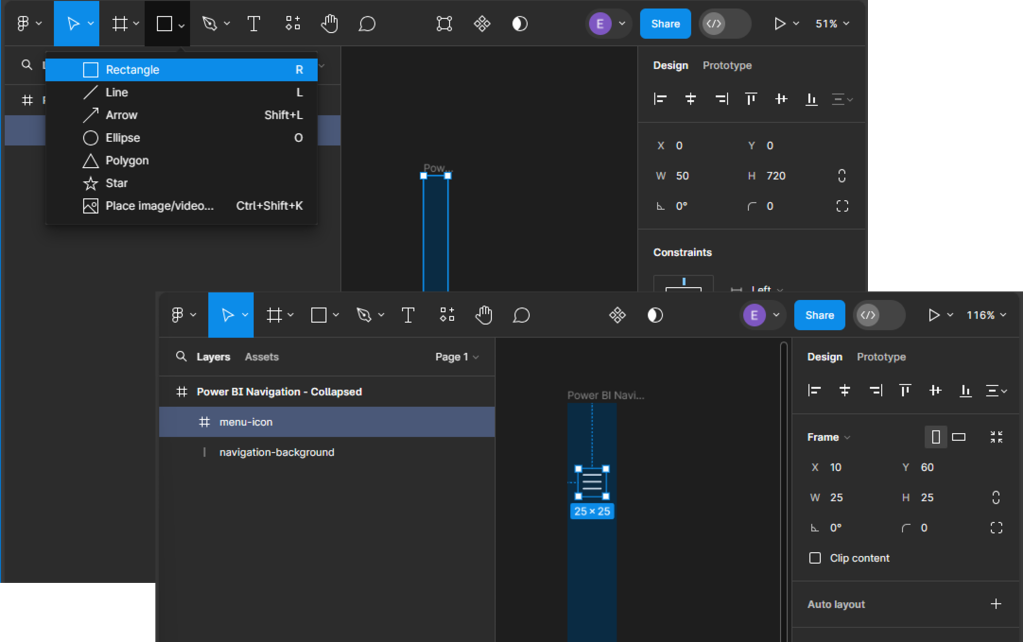
We start building our navigation by adding the base elements. This design includes the dark blue rectangle that will contain our navigation icons and the menu icon that, when clicked, will expand the navigation menu. Under the Shape tools menu select rectangle to add it to our Power BI Navigation - Collapsed frame, then set the width to 45.

Next, we will add the menu icon that will act as a button to expand and collapse the navigation menu. For this navigation, we will use a list or hamburger menu icon with a height and width of 25 that is centered and set towards the top within our navigation background. Then, set the color of the icon to our background-element variable. When searching for icons that fit the report’s styling, the Figma community has a wide range of options to offer.
Adding Page Navigation Icons

Once our base elements are set, we can move on to adding our page icons that will act as the page navigation buttons when the menu is collapsed. In the final report, we will add this navigation menu to contain four pages, so we will add an icon for each page. All icons will be the same size as the menu icon (height and width set to 25), centered horizontally in the navigation background, positioned vertically towards the top, and their color set to our background-element color.
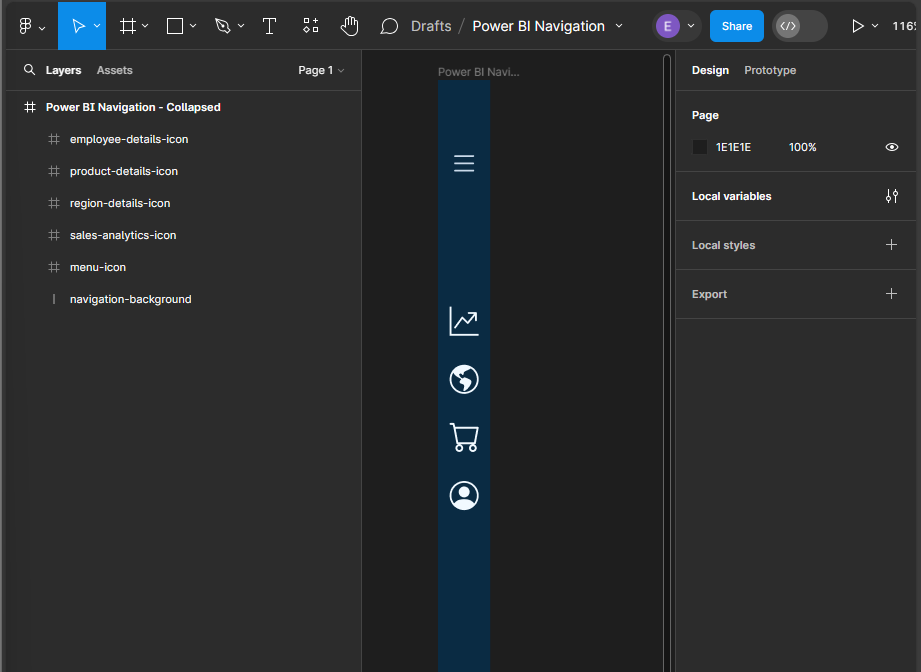
This will serve as our base or template navigation menu for all pages. Next, we will copy this for each page in our report and modify it to indicate the current page.

To do this, we first add a line (under the Shape tools) with a width of 45, a stroke color of our background element, a stroke size of 35, and a round end point. Then, position it in the layers pane directly above the navigation so that it appears under the page icons. Once created, align it horizontally with the navigation background, and vertically centered under the current page icon. Update the color of the icon to the first-level-element variable, and then add a drop shadow. Repeat this process for each page icon, creating a navigation menu that can be added to each page of our report.
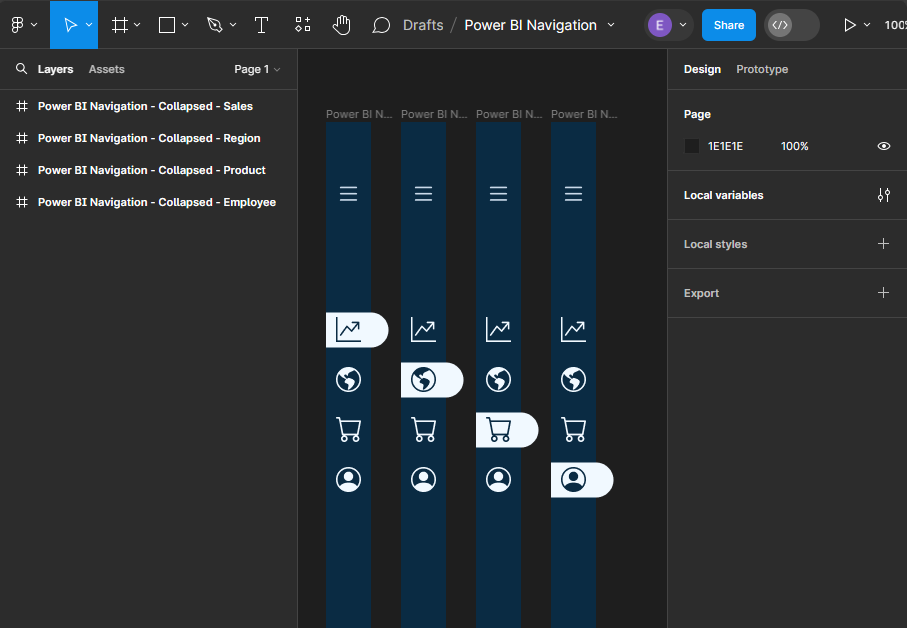
Creating the Expanded Menu

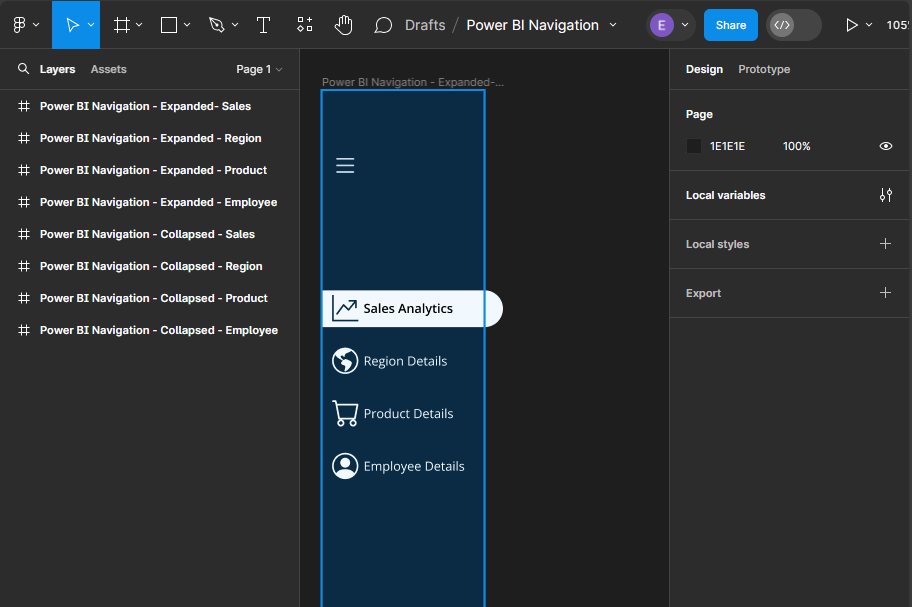
Now that we have completed the collapsed menu design elements, we will use these as the base to create the expanded menu. Creating the expanded menu starts by duplicating each of the collapsed menus. Once duplicated, we will rename each of the Power BI Navigation Frames to replace Collapsed with Expanded and then carry out a few steps for each.

First, we increase the width of the Frame from 75 to 190, the width of the navigation-background rectangle, and the current-page indicator from 45 to 155.

Next, add new Text components for each page icon in the menu. The font color for each text component will match the icon’s color, and the font weight for the selected page text will be set to semi-bold.
In addition to being able to use the menu icon to toggle the navigation between collapsed and expanded, we will also add a specific collapse menu icon to the expanded menu. We first add a new line element to the expanded menu frame, with a width of 15, stroke size 35, and stroke color first-level-element. We position this on the right side of our navigation background and align it vertically centered with the menu icon. Then add a close icon with the same dimensions as all of our other icons and position it centered on this new line component.
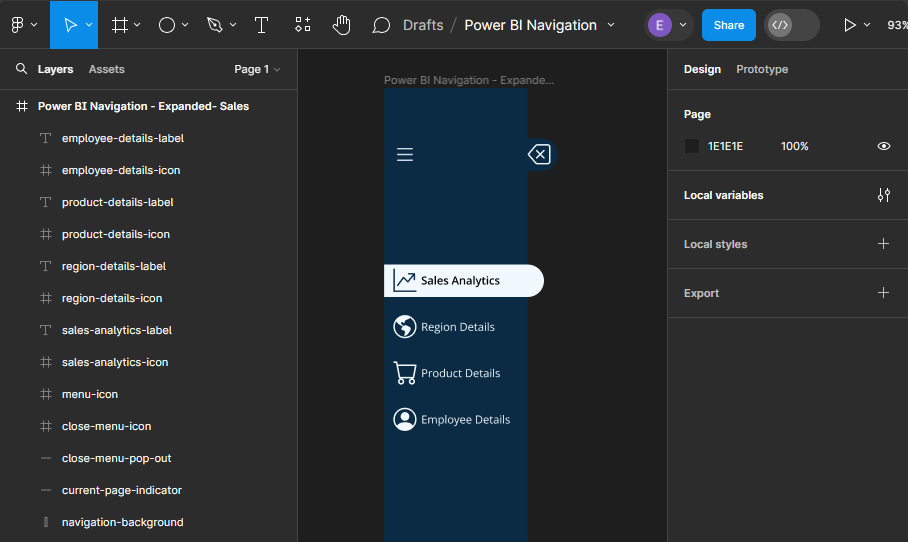
By following these steps, we have taken the first step towards creating a visually appealing, dynamic, and interactive navigation element that will make our Power BI reports more engaging and user-friendly.

Exporting Figma Designs and Importing in Power BI

Once our navigation element is finished in Figma, the next step is bringing it to life within our Power BI Report. This involves exporting the designs from Figma and importing them into Power BI.

Preparing Our Figma Design for Export

Before exporting our design, it is always a good idea to double-check the size of the different components to ensure they are exactly what we want, and so they integrate with our Power BI report seamlessly. Figma allows us to export our designs in various formats, but for Power BI, PNG or SVG files are a common choice.

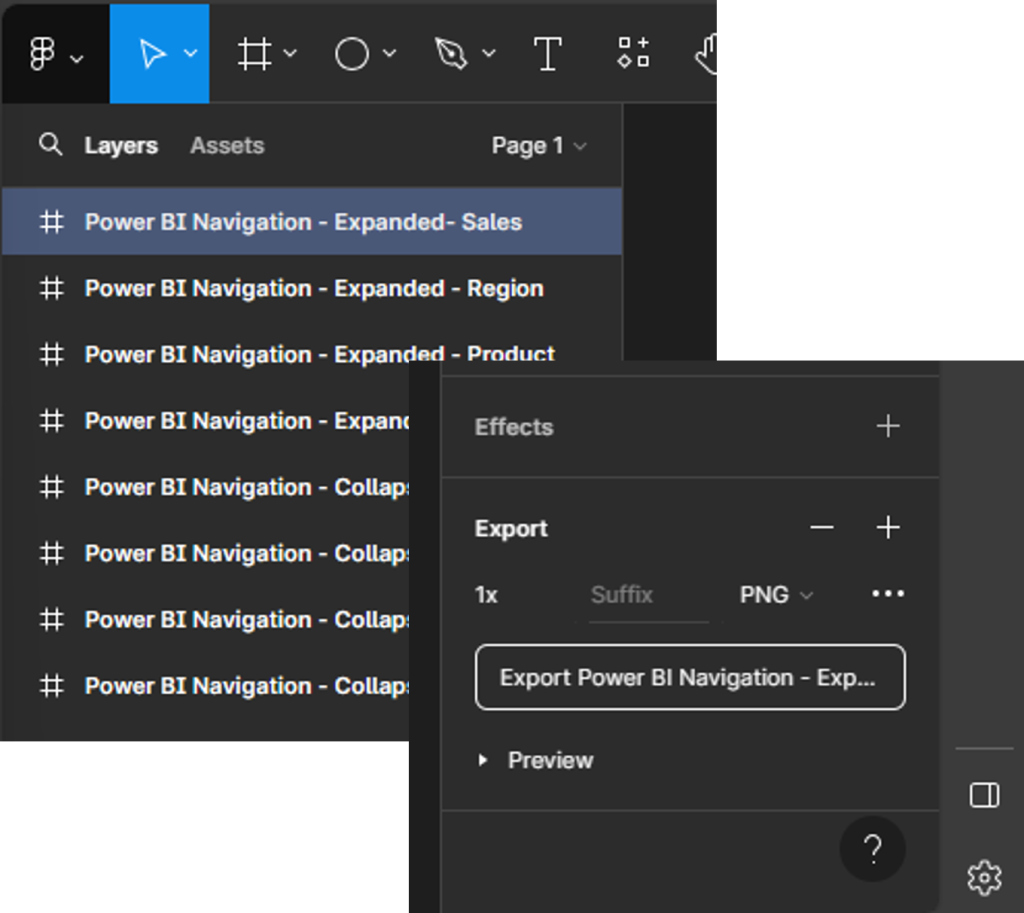
To export our designs, select the Frame from the layers pane (e.g., Power BI Navigation—Expanded—Sales), and then locate export at the bottom of the design pane on the right. Select the desired output file type, then select Export.
Importing and Aligning Figma Designs within Power BI

Once our designs are exported, importing them into Power BI is straightforward. We can add images through the Insert menu, selecting Image and navigating to our exported design files.

Once imported, we adjust a few property settings on the image so it integrates with our report, creating a cohesive look and feel. First, select the image, and in the Format pane under General > Properties, we turn off the Lock aspect ratio option and then set the height to 720 and width to the width of the Figma frame (e.g., 75). Then we set the padding on all sides to zero. This ensures that our navigation is the same height as our report and appears properly.
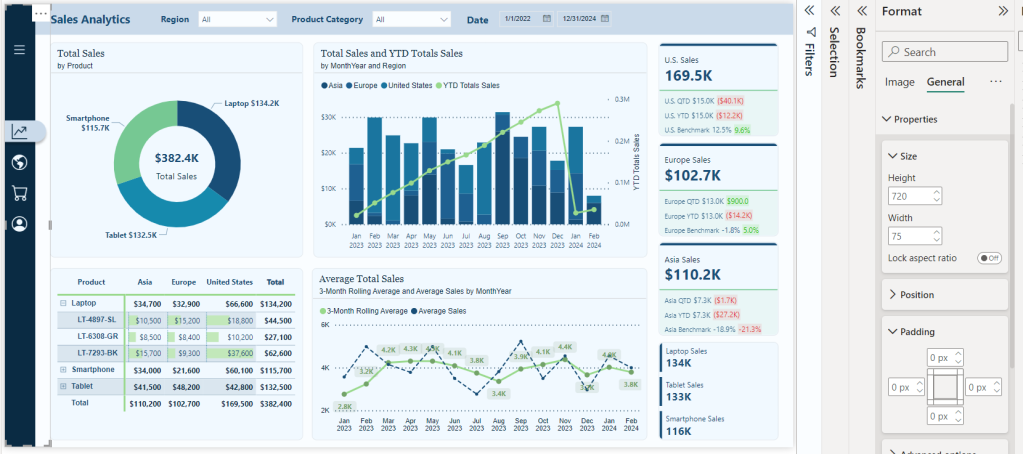
Repeat the above process for the expanded navigation design.

Bringing Our Navigation to Life with Power BI Interactivity

When we merge our design elements with the functionality of interactivity of Power BI, we elevate our Power BI reports into dynamic, user-centric journeys through the data. This fusion is achieved through the strategic use of Power BI’s buttons and bookmarks, paired with the aesthetic finesse of our Figma-designed navigation.

Understanding the Role of Buttons and Bookmarks

Buttons in Power BI serve as the interactive element that users engage with, leading to actions such as page navigation, data filtering, or launching external links. The key to leveraging buttons effectively is to design them in a way that they are intuitive and aligned with the overall design of our report.

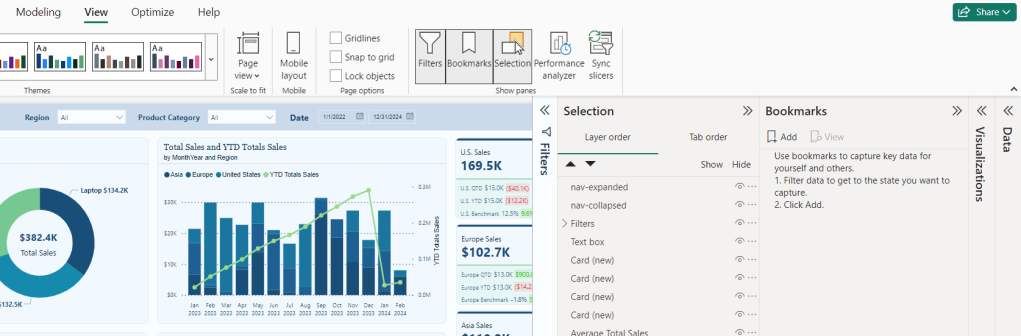
Bookmarks capture and recall specific states of a report, and most importantly for our navigation, this includes the visibility of objects. To create a bookmark first go to the View menu and select bookmarks to show the Bookmarks pane. Then we set our report how we want it to appear, then click Add, or if the bookmark already exists, we can right-click and select Update.

Step-by-Step Guide

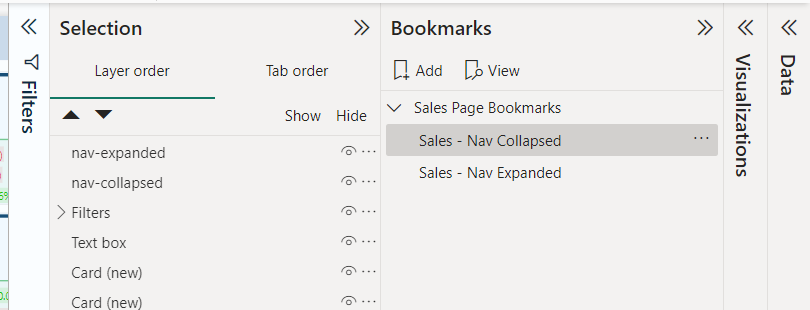
  1. First from the View menu we will turn on the Selection and Bookmarks pane to get our report objects and bookmarks set for our navigation. We will see the image object in our Selection pane, which will be the two navigation images we previously imported. Rename these to give descriptive names, so we can tell them apart. For example nav-collapsed and nav-expanded.
  1. We will add two bookmarks to this page of the report, one corresponding to the collapsed navigation and one for the expanded navigation. To keep our bookmarks organized, we will give them a descriptive name (<page-name>- Nav Collapsed and <page-name>-Nav Expanded) and if needed we can use groups to further organize them.
  1. Now we will add buttons that overlay our navigation design element to add interactivity for our users. We will a blank button to our report with a width of 45 and a height of 35.
    • Then on the Format pane under Style, locate the Fill option for the button toggle it on, and set the following for the Default, On Hover, and On Press states.
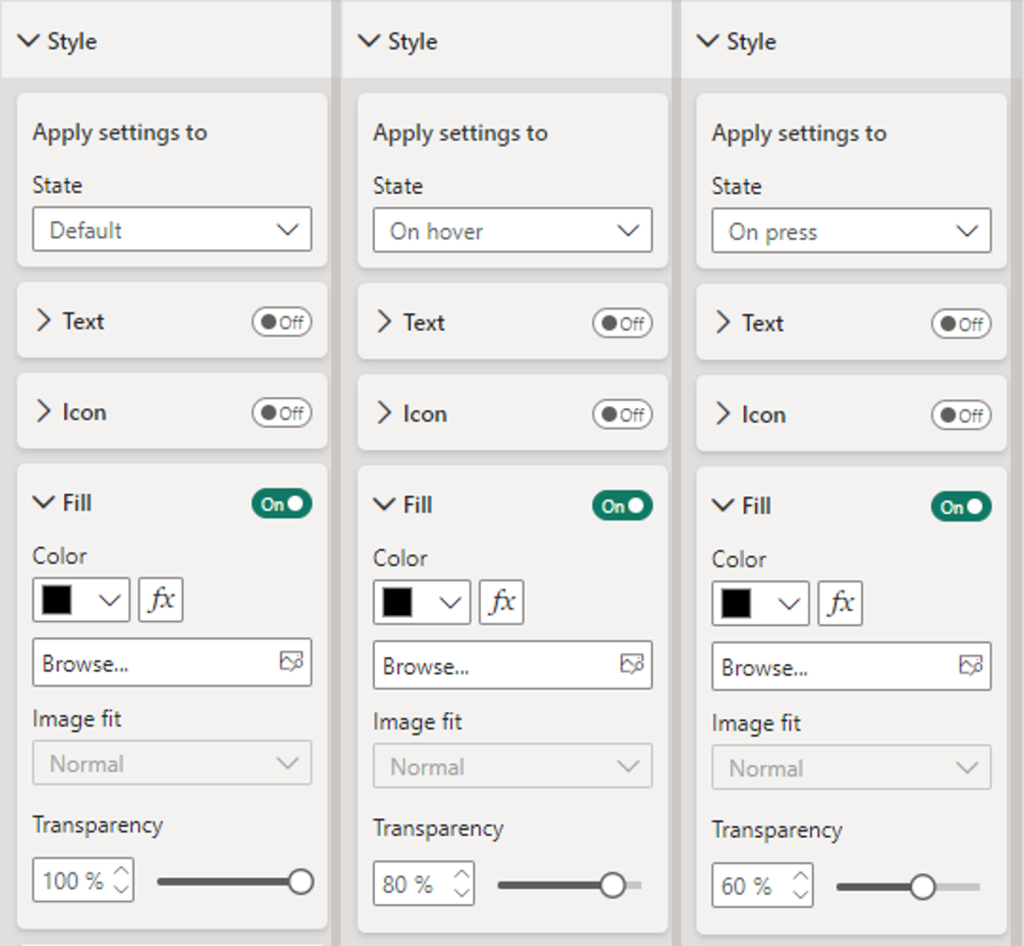
      • Default: Fill: Black, Transparency: 100%
      • On Hover: Fill: Black, Transparency: 80%
      • On Press: Fill: Blank, Transparency: 60%

Duplicate this button for each page icon and position the buttons so that they overly each icon in the navigation menu. In the Selection pane double-click each button to rename the object providing it a description name (e.g. nav-collapsed-menu). Then select all and group them, providing the group a name as well (e.g. nav-collapsed-buttons).
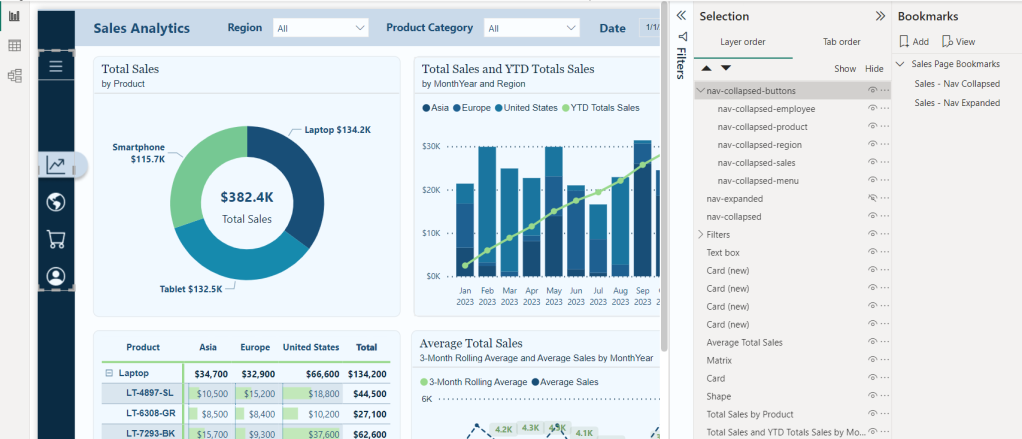
  1. Now that our buttons are created, styled, and positioned, we will set the specific actions required by each.
    • Navigation menu icon
      • Action
        • Type: Bookmark
        • Bookmark: Sales – Nav Expanded
        • Tooltip text: Expand Navigation Menu
    • The current page icon button
      • Action
        • Type: Page navigation
        • Destination: None
        • Tooltip text: Sales Analytics
      • Style
        • Fill: Toggle off (this will remove the darkening effect when hovered over since this page is active)
    • All other page icon buttons
      • Action
        • Type: Page navigation
        • Destination: Select the appropriate page for the icon
        • Tooltip text: Name of the destination page
  1. Next, we copy and paste the nav-collapsed-buttons group to duplicate the buttons so we can modify them for our expanded navigation menu. After pasting the nav-collapsed-buttons group ensure to set the position to the same position as the initial grouping.
    • Rename this group with a descriptive name such as nav-expanded-buttons.
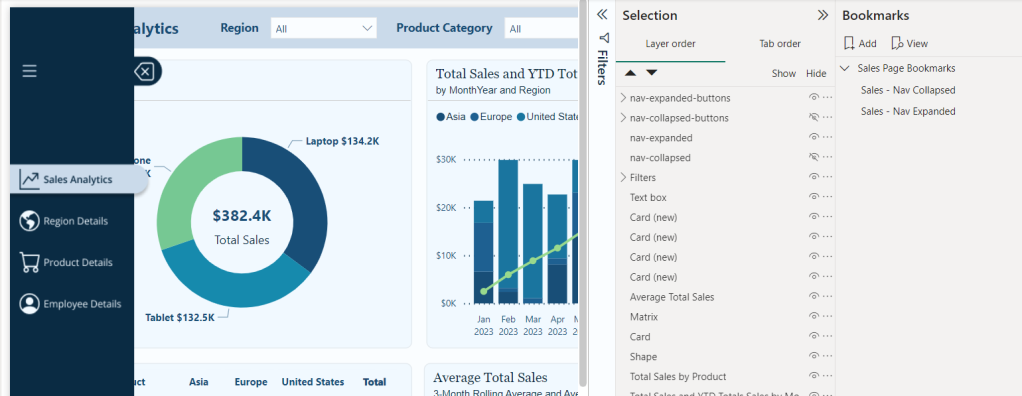
    • Additionally, rename all the buttons objects within the group to keep all our objects well organized and clearly named (e.g. nav-expanded-menu).
    • Adjust the visibility of our object so that the nav-collapsed-buttons group and nav-collapsed image are not visible, and their expanded counterparts are visible.
  1. Set the width for all the page navigation buttons to 155. This will match our navigation background, which we created in Figma. No other properties should have to be set for these buttons.
  2. Update the action of the nav-expanded-menu button and select the Sales - Nav Collapsed bookmark we created previously.
    • Copy and paste this button, then rename the new button as nav-expanded-close.
    • Resize and position this button over the close icon in our expanded navigation.
    • In the Selection pane drag and drop this button into the nav-expanded-buttons grouping.
  3. When the navigation is expanded, we want to prevent interaction with report visuals. To do this, we will add a new blank button to the report and size it to cover the entire report canvas.
    • In the Selection pane, place this button directly following the navigation images so it is below nav-expanded.
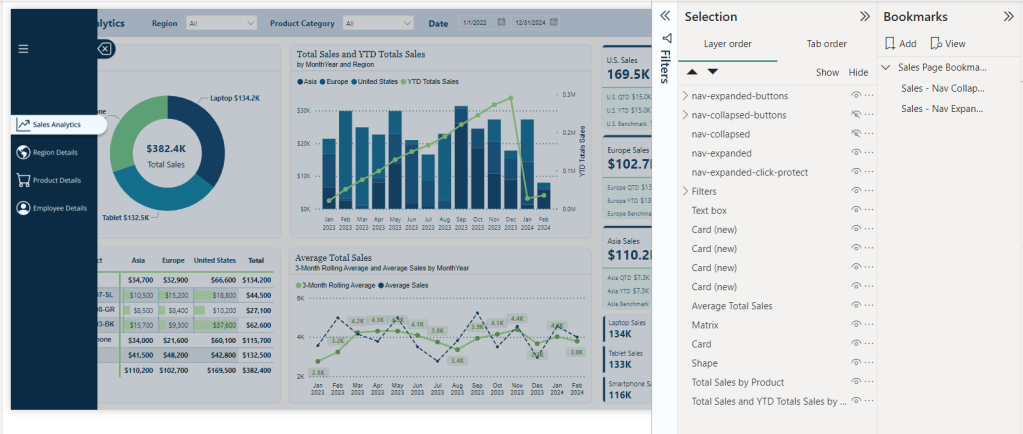
    • In the Format pane for the new button, under the General tab turn on the background and set the color to black with 80% transparency.
    • Turn on the action for this button, set it to a Bookmark type, and set the bookmark to our Sales—Nav Collapsed bookmark. This will ensure that if a user selects outside of the navigation options when the navigation is expanded, they are returned to the collapsed navigation state, where they can interact with the report visuals.
  1. Lastly, we will set our bookmarks, so the correct navigation objects are shown for the expanded and collapsed bookmarks.
    • Right-click each bookmark and uncheck the Data option, so this bookmark will not maintain the current data state. When a user expands or collapses the menu or moves to a different page, we do not want to impact any selected slicers or filters they have selected.
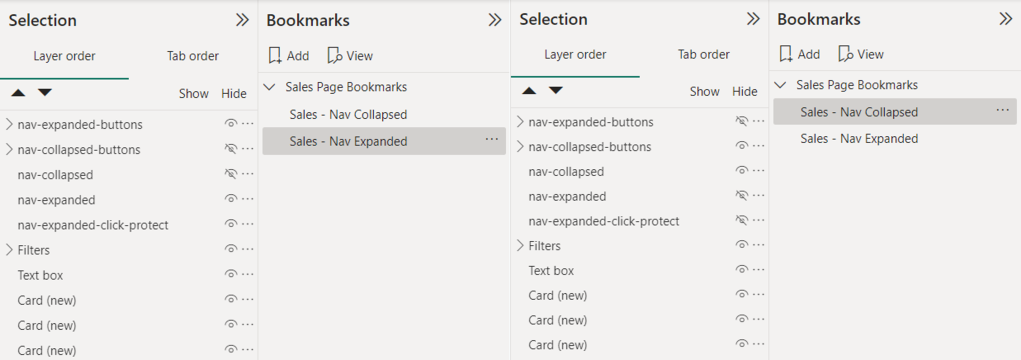
    • Ensure the nav-collapsed-buttons grouping and nav-collapsed images are hidden while their expanded counterparts are visible. Then right-click the expanded bookmark and select update.
    • Select the collapsed bookmark, unhide the collapsed objects, and hide the expanded objects. Right-click the collapsed bookmark and select update.

Now that we have created all the interactivity for our navigation in Power BI for our Sales Analytics page, we can easily copy and move these objects (e.g., the button groupings) to each page in our report. Then, on each page, we will import the 2 Figma navigation designs specific to that page and then size and align them. After this we can add two new bookmarks for that page to store the collapsed and expanded state, using the same process we used in step #9. Finally, update the current page button to toggle off the styling fill and toggle on styling fill for the sales icon buttons (See step #4).

By blending Figma’s design capabilities with Power BI’s interactive features, we can create a navigation experience that elevates the appearance of our report and feels intuitive and engaging. This approach ensures our reports are not just viewed but interacted with, providing deep insights and a more enjoyable user experience.

Bringing It All Together: A Complete Navigation Experience

After creating our navigation visual elements in Figma and integrating them with the interactive powers of Power BI buttons and bookmarks, it’s time to bring it all together and see it in action.

Testing and Refining the Navigation

The key to a successful navigation experience for our users lies in its usability. It is important to conduct user testing sessions to gather feedback on the intuitiveness of the navigation. During these sessions, we can note areas where users hesitate or get lost. Then, using this feedback, we can further refine our navigation, making adjustments to ensure users can effortlessly find the information they need within our reports.

User Experience (UX) Tips for Power BI Reports

Well-designed navigation is just one piece of the UX puzzle. To further enhance our Power BI reports, we should also consider the following.

  • Clarity: ensure our reports are clear and easy to understand at a glance. We should use consistent labeling and avoid cluttering a page with too much information.
  • Consistency: apply the same navigation layout and style throughout our reports, and perhaps even across different reports. This consistency helps users learn how to navigate our reports more quickly.
  • Feedback: Provide visual and textual feedback when users interact with our report elements. For example, we could set the on hover and on pressed options for our buttons or use tooltips to explain what a button does.

Elevating Power BI Reports

By embracing the fusion of Figma’s design capabilities, UX tips, and Power BI’s interaction and analytical power, we can unlock new potential in our reports and user engagement. This journey from design to functionality has enhanced the aesthetic appeal, usability, and functionality of our report. Remember the goal of our reports is to tell the data’s story in an insightful and engaging way. Let’s continue to explore, iterate, and enhance our reports as we work towards achieving this goal while crafting reports that are beyond just tools for analysis but experiences that inform, engage, and fuel data-driven decisions.

If you found this step-by-step guide useful, check out the quick start on creating interactive navigation solely using Power BI’s built-in tools. It provides details on where and how to get downloadable templates to begin implementing this navigational framework for 2-, 3-, 4-, and 5-page reports!

User-Centric Design: Next level reporting with interactive navigation for an enhanced user experience

Also, check out the latest guide on using Power BI’s page navigator for a streamlined, engaging, and easy-to-maintain navigational experience.

Streamlined report navigation with built-in tools to achieve functional, maintainable, and engaging navigation in Power BI reports.


Thank you for reading! Stay curious, and until next time, happy learning.

And, remember, as Albert Einstein once said, “Anyone who has never made a mistake has never tried anything new.” So, don’t be afraid of making mistakes, practice makes perfect. Continuously experiment, explore, and challenge yourself with real-world scenarios.

If this sparked your curiosity, keep that spark alive and check back frequently. Better yet, be sure not to miss a post by subscribing! With each new post comes an opportunity to learn something new.

DAX Table Manipulation Functions: Transforming Your Data Analysis


Exploring DAX: Table Manipulation Functions

Dive into the world of DAX and discover its critical role in transforming raw data into insightful information. With DAX in Power BI, we are equipped with a powerful tool providing advanced data manipulation and analysis features.

Despite its advanced capabilities, DAX remains approachable, particularly its table manipulations functions. These functions are the building blocks of reshaping, merging, and refining data tables, paving the way for insightful analysis and reporting.

Let’s explore DAX table manipulations functions and unlock their potential to enhance our data analysis. Get ready to dive deep into each function to first understand it and then explore practical examples and applications.

For those of you eager to start experimenting there is a Power BI report pre-loaded with the same data used in this post ready for you. So don’t just read, follow along and get hands-on with DAX in Power BI. Get a copy of the sample data file here:

This dynamic repository is the perfect place to enhance your learning journey.

Here is what the post will cover:

  1. ADDCOLUMNS: Adding More Insights to Your Data
  2. Joining Tables with DAX: CROSSJOIN, NATURALINNERJOIN & NATURALLEFTOUTERJOIN
  3. GROUPBY: The Art of Segmentation
  4. SUMMARIZE & SUMMARIZECOLUMNS: Summary Magic
  5. ROLLUP: Climbing the Aggregation Ladder
  6. SELECTCOLUMNS: Handpicking Your Data
  7. UNION, INTERSECT, EXCEPT: Set Operations in DAX
  8. DISTINCT: Identifying Unique Values
  9. TREATAS: Bridging Data Tables

ADDCOLUMNS: Adding More Insights to Your Data

When it comes to enhancing our data tables in Power BI, ADDCOLUMNS is one of our go-to tools. This expression helps us add new columns to an existing table, which can be incredibly handy for including calculated fields or additional information that was not in the original dataset.

The syntax for ADDCOLUMNS is straightforward.

ADDCOLUMNS(table, name, expression[, name, expression]...)

Here, <table> is an existing table or any DAX expression that returns a table of data, <name> is the name given to the column and needs be enclosed in double quotes, and finally <expression> is any DAX expression that returns a scalar value that is evaluated for each row of <table>.

Let’s take a look how we can create a comprehensive date table using ADDCOLUMNS. We will start with the basics by creating the table using CALENDARAUTO() and then enrich this table by adding several time-related columns.

DateTable = 
ADDCOLUMNS (
    CALENDARAUTO(),
    "Year", YEAR([Date]),
    "YearQuarter", FORMAT([Date], "YYYY \QTR-q"),
    "YearQuarterSort", YEAR([Date]) &amp; QUARTER([Date]),
    "Quarter", QUARTER([Date]),
    "MonthName", FORMAT([Date], "MMMM"),
    "MonthShort", FORMAT([Date], "mmm"),
    "MonthNumber", MONTH([Date]),
    "MonthYear", FORMAT([Date], "mmm YYYY"),
    "MonthYearSort", FORMAT([Date], "YYYYMM"),
    "Day", DAY([Date]),
    "Weekday", WEEKDAY([Date]),
    "WeekdayName", FORMAT([Date], "DDDD"),
    "DateKey", FORMAT([Date], "YYYYMMDD")
)

In this example, we transform a simple date table into a multifaceted one. Each additional column provides a different perspective of the date, from the year and quarter to the month name and day of the week. This enriched table becomes a versatile tool for time-based analysis and reporting in Power BI.

With ADDCOLUMNS, our data tables go beyond just storing data, they become dynamic tools that actively contribute to our data analysis, making our reports richer and more informative.


Joining Tables with DAX: CROSSJOIN, NATURALINNERJOIN & NATURALLEFTOUTERJOIN

In Power BI, combining different datasets effectively can unlock deeper insights. DAX offers powerful functions like CROSSJOIN, NATURALINNERJOIN, and NATURALLEFTOUTERJOIN to merge tables in various ways, each serving a unique purpose in data modeling.

CROSSJOIN: Creating Cartesian Products

CROSSJOIN is our go-to function when we need to combine every row of one table with every row of another table, creating what is known as a Cartesian product. The syntax is simple.

CROSSJOIN(table, table[, table]…)

Here<table> is any DAX expression that returns a table of data. The columns names from the <table> arguments must all be different in all tables. When we use CROSSJOIN the number of rows in the resulting table will be equal to the product of the number of rows from all <table> arguments, and the total number of columns is the sum of all the number of columns in all tables.

We can use CROSSJOIN to create a new table containing every possible combination of products and regions within our dataset.

ProductsRegionsCross = 
CROSSJOIN(Products, Regions)

This formula will create a new table where each product is paired with every region, providing a comprehensive view for various analysis task such as product-region performance assessments.

NATURALINNERJOIN & NATURALLEFTOUTERJOIN: Simplifying Joins

When it comes to joining tables based on common columns, NATURALINNERJOIN and NATURALLEFTOUTERJOIN can be helpful. These functions match and merge tables based on column with the same names and data types.

NATURALINNERJOIN creates a new table containing rows that have matching values in both tables, this function performs an inner join of the tables. Here is the syntax.

NATURALINNERJOIN(left_table, right_table)

The <left_table> argument is a table expression defining the table of the left side of the join, and the <right_table> argument defines the table on the right side of the join. The resulting table will include only the rows where the values in the common columns are present in both tables. This table will have the common columns from the left table and other columns from both tables.

For instance, to see products data and sales data for only products that have sales we could create the following table.

NATURALLEFTOUTJOIN, on the other hand, includes all the rows from the first (left) table and the matched rows from the second (right) table. Unmatched rows in the first table will have null values in columns of the second table. This is useful for scenarios where we need to maintain all records from one table while enriching it with data from another. Its syntax is the same as NATURALINNERJOIN.

NATURALLEFTOUTERJOIN(left_table, right_table)

The resulting table will include only rows from the <right_table> where the values in the common columns specified are also present in the <left_table>.

Let’s explore this and how it differs from NATURALINNERJOIN by creating the same table as above but this time using NATURALLEFTOUTERJOIN.

Here we can see the inclusion of our TV line of products, which have no sales. NATURALLEFTOUTERJOIN provides a list of all products, along with the sales data where it is available for each product. While the previous example shows that NATURALINNERJOIN provides only products and sales where the ProductID is matched between these two tables.

Each of these functions serves a distinct purpose: CROSSJOIN for comprehensive combination analysis, NATURALINNERJOIN for intersecting data, and NATURALLEFTOUTERJOIN for extending data with optional matching from another table. Understanding when to use each will significantly enhance our data modeling in Power BI.


GROUPBY: The Art of Segmentation

Segmenting data is a cornerstone of data analysis, and in Power BI, the DAX GROUPBY function is a powerful ally for this task. GROUPBY allows you to group a table by one or more columns and performs calculations on each group. It helps us organize our data into manageable clusters, then glean insights from each cluster. The syntax for GROUPBY is as follows.

GROUPBY (table [, groupBy_columnName[, groupBy_columnName[, …]]] [, name, expression [, name, expression [, …]]])

Let’s break this down. The <table> argument is any DAX expression that returns a table of data. The <groupBy_columnName> argument is the name of an existing column in <table> (or a related table) by which the data is to be grouped and cannot be an expression. The <name> argument is the name given to a new column that is being added to the list returned by GROUPBY enclosed in double quotes. Lastly, <expression> is the expression to be evaluated for each group and must be a supported aggregation iterator function.

For details on aggregation iterator functions visit this in-depth post.

A guide to transforming data into meaningful metrics: Explore essential aggregation functions.

Let’s get into some details and examples.

The general use of GROUPBY is to create a table with a new column(s) which contain aggregated results. When using GROUPBY for grouping and aggregation we must be familiar with the related CURRENTGROUP function. The CURRENTGROUP function returns the set of rows from the table argument of the GROUPBY function that belongs to the current row of the GROUPBY results, and the function can only be used within the GROUPBY expression. This function has not argument and is only supported as the first argument to a supported aggregation function, for a list of supported functions see the reference document below.

Learn more about: CURRENTGROUP

We will start with a basic use of GROUPBY to analyze our sales by product. We can try to create a new table using the following expression.

Sales by Product = 
GROUPBY(
    Sales,
    Products[Product],
    "Total Sales", SUM(Sales[Amount])
    "Average Sales", AVERAGE(Sales[Amount)
)

However, we will see this returns an error stating:

Function 'GROUPBY' scalar expression have to be Aggregation functions over CurrentGroup(). The expression of each Aggregation has to be either a constant or directly reference the column in CurrentGroup().

We can correct this and get our expected results but updating our expression to:

Sales by Product = 
GROUPBY(
    Sales,
    Products[Product],
    "Total Sales", SUMX(CURRENTGROUP(), Sales[Amount]),
    "Average Sales", AVERAGEX(CURRENTGROUP(), Sales[Amount])
)

Although we can use GROUPBY to create the above summary table, for efficient aggregations over physical tables in our data model such as our Sales table we should conder using the functions SUMMARIZECOLUMNS or SUMMARIZE. We will explore these functions later in this post. The true power of GROUPBY is to perform aggregations over intermediate results from DAX table expressions.

We will leverage this use case by creating a new measure that calculates the total sales amount for each product category, but only for the categories where the average sales amount per transaction exceeds a threshold. Here is how we can use GROUPBY and a virtual table to define the Total Sales by High Performing Categories measure.

Total Sales by High Performing Categories = 
VAR ThresholdAverage = 3500
VAR IntermediateTable = GROUPBY(
    Sales,
    Products[Product],
    "Total Sales", SUMX(CURRENTGROUP(), Sales[Amount]),
    "Average Sales", AVERAGEX(CURRENTGROUP(), Sales[Amount])
)
VAR FilteredTable = FILTER(
    IntermediateTable,
    [Average Sales] &gt; ThresholdAverage
)
RETURN
SUMX(FilteredTable, [Total Sales])

In this measure we first define the threshold average as $3,500. Then using GROUPBY we create an intermediate table that groups our sales by product and calculates the total sales and average for each product, this is the same expression we used in the above example. We then create another table by filtering the intermediate table to include only the product groups where the average sales exceed the defined threshold. Then we use SUMX to sum up the total sales from the filtered tabled.

We can see the measure returns a total sales value of $267,000 which from the previous example we can see is the sum of our total sales for our Laptop and Tablet product categories, leaving out the Smartphone category which has an average of $3,379 and is below the threshold. This measure effectively uses GROUPBY to segment and analyze our data in a sophisticated manner, tailoring the calculation to specific business requirements.

Using GROUPBY in measures provides immense flexibility in Power BI, enabling us to perform complex aggregations and calculations that are directly reflected in our report visuals.


SUMMARIZE & SUMMARIZECOLUMNS: Summary Magic

In Power BI, creating summary tables is a common requirement, and DAX offers us two powerful functions for this purpose: SUMMARIZE and SUMMARIZECOLUMNS. These functions are designed to simplify the process of aggregating and summarizing data, making it easier to create our reports and dashboards.

SUMMARIZE: The Classic Aggregator

SUMMARIZE allows us to create a summary table by specifying the columns we want to group by and the aggregations we want to perform. It is particularly useful for creating customized groupings and calculations. Here is its syntax.

SUMMARIZE (table, groupBy_columnName[, groupBy_columnName]…[, name, expression]…)

Here, <table> can be any DAX expression that returns a table of data, <groupBy_columnName> is optional and is the name of an existing column used to create summary groups, <name> is the name given to a summarized column enclosed in double quotes, and <expression> is any DAX expression that returns a single scalar value.

Let’s see how we can more effectively create our Sales by Product summary table. We will create a Sales by Product SUMMARIZE table using the following:

Sales by Product SUMMARIZE = 
SUMMARIZE(
    Sales,
    Products[Product],
    "Total Sales", SUM(Sales[Amount]),
    "Average Sales", AVERAGE(Sales[Amount])
)

A key difference to note is the use of SUM and AVERAGE compared to the use of SUMX and AVERAGEX that were required when we used GROUPBY. Unlike GROUPBY the SUMMARIZE function has an implied CALCULATE providing the required context to aggregate our values.

SUMMARIZECOLUMNS: Enhanced Efficiency and Flexibility

SUMMARIZECOLUMNS offers enhanced efficiency and flexibility, especially in handling complex filter contexts. It may be preferred over SUMMARIZE for its performance benefits and ease of use with measures. The syntax is:

SUMMARIZECOLUMNS(groupBy_columnName[, groupBy_columnName]…, [filter_table]…[, name, expression]…)

The <groupBy_columnName> argument is a column reference to a table within our data model, the <filterTable> is a table expression which is added to the filter context of all columns specified by <groupBy_columnName>, <name> specifies the column name, and the <expression> is any DAX expression that returns a single value.

We are interested in calculating the total and average sales by product and region, but only for the previous year. This is a common scenario in business analysis, where understanding historical performance is key. We can use SUMMARIZECOLUMNS to help us achieve this.

We will create a new Last Year Sales by Product and Region table using the following:

Last Year Sales by Product and Region = 
SUMMARIZECOLUMNS(
    Regions[Region],
    Products[Product],
    Filter(Sales, Year(Sales[SalesDate]) = Year(TODAY())-1),
    "Total Sales", SUM(Sales[Amount]),
    "Average Sales", AVERAGE(Sales[Amount])
)

Here we begin with defining the dimension for group with Regions[Region] and Products[Product], this means our resulting summary will include these two levels of data granularity. The FILTER function is applied to the Sales table to include only sales records from the last year. This is achieved by comparing the year of the SalesDate to the previous year (YEAR(TODAY()) - 1). We then define two new columns in our summary: Total Sales, which sums up the amount for each product-region combination, and Average Sales, which calculates the average sales amount.

This example highlights SUMMARIZECOLUMNS and its strength in handling complex data relationships and filters. By seamlessly integrating time-based filtering and multi-dimensional grouping, it enables the creation of insightful, context-rich summary tables, pivotal for time-sensitive business analysis.

In summary, while SUMMARIZE is great for basic aggregation tasks, SUMMARIZECOLUMNS is the go-to function for more complex scenarios, offing better performance and handling of filter context in Power BI.


ROLLUP: Climbing the Aggregation Ladder

The ROLLUP function in DAX is a robust tool in Power BI for creating layered aggregations, especially useful in multi-level data analysis. It facilitates the generation of subtotals and grand totals within a single query, offering a detailed yet consolidated view of your data. ROLLUP modifies the behavior of the SUMMARIZE function by adding rollup rows to the results on columns defined by the <groupBy_columnName> argument.

Understanding the syntax and functionality of ROLLUP is key to leveraging its full potential. The basic syntax of ROLLUP is as follows:

ROLLUP (groupBy_columnName [, groupBy_columnName [, … ]])

The <groupBy_columnName> argument is a name of an existing column or ROLLUPGROUP function to be used to create summary groups.

To better understand our resulting summary table when using ROLLUP we can incorporate another helpful function: ISSUBTOTAL. We can use ISSUBTOTAL to create another column within our SUMMARIZE expression that returns true if the row contains a subtotal value for the column passed to ISSUBTOTAL as an argument.

Let’s explore an example. Suppose we want to analyze sales data and see subtotals at different levels: by region, then by product within each region, and finally a grand total across all regions and products. Here is how ROLLUP and ISSUBTOTAL can help.

Sales by Region and Production Rollup = 
SUMMARIZE(
    Sales,
    Regions[Region],
    ROLLUP(Products[Product]),
    "Total Sales", SUM(Sales[Amount]),
    "Product SubTotal", ISSUBTOTAL(Products[Product])
)

This example uses SUMMARIZE and groups our Sales data by Region. Then using ROLLUP it generates subtotals first at the product level within each region, followed by region-level subtotals. Total Sales calculates the sum of sales amounts for each group. Product SubTotals, through ISSUBTOTAL indicates whether a row is a subtotal for a product, enhancing the analysis by clearly marking these subtotal rows.

This approach, using ROLLUP with SUMMARIZE is highly effective for multi-layered data analysis. It allows for an intricate breakdown of data, showcasing how individual segments (in the example, products within regions) cumulatively contribute to broader totals. Such a perspective is critical for in-depth data analysis and informed decision-making.


SELECTCOLUMNS: Handpicking Your Data

In Power BI, tailoring our dataset to include just the right columns is often essential for efficient and focused analysis. This is where the SELECTCOLUMNS function in DAX becomes invaluable. SELECTCOLUMNS allows us to create a new table by selecting specific columns from an existing table. The syntax for SELECTCOLUMNS is straightforward:

SELECTCOLUMNS(table, [name], expression, name], …)

The arguments of this function are <table> which is any DAX expression that returns a table, <name> is the name given to the column, and <expression> is any expression that returns a scalar value.

Let’s use SELECTCOLUMNS to create a simplified table from our dataset, focusing on product sales and the corresponding sales date.

Simplified Product Sales = 
SELECTCOLUMNS(
    Sales,
    "Product Name", RELATED(Products[Product]),
    "Sales Amount", Sales[Amount],
    "Date of Sale", Sales[SalesDate]
)

UNION, INTERSECT, EXCEPT: Set Operations in DAX

Set operations in DAX including UNION, INTERSECT, and EXCEPT are fundamental in Power BI for efficiently managing and manipulating data sets. Each operation serves a unique purpose in data analysis, allowing for combining, intersecting, and differentiating data sets.

UNION: Merging Data Sets

UNION is used to combine two or more tables by appending rows from one table to another. The tables must have the same number of columns, and corresponding columns must have compatible data types. Here is its syntax.

UNION(table_expression1, table_expression2[,table_expression]…)

The <table_expression> arguments are any DAX expression that returns a table.

In our data model we have our products table and a new table containing other products, we can use UNION to merge these two product tables.

INTERSECT: Finding Common Elements

INTERSECT returns the common rows between two tables. This function is useful when we need to identify overlapping data. It’s syntax is simple.

INTERSECT(table_expression1, table_expression2)

The <table_expression> arguments are any DAX expression that returns a table. Duplicated rows are retained. The column names in the resulting table will match the column names in <table_expression1>. The table returned by INTERSECT has lineage based on the column in <table_expression1> regardless of the lineage of the columns in the second table.

Let’s use our new All Products table and INTERSECT to examine what products have sales.

Product IDs with Sales INTERSECT = 
INTERSECT(
   SELECTCOLUMNS(
      'All Products', 
      "ProdictID", 
      'All Products'[ProductID]
   ), 
   SELECTCOLUMNS(
      Sales, 
      "ProductID", 
      Sales[ProductID]
   )
)

EXCEPT: Identifying Differences

EXCEPT takes two tables and returns the rows from the first table that are not found in the second table. This is useful for finding discrepancies or exclusions between datasets.

The syntax for EXCEPT will look familiar.

EXCEPT(table_expression1, table_expression2)

Where <table_expression> can be any DAX expression that returns a table.

Let’s look at the list of ProductIDs that do not have sales, by modifying the above example using EXCEPT.

Understanding and utilizing UNION for merging data, INTERSECT for finding common data, and EXCEPT for identifying unique data helps enhance our data manipulation and analysis capabilities in Power BI.


DISTINCT: Identifying Unique Values

Identifying unique values in a data set is a common requirement, and the DISTINCT function in DAX provides a straightforward solution. DISTINCT is used to return table that contains the distinct values from a specified column or table. This function can help remove duplicate values and obtain a list of unique entries for further analysis.

The syntax for DISTINCT is simple.

DISTINCT(column)

Here, <column> is the column from which distinct values are to be returned, or an expression that returns a column. When we are using DISTINCT it is important to be aware that the results of this function are affected by the current filter context. For example, if we use DISTINCT to create a measure of the distinct products from our sales table, the result of this measure would change whenever our Sales table was filtered by date or region for example.

Using DISTINCT on a Column

When applied to a column, DISTINCT generates a one column table of unique values from the specified column. For example, we want to create a measure that returns the column of employees that have a sale. For this we can use DISTINCT to get a list of the distinct employee Ids from our Sales table and pass the list to the COUNTROWS functions to produce the count. Here is the expression.

Count of Employee with Sales = 
COUNTROWS(
   DISTINCT(
      Sales[EmployeeID]
   )
)

Using DISTINCT on a Table

When used on a table, DISTINCT returns a table with unique rows, effectively removing any duplicated rows. We can use this to examine our Sale table to identify if there are any duplicated sales records. We will create two measures, the first to return the count of rows in our Sales table and the second to return the count of rows of our Sales table using DISTINCT.

Our Count of Sales DISTINCT measure produced a count of our Sales table where each row is unique across all columns in the table. With this compared to our count of Sales we can identify our Sales table has a duplicated record.


TREATAS: Bridging Data Tables

A common challenge we may encounter is linking data from different tables that do not have a direct relationship in the data model. TREATAS in DAX is a powerful function designed to address this issue. It applies the values from one table as filters to another unrelated table. This can be especially useful when we are working with complex models where establishing direct relationships may not be feasible or optimal.

The syntax for TREATAS is as follows:

TREATAS(table_expression, column[, column[, column[,…]]]} )

The arguments of TREATAS are the <table_expression> which is an expression that results in a table, and <column> which is one or more existing columns, it cannot be an expression. The table returned by TREATAS contains all the rows in <column(s)> that are also in <table_expression>. When using TREATAS the number of columns specified must match the number of columns in <table_expression> and they must be in the same order. TREATAS is best used when a relationship does not exist between the tables, if there are multiple relationships between the tables, we should consider using USERELATIONSHIP to specify what relationship to use.

Previously, using SUMMARIZECOLUMNS we created a summary table of sales for the previous year. We now wish to visualize the total sales of this table utilizing a measure that allows the user to filter the value by a selected region.

Let’s start by adding a table to visualize our Last Year Sales by Product and Region table, a card visual to visualize the default aggregation of the Total Sales field in this table, and a slicer to allow for selection of a region.

When we select a region in our slicer, an issue becomes clear. The table and Total Sales card visual are not filtered. This is because there is no direct relationship between our Regions table and our Last Year Sales by Product and Region table. Here is how we can create a measure using TREATAS to help solve this issue.

Last Year Sales by Region = 
CALCULATE(
    SUM('Last Year Sales by Product and Region'[Total Sales]), 
    TREATAS(
        VALUES(Regions[Region]),
        'Last Year Sales by Product and Region'[Region]
    )
)

Adding a new card visual to visualize this measure we can see now that the total sales value is filtered by our Region slicer as expected.

By using TREATAS, we can dynamically filter and aggregate data across tables without the need for a physical relationship in the data model. This function is invaluable for creating flexible, context-specific calculations in Power BI.


Wrapping Up: Harnessing the Full Potential of Table Manipulation in DAX

As we wrap up our exploration of table manipulation functions in DAX, it is clear that these tools offer a wealth of possibilities for transforming and understanding our data. The functions we discussed here and many others found in the DAX Reference Guide each serve unique purposes and can be combined in various ways to unlock deeper insights.

Learn more about: Table manipulation functions.

These functions offer flexibility in data manipulation, enabling custom analyses and efficient data modeling. Mastering these functions enhances the power of our reports, making them more insightful and interactive. However, as always, it is important to balance complexity with efficiency to maintain sufficient performance.


Thank you for reading! Stay curious, and until next time, happy learning.

And, remember, as Albert Einstein once said, “Anyone who has never made a mistake has never tried anything new.” So, don’t be afraid of making mistakes, practice makes perfect. Continuously experiment and explore new DAX functions, and challenge yourself with real-world data scenarios.

If this sparked your curiosity, keep that spark alive and check back frequently. Better yet, be sure not to miss a post by subscribing! With each new post comes an opportunity to learn something new.

Dive Into DAX: Data Aggregation Made Easy


Welcome to another insightful journey of data analysis with Power BI. This guide is crafted to assist you in enhancing your skills no matter where you are in your DAX and Power BI journey through practical DAX function examples.

As you explore this content, you will discover valuable insights into effective Power BI reporting and develop strategies that optimize your data analysis processes. So, prepare to dive into the realm of DAX Aggregation functions.

  1. Unraveling the Mystery of Aggregation in DAX
  2. SUMming It Up: The Power of Basic Aggregations
    1. SUM
  3. Understanding DAX Iterators: The X Factor in Aggregations
  4. AVERAGEx Marks the Spot: Advanced Insights with Average Functions
    1. AVERAGEX
  5. COUNTing on Data: The Role of Count Functions in DAX
    1. COUNT
    2. COUNTA
    3. COUNTROWS
    4. DISTINCTCOUNT
  6. MAXimum Impact: Extracting Peak Value with MAX and MAXX
    1. MAX
    2. MAXX
  7. MINing for Gold: Uncovering Minimum Values with DAX
    1. MIN
    2. MINX
  8. Blending Aggregates and Filters: The Power Duo
  9. Navigating Pitfalls: Common Mistakes and How to Avoid Them
  10. Mastering Aggregation for Impactful Analysis

Unraveling the Mystery of Aggregation in DAX

Aggregation functions in DAX are essential tools for data analysis. They allow us to summarize and interpret large amounts of data efficiently. Let’s start by first defining what we mean when we talk about aggregation.

Aggregation is the process of combining multiple values to yield a single summarizing result. In the realms of data analysis, this typically involves calculating sums, averages, counts, and more to extract meaningful patterns and trends from our data.

Why is aggregation so important? The goal of our analysis and repots is to facilitate data-driven decision-making and quick and accurate data summarization is key. Whether we are analyzing sales data, customer behavior, or employee productivity, aggregation functions in DAX provide us a streamlined path to the insights we require. These functions enable us to distil complex datasets into actionable information, enhancing the effectiveness of our analysis.

As we explore various aggregation functions in DAX throughout this post, we will discover how to leverage these tools to transform data into knowledge. Get ready to dive deep into each function to first understand it and then explore practical examples and applications.

For those of you eager to start experimenting there is a Power BI report-preloaded with the same data used in this post ready for you. So don’t just read, follow along and get hands-on with DAX in Power BI. Get a copy of the sample data file here:

This dynamic repository is the perfect place to enhance your learning journey.


SUMming It Up: The Power of Basic Aggregations

SUM

When it comes to aggregation functions, SUM is the foundational member. It is straightforward and common but don’t underestimate its power. The SUM function syntax is simple as well.

SUM(column)

The argument column is the column of values that we want to sum.

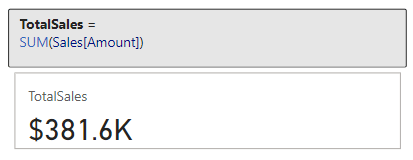
Let’s put this function to work with our sample dataset. Suppose we need to know the total sales amount. We can use the SUM function and the Amount column within our Sales Table to create a new TotalSales measure.

TotalSales = 
SUM(Sales[Amount])

This measure quickly calculates the total sales across the entire dataset.

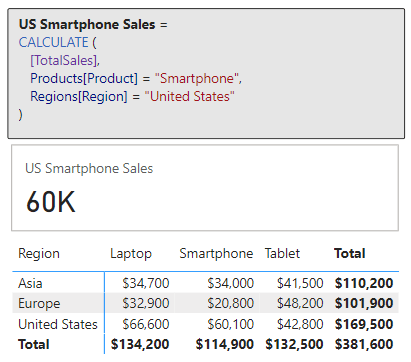
However, the utility of SUM goes beyond just tallying totals. It can be instrumental in uncovering deeper insights within our data. For a more advanced application, let’s analyze the total sales for a specific product category in a specific sales region. We can do this by combining SUM with the CALCULATE function, here is how the measure would look.

US Smartphone Sales = 
CALCULATE (
   [TotalSales],
   Products[Product] = "Smartphone",
   Regions[Region] = "United States"
)

The measure sums up sales amounts exclusively for smartphones in the United Sales. For additional and more complex practical applications of SUM, for example calculating cumulative sales over time, continue your exploration with the examples in the following posts.

Demystifying CALCULATE: An exploration of advanced data manipulation. 

Discover how to effortlessly navigate through intricate data landscapes using DAX Filter Functions in Power BI.

The beauty and power of SUM lies in its simplicity and versatility. It is a starting point for deeper analysis, and commonly serves as a steppingstone towards more complex functions and insights. As we get more comfortable with SUM we will soon find it to be an indispensable part of our analytical approach in Power BI.


Understanding DAX Iterators: The X Factor in Aggregations

Before we continue diving deeper, if we review the aggregation function reference, we will notice several aggregation functions ending with X.

Learn more about: Aggregation Functions

These are examples of iterator functions in DAX and include functions such as SUMX, AVERAGEX, MAXX, MINX, and COUNTX. Understanding the distinction between these functions and their non-iterative counterparts like SUM is crucial for advanced data analysis.

Iterator functions are designed to perform row-by-row computations over a table (i.e. iterate over the table). In contrast to standard aggregations that operate on a column, iterators apply a specific calculation to each row, making them more flexible and powerful in certain scenarios.

In other words, SUM will provide us the total of a column while SUMX provides the total of an expression evaluated for each row. This distinction is key in scenarios where each row’s data needs individual consideration before aggregating to a final result.

For more in-depth insights into the powerful capabilities of DAX iterator functions, explore this in-depth post.

Iterator Functions — What they are and What they do


AVERAGEx Marks the Spot: Advanced Insights with Average Functions

AVERAGEX

Let’s explore an aggregation iterator function with AVERAGEX. This function is a step up from our basic average. As mentioned above, since it is an iterator function it calculates an expression for each row in a table and then calculates the average (arithmetic mean) of these results. The syntax for AVERAGEX is as follows:

AVERAGEX(table, expression)  

Here, table is the table or an expression that specifies the table over which the aggregation is performed. The expression argument is the expression which will be evaluated for each row of the table. When there are no rows in the table, AVERAGEX will return a blank value, while when there are rows but non meet the specified criteria, the function returns a value of 0.

Time to see it in action with an example. We are interested in finding the average sales made by each employee. We can create the following measure to display this information.

Employee Average Total Sales = 
AVERAGEX(
   Employee, 
   [TotalSales]
)

This measure evaluates our TotalSales measure for each employee. The sales table is filtered by the EmployeeID, the employee’s total sales is calculated, then finally after all the employees totals sales are calculated the expression calculates the average.

In this above example, we can see the difference between AVERAGE and AVERAGEX. When we use the AVERAGE function this calculates the average of all the individual sale values for each employee, which is $3,855. The Employee Average Total Sales measure uses AVERAGEX and first calculates the total sales for each employee (Sum of Amount column), and then averages these total sales values returning an average total sales amount of $95,400.

What makes AVERAGEX particularly useful is its ability to handle complex calculations within the averaging process. It helps us understand the average result of a specific calculation for each row in our data. This can reveal patterns and insights that might be missed with basic averaging methods. AVERAGEX, and other iterators, are powerful tools in our DAX toolkit, offering nuanced insights into our data.


COUNTing on Data: The Role of Count Functions in DAX

The COUNT functions in DAX, such as COUNT, COUNTA, and DISTINCTCOUNT, are indispensable when it comes to understanding the frequency and occurrence of data in our dataset. These functions provide various ways to count items, helping us to quantify our data effectively.

COUNT

For our exploration of DAX counting functions, we will start with COUNT. As the name suggests, this function counts the number of non-blank values within the specified column. To count the number of blank values in a column check out the reference document for COUNTBLANK. The syntax for COUNT is shown below, where column is the column that contains the values to be counted.

COUNT(column)

If we want to get a count of how many sales transactions are recorded, we can create a measure with the expression below.

Sale Transaction Count = 
COUNT(Sales[SalesID])

This new measure will provide the total number of sales transactions that have a sales id recorded (i.e. not blank).

The COUNT function counts rows that contain numbers, dates, or strings and when there are no rows to count the function will return a blank. COUNT does not support true/false data type columns, if this is required, we should use COUNTA instead.

When our goal is to count the rows in a table, it is typically better and clearer to use COUNTROWS. Keep reading to explore and learn more about COUNTA and COUNTROWS.

COUNTA

COUNTA expands on COUNT by counting all non-blank values in a column regardless of datatype. This DAX expression follows the same syntax as COUNT shown above.

In our Employee tables there is a true/false value indicating if the employee is a current or active employee. We need to get a count of this column, and if we use COUNT we will see the following error when we try to visual the Employee Active Column Count measure.

Employee Active Column Count = 
COUNT(Employee[Active])

Since the Active column contains true/false values (i.e. boolean data type) we must use COUNTA to get a count of non-blank values in this column.

Employee Active Column Count = 
COUNTA(Employee[Active])

Building on this measure we can use COUNTAX to get a current count of our active employees. We will create a new measure shown here.

Active Employee Count = 
COUNTAX(
   FILTER(
      Employee, 
      Employee[Active]=TRUE()
   ), 
   Employee[Active]
)

Here we use COUNTAX, and for the table argument we use the FILTER function to filter the Employee table to only include employees whose Active status is true.

COUNTROWS

Next, we will look at COUNTROWS, which counts the number of rows in a table or table expression. The syntax is:

COUNTROWS([table])

Here, table is the table that contains the rows to be counted or an expression that returns a table. This argument is optional, and when it is not provided the default value is the home table of the current expression.

It is typically best to use COUNT when we are specifically interested in the count of values in the specified column, when it is our intention to count the rows of a table, we can use COUNTROWS. This function is more efficient and indicates the intention of the measure in a clearer manner.

A common use of COUNTROWS is to count the number of rows that result from filtering a table or applying context to a table. Let’s use this to improve our Active Employee Count measure.

Active Employee CountRows = 
COUNTROWS(
   FILTER(
      Employee, 
      Employee[Active]=TRUE()
   )
)

In this example it is recommended to use COUNTROWS because we are not specifically interested in the count of values in the Active column. Rather, we are interested in the number of rows in the Employee table when we filter the table to only include Active=true employees.

DISTINCTCOUNT

Adding to these, DISTINCTCOUNT is particularly useful for identifying the number of unique values in a column, with the following syntax.

DISTINCTCOUNT(column)

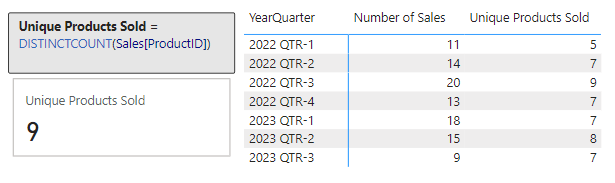
In our report we would like to examine the number of unique products sold within our dataset. To do this we create a new measure.

Unique Products Sold = 
DISTINCTCOUNT(Sales[ProductID])

We can then use this to visual the number of unique Product Ids within our Sales table, and we can use this new measure to further examine the unique products sold broken down by year and quarter.

Together, DAX count functions provide a comprehensive toolkit for measuring and understanding the dimensions of our data in various ways.


MAXimum Impact: Extracting Peak Value with MAX and MAXX

In DAX, the MAX and MAXX functions are the tools to use for pinpointing peak performances, maximum sales, or any other type of highest value within in our dataset.

MAX

The MAX function is simple to use. It finds the highest numeric value in a specified column.

MAX(column)

The column argument is the column in which we want to find the largest value. The MAX function can also be used to return the largest value between to scalar expressions.

MAX(expression1, expression2)

Each expression argument is a DAX expression which returns a single value. When we are using MAX to compare two expressions, a blank value is treated as 0, and if both expressions return a blank value, MAX will also return a blank value. Similar to COUNT, true/false data types are not supported, and if we need to evaluate a column of true/false values we should use MAXA.

Let’s use MAX to find our highest sale amount.

Max Sale Amount = 
MAX(Sales[Amount])

This new measures scans through the Amount column in our Sales table and returns the maximum value.

MAXX

MAXX builds on the functionality of MAX and offers more flexibility. It calculates the maximum value of an expression evaluated for each row in a table. The syntax follows the similar pattern as the other aggregation iterators.

MAXX(table, expression, [variant])

The table and expression arguments are the table containing the rows for which the expression will be evaluated, and the expression specifies what will be evaluated. The optional argument variant can be used when the expression has a variant or mixed value type, by default MAXX will only consider numbers. If variant is set to true, the highest value is based on ordering the column in descending order.

Let’s add some more insight to our Max Sale Amount measure. We will use MAXX to find the highest sales amount per product across all sales regions.

Max Product Total Sales = 
MAXX(
   Products, 
   [TotalSales]
)

This measure iterates over each product and calculates the totals sales amount for that product by evaluating our previously created TotalSales measure. After the total sales for each product is calculated the measure returns the highest total found across all products.

These functions provide us the tools to explore the maximum value within specific columns and also across different segments and criteria, enabling a more detailed and insightful understanding of our data’s maximum values.


MINing for Gold: Uncovering Minimum Values with DAX

The MIN and MINX functions help us discover the minimums in various scenarios, whether we are looking for the smallest sale or quantity, or any other type of lowest value.

MIN

MIN is straightforward, it finds the smallest numeric value in a column or, similar to MAX, the smallest value between two scalar expressions.

MIN(column)
MIN(expression1, expression2)

When comparing expressions, a blank value is handled the same as how the MAX function handles a blank value.

We have already identified the highest sale value, let’s use MIN to find our lowest sale amount.

Min Sale Amount = 
MIN(Sales[Amount])

This measure checks all the values in the Amount column of the Sales table and returns the smallest value.

MINX

MINX, on the other hand, offers more complex analysis capabilities. It calculates the minimum value of an expression evaluated for each row in a table. Its syntax will look familiar and follows the same pattern as MAXX.

MINX(table, expression, [variant])

The arguments to MINX are the same as MAXX, see the previous section for details on each argument.

We used MAXX to find the maximum total product sales, in a similar manner let’s use MINX to find the lowest total sales by region.

Min Region Total Sales = 
MINX(
   Regions, 
   [TotalSales]
)

The Min Region Total Sales measure iterates over each region and calculates its total sales, then it identifies and returns the lowest totals sales value.

These functions are powerful and prove to be helpful in our data analysis. They allow us to find minimum values and explore these values across various segments and conditions. This helps us better understand the lower-end spectrum of our data.


Blending Aggregates and Filters: The Power Duo

Blending aggregation functions with filters in DAX allows for more targeted and nuanced data analysis. The combination of functions like CALCULATE and FILTER can provide a deeper understanding of specific subsets in our data.

CALCULATE is a transformative function in DAX that modifies the filter context of a calculation, making it possible to perform aggregated calculations over a filtered subset of data. CALCULATE is crucial to understand and proves to be helpful in many data analysis scenarios. For details on this function and plenty of examples blending aggregations functions with CALCULATE take a look at this in-depth post focused solely on this essential function.

Demystifying CALCULATE: An exploration of advanced data manipulation. 

FILTER is another critical function that allows us to filter a table based on a given conditions. We used this function along with COUNTROWS to count the number of active employees. For additional examples and more details on FILTER and other filter functions see the post below.

Discover how to effortlessly navigate through intricate data landscapes using DAX Filter Functions in Power BI.


Working with DAX in Power BI can be incredibly powerful, but it is not without its pitfalls. Being aware of common mistakes and understanding how to avoid them can save us time and help ensure our data analysis is as accurate and effective as possible.

One frequent mistake is misunderstanding context in DAX calculations. Remember, DAX functions operate within a specific context, which could be row context or filter context. Misinterpreting or not accounting for this can lead to incorrect results. For instance, using an aggregate function without proper consideration of the filter context can yield misleading totals or averages.

Another common issue is overlooking the differences between similar functions. For example, SUM and SUMX might seem interchangeable, but they operate quite differently. SUM aggregates values in a column, while SUMX performs row-by-row calculations before aggregating. Understanding these subtleties is crucial for accurate data analysis.

Lastly, we should always beware of performance issues with our reports. As our datasets grow, complex DAX expression can slow down our reports. We should look to optimize our DAX expressions by using appropriate functions and minimizing the use of iterative functions (like aggregations functions ending in X) when a simpler aggregation function would suffice.


Mastering Aggregation for Impactful Analysis

As we reach the conclusion of our exploration into DAX aggregation functions, it’s clear that mastering these tools is essential for impactful data analysis in Power BI. Aggregation functions can be the key to unlocking meaningful insights and making informed decisions.

Remember, the journey from raw data to actionable insights involves understanding not just the functions themselves, but also the context in which they are used. From the basic SUM to the more complex SUMX, each function has its place and purpose. The versatility of AVERAGEX and the precision of COUNT functions demonstrate the depth and flexibility of DAX.

Incorporating MAX and MIN functions helps us identify extremes in our datasets. Blending aggregations with the power of CALCULATE and FILTER shows the potential of context-driven analysis, enabling targeted investigations within our data.

The journey through DAX aggregation functions is one of continuous learning and application. As we become more comfortable with these tools, we will find ourselves able to handle increasingly complex data scenarios, making our insights all the more powerful and our decisions more data driven. Continue exploring DAX aggregation functions with the DAX Reference.

Learn more about: Aggregation Functions


Thank you for reading! Stay curious, and until next time, happy learning.

And, remember, as Albert Einstein once said, “Anyone who has never made a mistake has never tried anything new.” So, don’t be afraid of making mistakes, practice makes perfect. Continuously experiment and explore new DAX functions, and challenge yourself with real-world data scenarios.

If this sparked your curiosity, keep that spark alive and check back frequently. Better yet, be sure not to miss a post by subscribing! With each new post comes an opportunity to learn something new.

DAX Filter Functions: Navigating the Data Maze with Ease


In the intricate world of Power BI, the ability to skillfully navigate through complex data models is not just a skill, but an art form. This is where DAX Filter Functions come into play, serving as our compass in the often-overwhelming maze of data analysis. These functions give us the power to sift through layers of data with intent and precision, uncovering insights that are pivotal to informed decision-making.

Our journey through data analysis should not be a daunting task. With the right tools and know-how, it can become an adventure in discovering hidden patterns and valuable insights. DAX Filter Functions are the keys to unlocking this information, allowing us to filter, dissect, and examine our data in ways we never thought possible.

Now, let’s embark on a journey to master these powerful functions. Transform our approach to data analysis in Power BI, making it more intuitive, efficient, and insightful. Let DAX Filter Functions guide us through the data maze with ease, leading us to clarity and success in our data analysis endeavors. The path to elevating our Power BI skills starts here, and it starts with mastering DAX Filter Functions.

For those of you eager to start experimenting there is a Power BI report-preloaded with the same data used in this post read for you. So don’t just read, follow along and get hands-on with DAX in Power BI. Get a copy of the sample data file here:

This dynamic repository is the perfect place to enhance your learning journey.


What are DAX Filter Functions

DAX filter functions are a set of functions in Power BI that allow us to filter data based on specific conditions. These functions help in reducing the number of rows in a table and allows us to focus on specific data for calculations and analysis. By applying well defined filters, we can extract meaningful insights from large datasets and make informed business decisions. Get all the details on DAX Filter Functions here.

Learn more about: Filter functions

In our Power BI report, we can use filter functions in conjunction with other DAX functions that require a table as an argument. By embedding these functions, we can filter data dynamically to ensure our analysis and calculation are using exactly the right data. Let’s dive into some of the commonly used DAX filter functions and explore their syntax and usage.


The ALL Function: Unleashing the Potential of All Our Data

At its core, the ALL function is a powerhouse of simplicity and efficiency. It essentially removes all filters from a column or table, allowing us to view our data in its most unaltered form. This function is our go to tool when we need to clear all filters to create calculation using all the rows in a table The syntax is straightforward:

ALL([table | column[, column[, column[,...]]]])

The arguments to the ALL function must either reference a base table or a base column of the data model, we cannot use table or column expressions with the ALL function. This function serves as a intermediate function that we can use to change the set of results over which a calculation is performed.

ALL can be used in a variety of ways when referencing base tables or columns. Using ALL() will remove filters everywhere and can only be used to clear filters but does not return a table. When referencing a table, ALL(<table>), the function removes all the filters from the specified table and returns all the values in the table. Similarly, when referencing columns, ALL([, [, ...]]), the function removes all filters from the specified column(s) in the table, while all other filters on other column in the table still apply. When referencing columns, all the column argument must come from the same table.

While, we can use ALL to remove all context filters from specified columns, there is another function that can be helpful. ALLEXCEPT is a DAX function that removes all context filters in the table except filters that have been applied to the specified columns. For more details check out the Microsoft documentation on ALLEXCEPT.

Learn more about: ALLEXCEPT

Practical Examples: Navigating Data with the ALL Function

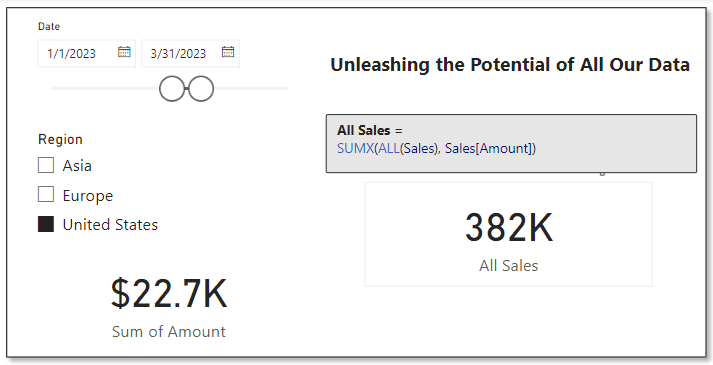
Considering the dataset in our sample report, suppose we want to analyze the overall sales performance, irrespective of any specific regions or dates. Using the following formula, we can provide the total sales amount across all regions and times by removing any existing filters on the Sales table.

All Sales = 
SUMX(
   ALL(Sales), 
   Sales[Amount]
)

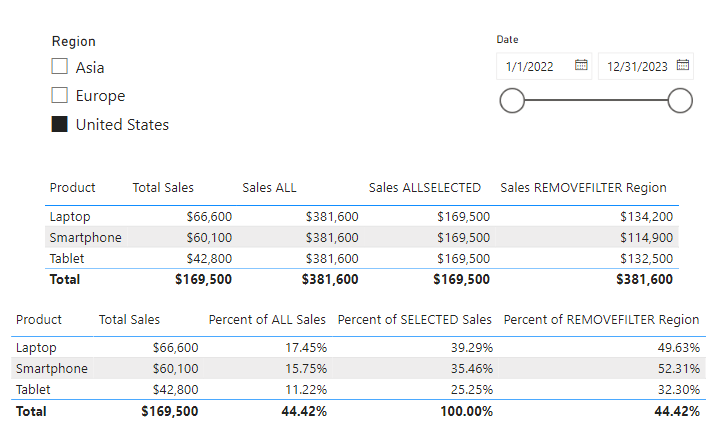
In the above example we can see the card visual on the bottom left is the default sum aggregation of the Amount column in our sales table. Specifically, with the slicers on the report, this card shows the total sales within the United States region during the period between 1/1/2023 and 3/31/2023. We can use the ALL function to display to total sales amount across all regions and irrespective of time, shown on the card visual on the right.

This functionality is particularly useful when making comparative analyses. For instance, we could use this to determine a region’s contribution to total sales. We can compare the sales in a specific region (with filters applied) to the overall sales calculated using ALL. This comparison offers valuable insights into the performance of different segments relative to the total context.


ALLSELECTED Decoded: Interactive Reporting’s Best Friend

The ALLSELECTED function in DAX takes the capabilities of ALL a step further. It is particularly useful in interactive reports where our users apply filters. This function respects the filters applied by our report users but disregards any filter context imposed by report objects like visuals or calculations. The syntax is:

ALLSELECTED([tableName | columnName[, columnName[, columnName[,…]]]] )

Similar to ALL the tableName and columnName parameters are optional and reference an existing table or column, an expression cannot be used. When we provide ALLSELECTED a single argument it can either be tableName or columnName, and when we provide the function more than one argument, they must be columns from the same table.

ALLSELECTED differs from ALL because it retains all filters explicitly set within the query, and it retains all context filters other than row and column filters.

Practical Examples: Exploring ALLSELECTED and How it Differs From ALL

At first glance it may seem as if ALL and ALLSELECTED perform the same task. Although, these two functions are similar there is an important difference between them. ALLSELECTED will ignore filters applied by report visuals, while ALL will ignore any filters applied within the report. Let’s explore this difference with an example.

We will use three measures to explore ALLSELECTED. First a measure that simply calculates the sum of our Sales Amount, here is its definition.

Total Sales = SUM(Sales[Amount])

Second a measure using the function explored in the previous section ALL.

Sales ALL = CALCULATE(
    SUM(Sales[Amount]),
    ALL(Sales)
)

Lastly, a measure that uses ALLSELECTED.

Sales ALLSELECTED = 
CALCULATE(
    SUM(Sales[Amount]),
    ALLSELECTED(Sales)
)

After creating the measures, we can add a table visual including the Product field and these three measures. When the report has no filters due to interacting with the slicers on the report, we can see that the Total Sales measure gets filtered by the Product column and shows the total sales for each product. However, the other two measure show the overall total sales.

The inclusion of the Product column in the table visual is filtering the values and impacting the calculation of the Total Sales measure, while the other two measure are using all of the sales records in their calculation.

Next let’s use the Region and Date slicers to explore the differences between ALL and ALLSELECTED. As expected, all the additional filtering due to the slicer selections continues to impact our Total Sales measure.

Additionally, we see the ALLSELECTED measure gets filtered based on the external slicer selections but continues to not be impacted by the internal filtering of the table visual. This differs from our measure that uses the ALL function, which continues to show the grand total sales value. This is because the ALL function ignores any filter implicit from the visual or explicit from external slicers.

The difference between ALL and ALLSELECTED boils down to ALL will ignore any filter applied, while ALLSELECTED will ignore just the filter applied by the visual.

The necessity of ALLSELECTED is its ability to respect user’s interactions and filtering choices on slicers or other interactive elements. Unlike ALL, which disregards all filters, ALLSELECTED maintains the interactive nature or our reports, ensuring that the calculations dynamically adapt to user inputs.

So, what is a use case for ALLSELECTED? A common use is calculating percentages, based on a total value that is dependent on user interaction with report slicers. Check out this post, on how this function can be used along with ISINSCOPE to calculate context aware insights.

Elevate Your Power BI Report with Context-Aware Insights


CALCULATE: The Engine for Transforming Data Dynamically

CALCULATE is one of the most versatile and powerful functions in DAX, acting as a cornerstone for many complex data operations in Power BI. It allows us to manipulate the filter context of a calculation, letting us perform dynamic and complex calculations with ease. CALCULATE follows a simple structure.

CALCULATE(expression[, filter1[, filter2[, …]]])

The expression parameter is the calculation we want to perform, and the filter parameters are optional boolean expressions or table expression that define our filters or filter modifier functions. Boolean filter expressions are expressions that evaluate to true or false, and when used with CALCULATE there are certain rules that must be followed, see the link below for details. Table filter expressions apply to a table, and we can use the FILTER function to apply more complex filtering conditions, such as those that cannot be defined by using a boolean filter expression. Finally, filter modifier functions provide us even more control when modifying the filter context within the CALCULATE function. Filter modifier functions include functions such as REMOVEFILTERS, KEEPFILTERS, and the ALL function discussed in the previous section.

Find all the required details in the documentation.

Learn more about: CALCULATE

Practical Examples: Using CALCULATE for Dynamic Data Analysis

Let’s say that for our report we are required to calculate the total sales in the United States region. We can use CALCULATE and this expression to meet this requirement.

United States Sales = 
CALCULATE(
   SUM(Sales[Amount]), 
   Regions[Region]="United States"
)

We can continue to build on the previous example to further examine sales in the United States. For this example, we will compare the average sales of smartphones in the United States against the benchmark of average sales of smartphones across all regions.

US Smartphone Sales vs. Average Smartphone Sales =
    CALCULATE(
        AVERAGE(Sales[Amount]),
        Products[Product] = "Smartphone",
        Regions[Region] = "United States"
    )
    - AVERAGEX(
        FILTER(
            Sales,
            RELATED(Products[Product]) = "Smartphone"
        ),
        Sales[Amount]
)

These two examples just begin to scratch the surface of what is possible when we utilize the CALCULATE function. For more examples and more details on CALCULATE check out this post that provides a deep dive into the CALCULATE function.

Demystifying CALCULATE: An exploration of advanced data manipulation. 

CALCULATE proves indispensable for redefining the filter context impacting our calculations. It empowers us to perform targeted analysis that goes beyond the standard filter constraints of a report, making it an essential tool in our DAX toolbox.


Mastering FILTER: The Art of Precision in Data Selection

The FILTER function in DAX is a precision tool for refining data selection within Power BI. It allows us to apply specific conditions to a table or column, creating a subset of data that meets the criteria. The FILTER function returns a table that represents a subset of another table or expression, and the syntax is as follows.

FILTER(table, filter)

The table argument is the table, or an expression that results in a table, that we want to apply the filter to. The filter argument is a boolean expression that should be evaluated for each row of the table.

FILTER is used to limit the number of rows in a table allowing for us to create specific and precise calculations. When we use the FILTER function we embed it within other functions, we typically do not use it independently.

When developing our Power BI reports a common requirement is to develop DAX expressions that need to be evaluated within a modified filter context. As we saw in the previous section CALCULATE is a helpful function to modify the filter context, and accepts filter arguments as either boolean expressions, table expression or filter modification functions. Meaning CALCULATE, will accept the table returned by FILTER as one of its filtering parameters, however it is generally best practice to avoid using the FILTER function as a filter argument when a boolean expression can be used. The FILTER function should be used when the filter criteria cannot be achieved with a boolean expression. Here is an article that details this recommended best practice.

Best practices for using the FILTER function as a filter argument.

For example, we have two measures below that calculate the total sales amount for the United States. Both of these measures correctly filter our data and calculate the same value for the total sales. When possible, the best practice is to use the expression on the left which passes the filter arguments to CALCULATE as a boolean expression. This is because when working with Import model tables that are store in-memory column stores, they are explicitly optimized to filter column in this way.

Practical Examples: FILTER Functions Illustrated

Let’s now see how FILTER can help us build on our analysis of US Smartphone Sales. In the previous section we created a US Smartphone Sales vs Average Smartphone Sales measure to visualize US sales against a benchmark. Now we are interested in the total sales amount for each quarter that average US smartphones sales is below the benchmark. FILTER can help us do this with the following expression.

United States Sales FILTER = 
   CALCULATE(
      SUM(Sales[Amount]), 
      FILTER(
         VALUES(DateTable[YearQuarter]), 
         [US Smartphone Sales vs. Average Smartphone Sales] &lt; 0
      )
   )

FILTER is particularly useful when we require a detailed and specific data subset. It is a function that brings granular control to our data analysis, allowing for a deeper and more focused exploration of our data.


Dynamic Table Creation with CALCULATETABLE

The CALCULATETABLE function in DAX is a powerful tool for creating dynamic tables based on specific conditions. This function performs provides us the same functionality that CALCULATE provides, however rather than returning a singular scalar value CALCULATETABLE returns a table. Here is the function’s syntax:

CALCULATETABLE(expression[, filter1[, filter2[, …]]])

This may look familiar, CALCULATETABLE has the same structure as CALCULATE for details on the expression and filter arguments check out the previous section focused on the CALCULATE function.

Practical Examples: Apply CALCULATETABLE

Let’s say we want to calculate the total sales for the current year so we can readily visualize the current year’s sale broken down by product, region and employee. CALCULATETABLE can help us achieve this with the following expression.

Current Year Total Sales = 
SUMX(
   CALCULATETABLE(
      Sales, 
      YEAR(Sales[SalesDate]) = YEAR(TODAY())
   ), 
   Sales[Amount]
)

CALCULATETABLE proves to be invaluable when we need to work with a subset of data based on dynamic conditions. It’s flexibility to reshape our data on the fly makes it an essential function for nuanced and specific data explorations in Power BI.


Resetting the Scene with REMOVEFILTERS

The REMOVEFILTERS function in DAX is crucial for when we need to reset or remove specific filters applied to our data. It allows for recalibration of the filter context, either entirely or partially. The syntax for this function is:

REMOVEFILTERS([table | column[, column[, column[,…]]]])

Looking at the structure of REMOVEFILTERS, we can see it is similar to that of ALL and ALLSELECTED. Although these functions are similar it is important to differentiate them. While ALL removes all filters from a column or table and ALLSELECTED respects user-applied filter but ignores other filter contexts, REMOVEFILTERS specifically targets and removes filters from the specified columns or tables, offering us more control and precision.

Practical Examples: Implementing REMOVEFILTERS

Let’s start by adding a new measure to our previous table visual where we explored the difference between ALL and ALLSELECTED to highlight the difference between these functions.

We will create a new measure and add it to the table visual, the new measure is:

Sales REMOVEFILTER Region = 
CALCULATE(
   SUM(Sales[Amount]), 
   REMOVEFILTERS(Regions[Region])
)

This expression will calculate the total sales disregarding any Region filter that might be in place.

Here we can see this new Sales REMOVEFILTER Region measure shows the total sales respecting the row context of Product on the table visual and the selected dates on the date slicer, however, removes the Region filter that would apply due to the Region slicer.

Let’s take a look at how we can apply and leverage the differences between these functions. We can use our Total Sales and the other three measures to calculate various percentages to provide additional insights.

REMOVEFILTERS offers a tailored approach to filter removal, differing from ALL which disregards all filters unconditionally, and ALLSELECTED which adapts to user selections. This makes REMOVEFILTERS an essential function for creating more nuanced and specific measures in our Power BI reports.


LOOKUPVALUE: Bridging Tables in Analysis

The LOOKUPVALUE function in DAX is a powerful feature for cross-referencing data between tables. It allows us to find a value in a table based on matching a value in another table or column.

LOOKUPVALUE (
    result_columnName,
    search_columnName,
    search_value
    [, search2_columnName, search2_value]…
    [, alternateResult]
)

Here result_columnName is the name of an existing column that contains the value we want to be returned by the function; it cannot be an expression. The search_columnName argument is the name of an existing column and can be in the same table as the result_columnName or in a related table, the search_value is the value to search for within the search_columnName. Finally, the alternativeResult is an optional argument that will be returned when the context for result_columnName has been filter down to zero or more than one district value, when not specified LOOKUPVALUE will return BLANK.

LOOKUPVALUE is essential for scenarios where data relationships are not directly defined through relationships in the data model. If there is a relationship between the table that contains the result column and tables that contain the search column, typically using the RELATED function rather than LOOKUPVALUE is more efficient.

Practical Examples: LOOKUPVALUES Explored

Let’s use LOOKUPVALUE to connect sales data with the respective sales managers. We need to identify the manager for each sale in our Sales table for our report. We can use a formula that first finds the manager’s ID related to each sale. For details on how we can user Parent and Child Functions to work with hierarchical data check out the Parent and Child Functions: Managing Hierarchical Data section of this post.

Unlock the Full Potential of Your Data with DAX: From Basic Aggregations to Advanced Time Intelligence

In the example in the post above we use PATH and PATHITMEREVERSE to navigate the organizational hierarchy to identify the manager’s ID of each employee. Then utilizing REALTED and LOOKUPVALUE we can add a new calculated column to our Sales table listing the Sales Manager for each sale. We can use the following formula that first finds the manager’s ID related to each sale and then fetches the manager’s name using the LOOKUPVALUE function.

Sales Manager Name = 
VAR ManagerID = RELATED(Employee[ManagerID])

RETURN
LOOKUPVALUE(Employee[EmployeeName], Employee[EmployeeID], ManagerID)

In this example, the RELATED function retrieves the ManagerID for each sale from the Employees table. Then, LOOKUPVALUE is used to find the corresponding EmployeeName (the manager’s name) in the same table based on the ManagerID. This approach is particulariy beneficial in scenarios where understanding hierarchical relationships or indirect associations between data points is crucial.

By using LOOKUPVALUE in this manner, we add significant value to our reports, offering insights into the managerial oversight of sales activities, which can be pivotal for performance analysis and strategic planning.


Mastering DAX Filter Functions for Advanced Analysis

Now that we have finished our exploration of DAX Filter Functions in Power BI, it is clear that these tools are not just functions, they are the building blocks for sophisticated data analysis. From the comprehensive clearing of contexts with ALL to dynamic and context-sensitive capabilities of CALCULATE and FILTER, each function offers a unique approach to data manipulation and analysis.

Understanding and applying functions like ALLSELECTED, REMOVEFILTERS and LOOKUPVALUE enable us to create reports that are not only insightful but also interactive and responsive to user inputs. They allow use to navigate through complex data relationships with ease, bringing clarity and depth to our analyses.

As we continue our journey in data analytics, remember that mastering these functions can significantly enhance our ability to derive meaningful insights from our data. Each function has its place and purpose, and knowing when and how to use them will set us apart as proficient Power BI analyst.

Embrace these functions as we delve deeper into our data and watch as they transform our approach to business intelligence and data storytelling. Happy analyzing!


Thank you for reading! Stay curious, and until next time, happy learning.

And, remember, as Albert Einstein once said, “Anyone who has never made a mistake has never tried anything new.” So, don’t be afraid of making mistakes, practice makes perfect. Continuously experiment and explore new DAX functions, and challenge yourself with real-world data scenarios.

If this sparked your curiosity, keep that spark alive and check back frequently. Better yet, be sure not to miss a post by subscribing! With each new post comes an opportunity to learn something new.

ISINSCOPE: The Key to Dynamic Data Drilldowns


Welcome, to another journey through the world of DAX, in this post we will be shining the spotlight on the ISINSCOPE function. If you have been exploring DAX and Power BI you may have encountered this function and wondered its purpose. Well, wonder no more! We are here to unravel the mysteries and dive into some practical example showing just how invaluable this function can be in our data analysis endeavors.

If you are unfamiliar DAX is the key that helps us unlock meaningful insights. It is the tool that lets us create custom calculations and serve up exactly what we need. Now, lets focus on ISINSCOPE, it is a function that might not always steal the show but plays a pivotal role, particularly when we are dealing with hierarchies and intricate drilldowns in our reports. It provides us the access to understand at which level of hierarchy our data is hanging out, ensuring our calculations are always in tune with the context.

For those of you eager to start experimenting there is a Power BI report pre-loaded with the sample data used in this post ready for you. So don’t just read, follow along and get hands-on with DAX in Power BI. Get a copy of the sample data file (power-bi-sample-data.pbix) here:

This dynamic repository is the perfect place to enhance your learning journey.


Exploring the ISINSCOPE Function

Let’s dive in and get hand on with the ISINSCOPE function. Think of this function as our data GPS, it helps us figure out where we are in the grand scheme of our data hierarchies.

So, what exactly is ISINSCOPE? In plain terms, it is a DAX function used to determine if a column is currently being used in a specific level of a hierarchy or, put another way, if we are grouping by the column we specify. The function returns true when the specified column is the level being used in a hierarchy of levels. The syntax is straightforward:

ISINSCOPE(column_name)

The column_name argument is the name of an existing column. Just add a column that we are curious about, and ISINSCOPE will return true or false depending on whether that column is in the current scope.

Let’s use a simple matrix containing our Region, Product Category, and Product Code to set up a hierarchy and see ISINSCOPE in action with the following formula.

ISINSCOPE = 
SWITCH(
    TRUE(),
    ISINSCOPE(Products[Product Code]), "Product Code",
    ISINSCOPE(Products[Product]), "Product",
    ISINSCOPE(Regions[Region]), "Region"
)

This formula uses ISINSCOPE in combination with SWITCH to determine the current context, and if true returns a text label indicating what level is in context.

But why is this important? Well, when we are dealing with data, especially in a report or a dashboard, we want our calculations to be context-aware. We want them to adapt based on the level of data we are looking at. ISINSCOPE allows us to create measures and calculated columns that behave differently at different levels of granularity. This helps provide accurate and meaningful insights.


Diving Deeper: How ISINSCOPE Works

Now that we have got a handle on what ISINSCOPE is, let’s dive a bit deeper and see how it works. At the heart of it ISINSCOPE is all about context, specifically, row context and filter context.

For an in depth look into Row Context and Filter Context check out the posts below that provide all the details.

Row Context — What it is, When is it available, and its Implications

Filter Context – How to create it and its impact on measures

For our report we are interested in analyzing the last sales date of our products, and want this information in a matrix similar to the example above. We can easily create a Last Sales Date measure using the following formula and add it to our matrix visual.

Last Sales Date = MAX(Sales[SalesDate])

This provides a good start, but not quite what we are looking for. For our analysis the last sales date at the Region level is too broad and not of interest, while the sales date of Product Code is too granular and clutters the visual. So, how do we display the last sales date just at the Product Category (e.g. Laptop) level? Enter ISINSCOPE.

Let’s update our Last Sales Date measure so that it will only display the date on the product category level. Here is the formula.

Product Last Sales Date = 
SWITCH(
    TRUE(), 
    ISINSCOPE(Products[Product Code]), BLANK(), 
    ISINSCOPE(Products[Product]), FORMAT(MAX(Sales[SalesDate]),"MM/dd/yyyy"), 
    ISINSCOPE(Regions[Region]), BLANK()
)

We use SWITCH in tandem with ISINSCOPE to determine the context, and if Product is in context the measure returns the last sales date for that product category. However, at the Region and Product Code levels the measure will return a blank value.

The use of ISINSCOPE helps enhance the matrix visual preventing it from getting over crowded with information and ensuring that the information displayed is relevant. It acts as a smart filter, showing or hiding data based on where we are in a hierarchy, making our reports more intuitive and user-friendly.


ISINSCOPE’s Role in Hierarchies and Drilldowns

When we are working with data, understanding the relationship between parts and the whole is crucial. This is where hierarchies and drilldowns come into play, and ISINSCOPE is the function that helps us make sense of it all.

Hierarchies allow us to organize our data in a way that reflects real-world relationships, like breaking down sales by region, then product category, then specific products. Drilldowns let us start with a broad view and then zoom in on the details. But how do we keep our calculations accurate at each level? You guessed it, ISINSCOPE.

Let’s look at a DAX measure that leverages ISINSCOPE to calculate the percentage of sales each child represents of the parent in our hierarchy.

Percentage of Parent = 
    VAR AllSales = 
        CALCULATE(Sales[Total Sales], ALLSELECTED())
    VAR RegionSales = 
        CALCULATE([Total Sales], ALLSELECTED(), VALUES(Regions[Region]))
    VAR RegionCategorySales = 
        CALCULATE([Total Sales], ALLSELECTED(), VALUES(Regions[Region]), VALUES(Products[Product]))
    VAR CurrentSales = [Total Sales]

RETURN
SWITCH(TRUE(),
    ISINSCOPE(Products[Product Code]), DIVIDE(CurrentSales, RegionCategorySales),
    ISINSCOPE(Products[Product]), DIVIDE(CurrentSales, RegionSales),
    ISINSCOPE(Regions[Region]), DIVIDE(CurrentSales, AllSales)
)

The Percentage of Parent measure uses ISINSCOPE to determine the current level of detail we are working with. If we are viewing our sales by region the measure calculates the sales for the region as a percentage of all sales.

But the true power of ISINSCOPE begins to reveal itself as we drilldown into our sales data. If we drilldown into each region to show the product categories we see that the measure will calculate the sales for each product category as a percentage of sales for that region.

And then again, if we drilldown into each product category we can see the measure will calculate the the sales of each product code as a percentage of sales for that product category within the region.

By incorporating this measure into our report, we help ensure that as we drilldown into our data the percentages are always calculated relative to the appropriate parent in our hierarchy. This allows us to provide accurate measures that provide the appropriate context, making our reports more intuitive and insightful.

ISINSCOPE is the key element to maintaining the integrity of our hierarchical calculations. It ensures that as we navigate through different levels of our data our calculations remain relevant and precise, providing a clear understanding of how each part contributes to the whole.


Best Practices for Leveraging ISINSCOPE

When it comes to DAX and ISINSCOPE a few best practices can ensure that our reports are accurate, performant, and user-friendly. Here are just a few things that can help us make the most out of ISINSCOPE:

  1. Understand Context: Before using ISINSCOPE, make sure to have a solid understanding of row and filter context. Knowing which context we are working with will help us use ISINSCOPE effectively.
  2. Keep it Simple: Start with simple measures to understand how ISINSCOPE behaves with our data. Complex measures can be built up gradually as we become more comfortable with the function.
  3. Use Variables: Variables can make our DAX formulas easier to read and debug. They also help with performance because they store a result of a calculation for reuse.
  4. Test at Every Level: When creating measures with ISINSCOPE, test them at every level, this helps ensure that our measures work correctly no matter how the users interact with the report.
  5. Combine with Other Functions: ISINSCOPE is often used in combination with other DAX functions. Learning how it interacts with functions like SWITCH, CALCULATE, FILTER, and ALLSELECTED will provide us more control over our data.

Wrapping up

Throughout our exploration of the ISINSCOPE function we have uncovered its pivotal role in managing data hierarchies and drilldowns providing for accurate and context-sensitive reporting. Its ability to discern the level of detail we are working with allows for dynamic measures and visuals that adapt to user interactions, making our reports not just informative but interactive and intuitive.

With practice, ISINSCOPE will become a natural part of your DAX toolkit, enabling you to create sophisticated reports that meet the complex needs of any data analysis challenge you might face.

For those looking to continue their journey into DAX and its capabilities there is a wealth of resources available, and a good place to start is the DAX Reference documentation.

Learn more about: Power Automate Excel Online (Business) Actions

I have also written about other DAX functions including Date and Time Functions, Text Functions, an entire post focused on the CALCULATE function and an ultimate guide providing a overview of all the DAX function groups.

Explore the ebb and flow of the temporal dimension of your data with DAX’s suite of Date and Time Functions.

Stringing Along with DAX: Dive Deep into Text Expressions

Demystifying CALCULATE: An exploration of advanced data manipulation. 

Unlock the Full Potential of Your Data with DAX: From Basic Aggregations to Advanced Time Intelligence


Thank you for reading! Stay curious, and until next time, happy learning.

And, remember, as Albert Einstein once said, “Anyone who has never made a mistake has never tried anything new.” So, don’t be afraid of making mistakes, practice makes perfect. Continuously experiment and explore new DAX functions, and challenge yourself with real-world data scenarios.

If this sparked your curiosity, keep that spark alive and check back frequently. Better yet, be sure not to miss a post by subscribing! With each new post comes an opportunity to learn something new.