Power BI Feature Spotlight: Data Filtering and Modeling


The Power BI November 2024 update introduced several exciting enhancements and preview features.

I was particularly interested in the new text slicer preview feature and the quick query option for defining measures in DAX query view. Both of these improvements have the potential to enhance data filtering flexibility, simplify workflows, and increase overall efficiency.


The New Text Slicer: Customized Filtering for Power BI

The new text slicer visual preview feature, introduced in the November 2024 Power BI update, is a versatile tool designed to enhance interactivity and filtering based on text input. This feature allows users to enter specific text, making it easier to explore data and quickly find relevant information.

Benefits of the Text Slicer: Improved Usability and Customization

The text slicer offers a user-friendly and adaptable filtering option with straightforward functionality. Its advantages are particularly evident when filtering datasets that contain high-cardinality fields, such as customer names, product IDs, or order numbers.

Additionally, the slicer features customization options that allow us to adjust its design to fit our report. We can set placeholder text to guide users on what input is expected, and its properties enable us to customize the font and color of various elements, ensuring both readability and visual appeal.

Check out this post for a good explanation of the new text slicer’s options and properties: Drumroll please! The new Text slicer is here!

Getting Started with the Text Slicer

After updating to the latest version of Power BI Desktop, you can enable the new feature by navigating to Options and Settings > Options > Preview features and then checking the box next to the Text Slicer visual.

Once enabled, you will find the new slicer in the Build menu, allowing you to add the visual to your report canvas.

After adding the visual to the report canvas, drag the text field from the data model that you want the slicer to filter on into the slicer’s Field property. Then, type your desired text into the slicer’s input box and click the apply icon to filter the results instantly.

Use Cases: Applying the Text Slicer in Reports

Filtering by Product Category – Exploring the basics

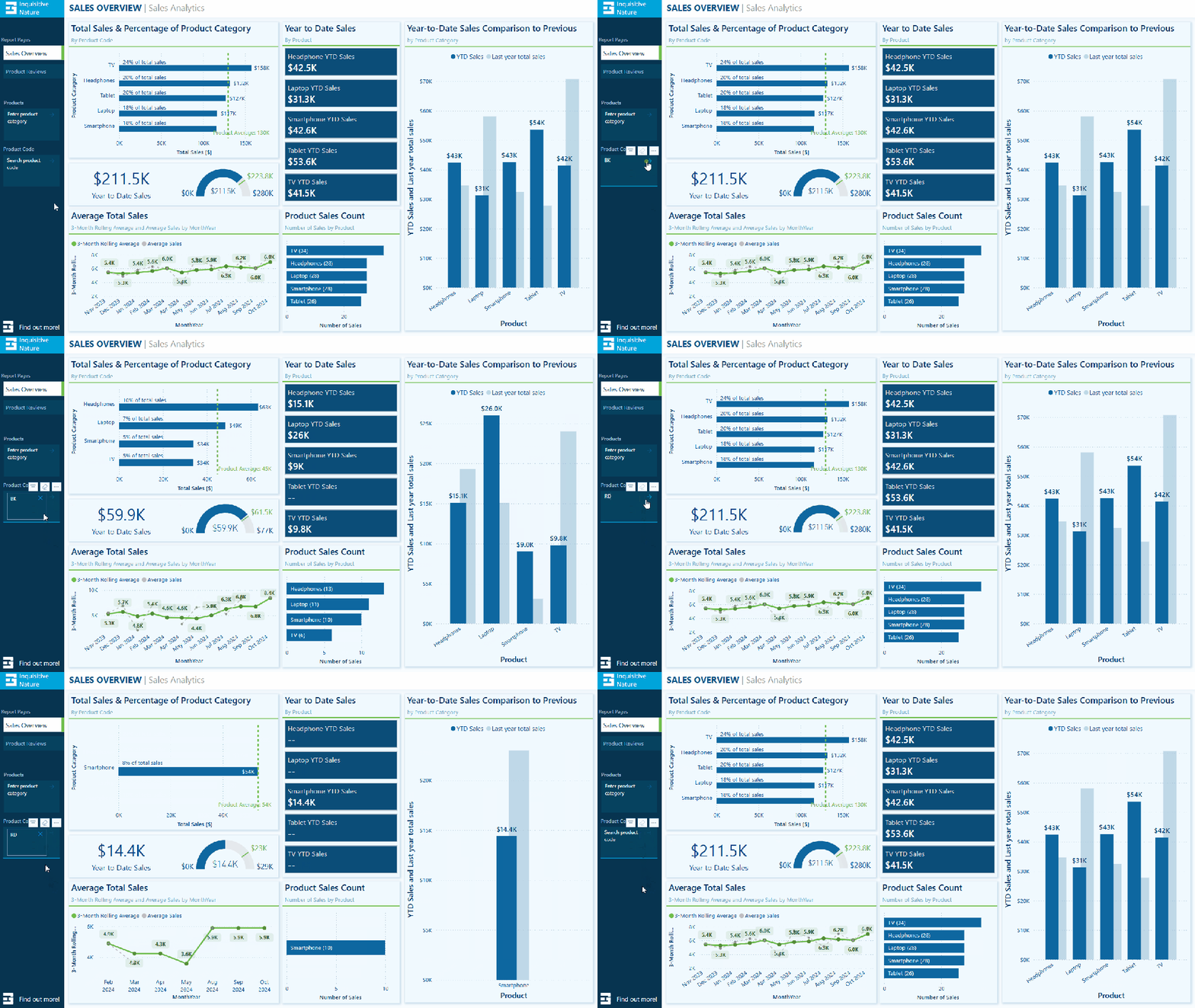
My sample dataset includes product sales, with each product assigned to a specific category. We can use the text slicer to filter the data by product category, such as “Laptop.”

After entering and applying the desired input, the text slicer quickly filters the report page to display only the specified product category. Once the filter is applied, clicking the dismiss (“X”) button will remove it and return to the full dataset.

Filtering our dataset using the text filter alongside the product category yields the same results as using the standard slicer. However, unlike the standard slicer, which displays all categories, the text slicer allows users to type and filter to the desired category directly.

This feature is handy when there are numerous categories to choose from, as scrolling through the list can be time-consuming. Additionally, the text slicer does not require users to toggle on a search functionality like the standard dropdown-styled slicer. With the text slicer, users can enter the category, apply the filter, and quickly narrow the report to the relevant sales data.

This application serves as a good introduction to the functionality of the text slicer and provides a useful comparison with the standard slicer.

Filter on Parts of a Product CodeExplore data without a standalone field

The Products table in the dataset contains product codes that have embedded information, such as the product’s color code. The text slicer offers a quick and effective solution for filtering on this embedded information.

For instance, a product code like SM-5933-BK includes the color code “BK,” which signifies the color black. Using a text slicer on the product code field with the input “BK,” we can filter all products linked to the color black without needing a separate product color filtering dimension in the data model.

The text slicer in this scenario helps us better utilize the data in our dataset to analyze sales data.

Removing the need to extract the color code and add extra filtering dimensions to the data model can be beneficial, especially in cases where changes to the data model are not allowed.

Search and Filter Product Review – Analyze long-form text fields

The sample dataset includes a table of product reviews. The text slicer allows us to filter by keywords, enabling exploration and analysis of specific feedback. For instance, entering the keyword “battery” filters the report page to only the reviews that mention battery across all products.

This allows decision-makers to concentrate on relevant reviews, recognize trends, and extract insights regarding common issues or exceptional features.

Since the text slicer is currently a preview feature, I am not prepared to incorporate it into any production reports just yet. However, I find the potential it offers for our reports intriguing. A current limitation of the text slicer is it only allows us to input a single text input, limiting our ability to search a variety of related terms. I look forward to seeing how it develops with the introduction of new properties and functionalities.


DAX Query View Quick Queries: Define new measure

With the November 2024 update, the DAX query view quick queries options were updated and now include a define new measure option. Quick queries boost productivity for common tasks and can be further modified. Adding the ability to define a new measure to the quick queries options will aid in streamlining workflows in Power BI.

This option, available through the context menu of tables and columns, generates a query-scoped DAX measure formula framework, allowing us to modify and execute custom measures with minimal setup.

For instance, the Review Count visual utilizes the implicit count of Review IDs to show the number of reviews for each product category. We can quickly and easily use the Define a new measure option to create our DAX formula syntax to get started creating an explicit summary measure to add to this visual. After customizing the formula for our specific measure, we can view the results and update the data model accordingly.

This simple and clear example demonstrates how quick queries can assist us in starting common tasks. We can easily expand on this foundation to develop more complex calculations and measures to enhance our data model.

To learn more about working with DAX query view, check out the Work with DAX query view documentation.


Wrapping Up

The new text slicer preview feature in the November 2024 Power BI update is an exciting addition. It will be interesting to see how this feature develops over time. Once fully implemented, its ability to provide quick and intuitive filtering will enhance user interactivity, making it a valuable tool for dynamic and user-friendly reporting.

The new “Define a new measure” quick query option in DAX query view is a helpful addition. This feature allows us to quickly create new measures by providing a starting point for the syntax needed to create a query-scoped measure DAX formula.

Power BI updates continually transform how we explore and analyze data, enabling us to create more compelling and interactive reports. By experimenting with the text slicer and other new features, we can gain a better understanding of how to fully utilize them in our reports.

Check out the Power BI November 2024 Feature Summary for more details and updates.


Thank you for reading! Stay curious, and until next time, happy learning.

And, remember, as Albert Einstein once said, “Anyone who has never made a mistake has never tried anything new.” So, don’t be afraid of making mistakes, practice makes perfect. Continuously experiment, explore, and challenge yourself with real-world scenarios.

If this sparked your curiosity, keep that spark alive and check back frequently. Better yet, be sure not to miss a post by subscribing! With each new post comes an opportunity to learn something new.


Power BI Feature Spotlight: Marker Enhancements


With each update, Power BI continues to grow its feature set, offering more options to improve how we present our data to our report viewers. The October 2024 update included enhancements to data markers in our line and scatter visuals.

Data markers can easily be overlooked, but they effectively draw the report viewer’s attention to critical data within our visuals. This update introduces new options and flexibility to customize these data point markers within our line and scatter visuals.

In this post, we will examine these new options and their benefits, providing practical examples to demonstrate how to maximize these updates in your Power BI reports.


What’s New with Marker Enhancements

The enhancements to the markers provide us with a broader toolkit to emphasize specific data points and series. The updates allow us to customize markers for individual categories as well as for the entire series, opening up new opportunities to highlight trends, make comparisons, and showcase key insights.

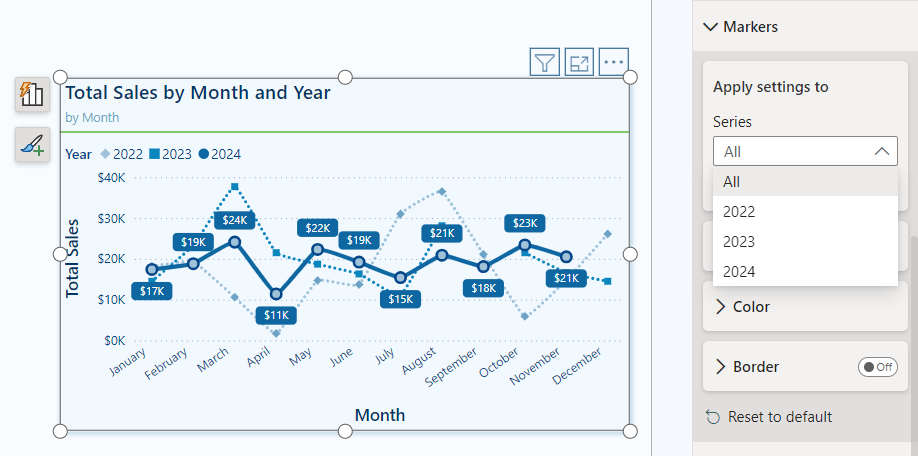
Our markers for line and scatter charts can be customized in two ways.

Categories: When our visual does not include individual series, the Markers dropdown menu shows the categories represented on the x-axis. This feature allows us to adjust the markers for each data point based on its category. We can use this option to highlight specific time periods or product categories within our dataset.

Series: When our visual includes a series legend, the Markers dropdown menu displays the available series. By selecting a series, we can customize the markers for the entire series. This modification enables us to create more cohesive visual indicators that distinguish between different series, rather than relying solely on color differences.

New Formatting & Customization Options

Our line and scatter visuals now include three additional formatting options for our data markers.

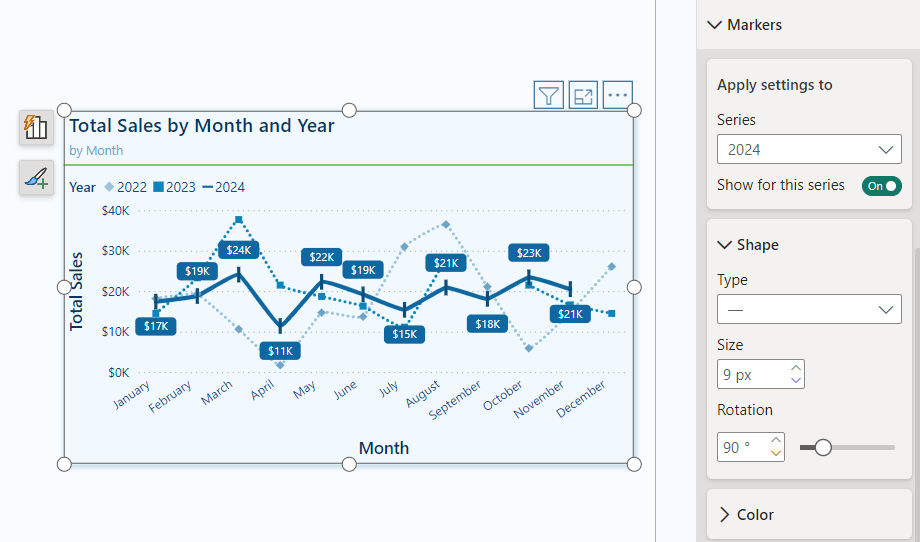
Shape: We can modify the shape and size of our markers, and now we can also rotate the shape (with the exception of circle markers) within our line and scatter marker properties. This added feature allows us to create unique shapes for different data series, offering greater variety in representation.

Color: Alongside the new shape properties, we now have improved color options for our markers. We can adjust the transparency of markers on a per-category or per-series basis. This flexibility enables us to present details subtly without overwhelming the visual impact.

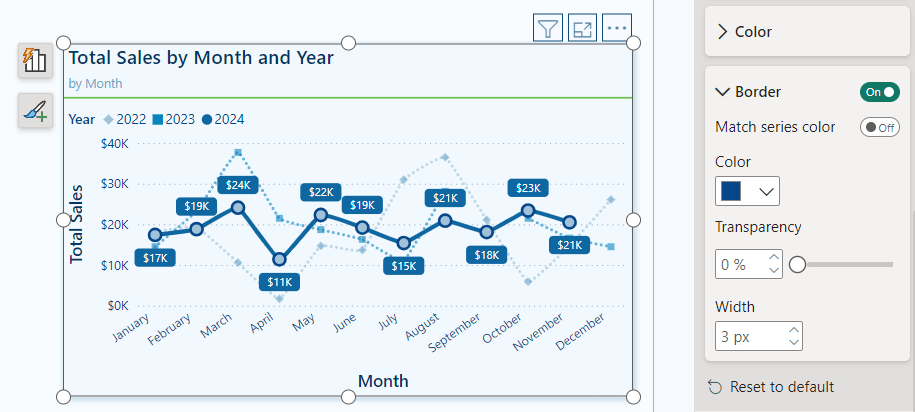
Border: Marker borders are a new customization feature that lets us tailor our markers according to our preferences. We can add borders to specific categories, series, or to all markers within the visual. These border options are excellent for adding depth to our visuals and for highlighting specific data points.

Practical Applications: Marker Customization

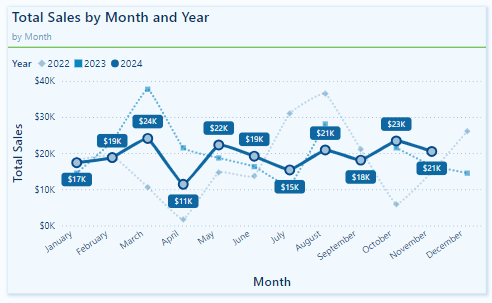
These new marker customizations offer a wide range of possibilities for enhancing visuals in our Power BI reports. Below is a visual representing Total Sales by Month, showcasing various options for using markers to highlight specific trends and series.

In this example, the marker properties are adjusted for each series to ensure they are visually distinct from one another, not just by color.

The markers for the 2022 and 2023 series are displayed with a transparency level set to 40%. This subtle adjustment allows viewers to see historical data without overshadowing the 2024 data, making it easier to focus on the current year’s trends while still retaining reference to past data when necessary.

For the 2024 series, the markers have a border that matches the line series color and a lighter blue fill. This combination draws attention to each data point, emphasizing it against the more muted markers of the previous years.


Recommendations for Using Markers in Power BI Visuals

With the expanded marker customization options in Power BI, it can be easy to overdo it. To use these enhancements effectively, it’s important to follow some recommended best practices.

Markers are useful tools for emphasizing data; however, overusing or misapplying them can lead to visual clutter, negatively affecting the clarity of our reports. Here are some guidelines for using markers in Power BI visuals:

Use sparingly: Avoid placing markers on every data point unless necessary. Instead, use markers to highlight the most critical data series or points.

Consistency is key: When using markers across multiple visuals in a report, keep the sizes, shapes, and colors consistent. This creates a cohesive visual experience and makes it easier for viewers to interpret data across different visuals.

Accessibility: To ensure our visuals are accessible to all users, choose marker colors, sizes, and shapes that stand out clearly. Do not rely solely on color to differentiate data point markers. Utilizing the new shape rotation and border properties can help make markers more distinguishable.

Transparency and emphasis: Carefully adjust the transparency properties to emphasize certain data points while minimizing visual noise.

Borders for added contrast: Using borders can effectively create contrast between data points. Contrasting border colors can help them stand out, drawing viewers’ attention to the most critical data.


Wrapping Up: Power BI Marker Enhancements

The recent marker enhancement update in Power BI introduces greater customization and flexibility for line and scatter charts. With increased control over marker shapes, transparency, borders, and settings specific to each series, we can better highlight key data points.

While these marker enhancements are beneficial, an additional feature that could improve our marker customization is the ability to apply conditional formatting directly within the marker properties. This would streamline the process of highlighting specific data points that meet certain conditions, eliminating the need for separate DAX measures or other workarounds.

Power BI updates continue to empower us to craft compelling data stories. By experimenting with the new marker options, we can fully leverage the customization capabilities that Power BI provides. For more details and additional updates, check out the Power BI October 2024 Feature Summary.


Thank you for reading! Stay curious, and until next time, happy learning.

And, remember, as Albert Einstein once said, “Anyone who has never made a mistake has never tried anything new.” So, don’t be afraid of making mistakes, practice makes perfect. Continuously experiment, explore, and challenge yourself with real-world scenarios.

If this sparked your curiosity, keep that spark alive and check back frequently. Better yet, be sure not to miss a post by subscribing! With each new post comes an opportunity to learn something new.

Design Meets Data: A Guide to Building Engaging Power BI Report Navigation


Before we begin developing the navigational element of our reports, we must decide what tools to use. The Design Meets Data series started with two previous posts in which we explored two approaches: using Figma to design and customize our navigation and using Power BI’s built-in shapes, bookmarks, and buttons to create a similar experience with native tools.

From Sketch to Screen: Bringing your Power BI report navigation to life for an enhanced user experience.

User-Centric Design: Next level reporting with interactive navigation for an enhanced user experience

This post will explore using Power BI’s Page Navigator to simplify our navigation setup. Each approach has its own level of flexibility and ease of maintenance, so it’s important to choose the right method based on the project’s requirements.


The Power BI Page Navigator

Power BI’s Page Navigator lets us create a dynamic and interactive navigation menu in our reports. It is an out-of-the-box solution that simplifies the navigation experience.

Since the Page Navigator is a native feature, it requires minimal setup and automatically adjusts when new pages are added to the report. However, some adjustments may still be needed, such as resizing or formatting changes to accommodate report updates.

To add a Page Navigator to our report, we go to the Insert tab in Power BI Desktop, then select Navigator > Page navigator under the Buttons dropdown.

Customization Options

Power BI provides various options to customize the appearance of our Page Navigator, such as changing the font, colors, shapes, borders, and even what pages are listed. This allows us to create a navigational element that fits seamlessly within our report’s aesthetic.

Although the design flexibility is not as extensive as in our previous example using Figma, the Page Navigator option strikes a balance between ease of use and visual appeal.


Building the Navigation Pane

Now that we have covered the basics of the Page Navigator, we can begin building the navigation pane for our report. The navigation pane will be located on the left-hand side of our report and will serve as both the page navigation and container for our page slicers.

Below, is the final product. Follow the detailed step-by-step guide provided to create your own navigation pane

Building the navigation pane

We begin building the navigational pane on the left-hand side of our report canvas. First, we add a rectangle to the report canvas and style it to meet our needs. The navigation pane has a height equal to the report canvas and a width of 140. We set the fill color to dark blue, which is our Theme 1, 50% darker.

Next, we add a rectangle at the top of the navigation pane to provide an accent and space for displaying an organizational logo within our report. This rectangle has a height of 40 and a width of 140, and its fill color is set to the accent color of our report theme.

With the basic structure of our navigation pane in place, we then move on to adding the Page Navigator.

Formatting the Page Navigator

We begin by selecting the Insert tab on the main ribbon. Then, under the Button dropdown, select Navigator > Page navigator.

Once the Page Navigator is added to the report canvas, go to the Format pane and select Vertical from the Orientation dropdown under the Grid layout property.

Under the Pages property, we find options to control what pages are displayed within our report navigation. In the Options group, we can set general options such as Show hidden pages, Show tooltip pages, and Show all by default. Additionally, in the Show group, we can explicitly set which pages are shown in the navigation by using the toggles next to each report page.

Once our navigation displays the required pages, we adjust the width of the navigator object to 130 and the height to 105. Note that the height should be adjusted based on the number of pages in the navigation. In this example, we use a basic calculation to calculate the height by multiplying the number of pages by 35 ( 3 pages x 35 = 105).

Lastly, we set the horizontal position of the navigator object to 10 and the vertical position to 100.

Styling the Page Navigator

Once we finish the basic formatting, we customize the navigator to match the look of our report. Our aim with the styling is to make it easier to identify the current page.

We do this by adjusting the Style properties of the Page Navigator and using the Apply settings to State dropdown.

Below are the key differences between our page navigator’s Default, Hover, Press, and Selected states.

Default
Text > Font: Segoe UI
Text > Font Color: light blue, Theme color 1, 60% lighter
Text > Horizontal alignment: left
Text > Padding: left 5 px
Fill > Color: dark blue (#06435F)
Border: off
Shadow: off
Glow: off
Accent bar: off

Hover
Text > Font: Segoe UI Semibold
Text > Font Color: white
Text >Horizontal alignment: left
Text> Padding: left 5 px
Fill > Color: dark blue, Theme color 1, 25% darker
Border: off
Shadow: off
Glow: off
Accent bar: off

Press
Text > Font: Segoe UI Semibold
Text > Font Color: dark blue, Theme color 1, 50% darker
Text >Horizontal alignment: left
Text> Padding: left 5 px
Fill > Color: white
Border: off
Shadow: off
Glow: off
Accent bar: off

Selected
Text > Font: Segoe UI Semibold
Text > Font Color: dark blue, Theme color 1, 50% darker
Text >Horizontal alignment: left
Text> Padding: left 5 px
Fill > Color: white
Border: off
Shadow: off
Glow: off
Accent bar > Position: right
Accent bar > Color: accent green (#6CBE4B)
Accent bar > Width: 6px

After configuring all the styling options, our report page will have an engaging and interactive navigation panel.


Comparing the Approaches

When building a navigational component within our reports, we have a wide variety of options and approaches to choose from. Each report has unique requirements, so it’s important to compare and contrast these different approaches based on performance, ease of maintenance, and design flexibility.

Performance Comparison

Figma: Our Figma-based designs require importing images into Power BI. This can improve the load time of our reports because the report does not have to render each shape and component independently.

Power BI Native Shapes and Buttons: This option has the advantage of only requiring our development work to occur in Power BI. However, each shape and component added to build our navigation pane has to be loaded each time our report page is viewed.

Page Navigator: This offers a fully integrated approach with minimal overhead. However, we lose full control over design and aesthetics.

Ease of Maintenance

Figma: Our Figma-based approach is the most complex to maintain. Every design update requires going back to Figma, redesigning, re-exporting from Figma, and re-importing and integrating into our Power BI report.

Power BI Native Shapes and Buttons: This approach has the advantage of only using Power BI to maintain our navigational element but still requires manual updates when adding or removing pages from our report.

Page Navigator: This is the easiest option to maintain because the page navigator updates with any page additions or changes. However, the size of the object may still need to be adjusted.

Design Flexibility

Figma: Offers the highest level of design customization. We can create any design we can think up, however, this comes with added complexity and time requirements.

Power BI Native Shapes and Buttons: Provides us more flexibility than the page navigator, allowing us to customize our design and layout. However, we may still encounter design limitations depending on the options provided by Power BI.

Page Navigator: The most straightforward to implement but offers limited customization options, which restricts design flexibility. It prioritizes ease of maintenance over complex designs.


Final Thoughts

Deciding on the proper navigation for our Power BI reports depends on balancing design flexibility, ease of maintenance, and performance. Leveraging Figma allows for fully custom designs but comes with more complex maintenance. Power BI offers various native tools to help design navigational elements, although building a custom navigational pane will still require manual updates. Power BI’s Page Navigator stands out for its simplicity, dynamic updating, and minimal maintenance effort. However, the cost of the simplicity is limited customization and design flexibility.

The Design Meets Data series explored three approaches to building a Power BI report navigational pane.

From Sketch to Screen: Bringing your Power BI report navigation to life for an enhanced user experience.

User-Centric Design: Next level reporting with interactive navigation for an enhanced user experience

There are seemingly endless other approaches to creating this critical part of our Power reports. How do you approach your report’s navigation?


Thank you for reading! Stay curious, and until next time, happy learning.

And, remember, as Albert Einstein once said, “Anyone who has never made a mistake has never tried anything new.” So, don’t be afraid of making mistakes, practice makes perfect. Continuously experiment, explore, and challenge yourself with real-world scenarios.

If this sparked your curiosity, keep that spark alive and check back frequently. Better yet, be sure not to miss a post by subscribing! With each new post comes an opportunity to learn something new.

Explore Power BI Core Visualizations: Part 3 – Pie, Donut, and Treemap


Pie, Donut, and Treemap charts can be helpful tools when we need to show how different parts contribute to a whole. Pie charts represent data as slices of a circle and show the relationship of parts to a whole. Donut charts are similar to pie charts. However, their center is blank, providing space to add a label or other icon. Treemap charts use nested rectangles to visualize each level of hierarchy in our data.

These charts can be helpful for specific visualizations, but it is important to recognize their limitations. As with all of our data visualization tasks, choosing the right type of visual is essential. To explore bar and column charts, visit Part #1 of this series, and to learn more about line and area charts, check out Part #2.

Chart your data journey! Transform data into insights with Power BI core visualizations. 

Chart your data journey! Transform data into insights with Power BI core visualizations. 


Customizing Pie Charts

Customizing our pie charts enhances their clarity, making it easier for our report viewers to interpret the data.

Adjusting Colors

The color choices used in our pie charts play a crucial role in their readability. Within the Slices property of our Pie chart, we can customize the colors used for each slice. When selecting colors, we should ensure they are visually distinct and that the colors used for our data categories are consistent across all visuals on the page and within the report.

We set the color of our slices in the Format pane, under the slices section. Here, we will find each data category included in the chart, and we can explicitly see the color.

Formatting Data Labels

The data labels on our pie charts help convey important insights to our viewers. Within the Data label properties of our pie chart we find several options to edit and format our data labels. We have options to set the position of our data labels (e.g. outside, prefer inside), what information to display such as category name, values, or percent of total, and under the Value grouping, we can format the text of the data labels.

Using a combination of these properties, we can make our charts more informative at a glance. For example, we can improve the above plot by displaying the category name and percent of total directly on our chart.

It is important to be cautious when using data labels. We want to provide essential information without overcrowding the chart with too much text. Adjusting the font size, background, font color, and label position can help us maintain a clean and organized look.

Using Legends Effectively

Our data labels display information directly on our charts, while legends offer a clean way to display what data category corresponds to which chart slice. Within the Legend properties we can set the position of the legend, set the title, and format the text and title of the legend.

We can update the Pie chart above to display the legend and then update the data label to display the total sales value and the percent of total value.

When using pie charts, it is important to limit the number of categories to ensure clarity. Pie charts are most effective when displaying data with no more than a few slices. If this cannot be accomplished, it’s best to consider other visuals to provide our insights.


Customizing Donut Charts

Donut charts provide an alternative to pie charts, with the added benefit of a central blank space. This space can be used for a variety of purposes or left blank. By customizing our donut charts, we can enhance their effectiveness and make them more informative and engaging.

Like pie charts, donut charts allow us to set the color of each chart slice, use data labels to provide additional information and position the legend to provide additional context.

Donut charts also offer additional properties we can customize to enhance these charts even further.

Modifying the Inner Radius

One of the main differences between our pie and donut charts is the open area in the center. Within the Slices property grouping, we will find a Spacing option. Here, we can adjust the inner radius, controlling how wide or narrow the chart’s ring appears.

Increasing this value creates a more pronounced donut shape, which can help draw viewers’ attention to the center of the chart. Decreasing this value makes the chart look more like a traditional pie chart.

Donut charts can be helpful when we need to compare proportions while also displaying an aggregate metric that we can place in the open center of the visual. However, like pie charts it is important to only use these charts when there is a small and manageable number of segments. When there are too many segments, donut and pie charts become cluttered and difficult to interpret.

When using these comparison charts, we should aim for simplicity and clarity.


Customizing Treemap Charts

Treemap charts are useful when visualizing hierarchical data. They allow us to display a large amount of information in a compact space. Each category in the visual is represented by a rectangle, the size of which reflects the category’s value.

Treemap charts offer various properties that we can customize to enhance their clarity, ensuring they effectively convey complex data structures and insights.

Adjusting the Colors

In our treemap visuals, colors distinguish between our different categories. Like in our other charts, we can set the color for each category, and it is important that this color selection is consistent across all visuals within our report. For example, we can create a treemap of our Total Sales by product category and product code and set the colors for each category to ensure visual consistency.

Setting Labels and Viewing Tooltips

Like many of our other Power BI visuals, Treemap visuals allow us to customize visual labels and tooltip properties to improve the readability of our visuals. Labels on our visuals provide context by displaying category names and values directly within each rectangle. By using the options available under the data labels and categories labels we can adjust the font size, color, display units, and the number of decimal places to improve the clarity of our visual.

We will use these properties to improve the treemap above by increasing the font size and weight of the category labels so they are easily identifiable. We will also turn on data labels to provide our viewers with precise information for the largest contributors.

Tooltips are another feature common across our Power BI visuals that adds an interactive element to our reports and can provide our viewers with additional information. When a user hovers over a rectangle, a tooltip appears, providing them with information about that category. Additionally, the information included within the tooltip can be customized to provide further context, such as percentages or other metrics.

In treemaps, some rectangles may be too small to display the data label, and tooltips become a valuable asset for delivering details without cluttering the visual.

Using Drill-Down Features

One strength of treemaps is their ability to represent hierarchical data. Power BI’s drill-down functionality lets us explore these hierarchies in detail. A user can use the drill-down feature to drill into the next level of the hierarchy, focusing on the subcategories or finer details of the data.

Drill-down features provide our viewers with another interactive element, allowing them to explore the dataset at multiple levels without overwhelming them with too much information upfront.

In our example treemap above, the first-level category is Product, and the second is Region. This allows our viewers to drill into a product category to view the distribution of product sales across sales regions.

Treemap charts can be a helpful tool for comparing proportions within hierarchical data. However, they are most effective when the differences in value between categories are significant. When all categories are similar in size, the visual can be difficult to interpret, so it is important to evaluate whether a treemap is appropriate for each use case.


Advanced Techniques and Customizations

Current Year Sales by Product Selection

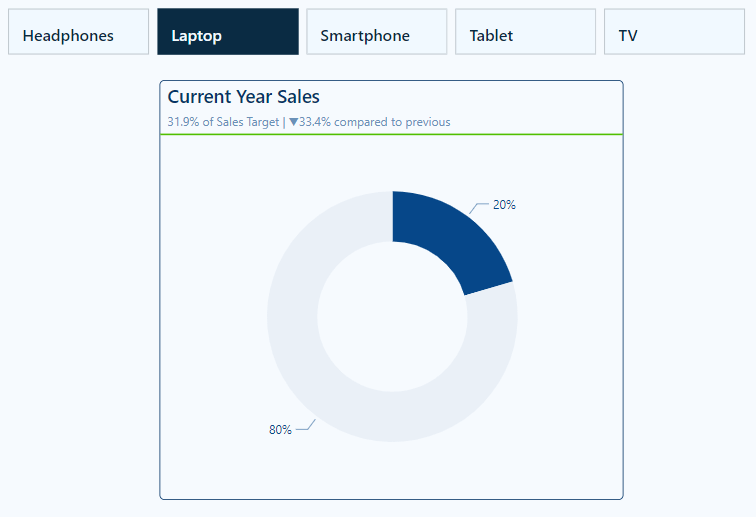
The Current Year Sales donut chart helps visualize how a selected product contributes to the total current year sales.

To build this visual, we first, create two measures: Total Sales CY and Remaining CY Sales.

The Total Sales CY measure calculates the current year’s total sales, and the Remaining CY Sales calculates the difference between the total sales of all products and the selected product’s sales.

Total Sales CY = TOTALYTD([Total Sales], DateTable[Date])
Remaining CY Sales = 
VAR _allSales = CALCULATE([Total Sales CY], ALL(Sales))

RETURN
_allSales - [Total Sales CY]

We then add these two measures to our donut chart’s Values property and set the color of the Total Sales CY to a dark blue and Remaining CY Sales to a light gray.

We then turn off the legend, and update the data labels to show only the percent of total value.

Next, we create a new measure that will be used for the visual subtitle. The subtitle provides additional context by showing how close the product’s sales are to hitting a sales target, and how this year’s sales compare to last year’s sales for the same period of time.

Product Sales Subtitle = 
VAR _lyYTDSales = 
   TOTALYTD(
      [Total Sales],
      DATESBETWEEN(
         DateTable[Date], 
         DATE(MAX(DateTable[Year])-1, 1, 1), 
         DATE(YEAR(TODAY())-1, MONTH(TODAY()), DAY(TODAY()))
      )
   )
VAR _compare = 
   [Total Sales CY] - _lyYTDSales
VAR _percentDiff =
    _compare/((_lyYTDSales+[Total Sales CY])/2)

RETURN
FORMAT(
   [CY Sales Percent of Target], "0.0%") 
   & " of Sales Target | " 
   & IF(_compare<0, "▼", "▲") 
   & FORMAT(ABS(_percentDiff), "0.0%") & " compared to previous"

Lastly, we use the empty center of the donut chart to provide additional details to our viewers. Here, we display the total sales value for the selected product and add a dynamic label to clearly show what the sales value represents.

To do this we create another measure to dynamically update based on user selections. The Selected Product measure shows “All Products” when there is no product selection; otherwise, it displays the selected product name, or when there are multiple selections, it displays a list of all the selected products.

Selected Product = 
IF (
    ISFILTERED ( Products[Product] ),
    IF (
        HASONEVALUE ( Products[Product] ),
        VALUES ( Products[Product] ),
        CONCATENATEX ( 
            ALLSELECTED ( Products[Product] ), 
            Products[Product], 
            ", "
        ) & " Sales"
    ),
    "All Products"
)

Current Year Regional Sales

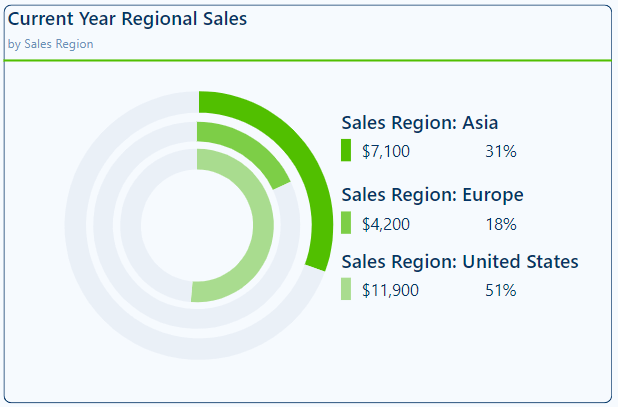
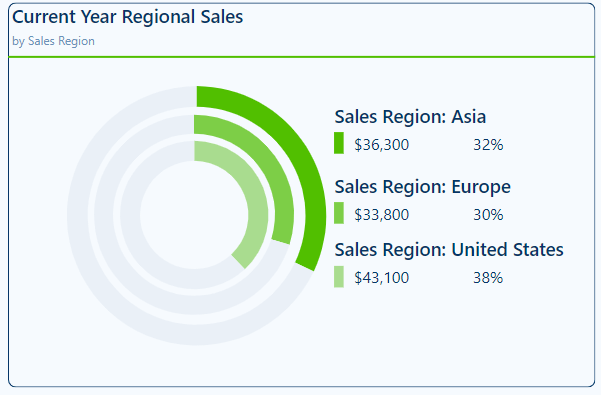
The Current Year Regional Sales donut chart compares sales across different sales regions.

We start building this chart with a series of measures. First, a set of measures calculating the current year sales for each region.

Asia Sales CY = CALCULATE([Total Sales CY], Regions[Region]="Asia")
Europe Sales CY = CALCULATE([Total Sales CY], Regions[Region]="Europe")
US Sales CY = CALCULATE([Total Sales CY], Regions[Region]="United States")

Then, we add another set of measures calculating the difference between the total sales and the region-specific sales.

Asia Sales CY Diff = [Total Sales CY] - [Asia Sales CY]
Europe Sales CY Diff = [Total Sales CY] - [Europe Sales CY]
US Sales CY Diff = [Total Sales CY] - [US Sales CY]

Similar to the visual above, we add the region-specific measures to a donut chart and format them to appear as concentric donut charts. This is done by turning off the border and background of the two inner donut charts and resizing them.

Next, we build a customized legend element that not only shows the total sales for each region but also the percentage that each region contributes to the overall sales. The percentage of overall sales is calculated using 3 new measures.

Asia CY % Sales = DIVIDE([Asia Sales CY], [Total Sales CY])
Europe CY % Sales = DIVIDE([Europe Sales CY], [Total Sales CY])
US CY % Sales = DIVIDE([US Sales CY], [Total Sales CY])

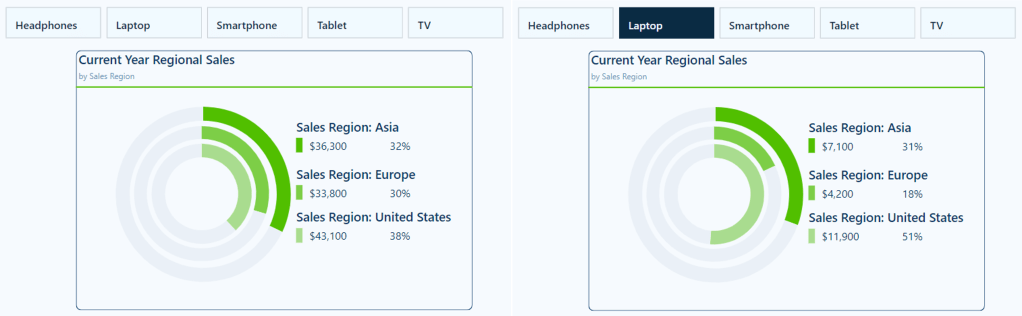
This visual is also dynamic based on the user interaction and selections made on the product slicer.

This visual provides our viewers with a quick comparison of regional sales. It clearly shows the sales distribution across our regions, allowing our viewers to identify which regions have the highest or lowest sales.


Wrapping Up

In this part of the series, we explored Pie, Donut, and Treemap charts and how to effectively use and customize these visuals in our Power BI reports. Pie and Donut charts can be helpful tools when displaying proportions but should be used selectively when comparing only a few categories. Treemap charts excel at displaying hierarchical data and provide us with a compact and insightful way to visualize this data.

While these visuals can prove to be just the right fit for a given requirement, they must only be used in the right scenarios, with an emphasis on simplicity and clarity.

In the next part of the series, we will explore Power BI’s Gauge, Card, and KPI visuals. These visuals help us display metrics and provide at-a-glance insights into key data points.


Thank you for reading! Stay curious, and until next time, happy learning.

And, remember, as Albert Einstein once said, “Anyone who has never made a mistake has never tried anything new.” So, don’t be afraid of making mistakes, practice makes perfect. Continuously experiment, explore, and challenge yourself with real-world scenarios.

If this sparked your curiosity, keep that spark alive and check back frequently. Better yet, be sure not to miss a post by subscribing! With each new post comes an opportunity to learn something new.
Power Query Functions: Building Flexible and Reusable Data Cleaning Routines


When extracting and transforming data in Power BI, we often repeat the same steps across different projects. This repetition raises the question: can these steps be generalized and reusable in future projects?

This post will explore a solution that breaks down these steps into flexible and reusable parameters and functions, eliminating the need to recreate these common steps across our projects. The solution leverages parameters, functions, and queries to standardize various parts of our data preparation process when CSV files in a SharePoint document library are the data source.

Don’t just read; get hands-on and view all the details in the template report available here:

This repository provides a Power BI template and sample CSV files for automating and standardizing CSV data transformation from SharePoint using Power Query functions.


Power Query Parameters

Parameters help keep our data preparation process as dynamic as possible. They provide a level of flexibility to our Power Query functions and allow us to modify their behavior without altering the underlying function definition. This flexibility enables this solution to adapt to different requirements and increases the reusability of our work.

In our solution, 7 parameters manage how data is loaded, cleaned, and transformed.

SharePoint Site Url (Text): specifies the SharePoint site URL where the CSV files are stored.

https://yourcompany.sharepoint.com/sites/yoursite

SharePoint Folder Path (Text): defines the folder path within the SharePoint site where the CSV files are located.

https://yourcompany.sharepoint.com/sites/yoursite/yourfolder/

textColumns (Text): a comma-separated list of column names that require text transformations.

Column Name 1, Column Name 2, Column Name 3

textFormatCase (Text): a text value that specifies how text columns should be formatted. Options include Proper, Lower, and Upper case.

columnDataTypes (Text): a semicolon-separated list of column names paired with their corresponding data type description, used to dynamically set the data types of each column.

Column Name 1,date;
Column Name 2,whole number;
Column Name 3,text;
Column Name 4,text;
Column Name 5,text;
Column Name 6,whole number;
Column Name 7,decimal number

errorHandlingOption (Text): sets how errors are handled within the dataset and provides the options of RemoveErrors, ReplaceErrors, or None.

viewErrorSummary (TRUE/FALSE): toggles between displaying a summary of rows that contain errors and returning the cleaned dataset.

Once we create our parameters and set their values, we can reference them throughout our functions and queries. This enables us to adjust the entire data transformation process by updating the parameter values.


Supporting Utility Functions

To enhance the reusability of our Power Query solution, we first break down complex data transformations into smaller, modular functions. Each utility function handles a specific task, improving its maintainability and allowing us to apply them individually or collectively across different datasets.

fxParameterToList

(parameterName as text) as list => 
   List.Transform(Text.Split(parameterName, ","), each Text.Trim(_))

Many of our parameters in this solution are comma-separated strings that we must convert to list objects before using them in a list-based transformation within Power Query. Since many of our parameters and functions require this, creating a function allows us to repeat this operation easily.

The function has a single input parameter (parameterName), a comma-separated string of values. It then splits this input by commas, trims surrounding spaces, and converts the result into a list. This is used when calling and passing parameter values to other utility functions such as fxTransformTextFormat and fxTransformTextTrim.

fxTransformTextTrim

The fxTransformTextTrim function trims any leading and trailing spaces from text values in the specified columns. Trimming can be essential when cleaning user-entered data or other text extracted from external sources.

(inputTable as table, columnsToTrim as list) as table =>
    Table.TransformColumns(inputTable, List.Transform(columnsToTrim, each {_, Text.Trim, type text}))

This function has two input parameters:

  • inputTable: a table containing the data to be trimmed
  • columnsToTrim: a list of text columns that require trimming

The fxTransformTextTrim function applies Text.Trim to each column specified in columnsToTrim, ensuring our text data is clean and consistent.

fxTransformTextFormat

The fxTransformTextFormat function standardizes the case formatting of our text data depending on the caseType input parameter. Depending on our requirements, the function can convert text data to Proper Case, Lower Case, or Upper Case.

(inputTable as table, columnsToTransform as list, caseType as text) as table =>
    let
        // Determine the transformation function based on caseType input
        CaseFunction = if caseType = "Proper" then Text.Proper
                       else if caseType = "Lower" then Text.Lower
                       else if caseType = "Upper" then Text.Upper
                       else error "Unsupported case type: Use 'Proper', 'Lower', or 'Upper'",

        // Apply the selected case transformation to each column in the list
        TransformTextCase = Table.TransformColumns(inputTable, List.Transform(columnsToTransform, each {_, CaseFunction, type text}))
    in
        TransformTextCase

This function has three input parameters:

  • inputTable: a table containing the data to be transformed
  • columnsToTransform: a list of columns that require text formatting
  • caseType: a text value specifying the desired text format (Proper, Lower, or Upper)

Using the caseType parameter, the function identifies the transformation type and then applies the transformation to the specified columns.

fxTransformRemoveDuplicates

The fxTransformRemoveDuplicates is a straightforward function that removes duplicated rows within our dataset.

(inputTable as table) as table =>
Table.Distinct(inputTable)

This function has a single parameter:

  • inputTable: a data table to remove duplicate rows from

The function uses Table.Distinct to identify and remove duplicated rows and returns a table with each row being unique.

fxTransformSetDataTypes

The fxTransformSetDataTypes function maps a textual description of the data type to the Power Query data type. The function allows dynamically setting column data types based on our columnDataTypes Power Query parameter.

(columnType as text) as type =>
    let
        lowerColumnType = Text.Lower(columnType),
        columnTypeResult = 
            if lowerColumnType = "decimal number" then type number
            else if lowerColumnType = "fixed decimal number" then type number
            else if lowerColumnType = "whole number" then Int64.Type
            else if lowerColumnType = "percentage" then type number
            else if lowerColumnType = "date/time" then type datetime
            else if lowerColumnType = "date" then type date
            else if lowerColumnType = "time" then type time
            else if lowerColumnType = "date/time/timezone" then type datetimezone
            else if lowerColumnType = "duration" then type duration
            else if lowerColumnType = "text" then type text
            else if lowerColumnType = "true/false" then type logical
            else if lowerColumnType = "binary" then type binary
            else type text // Default to text if the type is unrecognized
    in
        columnTypeResult

The function has a single input parameter:

  • columnType: a text value of the data type to set for a column

This function helps us leverage common textual descriptions to set Power Query data types across our dataset columns.

fxErrorHandling

The fxErrorHandling function allows us to manage how our dataset handles errors based on our requirements. We can use the function’s input parameter to remove rows containing errors, replace error values with null, or retain the errors within the dataset.

(inputTable as table, errorHandlingOption as text) as table =>
let
    ErrorRows = Table.SelectRowsWithErrors(inputTable),
    
    // Determine the action based on the error handling option provided
    ErrorHandlingResult = 
    if errorHandlingOption = "RemoveErrors" then
        // Remove rows with any errors
        Table.RemoveRowsWithErrors(inputTable)
    else if errorHandlingOption = "ReplaceErrors" then
        // Replace errors with a specified value (default is "Error" if replaceValue is not provided)
        let
            ReplaceErrorsStep = 
                let
                    // Get a list of column names
                    columnNames = Table.ColumnNames(inputTable),
                    // Create a list of replacement rules where each column is mapped to null in case of error
                    errorReplacementList = List.Transform(columnNames, each {_, null})
                in
                    Table.ReplaceErrorValues(inputTable, errorReplacementList)
        in
            ReplaceErrorsStep
    else
        // If the parameter is not set correctly, return the data as is
        inputTable,

    Output = if viewErrorSummary then ErrorRows else ErrorHandlingResult
in
    Output

The function has two input parameters:

  • inputTable: a data table to be evaluated for errors
  • errorHandlingOption: specifies how the errors within inputTable should be handled (RemoveErrors, ReplaceErrors, None)

The function also utilizes the viewErrorSummary Power Query parameter. This parameter can be set to TRUE/FALSE and determines whether to return an error summary or the cleaned dataset.

This function identifies rows with errors. Depending on the errorHandlingOption, it will remove the rows containing errors, replace the error values with null, or return inputTable without handling the errors.

If viewErrorSummary is set to TRUE, the function returns only the rows that contain errors, allowing us to inspect the errors further within our dataset.


Core Function – TranformCSV

The fxTransformCSV function is the start of our standardized data processing solution, designed to handle our CSV files in a modular and reusable way.

It takes the raw contents of our CSV files, applies a defined set of transformations, and then outputs a clean data table ready for our analysis. This function leverages the utility functions discussed in the previous section.

(FileContent as binary) =>
let
    //STEP 01: Importing CSV files
    ImportCSV = Csv.Document(FileContent,[Delimiter=",", Encoding=1252, QuoteStyle=QuoteStyle.None]),
    PromoteHeaders = Table.PromoteHeaders(ImportCSV, [PromoteAllScalars=true]),
    
    //STEP 02: Cleaning blank rows/columns
    //Clean blank rows
    RemoveBlankRows = Table.SelectRows(PromoteHeaders, each not List.IsEmpty(List.RemoveMatchingItems(Record.FieldValues(_), {"", null}))),
    //Clean blank columns
    RemoveBlankColumns = Table.SelectColumns(RemoveBlankRows, List.Select(Table.ColumnNames(RemoveBlankRows), each not List.IsEmpty(List.RemoveMatchingItems(Table.Column(RemoveBlankRows, _), {""," ", null})))),
    
    //STEP 03: Replace empty strings with  null
    ReplaceValue = Table.ReplaceValue(RemoveBlankColumns,"",null,Replacer.ReplaceValue,Table.ColumnNames(RemoveBlankColumns)),
    
    //STEP 04: Remove duplicates
    RemoveDuplicates = fxTransformRemoveDuplicates(ReplaceValue),

    //STEP 05: Text transformations
    // Convert the textColumns parameter into a list
    TextColumnsToTransform = fxParameterToList(textColumns),
    // Apply the TrimTextColumns function
    TrimTextColumns = fxTransfromTextTrim(RemoveDuplicates, TextColumnsToTransform),
    // Apply the TransformTextCase function for Proper Case (can also be "Lower" or "Upper")
    FormatTextColumns = fxTransformTextFormat(TrimTextColumns, TextColumnsToTransform, textFormatCase)

in
    FormatTextColumns

Breaking Down fxTransformCSV

STEP 01: Importing the CSV files

The function begins by reading the contents of the CSV files and then promotes the first row to headers.

//STEP 01: Importing CSV files
    ImportCSV = Csv.Document(FileContent,[Delimiter=",", Encoding=1252, QuoteStyle=QuoteStyle.None]),
    PromoteHeaders = Table.PromoteHeaders(ImportCSV, [PromoteAllScalars=true]),

STEP 02: Cleaning blank rows/columns

The next step, which begins our transformation steps, removes any empty rows or columns. By eliminating these blank rows or columns early in our process, we avoid potential issues downstream and reduce clutter in the dataset.

    //STEP 02: Cleaning blank rows/columns
    //Clean blank rows
    RemoveBlankRows = Table.SelectRows(PromoteHeaders, each not List.IsEmpty(List.RemoveMatchingItems(Record.FieldValues(_), {"", null}))),
    //Clean blank columns
    RemoveBlankColumns = Table.SelectColumns(RemoveBlankRows, List.Select(Table.ColumnNames(RemoveBlankRows), each not List.IsEmpty(List.RemoveMatchingItems(Table.Column(RemoveBlankRows, _), {""," ", null})))),

STEP 03: Replace empty strings with null

Empty strings can cause common issues in our analysis. This step replaces empty string values in the dataset with null, making the data more consistent, better understood, and easier to work with.

    //STEP 03: Replace empty strings with  null
    ReplaceValue = Table.ReplaceValue(RemoveBlankColumns,"",null,Replacer.ReplaceValue,Table.ColumnNames(RemoveBlankColumns)),

STEP 04: Remove duplicates

Using the fxTransformRemoveDuplicates utility function, this step removes duplicated rows from the dataset.

//STEP 04: Remove duplicates
    RemoveDuplicates = fxTransformRemoveDuplicates(ReplaceValue),

STEP 05: Text transformations

The text transformations start with trimming our text values to ensure there are no leading or trailing spaces, using the fxTransformTextTrim utility function.

Then, the text values get standardized using the fxTransformTextFormat utility function to make our data more readable and consistent.

//STEP 05: Text transformations
    // Convert the textColumns parameter into a list
    TextColumnsToTransform = fxParameterToList(textColumns),
    // Apply the TrimTextColumns function
    TrimTextColumns = fxTransfromTextTrim(RemoveDuplicates, TextColumnsToTransform),
    // Apply the TransformTextCase function for Proper Case (can also be "Lower" or "Upper")
    FormatTextColumns = fxTransformTextFormat(TrimTextColumns, TextColumnsToTransform, textFormatCase)

Core Function – LoadCSVData

The LoadCSVData function is the layer connecting the different elements of our Power Query solution. It loads multiple CSV files from our SharePoint source, applies the fxTransformCSV function to each file, and handles final data preparations.

This function is adaptable by leveraging Power Query parameters, allowing us to easily modify the data preparation process to meet our project’s requirements (e.g. switching to different SharePoint sites or folders).

() as table =>
let
    
    //STEP 01: Load files from SharePoint
    SharePointSite = SharePoint.Files(#"SharePoint Site Url", [ApiVersion = 15]),
    SharePointFolder = Table.SelectRows(SharePointSite, each ([Folder Path] = #"SharePoint Folder Path")),
    
    //STEP 02: Invoke the fxTransformCSV function for each file
    TransformCSVResult = Table.AddColumn(SharePointFolder, "TransformCSV", each fxTransformCSV([Content])),
    
    //STEP 03: Renaming and removing columns
    // Rename the "Name" column for clarity
    PrefixSouceName = Table.RenameColumns(TransformCSVResult,{{"Name", "source.Name"}}),
    // Remove other columns to focus on the transformed data
    RemoveColumns = Table.SelectColumns(PrefixSouceName,{"source.Name", "TransformCSV"}),
    
    //STEP 04: Expand the transformed CSV data
    ExpandTransformCSV = Table.ExpandTableColumn(RemoveColumns, "TransformCSV", Table.ColumnNames(TransformCSVResult{0}[TransformCSV])),

    //STEP 05: Set data types
    ColumnTypePairs = Text.Split(columnDataTypes, ";"),
    // Trim spaces and split each pair into a list of {column name, data type}
    ColumnTypeList = List.Transform(ColumnTypePairs, each 
        let
            PairParts = List.Transform(Text.Split(_, ","), Text.Trim),
            ColumnName = List.First(PairParts),
            ColumnType = fxTransformSetDataTypes(List.Last(PairParts))
        in
            {ColumnName, ColumnType}
    ),
    // Dynamically set the column data types
    SetDataTypes = Table.TransformColumnTypes(ExpandTransformCSV, ColumnTypeList),

    //STEP 06: Error handling
    ErrorHandlingOutput = fxErrorHandling(SetDataTypes, errorHandlingOption)
in
    ErrorHandlingOutput

Breaking down fxLoadCSVData

STEP 01: Load files from SharePoint

The function begins by connecting to the specified SharePoint site using the SharePoint Site Url parameter. Then, it filters the files to those located within the specified SharePoint Folder Path. Using both parameters allows us to target the specific CSV files required for our analysis.

//STEP 01: Load files from SharePoint
SharePointSite = SharePoint.Files(#"SharePoint Site Url", [ApiVersion = 15]),
SharePointFolder = Table.SelectRows(SharePointSite, each ([Folder Path] = #"SharePoint Folder Path"))

STEP 02: Invoke the fxTransformCSV function for each file

For each file in our SharePoint source, we add a new column and invoke our custom fxTransformCSV function. This step ensures each file is processed consistently.

//STEP 02: Invoke the fxTransformCSV function for each file
TransformCSVResult = Table.AddColumn(SharePointFolder, "TransformCSV", each fxTransformCSV([Content]))

STEP 03: Renaming and removing columns

To improve the clarity of our columns, we renamed the Name column to source.Name, indicating that it represents the original file name. This clearly indicates what this column is while providing information on the file the row of data is associated with.

The function then removes unnecessary columns, and we keep only source.Name and TransformCSV columns.

//STEP 03: Renaming and removing columns
// Rename the "Name" column for clarity
PrefixSouceName = Table.RenameColumns(TransformCSVResult,{{"Name", "source.Name"}}),
// Remove other columns to focus on the transformed data
RemoveColumns = Table.SelectColumns(PrefixSouceName,{"source.Name", "TransformCSV"})

STEP 04: Expand the transformed CSV data

We expand the TransformCSV column into individual files, which compiles all the transformed CSV data into a single table.

//STEP 04: Expand the transformed CSV data
ExpandTransformCSV = Table.ExpandTableColumn(RemoveColumns, "TransformCSV", Table.ColumnNames(TransformCSVResult{0}[TransformCSV]))

STEP 05: Set data types

In this step, the function dynamically sets the data types for each column based on the columnDataTypes Power Query parameter. The TransformSetDataTypes function maps each column to its specified data type.

//STEP 05: Set data types
ColumnTypePairs = Text.Split(columnDataTypes, ";"),
// Trim spaces and split each pair into a list of {column name, data type}
ColumnTypeList = List.Transform(ColumnTypePairs, each 
    let
        PairParts = List.Transform(Text.Split(_, ","), Text.Trim),
        ColumnName = List.First(PairParts),
        ColumnType = fxTransformSetDataTypes(List.Last(PairParts))
    in
       {ColumnName, ColumnType}
),
// Dynamically set the column data types
SetDataTypes = Table.TransformColumnTypes(ExpandTransformCSV, ColumnTypeList)

STEP 06: Error handling

The function concludes by handling errors in the dataset according to the errorHandlingOption parameter. If the viewErrorSummary is set to true, the function returns a summary of rows that contain errors, otherwise it returns the cleaned dataset.

//STEP 06: Error handling
ErrorHandlingOutput = fxErrorHandling(SetDataTypes, errorHandlingOption)

Applying and Extending the Power Query Solution

We have explored and started constructing a flexible approach to standardize and ensure our data preparation steps are applied consistently within and across our Power BI projects.

The final query loaded to our Power BI data model is rpt_SharePointCSVData. This query utilizes the fxLoadCSVData function to bring each step together and deliver a clean and consistent data set to our Power BI report.

let
    Source = fxLoadCSVData()
in
    Source

This simple query calls the fxLoadCSVData function, which loads and processes the CSV files according to previously defined transformations and parameters. The result is a clean, ready-to-use dataset.

This solution is designed to be adaptable and can be applied to different Power BI projects that require loading CSV files from a SharePoint source.

A Power BI template and sample data files are available at the link below to view an example of how this solution can be applied. This file can be used as a starting point for our Power BI projects, or you can copy and paste specific folders or elements of it into an existing project.

This repository provides a Power BI template and sample CSV files for automating and standardizing CSV data transformation from SharePoint using Power Query functions.

To successfully apply this solution:

Start with the Parameters: define the parameters relevant to the project.

Open the template file and, when prompted, populate each parameter with the required information.

For example, the parameters can be set using the sample files to the following.

SharePoint Site Url: 
https://yourcompany.sharepoint.com/sites/yoursite

SharePoint Folder Path:
https://yourcompany.sharepoint.com/sites/yoursite/yourfolder/

textFormatCase:
Proper

textColumns:
Event Name, Location, Organizer Name

columnDataTypes:
Event Date,date;Event ID,whole number;Event Name,text;Location,text;Organizer Name,text;Number of Attendees,whole number;Feedback Score,decimal number

errorHandlingOption:
ReplaceErrors

viewErrorSummary:
FALSE

Then, under the Load dropdown, select Edit to explore this solution in the Power Query Editor.

Once the data is loaded, you can modify the textFormatCase, error handling option, and viewErrorSummary parameters in the Power Query Editor to view the results when you select different options.

Customize the Utility Functions: if different projects have unique requirements, consider modifying or extending the utility functions.

Leverage the modular structure: This solution’s modular design makes adding or removing steps easy based on the project’s specific needs.

Extend with new functions: as our data processing needs evolve, we can extend this solution by adding new functions or adding more flexibility to our existing ones.


Wrapping Up

This post explores a solution that leverages Power Query parameters, functions, and queries to streamline our data preparation process. Combining custom functions with parameters provides us with a framework that can be adapted to meet the demands of different projects.

The design approach used in this solution aims to enhance the maintainability and reusability of each of its components. As we continue to work with and expand this solution, we will build a library of reusable functions to increase our efficiency in future projects.


Thank you for reading! Stay curious, and until next time, happy learning.

And, remember, as Albert Einstein once said, “Anyone who has never made a mistake has never tried anything new.” So, don’t be afraid of making mistakes, practice makes perfect. Continuously experiment, explore, and challenge yourself with real-world scenarios.

If this sparked your curiosity, keep that spark alive and check back frequently. Better yet, be sure not to miss a post by subscribing! With each new post comes an opportunity to learn something new.